Automate WhatsApp booking system with GPT-4 Assistant, Cal.com and SMS reminders
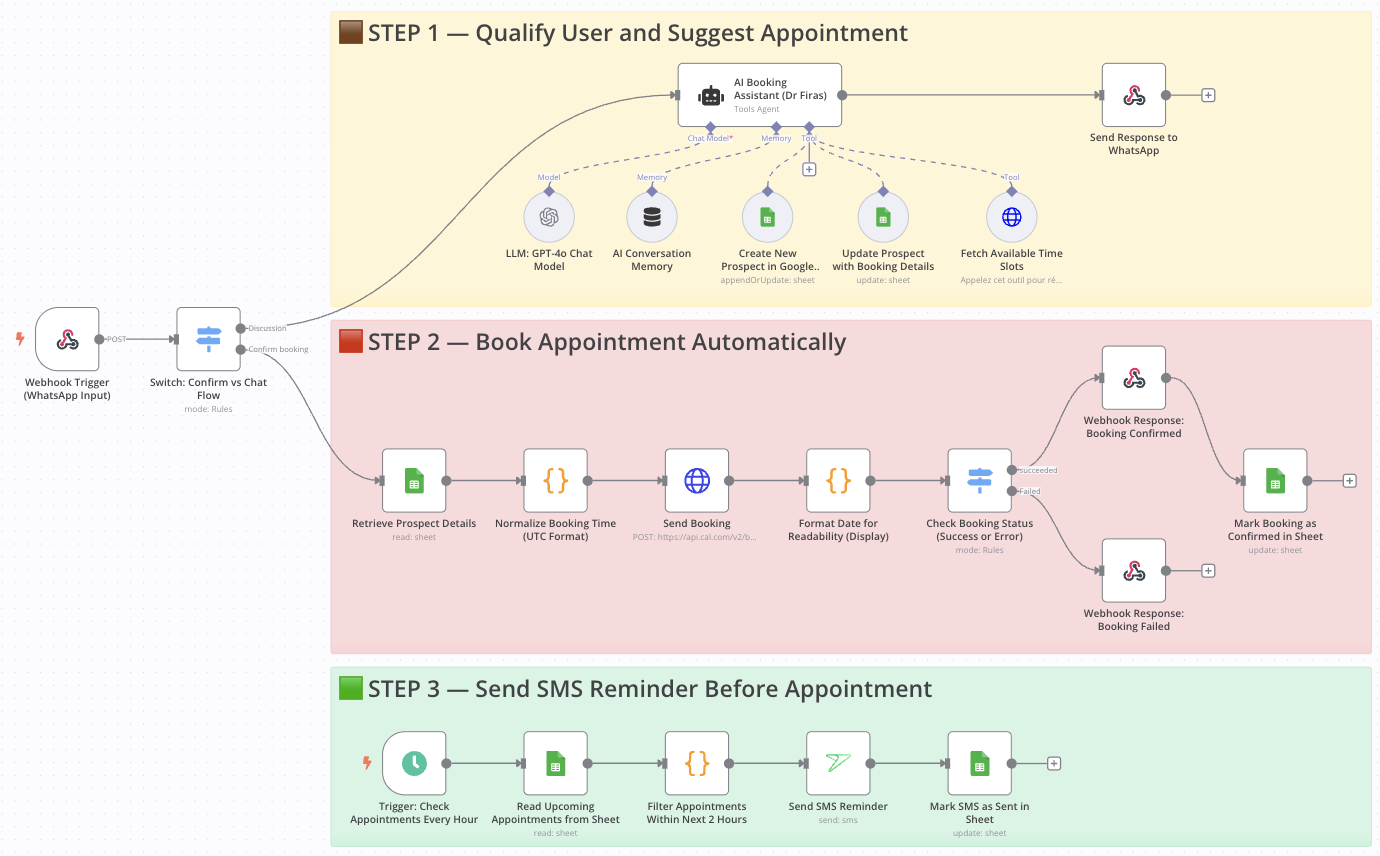
AI-powered WhatsApp booking system with instant SMS confirmations
Who is this for?
This workflow is designed for solo entrepreneurs, consultants, coaches, clinics, or any business that handles client appointments and wants to automate the entire scheduling experience via WhatsApp — without the need for live agents.
What problem is this workflow solving?
Responding to inbound messages, collecting booking details, suggesting available times, and sending reminders can be a huge time drain. This workflow eliminates manual handling by:
- Automating WhatsApp conversations with an AI assistant
- Booking appointments directly into Cal.com
- Sending timely SMS reminders before appointments
It ensures you never miss a lead or a follow-up — even while you sleep.
What this workflow does
From a single WhatsApp message, the workflow:
- Triggers via a WhatsApp webhook
- Uses GPT-4 to handle conversation flow and qualify the prospect
- Collects name, email, selected service
- Calls Cal.com API to fetch available time slots
- Books the appointment and stores it in Google Sheets
- Sends a confirmation message via WhatsApp
- Periodically scans for upcoming appointments
- Sends SMS reminders to clients 2 hours before their session
Setup
- Connect your Webhook node to a WhatsApp API (e.g., 360dialog, Twilio, or Ultramsg)
- Add your OpenAI API key for the GPT-4 nodes
- Configure your Cal.com API key and set your calendar ID
- Link your Google Sheets with fields like:
name,email,date,time,status,reminder_sent - Connect your SMS service (e.g., sms77) with API credentials
- Adjust the schedule in the reminder node as needed
How to customize this workflow to your needs
- Change the language or tone of the AI assistant by editing the system prompt in the GPT node
- Filter available time slots by service, team member, or duration
- Modify the reminder timing (e.g., 1 hour before, 24h before, etc.)
- Add conditional logic to route users to different booking flows based on their responses
- Integrate additional CRMs or notification channels like email or Slack
📄 Documentation: Notion Guide
Need help customizing?
# n8n Workflow: Automate WhatsApp Booking System with GPT-4 Assistant, Cal.com, and SMS Reminders

This n8n workflow creates a sophisticated, automated WhatsApp booking system. It leverages an AI assistant (GPT-4 via LangChain) to manage booking requests, integrates with Cal.com for scheduling, and sends SMS reminders for appointments.

## What it does

This workflow automates the following steps:

1.  **Receives WhatsApp Messages**: Listens for incoming messages via a webhook, acting as the entry point for booking requests.
2.  **Processes with AI Assistant**: Routes the incoming message to an AI Agent (powered by OpenAI's GPT-4) which uses a "Simple Memory" to maintain context and an "HTTP Request Tool" to interact with external services (like Cal.com).
3.  **Handles AI Responses**:
    *   **If AI requests an external HTTP Action**: The workflow executes the HTTP request (e.g., to Cal.com to create a booking) and then feeds the result back to the AI Agent for further processing or confirmation.
    *   **If AI provides a direct response**: The workflow sends the AI's response back to the user via the initial webhook.
4.  **Schedules SMS Reminders**: (Implied, as a Google Sheets node and an SMS77 node are present, suggesting a separate or integrated flow for reminders based on booking data). The Google Sheets node likely stores booking details, which the SMS77 node would then use to send reminders.

## Prerequisites/Requirements

To use this workflow, you will need:

*   **n8n Instance**: A running n8n instance.
*   **WhatsApp Integration**: A WhatsApp Business API or a similar service that can send messages to a webhook (e.g., Twilio, MessageBird, or a custom integration).
*   **OpenAI API Key**: For the AI Agent (GPT-4) to function.
*   **Cal.com Account & API Key**: For scheduling appointments. The "HTTP Request Tool" will likely interact with the Cal.com API.
*   **Google Sheets Account**: To store booking data (e.g., appointment details, customer information).
*   **SMS77 Account & API Key**: For sending SMS reminders.

## Setup/Usage

1.  **Import the Workflow**:
    *   Download the provided JSON file.
    *   In your n8n instance, click "New" in the workflows section.
    *   Click the "Import from JSON" button and paste the workflow JSON or upload the file.
2.  **Configure Credentials**:
    *   **Webhook Trigger**: Configure your WhatsApp integration to send messages to the webhook URL provided by the "Webhook" trigger node.
    *   **OpenAI Chat Model**: Add your OpenAI API Key credential.
    *   **HTTP Request Tool**: Configure the HTTP Request Tool with your Cal.com API endpoint and authentication details.
    *   **Google Sheets**: Set up your Google Sheets credential and specify the spreadsheet and sheet where booking data will be stored.
    *   **seven (SMS77)**: Add your SMS77 API Key credential.
3.  **Customize AI Agent**:
    *   Review the "AI Agent" node's configuration. You might need to adjust its instructions or "tools" to fit your specific booking scenarios and Cal.com API interactions.
    *   The "Simple Memory" node will handle conversational context for the AI.
4.  **Activate the Workflow**: Once all credentials and configurations are set, activate the workflow.

This setup will allow your WhatsApp users to interact with an AI assistant to book appointments, with the system automatically handling scheduling and reminders.
Related Templates
Auto-create TikTok videos with VEED.io AI avatars, ElevenLabs & GPT-4
💥 Viral TikTok Video Machine: Auto-Create Videos with Your AI Avatar --- 🎯 Who is this for? This workflow is for content creators, marketers, and agencies who want to use Veed.io’s AI avatar technology to produce short, engaging TikTok videos automatically. It’s ideal for creators who want to appear on camera without recording themselves, and for teams managing multiple brands who need to generate videos at scale. --- ⚙️ What problem this workflow solves Manually creating videos for TikTok can take hours — finding trends, writing scripts, recording, and editing. By combining Veed.io, ElevenLabs, and GPT-4, this workflow transforms a simple Telegram input into a ready-to-post TikTok video featuring your AI avatar powered by Veed.io — speaking naturally with your cloned voice. --- 🚀 What this workflow does This automation links Veed.io’s video-generation API with multiple AI tools: Analyzes TikTok trends via Perplexity AI Writes a 10-second viral script using GPT-4 Generates your voiceover via ElevenLabs Uses Veed.io (Fabric 1.0 via FAL.ai) to animate your avatar and sync the lips to the voice Creates an engaging caption + hashtags for TikTok virality Publishes the video automatically via Blotato TikTok API Logs all results to Google Sheets for tracking --- 🧩 Setup Telegram Bot Create your bot via @BotFather Configure it as the trigger for sending your photo and theme Connect Veed.io Create an account on Veed.io Get your FAL.ai API key (Veed Fabric 1.0 model) Use HTTPS image/audio URLs compatible with Veed Fabric Other APIs Add Perplexity, ElevenLabs, and Blotato TikTok keys Connect your Google Sheet for logging results --- 🛠️ How to customize this workflow Change your Avatar: Upload a new image through Telegram, and Veed.io will generate a new talking version automatically. Modify the Script Style: Adjust the GPT prompt for tone (educational, funny, storytelling). Adjust Voice Tone: Tweak ElevenLabs stability and similarity settings. Expand Platforms: Add Instagram, YouTube Shorts, or X (Twitter) posting nodes. Track Performance: Customize your Google Sheet to measure your most successful Veed.io-based videos. --- 🧠 Expected Outcome In just a few seconds after sending your photo and theme, this workflow — powered by Veed.io — creates a fully automated TikTok video featuring your AI avatar with natural lip-sync and voice. The result is a continuous stream of viral short videos, made without cameras, editing, or effort. --- ✅ Import the JSON file in n8n, add your API keys (including Veed.io via FAL.ai), and start generating viral TikTok videos starring your AI avatar today! 🎥 Watch This Tutorial --- 📄 Documentation: Notion Guide Need help customizing? Contact me for consulting and support : Linkedin / Youtube
 By Dr. Firas
Track competitor SEO keywords with Decodo + GPT-4.1-mini + Google Sheets
This workflow automates competitor keyword research using OpenAI LLM and Decodo for intelligent web scraping. Who this is for SEO specialists, content strategists, and growth marketers who want to automate keyword research and competitive intelligence. Marketing analysts managing multiple clients or websites who need consistent SEO tracking without manual data pulls. Agencies or automation engineers using Google Sheets as an SEO data dashboard for keyword monitoring and reporting. What problem this workflow solves Tracking competitor keywords manually is slow and inconsistent. Most SEO tools provide limited API access or lack contextual keyword analysis. This workflow solves that by: Automatically scraping any competitor’s webpage with Decodo. Using OpenAI GPT-4.1-mini to interpret keyword intent, density, and semantic focus. Storing structured keyword insights directly in Google Sheets for ongoing tracking and trend analysis. What this workflow does Trigger — Manually start the workflow or schedule it to run periodically. Input Setup — Define the website URL and target country (e.g., https://dev.to, france). Data Scraping (Decodo) — Fetch competitor web content and metadata. Keyword Analysis (OpenAI GPT-4.1-mini) Extract primary and secondary keywords. Identify focus topics and semantic entities. Generate a keyword density summary and SEO strength score. Recommend optimization and internal linking opportunities. Data Structuring — Clean and convert GPT output into JSON format. Data Storage (Google Sheets) — Append structured keyword data to a Google Sheet for long-term tracking. Setup Prerequisites If you are new to Decode, please signup on this link visit.decodo.com n8n account with workflow editor access Decodo API credentials OpenAI API key Google Sheets account connected via OAuth2 Make sure to install the Decodo Community node. Create a Google Sheet Add columns for: primarykeywords, seostrengthscore, keyworddensity_summary, etc. Share with your n8n Google account. Connect Credentials Add credentials for: Decodo API credentials - You need to register, login and obtain the Basic Authentication Token via Decodo Dashboard OpenAI API (for GPT-4o-mini) Google Sheets OAuth2 Configure Input Fields Edit the “Set Input Fields” node to set your target site and region. Run the Workflow Click Execute Workflow in n8n. View structured results in your connected Google Sheet. How to customize this workflow Track Multiple Competitors → Use a Google Sheet or CSV list of URLs; loop through them using the Split In Batches node. Add Language Detection → Add a Gemini or GPT node before keyword analysis to detect content language and adjust prompts. Enhance the SEO Report → Expand the GPT prompt to include backlink insights, metadata optimization, or readability checks. Integrate Visualization → Connect your Google Sheet to Looker Studio for SEO performance dashboards. Schedule Auto-Runs → Use the Cron Node to run weekly or monthly for competitor keyword refreshes. Summary This workflow automates competitor keyword research using: Decodo for intelligent web scraping OpenAI GPT-4.1-mini for keyword and SEO analysis Google Sheets for live tracking and reporting It’s a complete AI-powered SEO intelligence pipeline ideal for teams that want actionable insights on keyword gaps, optimization opportunities, and content focus trends, without relying on expensive SEO SaaS tools.
 By Ranjan Dailata
Two-way property repair management system with Google Sheets & Drive
This workflow automates the repair request process between tenants and building managers, keeping all updates organized in a single spreadsheet. It is composed of two coordinated workflows, as two separate triggers are required — one for new repair submissions and another for repair updates. A Unique Unit ID that corresponds to individual units is attributed to each request, and timestamps are used to coordinate repair updates with specific requests. General use cases include: Property managers who manage multiple buildings or units. Building owners looking to centralize tenant repair communication. Automation builders who want to learn multi-trigger workflow design in n8n. --- ⚙️ How It Works Workflow 1 – New Repair Requests Behind the Scenes: A tenant fills out a Google Form (“Repair Request Form”), which automatically adds a new row to a linked Google Sheet. Steps: Trigger: Google Sheets rowAdded – runs when a new form entry appears. Extract & Format: Collects all relevant form data (address, unit, urgency, contacts). Generate Unit ID: Creates a standardized identifier (e.g., BUILDING-UNIT) for tracking. Email Notification: Sends the building manager a formatted email summarizing the repair details and including a link to a Repair Update Form (which activates Workflow 2). --- Workflow 2 – Repair Updates Behind the Scenes:\ Triggered when the building manager submits a follow-up form (“Repair Update Form”). Steps: Lookup by UUID: Uses the Unit ID from Workflow 1 to find the existing row in the Google Sheet. Conditional Logic: If photos are uploaded: Saves each image to a Google Drive folder, renames files consistently, and adds URLs to the sheet. If no photos: Skips the upload step and processes textual updates only. Merge & Update: Combines new data with existing repair info in the same spreadsheet row — enabling a full repair history in one place. --- 🧩 Requirements Google Account (for Forms, Sheets, and Drive) Gmail/email node connected for sending notifications n8n credentials configured for Google API access --- ⚡ Setup Instructions (see more detail in workflow) Import both workflows into n8n, then copy one into a second workflow. Change manual trigger in workflow 2 to a n8n Form node. Connect Google credentials to all nodes. Update spreadsheet and folder IDs in the corresponding nodes. Customize email text, sender name, and form links for your organization. Test each workflow with a sample repair request and a repair update submission. --- 🛠️ Customization Ideas Add Slack or Telegram notifications for urgent repairs. Auto-create folders per building or unit for photo uploads. Generate monthly repair summaries using Google Sheets triggers. Add an AI node to create summaries/extract relevant repair data from repair request that include long submissions.
 By Matt@VeraisonLabs