Create viral ads with AI: NanoBanana & publish on socials via upload-post

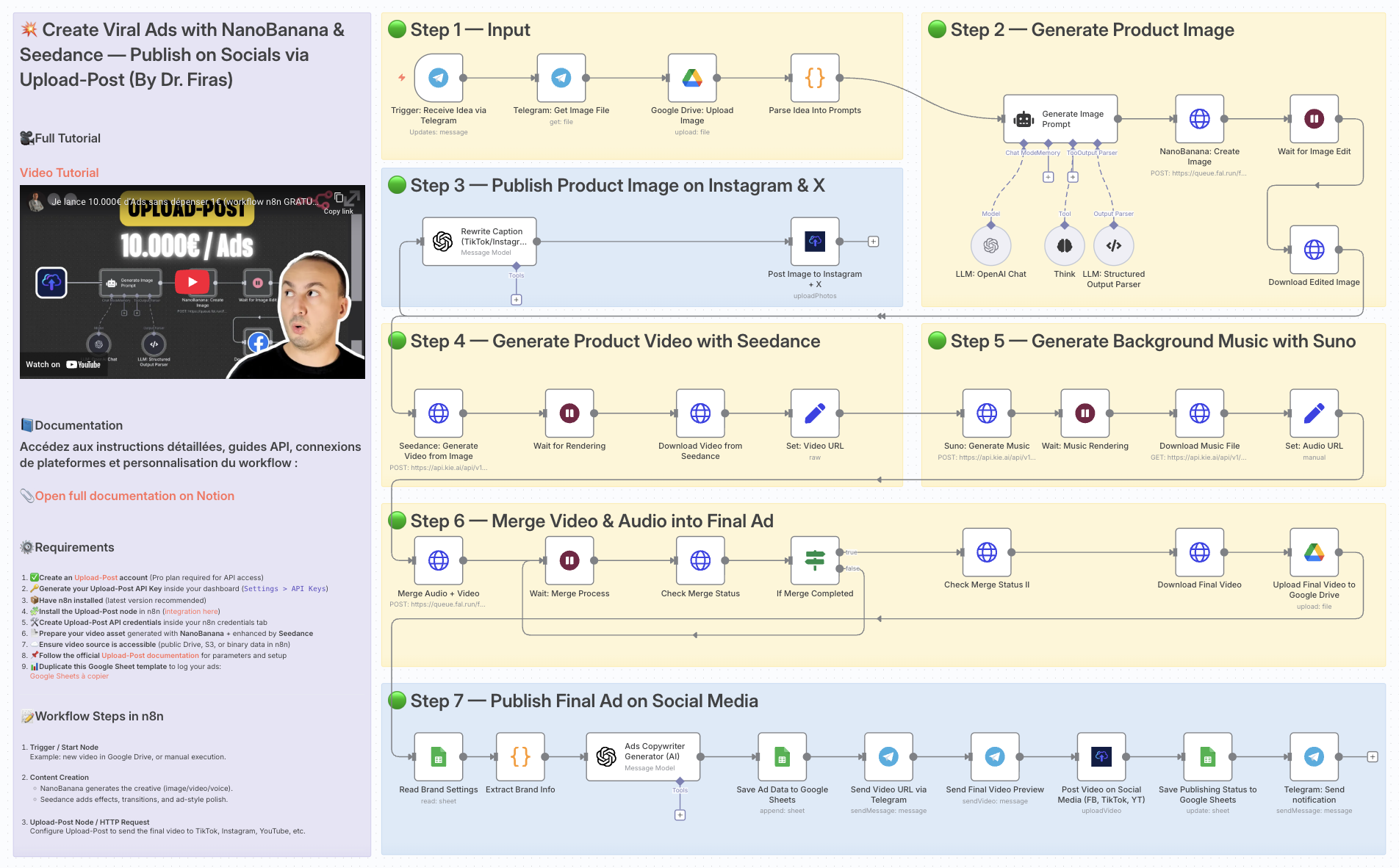
💥 Create viral Ads with NanoBanana & Seedance, publish on socials via upload-post
Who is this for?
This workflow is designed for marketers, content creators, and small businesses who want to automate the creation of engaging social media ads without spending hours on manual design, video editing, or publishing.
What problem is this workflow solving? / Use case
Manually creating ads for multiple platforms is time-consuming and repetitive. You need to generate visuals, edit videos, add music, and then publish them across social channels.
This workflow automates the end-to-end ad production pipeline, saving time while ensuring consistent, professional-quality output.
What this workflow does
- Receives ad ideas via Telegram.
- Uses NanoBanana to generate and edit realistic product images.
- Transforms images into engaging short videos with Seedance.
- Generates background music with Suno.
- Merges video and audio into a polished final ad.
- Reads brand info and generates ad copy with AI (OpenAI).
- Publishes ads to Instagram, TikTok, YouTube, Facebook, and X via upload-post.
- Stores media and campaign data in Google Drive and Google Sheets for tracking.
- Sends back notifications and previews via Telegram.
Setup
-
Connect your accounts:
- Telegram
- Google Drive
- Google Sheets
- OpenAI API
- NanoBanana API
- Seedance API
- Suno API
- Upload-post
-
Prepare Google Sheets:
- Add a sheet for brand details (name, category, features, website).
- Add another sheet for video logs (status, links, captions).
-
Configure upload-post:
- Ensure your social accounts (TikTok, Instagram, YouTube, Facebook, X) are linked to upload-post.
How to customize this workflow to your needs
- Prompts → Adjust the image/video/music prompts to better reflect your brand’s tone and products.
- Ad copy → Modify the AI prompt inside the Ads Copywriter Generator to control wording, style, and structure.
- Publishing scope → Choose only the platforms you want (TikTok, Instagram, etc.) inside the upload-post node.
- Storage → Update Google Drive folder IDs and Google Sheets document IDs to match your own workspace.
👉 With this template, you get a fully automated viral ad production system powered by AI visuals, video rendering, and auto-publishing across social platforms. Perfect for scaling your content strategy while saving time.
📄 Documentation: Notion Guide
Demo Video
🎥 Watch the full tutorial here: YouTube Demo
Need help customizing?
n8n Workflow: Create Viral Ads with AI & Publish on Socials
This n8n workflow automates the process of generating viral ad content using AI, fetching related images, and then preparing the content for social media publishing. It leverages Google Sheets as a data source, an AI agent for content generation, and Google Drive for image storage.
What it does
This workflow streamlines the creation and preparation of ad content through the following steps:
- Triggers Manually: The workflow is designed to be executed manually.
- Reads Ad Ideas from Google Sheets: It fetches ad ideas from a specified Google Sheet.
- Generates Ad Content with AI: For each ad idea, it uses an AI agent (powered by OpenAI Chat Model and a Structured Output Parser) to generate a compelling ad description and relevant keywords.
- Searches for Images on Google Drive: Based on the generated keywords, it searches Google Drive for suitable images.
- Processes Image URLs: It extracts and formats the URLs of the found images.
- Prepares Output: It combines the original ad idea, the AI-generated description, keywords, and image URLs into a structured format.
Prerequisites/Requirements
To use this workflow, you will need:
- n8n Instance: A running instance of n8n.
- Google Sheets Account: To store your ad ideas.
- Google Drive Account: To store images related to your ads.
- OpenAI API Key: For the AI agent to generate ad content.
- Telegram Bot Token: (Potentially, as Telegram nodes are present but not connected in the provided JSON. If intended for notifications or interaction, this would be needed).
Setup/Usage
- Import the Workflow: Import the provided JSON into your n8n instance.
- Configure Credentials:
- Google Sheets: Set up your Google Sheets credentials to allow n8n to read from your spreadsheet.
- Google Drive: Set up your Google Drive credentials to allow n8n to search for and access images.
- OpenAI: Configure your OpenAI credentials with your API key for the AI Agent and OpenAI Chat Model nodes.
- (Optional) Telegram: If you plan to use the Telegram nodes for notifications or interaction, configure your Telegram Bot credentials.
- Specify Google Sheet: In the "Google Sheets" node, specify the spreadsheet ID and sheet name where your ad ideas are located.
- Customize AI Agent:
- In the "AI Agent" node, review and adjust the prompt to guide the AI in generating ad descriptions and keywords according to your specific needs.
- Ensure the "Structured Output Parser" is configured to correctly parse the AI's output into the desired JSON structure (e.g.,
description,keywords).
- Configure Google Drive Search: In the "Google Drive" node, ensure the search parameters are set up to find images based on the keywords generated by the AI.
- Activate the Workflow: Once configured, activate the workflow.
- Run Manually: Execute the workflow manually to start the ad generation and image fetching process.
Related Templates
Track competitor SEO keywords with Decodo + GPT-4.1-mini + Google Sheets
This workflow automates competitor keyword research using OpenAI LLM and Decodo for intelligent web scraping. Who this is for SEO specialists, content strategists, and growth marketers who want to automate keyword research and competitive intelligence. Marketing analysts managing multiple clients or websites who need consistent SEO tracking without manual data pulls. Agencies or automation engineers using Google Sheets as an SEO data dashboard for keyword monitoring and reporting. What problem this workflow solves Tracking competitor keywords manually is slow and inconsistent. Most SEO tools provide limited API access or lack contextual keyword analysis. This workflow solves that by: Automatically scraping any competitor’s webpage with Decodo. Using OpenAI GPT-4.1-mini to interpret keyword intent, density, and semantic focus. Storing structured keyword insights directly in Google Sheets for ongoing tracking and trend analysis. What this workflow does Trigger — Manually start the workflow or schedule it to run periodically. Input Setup — Define the website URL and target country (e.g., https://dev.to, france). Data Scraping (Decodo) — Fetch competitor web content and metadata. Keyword Analysis (OpenAI GPT-4.1-mini) Extract primary and secondary keywords. Identify focus topics and semantic entities. Generate a keyword density summary and SEO strength score. Recommend optimization and internal linking opportunities. Data Structuring — Clean and convert GPT output into JSON format. Data Storage (Google Sheets) — Append structured keyword data to a Google Sheet for long-term tracking. Setup Prerequisites If you are new to Decode, please signup on this link visit.decodo.com n8n account with workflow editor access Decodo API credentials OpenAI API key Google Sheets account connected via OAuth2 Make sure to install the Decodo Community node. Create a Google Sheet Add columns for: primarykeywords, seostrengthscore, keyworddensity_summary, etc. Share with your n8n Google account. Connect Credentials Add credentials for: Decodo API credentials - You need to register, login and obtain the Basic Authentication Token via Decodo Dashboard OpenAI API (for GPT-4o-mini) Google Sheets OAuth2 Configure Input Fields Edit the “Set Input Fields” node to set your target site and region. Run the Workflow Click Execute Workflow in n8n. View structured results in your connected Google Sheet. How to customize this workflow Track Multiple Competitors → Use a Google Sheet or CSV list of URLs; loop through them using the Split In Batches node. Add Language Detection → Add a Gemini or GPT node before keyword analysis to detect content language and adjust prompts. Enhance the SEO Report → Expand the GPT prompt to include backlink insights, metadata optimization, or readability checks. Integrate Visualization → Connect your Google Sheet to Looker Studio for SEO performance dashboards. Schedule Auto-Runs → Use the Cron Node to run weekly or monthly for competitor keyword refreshes. Summary This workflow automates competitor keyword research using: Decodo for intelligent web scraping OpenAI GPT-4.1-mini for keyword and SEO analysis Google Sheets for live tracking and reporting It’s a complete AI-powered SEO intelligence pipeline ideal for teams that want actionable insights on keyword gaps, optimization opportunities, and content focus trends, without relying on expensive SEO SaaS tools.
 By Ranjan Dailata
Generate song lyrics and music from text prompts using OpenAI and Fal.ai Minimax
Spark your creativity instantly in any chat—turn a simple prompt like "heartbreak ballad" into original, full-length lyrics and a professional AI-generated music track, all without leaving your conversation. 📋 What This Template Does This chat-triggered workflow harnesses AI to generate detailed, genre-matched song lyrics (at least 600 characters) from user messages, then queues them for music synthesis via Fal.ai's minimax-music model. It polls asynchronously until the track is ready, delivering lyrics and audio URL back in chat. Crafts original, structured lyrics with verses, choruses, and bridges using OpenAI Submits to Fal.ai for melody, instrumentation, and vocals aligned to the style Handles long-running generations with smart looping and status checks Returns complete song package (lyrics + audio link) for seamless sharing 🔧 Prerequisites n8n account (self-hosted or cloud with chat integration enabled) OpenAI account with API access for GPT models Fal.ai account for AI music generation 🔑 Required Credentials OpenAI API Setup Go to platform.openai.com → API keys (sidebar) Click "Create new secret key" → Name it (e.g., "n8n Songwriter") Copy the key and add to n8n as "OpenAI API" credential type Test by sending a simple chat completion request Fal.ai HTTP Header Auth Setup Sign up at fal.ai → Dashboard → API Keys Generate a new API key → Copy it In n8n, create "HTTP Header Auth" credential: Name="Fal.ai", Header Name="Authorization", Header Value="Key [Your API Key]" Test with a simple GET to their queue endpoint (e.g., /status) ⚙️ Configuration Steps Import the workflow JSON into your n8n instance Assign OpenAI API credentials to the "OpenAI Chat Model" node Assign Fal.ai HTTP Header Auth to the "Generate Music Track", "Check Generation Status", and "Fetch Final Result" nodes Activate the workflow—chat trigger will appear in your n8n chat interface Test by messaging: "Create an upbeat pop song about road trips" 🎯 Use Cases Content Creators: YouTubers generating custom jingles for videos on the fly, streamlining production from idea to audio export Educators: Music teachers using chat prompts to create era-specific folk tunes for classroom discussions, fostering interactive learning Gift Personalization: Friends crafting anniversary R&B tracks from shared memories via quick chats, delivering emotional audio surprises Artist Brainstorming: Songwriters prototyping hip-hop beats in real-time during sessions, accelerating collaboration and iteration ⚠️ Troubleshooting Invalid JSON from AI Agent: Ensure the system prompt stresses valid JSON; test the agent standalone with a sample query Music Generation Fails (401/403): Verify Fal.ai API key has minimax-music access; check usage quotas in dashboard Status Polling Loops Indefinitely: Bump wait time to 45-60s for complex tracks; inspect fal.ai queue logs for bottlenecks Lyrics Under 600 Characters: Tweak agent prompt to enforce fuller structures like [V1][C][V2][B][C]; verify output length in executions
 By Daniel Nkencho
Automate Dutch Public Procurement Data Collection with TenderNed
TenderNed Public Procurement What This Workflow Does This workflow automates the collection of public procurement data from TenderNed (the official Dutch tender platform). It: Fetches the latest tender publications from the TenderNed API Retrieves detailed information in both XML and JSON formats for each tender Parses and extracts key information like organization names, titles, descriptions, and reference numbers Filters results based on your custom criteria Stores the data in a database for easy querying and analysis Setup Instructions This template comes with sticky notes providing step-by-step instructions in Dutch and various query options you can customize. Prerequisites TenderNed API Access - Register at TenderNed for API credentials Configuration Steps Set up TenderNed credentials: Add HTTP Basic Auth credentials with your TenderNed API username and password Apply these credentials to the three HTTP Request nodes: "Tenderned Publicaties" "Haal XML Details" "Haal JSON Details" Customize filters: Modify the "Filter op ..." node to match your specific requirements Examples: specific organizations, contract values, regions, etc. How It Works Step 1: Trigger The workflow can be triggered either manually for testing or automatically on a daily schedule. Step 2: Fetch Publications Makes an API call to TenderNed to retrieve a list of recent publications (up to 100 per request). Step 3: Process & Split Extracts the tender array from the response and splits it into individual items for processing. Step 4: Fetch Details For each tender, the workflow makes two parallel API calls: XML endpoint - Retrieves the complete tender documentation in XML format JSON endpoint - Fetches metadata including reference numbers and keywords Step 5: Parse & Merge Parses the XML data and merges it with the JSON metadata and batch information into a single data structure. Step 6: Extract Fields Maps the raw API data to clean, structured fields including: Publication ID and date Organization name Tender title and description Reference numbers (kenmerk, TED number) Step 7: Filter Applies your custom filter criteria to focus on relevant tenders only. Step 8: Store Inserts the processed data into your database for storage and future analysis. Customization Tips Modify API Parameters In the "Tenderned Publicaties" node, you can adjust: offset: Starting position for pagination size: Number of results per request (max 100) Add query parameters for date ranges, status filters, etc. Add More Fields Extend the "Splits Alle Velden" node to extract additional fields from the XML/JSON data, such as: Contract value estimates Deadline dates CPV codes (procurement classification) Contact information Integrate Notifications Add a Slack, Email, or Discord node after the filter to get notified about new matching tenders. Incremental Updates Modify the workflow to only fetch new tenders by: Storing the last execution timestamp Adding date filters to the API query Only processing publications newer than the last run Troubleshooting No data returned? Verify your TenderNed API credentials are correct Check that you have setup youre filter proper Need help setting this up or interested in a complete tender analysis solution? Get in touch 🔗 LinkedIn – Wessel Bulte
 By Wessel Bulte