Generate AI viral videos with NanoBanana & VEO3, shared on socials via Blotato

Generate AI viral videos with NanoBanana & VEO3, shared on socials via Blotato
Who is this for?
This workflow is designed for content creators, marketers, and entrepreneurs who want to automate their video production and social media publishing process. If you regularly post promotional or viral-style content on platforms like TikTok, YouTube Shorts, Instagram Reels, LinkedIn, and more, this template will save you hours of manual work.
What problem is this workflow solving? / Use case
Creating viral short-form videos is often time-consuming:
- You need to generate visuals, write scripts, edit videos, and then manually upload them to multiple platforms.
- Staying consistent across TikTok, YouTube Shorts, Instagram Reels, LinkedIn, Twitter/X, and others requires constant effort.
This workflow solves the problem by automating the entire pipeline from idea → video creation → multi-platform publishing.
What this workflow does
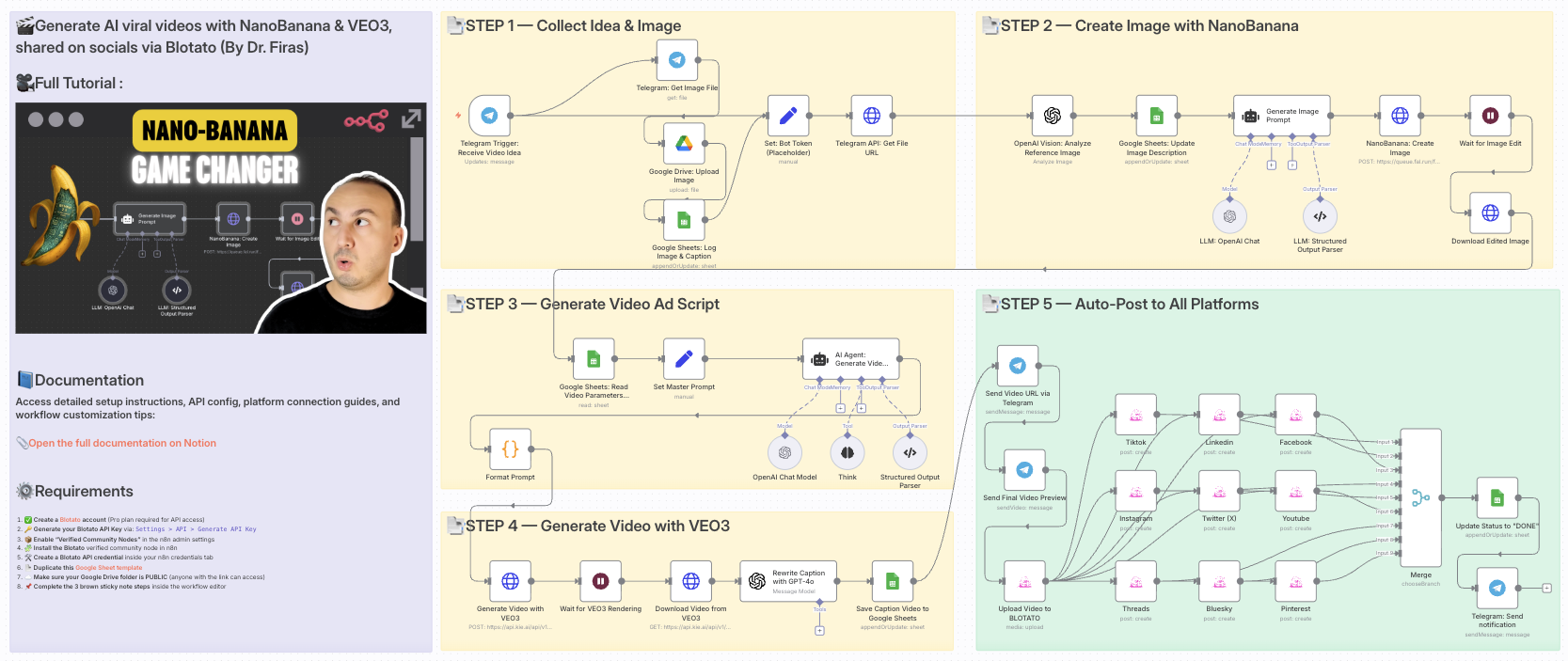
- Collects an idea and image from Telegram.
- Enhances visuals with NanoBanana for user-generated content style.
- Generates a complete video script with AI (OpenAI + structured prompts).
- Creates the final video with VEO3 using your custom prompt and visuals.
- Rewrites captions with GPT to be short, catchy, and optimized for social platforms.
- Saves metadata in Google Sheets for tracking and management.
- Auto-uploads the video to all major platforms via Blotato (TikTok, YouTube, Instagram, LinkedIn, Threads, Pinterest, X/Twitter, Bluesky, Facebook).
- Notifies you on Telegram with a preview link once publishing is complete.
Setup
-
Connect your accounts:
- Google Sheets (for video tracking)
- Telegram (to receive and send media)
- Blotato (for multi-platform publishing)
- OpenAI API (for captions, prompts, and image analysis)
- VEO3 API (for video rendering)
- Fal.ai (for NanoBanana image editing)
- Google Drive (to store processed images)
-
Set your credentials in the respective nodes.
-
Adjust the Google Sheet IDs to match your own sheet structure.
-
Insert your Telegram bot token in the
Set: Bot Token (Placeholder)node.
How to customize this workflow to your needs
- Platforms: Disable or enable only the Blotato social accounts you want to post to.
- Video style: Adjust the master prompt schema in the
Set Master Promptnode to fine-tune tone, camera style, or video format. - Captions: Modify the GPT prompt in the
Rewrite Caption with GPT-4onode to control length and tone. - Notifications: Customize the Telegram nodes to notify team members, not just yourself.
- Scheduling: Add a Cron trigger if you want automatic posting at specific times.
✨ With this workflow, you go from idea → AI-enhanced video → instant multi-platform publishing in just minutes, with almost no manual work.
📄 Documentation: Notion Guide
Need help customizing?
n8n Workflow: Generate AI Viral Videos with n8n and Share on Socials
This n8n workflow automates the process of generating viral video concepts using AI, creating a video, uploading it to Google Drive, and then sharing the video details on Telegram. It leverages AI to brainstorm ideas and integrates with various services to streamline the content creation and distribution process.
What it does
This workflow performs the following key steps:
- Triggers on Telegram Message: The workflow starts when a message is received in a configured Telegram chat.
- Generates AI Video Concepts (Think Tool): It uses an AI Agent with a "Think" tool to brainstorm and generate viral video ideas based on the Telegram input.
- Processes AI Output (Structured Output Parser): The AI's output is parsed to extract structured information, likely video titles, descriptions, and other relevant metadata.
- Generates Video (HTTP Request): An HTTP Request node likely interacts with a video generation API (e.g., Bananadev, VEO3) to create the actual video based on the AI-generated concept.
- Uploads Video to Google Drive: The generated video file is uploaded to a specified folder in Google Drive.
- Records Video Details in Google Sheets: Information about the newly created video (e.g., title, description, Google Drive link) is appended to a Google Sheet.
- Sends Telegram Notification: A message is sent back to the Telegram chat, confirming the video creation and providing relevant links or details.
- Manages Data (Edit Fields): A "Set" node (renamed to "Edit Fields") is used to manipulate or prepare data at various stages of the workflow.
- Introduces Delays (Wait): A "Wait" node is used to introduce pauses in the workflow, potentially to account for API processing times or to space out actions.
Prerequisites/Requirements
To use this workflow, you will need:
- n8n Instance: A running n8n instance.
- Telegram Bot: A Telegram bot token and chat ID configured for the
Telegram TriggerandTelegramnodes. - Google Sheets Credential: A Google account with access to Google Sheets, configured as an n8n credential.
- Google Drive Credential: A Google account with access to Google Drive, configured as an n8n credential.
- OpenAI API Key: An OpenAI API key configured for the
OpenAI Chat ModelandOpenAInodes. - Video Generation API: Access to a video generation API (e.g., Bananadev, VEO3) that can be called via an HTTP Request. You'll need its API endpoint and any required authentication.
Setup/Usage
- Import the workflow: Import the provided JSON into your n8n instance.
- Configure Credentials:
- Set up your Telegram Bot credential.
- Set up your Google Sheets credential.
- Set up your Google Drive credential.
- Set up your OpenAI credential.
- Configure Nodes:
- Telegram Trigger: Ensure it's listening to the correct chat ID.
- OpenAI Chat Model and OpenAI: Verify your OpenAI API key is correctly linked.
- HTTP Request (Video Generation): Update the URL, headers, and body to match your chosen video generation API (e.g., Bananadev, VEO3).
- Google Drive: Specify the folder where videos should be uploaded.
- Google Sheets: Specify the spreadsheet and sheet name where video details will be recorded.
- Telegram: Customize the message sent back to the user.
- Activate the Workflow: Once configured, activate the workflow.
The workflow will now listen for messages in your Telegram chat. When triggered, it will generate a video concept, create the video, upload it, record its details, and notify you via Telegram.
Related Templates
AI-powered code review with linting, red-marked corrections in Google Sheets & Slack
Advanced Code Review Automation (AI + Lint + Slack) Who’s it for For software engineers, QA teams, and tech leads who want to automate intelligent code reviews with both AI-driven suggestions and rule-based linting — all managed in Google Sheets with instant Slack summaries. How it works This workflow performs a two-layer review system: Lint Check: Runs a lightweight static analysis to find common issues (e.g., use of var, console.log, unbalanced braces). AI Review: Sends valid code to Gemini AI, which provides human-like review feedback with severity classification (Critical, Major, Minor) and visual highlights (red/orange tags). Formatter: Combines lint and AI results, calculating an overall score (0–10). Aggregator: Summarizes results for quick comparison. Google Sheets Writer: Appends results to your review log. Slack Notification: Posts a concise summary (e.g., number of issues and average score) to your team’s channel. How to set up Connect Google Sheets and Slack credentials in n8n. Replace placeholders (<YOURSPREADSHEETID>, <YOURSHEETGIDORNAME>, <YOURSLACKCHANNEL_ID>). Adjust the AI review prompt or lint rules as needed. Activate the workflow — reviews will start automatically whenever new code is added to the sheet. Requirements Google Sheets and Slack integrations enabled A configured AI node (Gemini, OpenAI, or compatible) Proper permissions to write to your target Google Sheet How to customize Add more linting rules (naming conventions, spacing, forbidden APIs) Extend the AI prompt for project-specific guidelines Customize the Slack message formatting Export analytics to a dashboard (e.g., Notion or Data Studio) Why it’s valuable This workflow brings realistic, team-oriented AI-assisted code review to n8n — combining the speed of automated linting with the nuance of human-style feedback. It saves time, improves code quality, and keeps your team’s review history transparent and centralized.
 By higashiyama
 Daily cash flow reports with Google Sheets, Slack & Email for finance teams
Simplify financial oversight with this automated n8n workflow. Triggered daily, it fetches cash flow and expense data from a Google Sheet, analyzes inflows and outflows, validates records, and generates a comprehensive daily report. The workflow sends multi-channel notifications via email and Slack, ensuring finance professionals stay updated with real-time financial insights. 💸📧 Key Features Daily automation keeps cash flow tracking current. Analyzes inflows and outflows for actionable insights. Multi-channel alerts enhance team visibility. Logs maintain a detailed record in Google Sheets. Workflow Process The Every Day node triggers a daily check at a set time. Get Cash Flow Data retrieves financial data from a Google Sheet. Analyze Inflows & Outflows processes the data to identify trends and totals. Validate Records ensures all entries are complete and accurate. If records are valid, it branches to: Sends Email Daily Report to finance team members. Send Slack Alert to notify the team instantly. Logs to Sheet appends the summary data to a Google Sheet for tracking. Setup Instructions Import the workflow into n8n and configure Google Sheets OAuth2 for data access. Set the daily trigger time (e.g., 9:00 AM IST) in the "Every Day" node. Test the workflow by adding sample cash flow data and verifying reports. Adjust analysis parameters as needed for specific financial metrics. Prerequisites Google Sheets OAuth2 credentials Gmail API Key for email reports Slack Bot Token (with chat:write permissions) Structured financial data in a Google Sheet Google Sheet Structure: Create a sheet with columns: Date Cash Inflow Cash Outflow Category Notes Updated At Modification Options Customize the "Analyze Inflows & Outflows" node to include custom financial ratios. Adjust the "Validate Records" filter to flag anomalies or missing data. Modify email and Slack templates with branded formatting. Integrate with accounting tools (e.g., Xero) for live data feeds. Set different trigger times to align with your financial review schedule. Discover more workflows – Get in touch with us
 By Oneclick AI Squad
Track daily moods with AI analysis & reports using GPT-4o, Data Tables & Gmail
Track your daily mood in one tap and receive automated AI summaries of your emotional trends every week and month. Perfect for self-reflection, wellness tracking, or personal analytics. This workflow logs moods sent through a webhook (/mood) into Data Tables, analyzes them weekly and monthly with OpenAI (GPT-4o), and emails you clear summaries and actionable recommendations via Gmail. ⚙️ How It Works Webhook – Mood → Collects new entries (🙂, 😐, or 😩) plus an optional note. Set Mood Data → Adds date, hour, and note fields automatically. Insert Mood Row → Stores each record in a Data Table. Weekly Schedule (Sunday 20:00) → Aggregates the last 7 days and sends a summarized report. Monthly Schedule (Day 1 at 08:00) → Aggregates the last 30 days for a deeper AI analysis. OpenAI Analysis → Generates insights, patterns, and 3 actionable recommendations. Gmail → Sends the full report (chart + AI text) to your inbox. 📊 Example Auto-Email Weekly Mood Summary (last 7 days) 🙂 5 ██████████ 😐 2 ████ 😩 0 Average: 1.7 (Positive 🙂) AI Insights: You’re trending upward this week — notes show that exercise days improved mood. Try keeping short walks mid-week to stabilize energy. 🧩 Requirements n8n Data Tables enabled OpenAI credential (GPT-4o or GPT-4 Turbo) Gmail OAuth2 credential to send summaries 🔧 Setup Instructions Connect your credentials: Add your own OpenAI and Gmail OAuth2 credentials. Set your Data Table ID: Open the Insert Mood Row node and enter your own Data Table ID. Without this, new moods won’t be stored. Replace the email placeholder: In the Gmail nodes, replace your.email@example.com with your actual address. Deploy and run: Send a test POST request to /mood (e.g. { "mood": "🙂", "note": "productive day" }) to log your first entry. ⚠️ Before activating the workflow, ensure you have configured the Data Table ID in the “Insert Mood Row” node. 🧠 AI Analysis Interprets mood patterns using GPT-4o. Highlights trends, potential triggers, and suggests 3 specific actions. Runs automatically every week and month. 🔒 Security No personal data is exposed outside your n8n instance. Always remove or anonymize credential references before sharing publicly. 💡 Ideal For Personal mood journaling and AI feedback Therapists tracking client progress Productivity or self-quantification projects 🗒️ Sticky Notes Guide 🟡 Mood Logging Webhook POST /mood receives mood + optional note. ⚠️ Configure your own Data Table ID in the “Insert Mood Row” node before running. 🟢 Weekly Summary Runs every Sunday 20:00 → aggregates last 7 days → generates AI insights + emails report. 🔵 Monthly Summary Runs on Day 1 at 08:00 → aggregates last 30 days → creates monthly reflection. 🟣 AI Analysis Uses OpenAI GPT-4o to interpret trends and recommend actions. 🟠 Email Delivery Sends formatted summaries to your inbox automatically.
 By Jose Castillo