Generate & auto-post AI videos to social media with Veo3 and Blotato

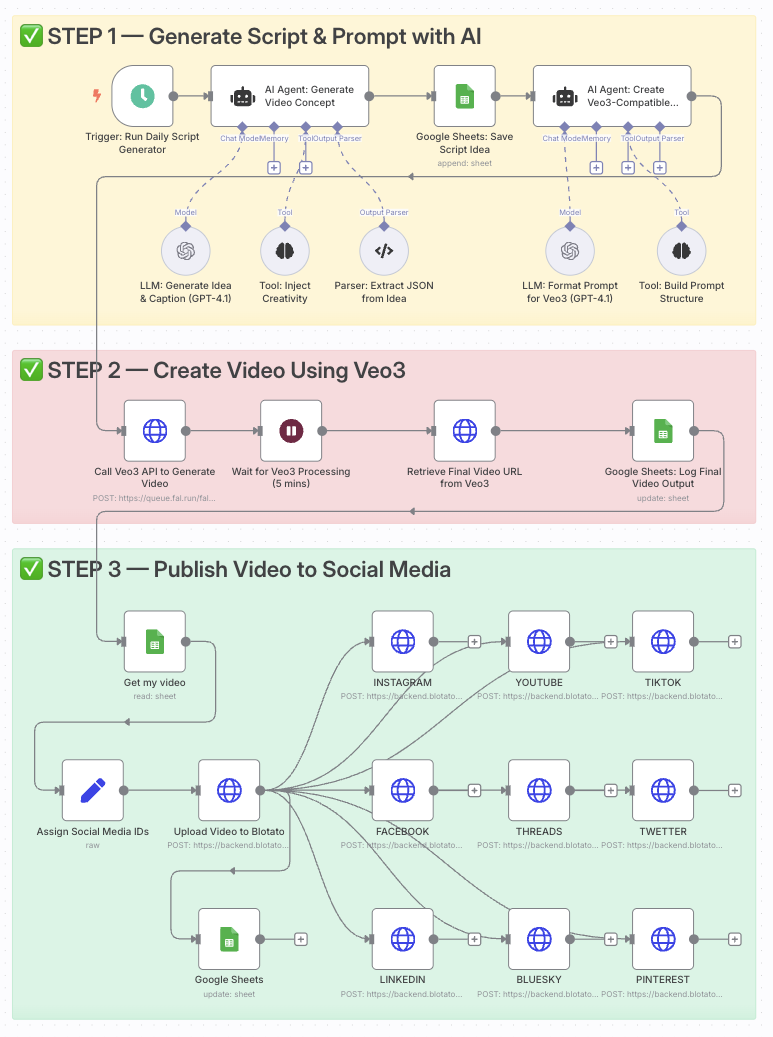
Automate video creation with Veo3 and auto-post to Instagram, TikTok via Blotato
Who is this for?
This template is ideal for content creators, social media managers, YouTubers, and digital marketers who want to generate high-quality videos daily using AI and distribute them effortlessly across multiple platforms.
It’s perfect for anyone who wants to scale short-form content creation without video editing tools.
What problem is this workflow solving?
Creating and distributing consistent video content requires:
- Generating ideas
- Writing scripts and prompts
- Rendering videos
- Manually posting to platforms
This workflow automates all of that. It transforms one prompt into a professional AI-generated video and publishes it automatically — saving time and increasing reach.
What this workflow does
- Triggers daily to generate a new idea with OpenAI (or your custom prompt).
- Creates a video prompt formatted specifically for Google Veo3.
- Generates a cinematic video using the Veo3 API.
- Logs the video data into a Google Sheet.
- Retrieves the final video URL once Veo3 finishes rendering.
- Uploads the video to Blotato for publishing.
- Auto-posts the video to Instagram, TikTok, YouTube, Facebook, LinkedIn, Threads, Twitter (X), Pinterest, and Bluesky.
Setup
- Add your OpenAI API key to the GPT-4.1 nodes.
- Connect your Veo3 API credentials in the video generation node.
- Link your Google Sheets account and use a sheet with columns:
Prompt,Video URL,Status. - Connect your Blotato API key and set your platform IDs in the
Assign Social Media IDsnode. - Adjust the Schedule Trigger to your desired posting frequency.
How to customize this workflow to your needs
- Edit the AI prompt to align with your niche (fitness, finance, education, etc.).
- Add your own branding overlays using JSON2Video or similar tools.
- Change platform selection by enabling/disabling specific HTTP Request nodes.
- Add a Telegram step to preview the video before auto-posting.
- Track performance by adding metrics columns in Google Sheets.
📄 Documentation: Notion Guide
Need help customizing?
n8n Workflow: AI-Powered Content Generation and Social Media Posting
This n8n workflow automates the process of generating content using an AI agent and potentially preparing it for social media posting, triggered by a schedule.
What it does
This workflow is designed to:
- Trigger on Schedule: The workflow initiates at predefined intervals, ensuring regular content generation.
- AI Agent Execution: An AI Agent (likely using LangChain) is invoked to perform a task. This agent utilizes an OpenAI Chat Model for language processing and a "Think" tool, suggesting it might involve complex reasoning or data manipulation.
- Structured Output Parsing: The output from the AI Agent is then processed by a Structured Output Parser, indicating that the AI is expected to return data in a specific, structured format (e.g., JSON).
- Data Manipulation (Edit Fields): The parsed data is then manipulated or transformed using the "Edit Fields (Set)" node, likely to format it for subsequent actions.
- Wait for Delay: A "Wait" node introduces a pause in the workflow, which could be used to space out API calls or allow for external processes to complete.
- HTTP Request: An HTTP Request is made, suggesting interaction with an external API or service. This could be for posting content, fetching additional data, or triggering another system.
- Google Sheets Interaction: The workflow includes a Google Sheets node, implying that data might be read from or written to a Google Sheet. This could be for logging, tracking, or using data as input for the AI agent.
Prerequisites/Requirements
To use this workflow, you will need:
- n8n Instance: A running instance of n8n.
- OpenAI API Key: For the OpenAI Chat Model to function.
- Google Sheets Account: With appropriate access configured in n8n credentials if the Google Sheets node is used for reading/writing.
- Credentials for any HTTP Request: If the HTTP Request node interacts with an authenticated API.
- LangChain Integration: Ensure the
@n8n/n8n-nodes-langchainpackage is installed in your n8n instance.
Setup/Usage
- Import the Workflow:
- In your n8n instance, go to "Workflows".
- Click "New" and then "Import from JSON".
- Paste the provided workflow JSON into the import dialog.
- Configure Credentials:
- Locate the "OpenAI Chat Model" node and configure your OpenAI API key credential.
- If the "Google Sheets" node is active, configure your Google Sheets credential.
- If the "HTTP Request" node requires authentication, configure the necessary credentials for that service.
- Customize Nodes:
- Schedule Trigger: Adjust the schedule to your desired frequency for content generation.
- AI Agent: Customize the prompt and tools used by the AI Agent to define the content generation task.
- Structured Output Parser: Ensure the schema defined in this node matches the expected output from your AI Agent.
- Edit Fields (Set): Modify this node to transform the AI-generated content into the desired format.
- Wait: Adjust the delay as needed.
- HTTP Request: Configure the URL, method, headers, and body for your specific API call (e.g., to post to a social media platform or another content management system).
- Google Sheets: Configure the spreadsheet ID, sheet name, and operation (e.g., "Append Row", "Read Data") as per your requirements.
- Activate the Workflow: Once configured, activate the workflow to start automated content generation and posting.
Related Templates
AI multi-agent executive team for entrepreneurs with Gemini, Perplexity and WhatsApp
This workflow is an AI-powered multi-agent system built for startup founders and small business owners who want to automate decision-making, accountability, research, and communication, all through WhatsApp. The “virtual executive team,” is designed to help small teams to work smarter. This workflow sends you market analysis, market and sales tips, It can also monitor what your competitors are doing using perplexity (Research agent) and help you stay a head, or make better decisions. And when you feeling stuck with your start-up accountability director is creative enough to break the barrier 🎯 Core Features 🧑💼 1. President (Super Agent) Acts as the main controller that coordinates all sub-agents. Routes messages, assigns tasks, and ensures workflow synchronization between the AI Directors. 📊 2. Sales & Marketing Director Uses SerpAPI to search for market opportunities, leads, and trends. Suggests marketing campaigns, keywords, or outreach ideas. Can analyze current engagement metrics to adjust content strategy. 🕵️♀️ 3. Business Research Director Powered by Perplexity AI for competitive and market analysis. Monitors competitor moves, social media engagement, and product changes. Provides concise insights to help the founder adapt and stay ahead. ⏰ 4. Accountability Director Keeps the founder and executive team on track. Sends motivational nudges, task reminders, and progress reports. Promotes consistency and discipline — key traits for early-stage success. 🗓️ 5. Executive Secretary Handles scheduling, email drafting, and reminders. Connects with Google Calendar, Gmail, and Sheets through OAuth. Automates follow-ups, meeting summaries, and notifications directly via WhatsApp. 💬 WhatsApp as the Main Interface Interact naturally with your AI team through WhatsApp Business API. All responses, updates, and summaries are delivered to your chat. Ideal for founders who want to manage operations on the go. ⚙️ How It Works Trigger: The workflow starts from a WhatsApp Trigger node (via Meta Developer Account). Routing: The President agent analyzes the incoming message and determines which Director should handle it. Processing: Marketing or sales queries go to the Sales & Marketing Director. Research questions are handled by the Business Research Director. Accountability tasks are assigned to the Accountability Director. Scheduling or communication requests are managed by the Secretary. Collaboration: Each sub-agent returns results to the President, who summarizes and sends the reply back via WhatsApp. Memory: Context is maintained between sessions, ensuring personalized and coherent communication. 🧩 Integrations Required Gemini API – for general intelligence and task reasoning Supabase- for RAG and postgres persistent memory Perplexity API – for business and competitor analysis SerpAPI – for market research and opportunity scouting Google OAuth – to connect Sheets, Calendar, and Gmail WhatsApp Business API – for message triggers and responses 🚀 Benefits Acts like a team of tireless employees available 24/7. Saves time by automating research, reminders, and communication. Enhances accountability and strategy consistency for founders. Keeps operations centralized in a simple WhatsApp interface. 🧰 Setup Steps Create API credentials for: WhatsApp (via Meta Developer Account) Gemini, Perplexity, and SerpAPI Google OAuth (Sheets, Calendar, Gmail) Create a supabase account at supabase Add the credentials in the corresponding n8n nodes. Customize the system prompts for each Director based on your startup’s needs. Activate and start interacting with your virtual executive team on WhatsApp. Use Case You are a small organisation or start-up that can not afford hiring; marketing department, research department and secretar office, then this workflow is for you 💡 Need Customization? Want to tailor it for your startup or integrate with CRM tools like Notion or HubSpot? You can easily extend the workflow or contact the creator for personalized support. Consider adjusting the system prompt to suite your business
 By Shadrack
Automate RSS to social media pipeline with AI, Airtable & GetLate for multiple platforms
Overview Automates your complete social media content pipeline: sources articles from Wallabag RSS, generates platform-specific posts with AI, creates contextual images, and publishes via GetLate API. Built with 63 nodes across two workflows to handle LinkedIn, Instagram, and Bluesky—with easy expansion to more platforms. Ideal for: Content marketers, solo creators, agencies, and community managers maintaining a consistent multi-platform presence with minimal manual effort. How It Works Two-Workflow Architecture: Content Aggregation Workflow Monitors Wallabag RSS feeds for tagged articles (to-share-linkedin, to-share-instagram, etc.) Extracts and converts content from HTML to Markdown Stores structured data in Airtable with platform assignment AI Generation & Publishing Workflow Scheduled trigger queries Airtable for unpublished content Routes to platform-specific sub-workflows (LinkedIn, Instagram, Bluesky) LLM generates optimized post text and image prompts based on custom brand parameters Optionally generates AI images and hosts them on Imgbb CDN Publishes via GetLate API (immediate or draft mode) Updates Airtable with publication status and metadata Key Features: Tag-based content routing using Wallabag's native system Swappable AI providers (Groq, OpenAI, Anthropic) Platform-specific optimization (tone, length, hashtags, CTAs) Modular design—duplicate sub-workflows to add new platforms in \~30 minutes Centralized Airtable tracking with 17 data points per post Set Up Steps Setup time: \~45-60 minutes for initial configuration Create accounts and get API keys (\~15 min) Wallabag (with RSS feeds enabled) GetLate (social media publishing) Airtable (create base with provided schema—see sticky notes) LLM provider (Groq, OpenAI, or Anthropic) Image service (Hugging Face, Fal.ai, or Stability AI) Imgbb (image hosting) Configure n8n credentials (\~10 min) Add all API keys in n8n's credential manager Detailed credential setup instructions in workflow sticky notes Set up Airtable database (\~10 min) Create "RSS Feed - Content Store" base Add 19 required fields (schema provided in workflow sticky notes) Get Airtable base ID and API key Customize brand prompts (\~15 min) Edit "Set Custom SMCG Prompt" node for each platform Define brand voice, tone, goals, audience, and image preferences Platform-specific examples provided in sticky notes Configure platform settings (\~10 min) Set GetLate account IDs for each platform Enable/disable image generation per platform Choose immediate publish vs. draft mode Adjust schedule trigger frequency Test and deploy Tag test articles in Wallabag Monitor the first few executions in draft mode Activate workflows when satisfied with the output Important: This is a proof-of-concept template. Test thoroughly with draft mode before production use. Detailed setup instructions, troubleshooting tips, and customization guidance are in the workflow's sticky notes. Technical Details 63 nodes: 9 Airtable operations, 8 HTTP requests, 7 code nodes, 3 LangChain LLM chains, 3 RSS triggers, 3 GetLate publishers Supports: Multiple LLM providers, multiple image generation services, unlimited platforms via modular architecture Tracking: 17 metadata fields per post, including publish status, applied parameters, character counts, hashtags, image URLs Prerequisites n8n instance (self-hosted or cloud) Accounts: Wallabag, GetLate, Airtable, LLM provider, image generation service, Imgbb Basic understanding of n8n workflows and credential configuration Time to customize prompts for your brand voice Detailed documentation, Airtable schema, prompt examples, and troubleshooting guides are in the workflow's sticky notes. Category Tags social-media-automation, ai-content-generation, rss-to-social, multi-platform-posting, getlate-api, airtable-database, langchain, workflow-automation, content-marketing
 By Mikal Hayden-Gates
Ai website scraper & company intelligence
AI Website Scraper & Company Intelligence Description This workflow automates the process of transforming any website URL into a structured, intelligent company profile. It's triggered by a form, allowing a user to submit a website and choose between a "basic" or "deep" scrape. The workflow extracts key information (mission, services, contacts, SEO keywords), stores it in a structured Supabase database, and archives a full JSON backup to Google Drive. It also features a secondary AI agent that automatically finds and saves competitors for each company, building a rich, interconnected database of company intelligence. --- Quick Implementation Steps Import the Workflow: Import the provided JSON file into your n8n instance. Install Custom Community Node: You must install the community node from: https://www.npmjs.com/package/n8n-nodes-crawl-and-scrape FIRECRAWL N8N Documentation https://docs.firecrawl.dev/developer-guides/workflow-automation/n8n Install Additional Nodes: n8n-nodes-crawl-and-scrape and n8n-nodes-mcp fire crawl mcp . Set up Credentials: Create credentials in n8n for FIRE CRAWL API,Supabase, Mistral AI, and Google Drive. Configure API Key (CRITICAL): Open the Web Search tool node. Go to Parameters → Headers and replace the hardcoded Tavily AI API key with your own. Configure Supabase Nodes: Assign your Supabase credential to all Supabase nodes. Ensure table names (e.g., companies, competitors) match your schema. Configure Google Drive Nodes: Assign your Google Drive credential to the Google Drive2 and save to Google Drive1 nodes. Select the correct Folder ID. Activate Workflow: Turn on the workflow and open the Webhook URL in the “On form submission” node to access the form. --- What It Does Form Trigger Captures user input: “Website URL” and “Scraping Type” (basic or deep). Scraping Router A Switch node routes the flow: Deep Scraping → AI-based MCP Firecrawler agent. Basic Scraping → Crawlee node. Deep Scraping (Firecrawl AI Agent) Uses Firecrawl and Tavily Web Search. Extracts a detailed JSON profile: mission, services, contacts, SEO keywords, etc. Basic Scraping (Crawlee) Uses Crawl and Scrape node to collect raw text. A Mistral-based AI extractor structures the data into JSON. Data Storage Stores structured data in Supabase tables (companies, company_basicprofiles). Archives a full JSON backup to Google Drive. Automated Competitor Analysis Runs after a deep scrape. Uses Tavily web search to find competitors (e.g., from Crunchbase). Saves competitor data to Supabase, linked by company_id. --- Who's It For Sales & Marketing Teams: Enrich leads with deep company info. Market Researchers: Build structured, searchable company databases. B2B Data Providers: Automate company intelligence collection. Developers: Use as a base for RAG or enrichment pipelines. --- Requirements n8n instance (self-hosted or cloud) Supabase Account: With tables like companies, competitors, social_links, etc. Mistral AI API Key Google Drive Credentials Tavily AI API Key (Optional) Custom Nodes: n8n-nodes-crawl-and-scrape --- How It Works Flow Summary Form Trigger: Captures “Website URL” and “Scraping Type”. Switch Node: deep → MCP Firecrawler (AI Agent). basic → Crawl and Scrape node. Scraping & Extraction: Deep path: Firecrawler → JSON structure. Basic path: Crawlee → Mistral extractor → JSON. Storage: Save JSON to Supabase. Archive in Google Drive. Competitor Analysis (Deep Only): Finds competitors via Tavily. Saves to Supabase competitors table. End: Finishes with a No Operation node. --- How To Set Up Import workflow JSON. Install community nodes (especially n8n-nodes-crawl-and-scrape from npm). Configure credentials (Supabase, Mistral AI, Google Drive). Add your Tavily API key. Connect Supabase and Drive nodes properly. Fix disconnected “basic” path if needed. Activate workflow. Test via the webhook form URL. --- How To Customize Change LLMs: Swap Mistral for OpenAI or Claude. Edit Scraper Prompts: Modify system prompts in AI agent nodes. Change Extraction Schema: Update JSON Schema in extractor nodes. Fix Relational Tables: Add Items node before Supabase inserts for arrays (social links, keywords). Enhance Automation: Add email/slack notifications, or replace form trigger with a Google Sheets trigger. --- Add-ons Automated Trigger: Run on new sheet rows. Notifications: Email or Slack alerts after completion. RAG Integration: Use the Supabase database as a chatbot knowledge source. --- Use Case Examples Sales Lead Enrichment: Instantly get company + competitor data from a URL. Market Research: Collect and compare companies in a niche. B2B Database Creation: Build a proprietary company dataset. --- WORKFLOW IMAGE --- Troubleshooting Guide | Issue | Possible Cause | Solution | |-------|----------------|-----------| | Form Trigger 404 | Workflow not active | Activate the workflow | | Web Search Tool fails | Missing Tavily API key | Replace the placeholder key | | FIRECRAWLER / find competitor fails | Missing MCP node | Install n8n-nodes-mcp | | Basic scrape does nothing | Switch node path disconnected | Reconnect “basic” output | | Supabase node error | Wrong table/column names | Match schema exactly | --- Need Help or More Workflows? Want to customize this workflow for your business or integrate it with your existing tools? Our team at Digital Biz Tech can tailor it precisely to your use case from automation logic to AI-powered enhancements. Contact: shilpa.raju@digitalbiz.tech For more such offerings, visit us: https://www.digitalbiz.tech ---
 By DIGITAL BIZ TECH