🤖🚚 AI agent for transportation orders management with GPT-4o and Open Route API

Tags: AI Agent, Supply Chain, Logistics, Route Planning, Transportation, GPS API
Context
Hi! I’m Samir, a Supply Chain Engineer and Data Scientist based in Paris, and founder of LogiGreen Consulting.
I help companies improve their logistics operations using data, AI, and automation to reduce costs and minimize environmental footprint.
> Let’s use n8n to automate order management for transportation companies!
📬 For business inquiries, you can add find me on LinkedIn
Who is this template for?
This workflow is designed for small transportation companies and carriers that handle their delivery request by email.
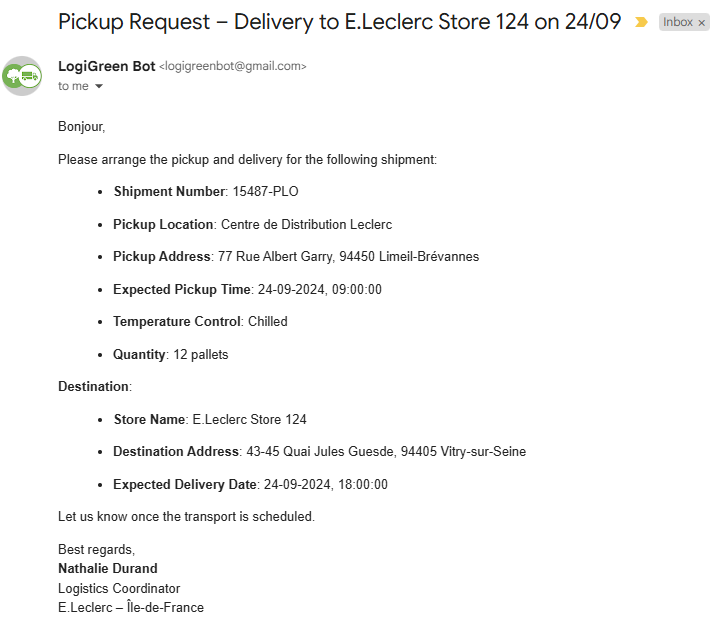
Two AI Agent nodes and a connection to Openroute Service API are used to parse the content of pickup requests
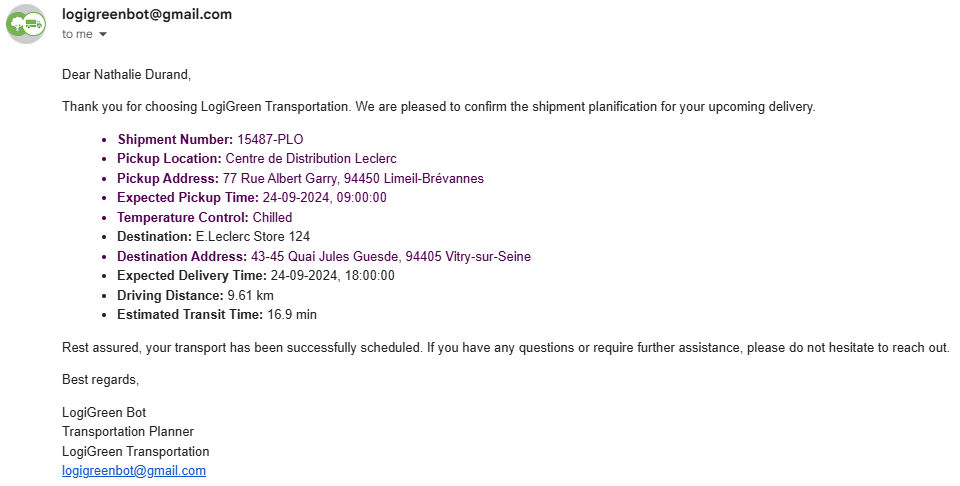
The results include driving time and driving distance in a comprehensive and concise reply generated by the second AI Agent.
How does it work?
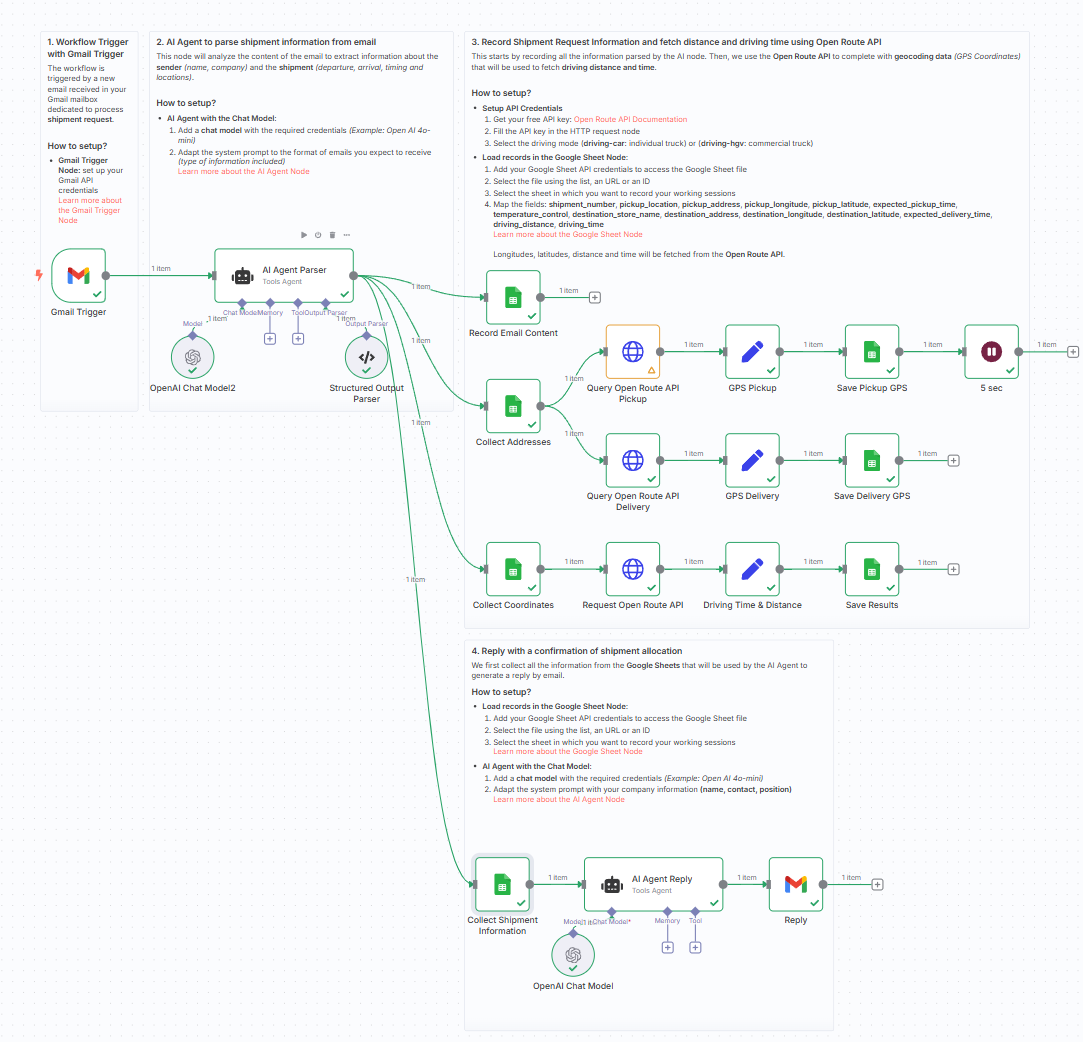
This n8n workflow automates the processing of shipment request emails and enriches them with distance and driving time using the OpenRouteService API.
- 📥 Extract structured logistics data (pickup, delivery, contact) using an AI Agent
- 📌 Geocode pickup and delivery addresses into GPS coordinates
- 🚚 Query OpenRouteService using the truck (driving-hgv) profile
- 📏 Get the driving distance (in km) and estimated time (in minutes)
- 📤 Store all data in a connected Google Sheet
- 📧 Send back a professional confirmation email to the customer
Steps:
- 📩 Trigger the workflow from a new Gmail message
- 🧠 Use the AI Agent to extract structured data from the email
- 📊 Record and enrich shipment details in a Google Sheet
- 🗺️ Geocode addresses into coordinates
- 🚦 Get driving distance & time via OpenRouteService
- 📬 Generate and send back a confirmation email using AI
What do I need to get started?
This workflow requires:
- A Gmail account to receive shipment requests
- A Google Sheet to log and update shipment info
- A free OpenRouteService API key
👉 Get one here - OpenAI API access to use the AI Agent node
Next Steps
🗒️ Follow the sticky notes inside the workflow canvas to:
- Plug your Gmail and Google credentials
- Add your OpenRouteService API key
- Test by sending a sample email and see the response!
This template was built using n8n v1.93.0
Submitted: June 5, 2025
AI Agent for Transportation Order Management with GPT-4o and Open Route API
This n8n workflow automates the process of managing transportation orders by leveraging AI to extract information from emails, enrich it with routing data, and then store it in Google Sheets. It also includes a human-in-the-loop approval step via email.
What it does
This workflow streamlines transportation order management through the following steps:
- Triggers on new emails: It continuously monitors a specified Gmail inbox for new emails.
- Processes email content with an AI Agent: The content of incoming emails is fed to an AI Agent (powered by an OpenAI Chat Model) which is designed to identify and extract key information related to transportation orders.
- Parses structured output: The AI Agent's response is then processed by a Structured Output Parser to ensure the extracted data is in a consistent, usable format.
- Enriches data with routing information: An HTTP Request node is used to query an external API (likely an Open Route API, given the directory name) to get additional routing details based on the extracted order information.
- Prepares data for Google Sheets: An "Edit Fields (Set)" node transforms and formats the data into the correct structure for Google Sheets.
- Stores data in Google Sheets: The processed transportation order details, including routing information, are appended to a designated Google Sheet.
- Sends an approval email: A Gmail node sends an email to a designated recipient for human review and approval of the transportation order.
- Waits for approval: The workflow pauses, awaiting a response to the approval email. (Note: The current JSON does not show a direct connection for the approval response, implying a manual check or a separate workflow for handling responses).
Prerequisites/Requirements
To use this workflow, you will need:
- n8n Instance: A running n8n instance.
- Gmail Account: A configured Gmail credential in n8n for triggering on new emails and sending approval requests.
- OpenAI API Key: A credential for OpenAI to power the AI Agent's chat model.
- Google Sheets Account: A configured Google Sheets credential in n8n for storing transportation order data.
- External Routing API: Access to an external routing API (e.g., Open Route API) that can be queried via HTTP requests.
Setup/Usage
- Import the workflow: Download the workflow JSON and import it into your n8n instance.
- Configure Credentials:
- Set up your Gmail Account credential for both the "Gmail Trigger" and "Gmail" nodes.
- Configure your OpenAI API Key credential for the "OpenAI Chat Model" node.
- Set up your Google Sheets Account credential for the "Google Sheets" node.
- Update Node Settings:
- Gmail Trigger: Configure the mailbox and filters to listen for relevant transportation order emails.
- AI Agent: Review and potentially refine the prompt for the AI Agent to accurately extract transportation order details.
- HTTP Request: Update the URL and parameters for your chosen external routing API. Ensure it correctly uses data from previous nodes (e.g., origin, destination) to fetch routing information.
- Edit Fields (Set): Adjust the fields to match the schema of your Google Sheet and the data extracted by the AI Agent and routing API.
- Google Sheets: Specify the Spreadsheet ID and Sheet Name where the data should be appended.
- Gmail (Approval): Configure the recipient email address for approval requests and customize the email content.
- Wait: Adjust the wait duration if necessary.
- Activate the workflow: Once configured, activate the workflow to start processing incoming emails automatically.
Related Templates
Auto-create TikTok videos with VEED.io AI avatars, ElevenLabs & GPT-4
💥 Viral TikTok Video Machine: Auto-Create Videos with Your AI Avatar --- 🎯 Who is this for? This workflow is for content creators, marketers, and agencies who want to use Veed.io’s AI avatar technology to produce short, engaging TikTok videos automatically. It’s ideal for creators who want to appear on camera without recording themselves, and for teams managing multiple brands who need to generate videos at scale. --- ⚙️ What problem this workflow solves Manually creating videos for TikTok can take hours — finding trends, writing scripts, recording, and editing. By combining Veed.io, ElevenLabs, and GPT-4, this workflow transforms a simple Telegram input into a ready-to-post TikTok video featuring your AI avatar powered by Veed.io — speaking naturally with your cloned voice. --- 🚀 What this workflow does This automation links Veed.io’s video-generation API with multiple AI tools: Analyzes TikTok trends via Perplexity AI Writes a 10-second viral script using GPT-4 Generates your voiceover via ElevenLabs Uses Veed.io (Fabric 1.0 via FAL.ai) to animate your avatar and sync the lips to the voice Creates an engaging caption + hashtags for TikTok virality Publishes the video automatically via Blotato TikTok API Logs all results to Google Sheets for tracking --- 🧩 Setup Telegram Bot Create your bot via @BotFather Configure it as the trigger for sending your photo and theme Connect Veed.io Create an account on Veed.io Get your FAL.ai API key (Veed Fabric 1.0 model) Use HTTPS image/audio URLs compatible with Veed Fabric Other APIs Add Perplexity, ElevenLabs, and Blotato TikTok keys Connect your Google Sheet for logging results --- 🛠️ How to customize this workflow Change your Avatar: Upload a new image through Telegram, and Veed.io will generate a new talking version automatically. Modify the Script Style: Adjust the GPT prompt for tone (educational, funny, storytelling). Adjust Voice Tone: Tweak ElevenLabs stability and similarity settings. Expand Platforms: Add Instagram, YouTube Shorts, or X (Twitter) posting nodes. Track Performance: Customize your Google Sheet to measure your most successful Veed.io-based videos. --- 🧠 Expected Outcome In just a few seconds after sending your photo and theme, this workflow — powered by Veed.io — creates a fully automated TikTok video featuring your AI avatar with natural lip-sync and voice. The result is a continuous stream of viral short videos, made without cameras, editing, or effort. --- ✅ Import the JSON file in n8n, add your API keys (including Veed.io via FAL.ai), and start generating viral TikTok videos starring your AI avatar today! 🎥 Watch This Tutorial --- 📄 Documentation: Notion Guide Need help customizing? Contact me for consulting and support : Linkedin / Youtube
 By Dr. Firas
Two-way property repair management system with Google Sheets & Drive
This workflow automates the repair request process between tenants and building managers, keeping all updates organized in a single spreadsheet. It is composed of two coordinated workflows, as two separate triggers are required — one for new repair submissions and another for repair updates. A Unique Unit ID that corresponds to individual units is attributed to each request, and timestamps are used to coordinate repair updates with specific requests. General use cases include: Property managers who manage multiple buildings or units. Building owners looking to centralize tenant repair communication. Automation builders who want to learn multi-trigger workflow design in n8n. --- ⚙️ How It Works Workflow 1 – New Repair Requests Behind the Scenes: A tenant fills out a Google Form (“Repair Request Form”), which automatically adds a new row to a linked Google Sheet. Steps: Trigger: Google Sheets rowAdded – runs when a new form entry appears. Extract & Format: Collects all relevant form data (address, unit, urgency, contacts). Generate Unit ID: Creates a standardized identifier (e.g., BUILDING-UNIT) for tracking. Email Notification: Sends the building manager a formatted email summarizing the repair details and including a link to a Repair Update Form (which activates Workflow 2). --- Workflow 2 – Repair Updates Behind the Scenes:\ Triggered when the building manager submits a follow-up form (“Repair Update Form”). Steps: Lookup by UUID: Uses the Unit ID from Workflow 1 to find the existing row in the Google Sheet. Conditional Logic: If photos are uploaded: Saves each image to a Google Drive folder, renames files consistently, and adds URLs to the sheet. If no photos: Skips the upload step and processes textual updates only. Merge & Update: Combines new data with existing repair info in the same spreadsheet row — enabling a full repair history in one place. --- 🧩 Requirements Google Account (for Forms, Sheets, and Drive) Gmail/email node connected for sending notifications n8n credentials configured for Google API access --- ⚡ Setup Instructions (see more detail in workflow) Import both workflows into n8n, then copy one into a second workflow. Change manual trigger in workflow 2 to a n8n Form node. Connect Google credentials to all nodes. Update spreadsheet and folder IDs in the corresponding nodes. Customize email text, sender name, and form links for your organization. Test each workflow with a sample repair request and a repair update submission. --- 🛠️ Customization Ideas Add Slack or Telegram notifications for urgent repairs. Auto-create folders per building or unit for photo uploads. Generate monthly repair summaries using Google Sheets triggers. Add an AI node to create summaries/extract relevant repair data from repair request that include long submissions.
 By Matt@VeraisonLabs
Automate Dutch Public Procurement Data Collection with TenderNed
TenderNed Public Procurement What This Workflow Does This workflow automates the collection of public procurement data from TenderNed (the official Dutch tender platform). It: Fetches the latest tender publications from the TenderNed API Retrieves detailed information in both XML and JSON formats for each tender Parses and extracts key information like organization names, titles, descriptions, and reference numbers Filters results based on your custom criteria Stores the data in a database for easy querying and analysis Setup Instructions This template comes with sticky notes providing step-by-step instructions in Dutch and various query options you can customize. Prerequisites TenderNed API Access - Register at TenderNed for API credentials Configuration Steps Set up TenderNed credentials: Add HTTP Basic Auth credentials with your TenderNed API username and password Apply these credentials to the three HTTP Request nodes: "Tenderned Publicaties" "Haal XML Details" "Haal JSON Details" Customize filters: Modify the "Filter op ..." node to match your specific requirements Examples: specific organizations, contract values, regions, etc. How It Works Step 1: Trigger The workflow can be triggered either manually for testing or automatically on a daily schedule. Step 2: Fetch Publications Makes an API call to TenderNed to retrieve a list of recent publications (up to 100 per request). Step 3: Process & Split Extracts the tender array from the response and splits it into individual items for processing. Step 4: Fetch Details For each tender, the workflow makes two parallel API calls: XML endpoint - Retrieves the complete tender documentation in XML format JSON endpoint - Fetches metadata including reference numbers and keywords Step 5: Parse & Merge Parses the XML data and merges it with the JSON metadata and batch information into a single data structure. Step 6: Extract Fields Maps the raw API data to clean, structured fields including: Publication ID and date Organization name Tender title and description Reference numbers (kenmerk, TED number) Step 7: Filter Applies your custom filter criteria to focus on relevant tenders only. Step 8: Store Inserts the processed data into your database for storage and future analysis. Customization Tips Modify API Parameters In the "Tenderned Publicaties" node, you can adjust: offset: Starting position for pagination size: Number of results per request (max 100) Add query parameters for date ranges, status filters, etc. Add More Fields Extend the "Splits Alle Velden" node to extract additional fields from the XML/JSON data, such as: Contract value estimates Deadline dates CPV codes (procurement classification) Contact information Integrate Notifications Add a Slack, Email, or Discord node after the filter to get notified about new matching tenders. Incremental Updates Modify the workflow to only fetch new tenders by: Storing the last execution timestamp Adding date filters to the API query Only processing publications newer than the last run Troubleshooting No data returned? Verify your TenderNed API credentials are correct Check that you have setup youre filter proper Need help setting this up or interested in a complete tender analysis solution? Get in touch 🔗 LinkedIn – Wessel Bulte
 By Wessel Bulte