Deploy Docker MinIO, API backend for WHMCS/WISECP

Setting up n8n workflow
Overview
The Docker MinIO WHMCS module uses a specially designed workflow for n8n to automate deployment processes. The workflow provides an API interface for the module, receives specific commands, and connects via SSH to a server with Docker installed to perform predefined actions.
Prerequisites
- You must have your own n8n server.
- Alternatively, you can use the official n8n cloud installations available at: n8n Official Site
Installation Steps
Install the Required Workflow on n8n
You have two options:
Option 1: Use the Latest Version from the n8n Marketplace
- The latest workflow templates for our modules are available on the official n8n marketplace.
- Visit our profile to access all available templates: PUQcloud on n8n
Option 2: Manual Installation
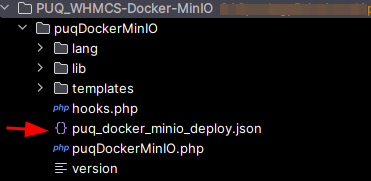
- Each module version comes with a workflow template file.
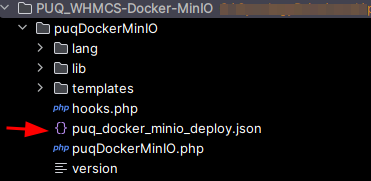
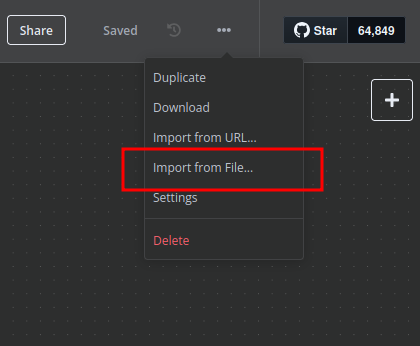
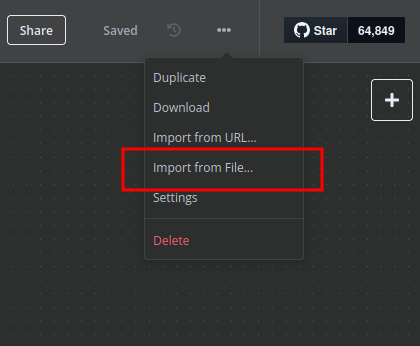
- You need to manually import this template into your n8n server.
n8n Workflow API Backend Setup for WHMCS/WISECP
Configure API Webhook and SSH Access
-
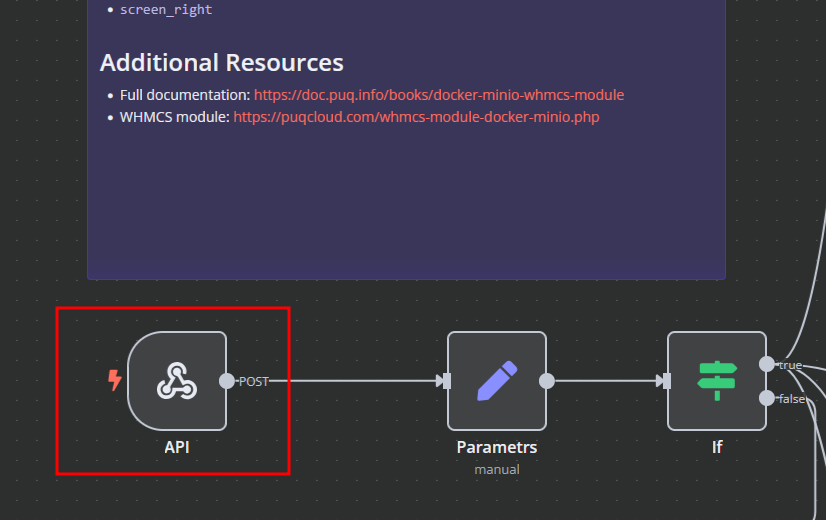
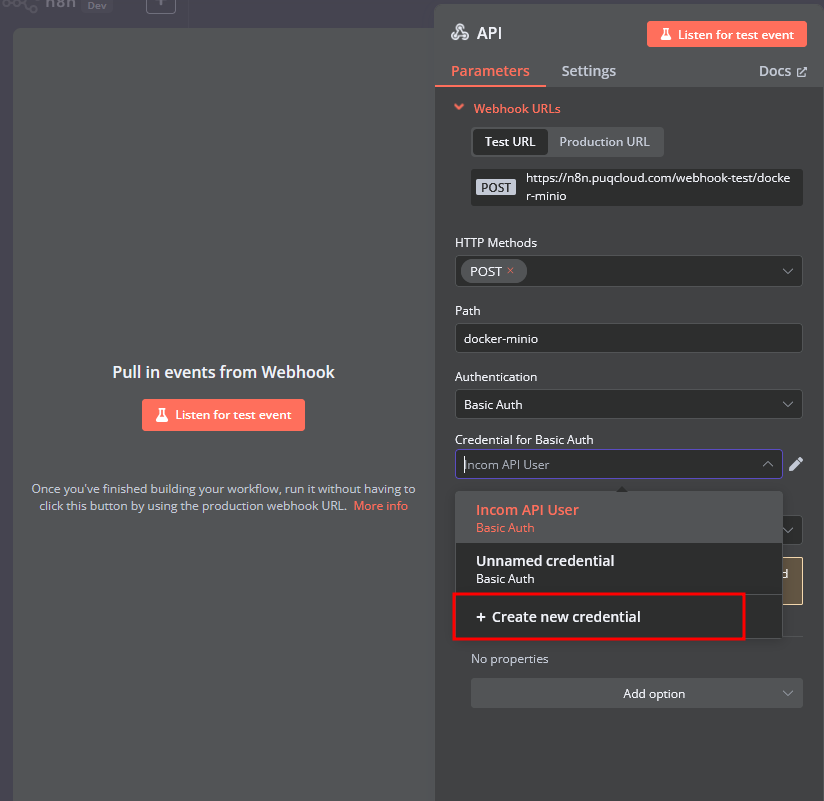
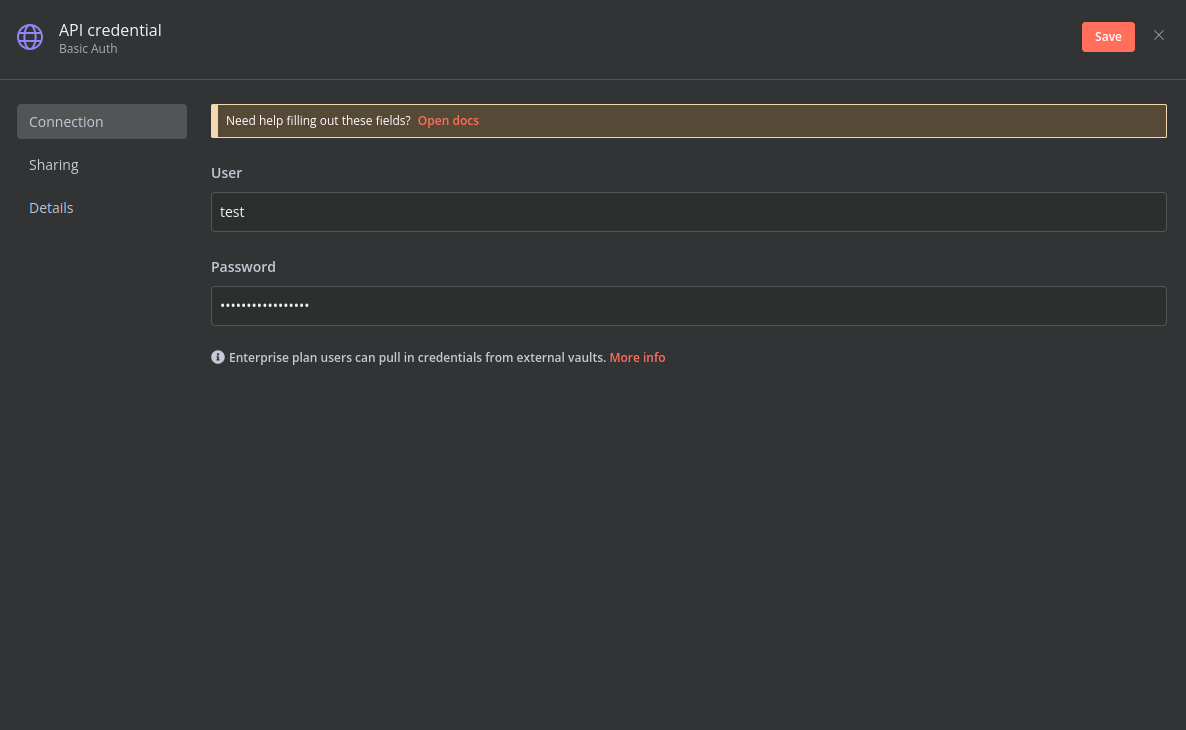
Create a Basic Auth Credential for the Webhook API Block in n8n.
-
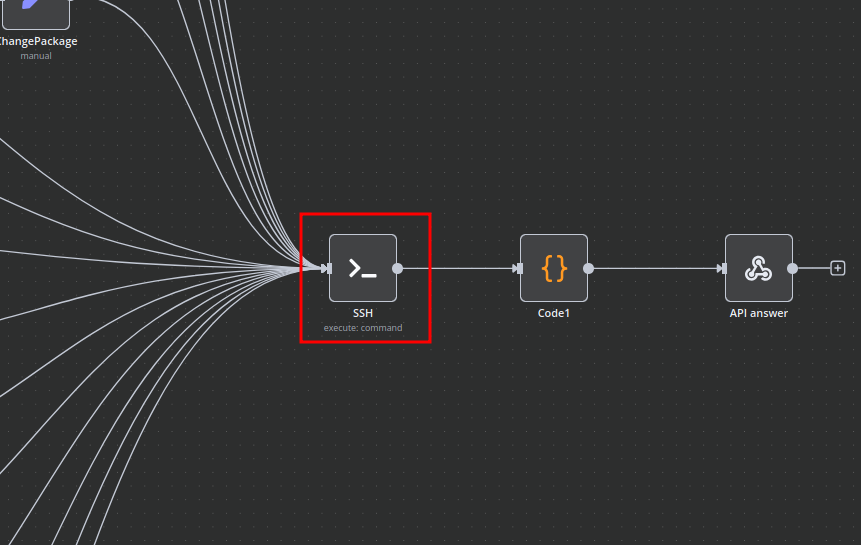
Create an SSH Credential for accessing a server with Docker installed.
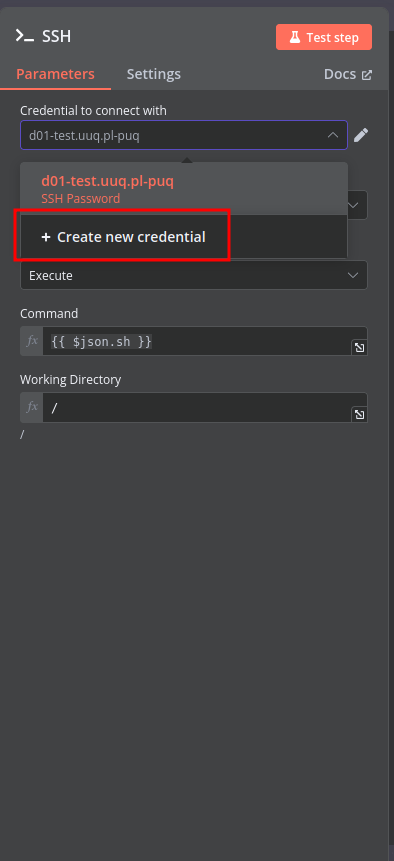
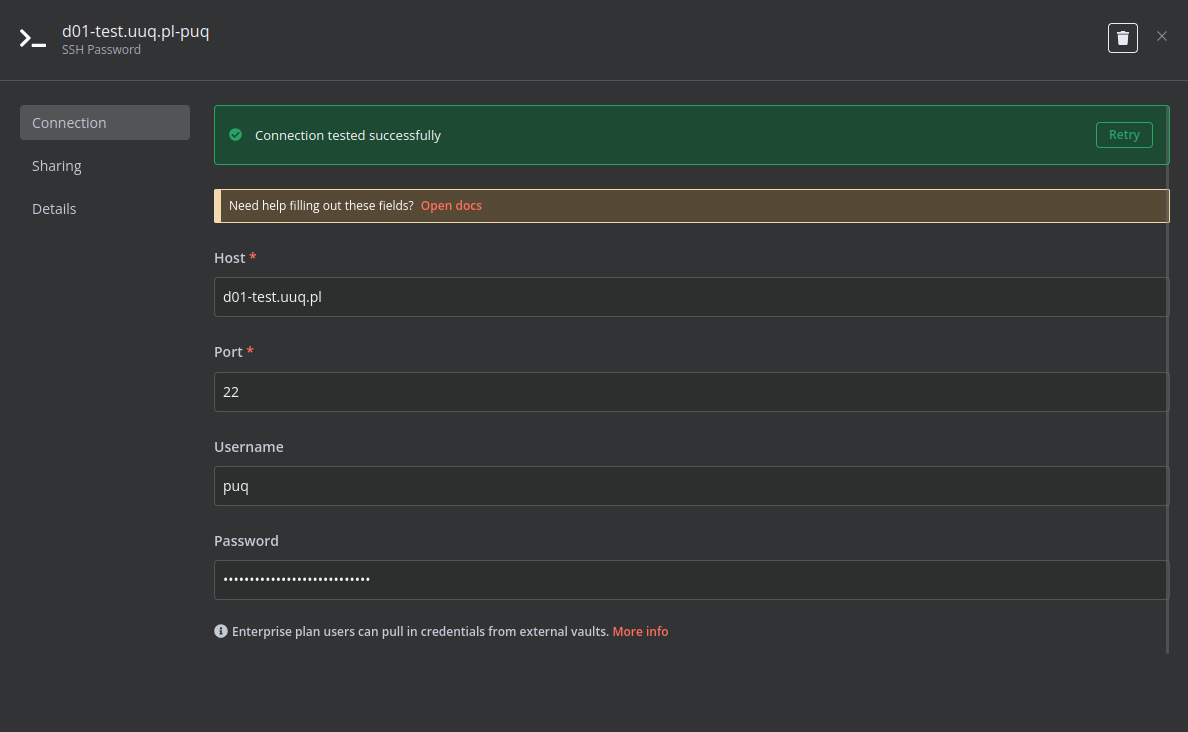
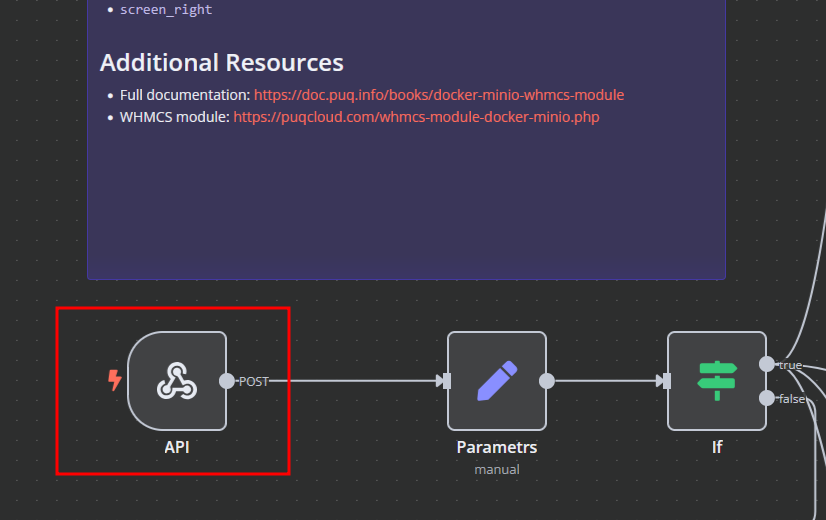
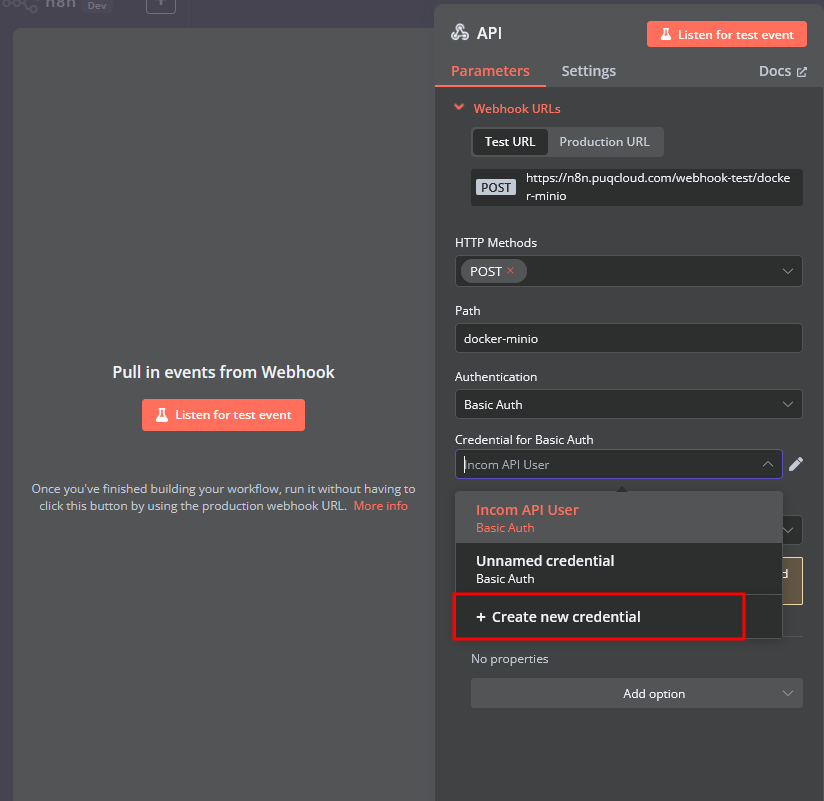
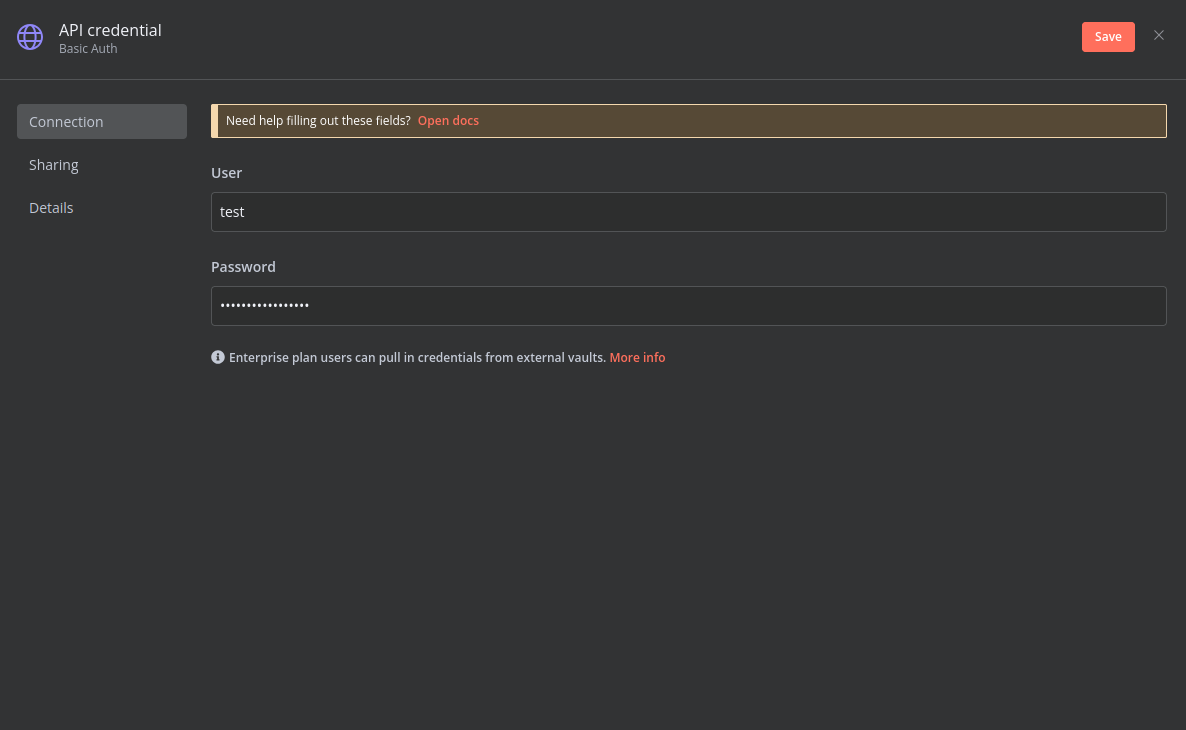
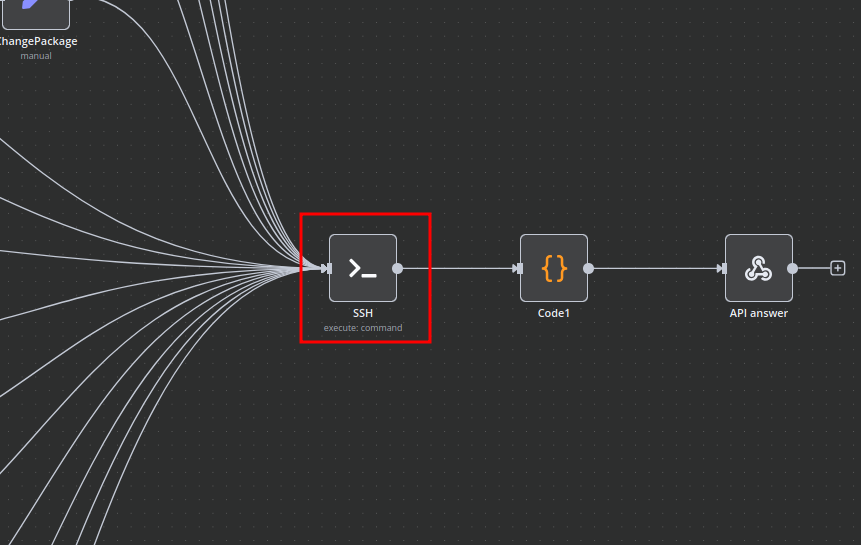
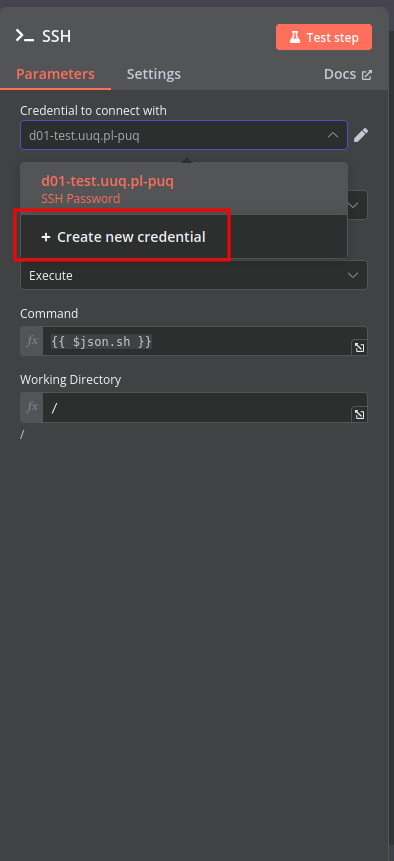
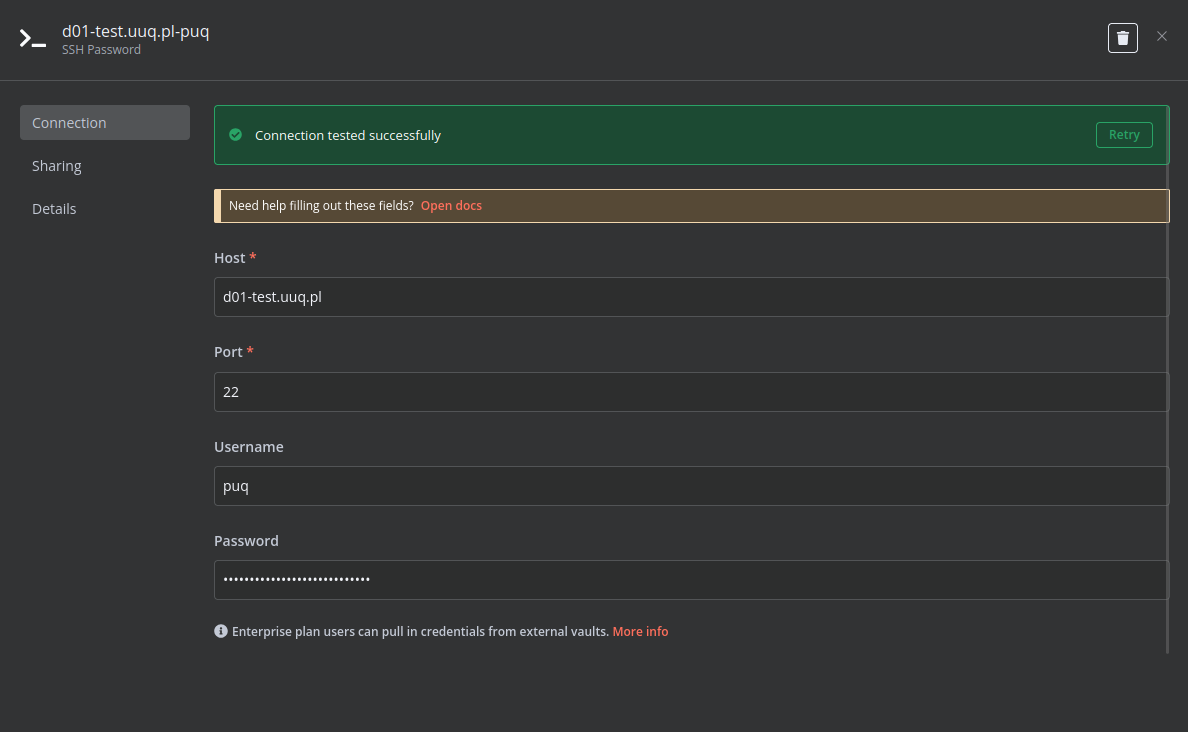
Modify Template Parameters
In the Parameters block of the template, update the following settings:
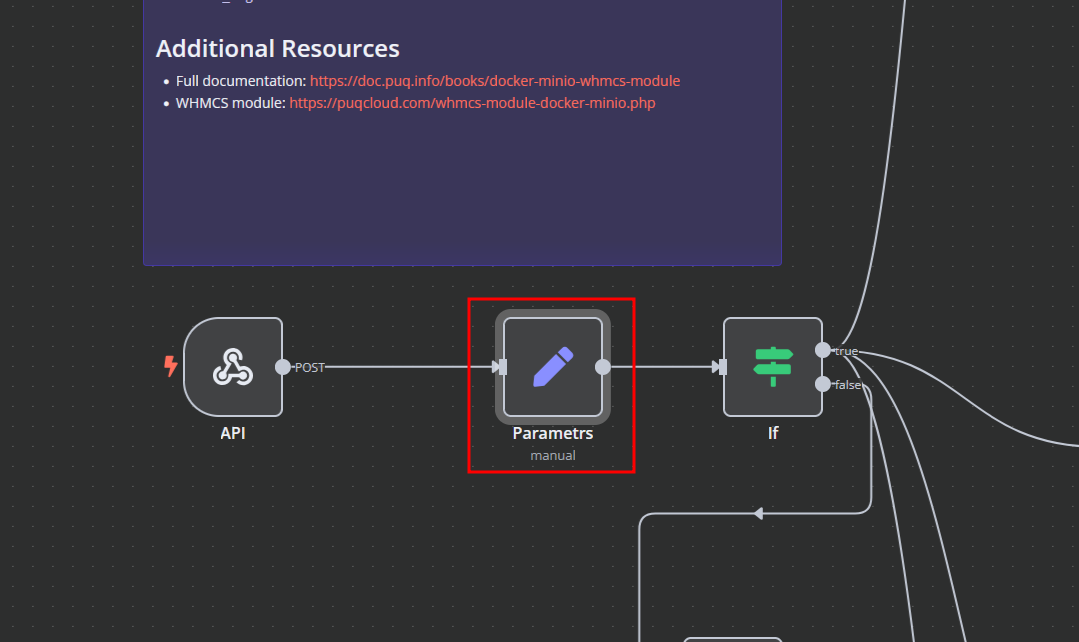
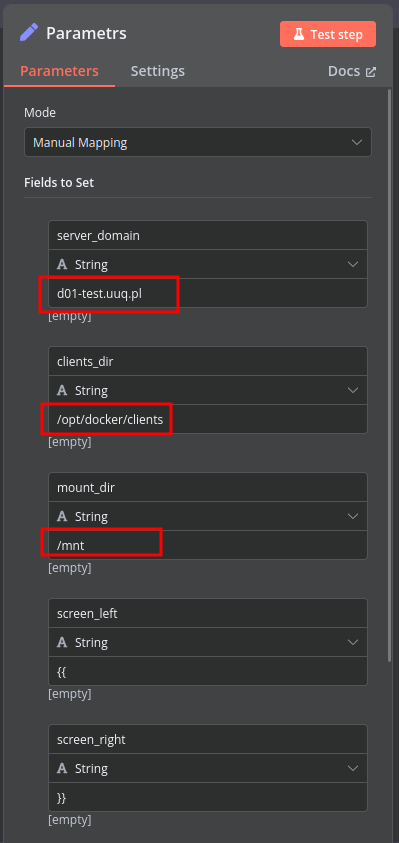
server_domain– Must match the domain of the WHMCS/WISECP Docker server.clients_dir– Directory where user data related to Docker and disks will be stored.mount_dir– Default mount point for the container disk (recommended not to change).
Do not modify the following technical parameters:
screen_leftscreen_right
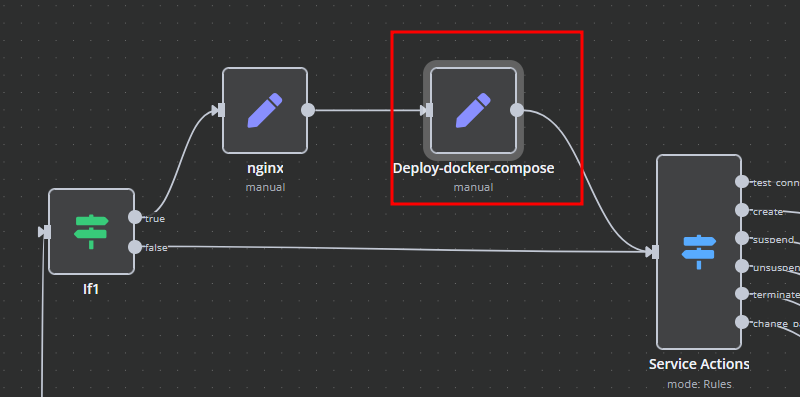
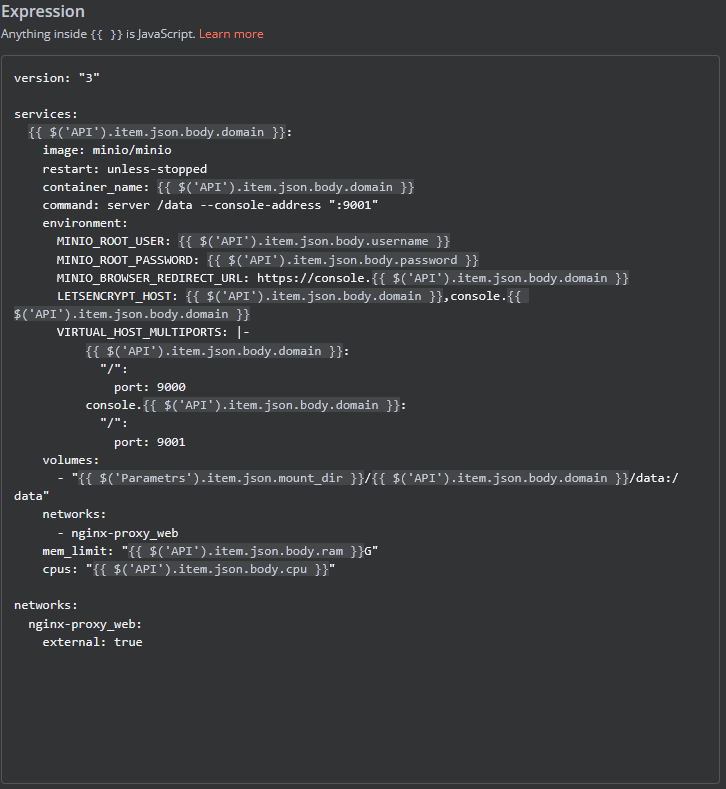
Deploy-docker-compose
In the Deploy-docker-compose element, you have the ability to modify the Docker Compose configuration, which will be generated in the following scenarios:
- When the service is created
- When the service is unlocked
- When the service is updated
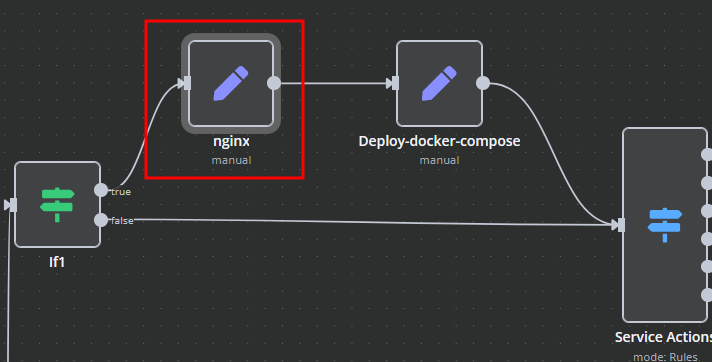
nginx
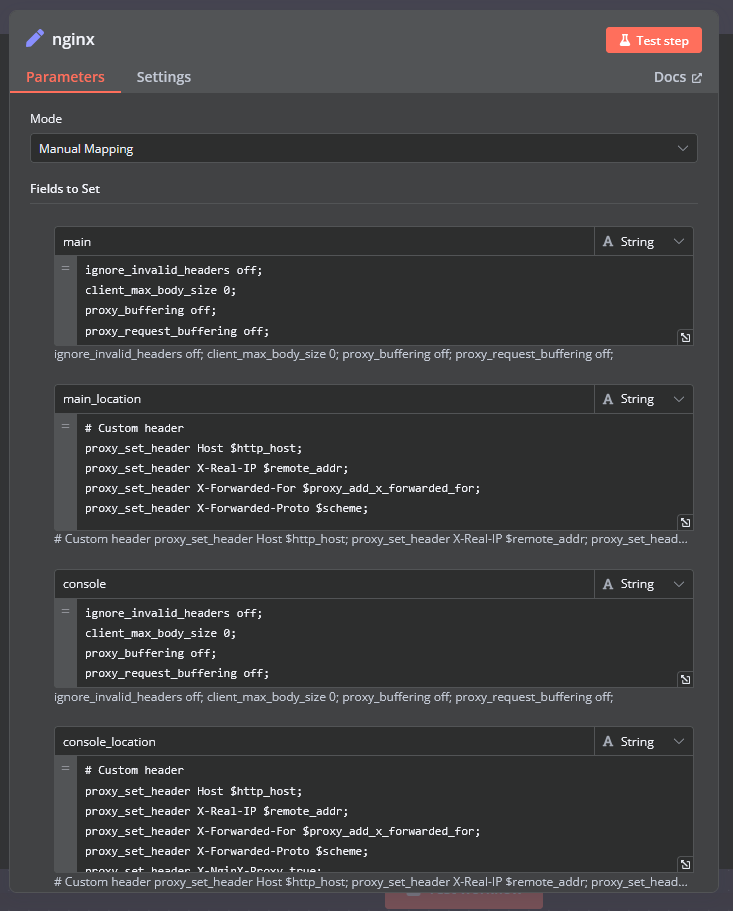
In the nginx element, you can modify the configuration parameters of the web interface proxy server.
- The main section allows you to add custom parameters to the server block in the proxy server configuration file.
- The main_location section contains settings that will be added to the location / block of the proxy server configuration. Here, you can define custom headers and other parameters specific to the root location.
Bash Scripts
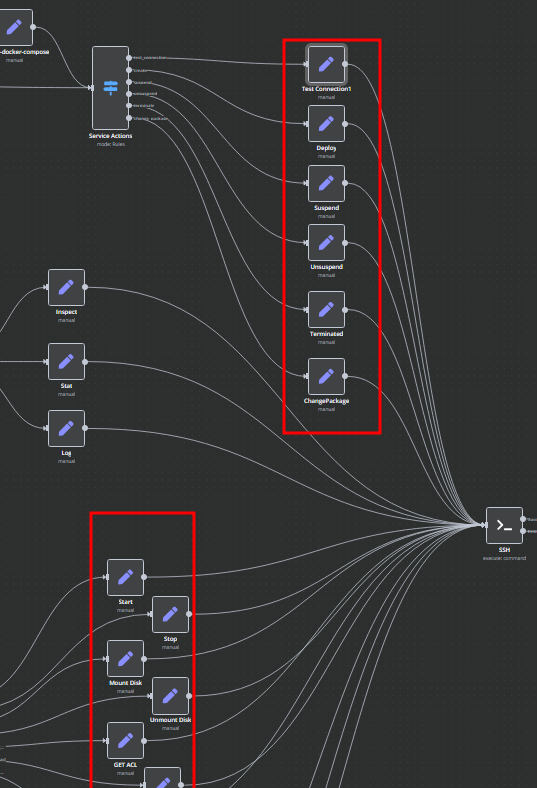
Management of Docker containers and all related procedures on the server is carried out by executing Bash scripts generated in n8n. These scripts return either a JSON response or a string.
- All scripts are located in elements directly connected to the SSH element.
- You have full control over any script and can modify or execute it as needed.
n8n Docker MinIO API Backend Deployment Workflow
This n8n workflow provides a robust and flexible solution for deploying a Dockerized MinIO API backend. It acts as a central control point, allowing you to trigger deployments, manage environment variables, and execute SSH commands on your server, all from a single, easy-to-use interface.
What it does
This workflow is designed to streamline the deployment process of a MinIO API backend running in a Docker container. Here's a step-by-step breakdown:
- Listens for Webhook Trigger: The workflow starts by exposing a webhook endpoint. When this endpoint receives a POST request, it initiates the deployment process.
- Processes Incoming Data: The
Edit Fieldsnode (Set) is used to extract and prepare relevant data from the incoming webhook request, likely setting environment variables or configuration parameters for the deployment. - Conditional Logic (If): An
Ifnode introduces conditional logic, allowing the workflow to branch based on specific criteria within the incoming data. This could be used to differentiate between deployment types (e.g., staging vs. production) or to validate request parameters. - Conditional Routing (Switch): Following the
Ifnode, aSwitchnode provides further routing capabilities. This allows for more complex branching based on the value of a specific field, enabling the workflow to execute different sets of actions depending on the deployment scenario. - Executes SSH Commands: The
SSHnode is the core of the deployment, allowing the workflow to connect to a remote server and execute commands. This is where the Docker commands for pulling the MinIO image, configuring it, and running the container would be executed. - Custom Code Execution: A
Codenode is included, providing the flexibility to run custom JavaScript logic within the workflow. This can be used for advanced data manipulation, logging, or generating dynamic commands for the SSH node. - Responds to Webhook: Finally, the
Respond to Webhooknode sends a response back to the client that triggered the workflow, indicating the status or outcome of the deployment. - Sticky Note for Documentation: A
Sticky Noteis present, likely used for internal documentation, reminders, or explanations within the workflow itself.
Prerequisites/Requirements
To use this workflow, you will need:
- n8n Instance: A running n8n instance to import and execute the workflow.
- SSH Credentials: SSH access to your server where Docker and MinIO will be deployed. This includes a hostname, username, and potentially an SSH key or password.
- Docker: Docker must be installed and running on your target deployment server.
- MinIO Configuration: Knowledge of your desired MinIO configuration (e.g., access keys, secret keys, bucket names). These will likely be passed via the webhook or configured within the workflow.
Setup/Usage
- Import the Workflow: Download the provided JSON and import it into your n8n instance.
- Configure Webhook:
- Open the
Webhooknode. - Copy the generated webhook URL. This is the endpoint you will call to trigger the deployment.
- Open the
- Configure SSH Credentials:
- Open the
SSHnode. - Create or select an existing SSH credential.
- Enter your server's hostname, username, and provide either an SSH private key or password.
- Open the
- Review and Customize:
- Examine the
Edit Fields(Set) node to understand how incoming data is processed. Adjust as needed for your specific input structure. - Review the
IfandSwitchnodes to understand the conditional logic. Modify the conditions to match your deployment requirements. - Crucially, configure the
SSHnode with the exact Docker commands required to deploy your MinIO API backend. This will involve commands likedocker pull minio/minio,docker run, setting environment variables, and mounting volumes. - If present, customize the
Codenode for any specific JavaScript logic you need. - Adjust the
Respond to Webhooknode to send an appropriate response.
- Examine the
- Activate the Workflow: Toggle the workflow to "Active" in n8n.
- Trigger the Workflow: Send a POST request to the webhook URL with the necessary payload to initiate a deployment.
Related Templates
Send WooCommerce discount coupons to customers via WhatsApp using Rapiwa API
Who is this for? This workflow is ideal for WooCommerce store owners who want to automatically send promotional WhatsApp messages to their customers when new coupons are created. It’s designed for marketers and eCommerce managers looking to boost engagement, streamline coupon sharing, and track campaign performance effortlessly through Google Sheets. Overview This workflow listens for WooCommerce coupon creation events (coupon.created) and uses customer billing data to send promotional WhatsApp messages via the Rapiwa API. The flow formats the coupon data, cleans phone numbers, verifies WhatsApp registration with Rapiwa, sends the promotional message when verified, and logs each attempt to Google Sheets (separate sheets for verified/sent and unverified/not sent). What this Workflow Does Listens for new coupon creation events in WooCommerce via the WooCommerce Trigger node Retrieves all customer data from the WooCommerce store Processes customers in batches to control throughput Cleans and formats customer phone numbers for WhatsApp Verifies if phone numbers are valid WhatsApp accounts using Rapiwa API Sends personalized WhatsApp messages with coupon details to verified numbers Logs all activities to Google Sheets for tracking and analysis Handles both verified and unverified numbers appropriately Key Features Automated coupon distribution: Triggers when new coupons are created in WooCommerce Customer data retrieval: Fetches all customer information from WooCommerce Phone number validation: Verifies WhatsApp numbers before sending messages Personalized messaging: Includes customer name and coupon details in messages Dual logging system: Tracks both successful and failed message attempts Rate limiting: Uses batching and wait nodes to prevent API overload Data formatting: Structures coupon information for consistent messaging Google Sheet Column Structure A Google Sheet formatted like this ➤ sample The workflow uses a Google Sheet with the following columns to track coupon distribution: | name | number | email | address1 | couponCode | couponTitle | couponType | couponAmount | createDate | expireDate | validity | status | | ----------- | ------------- | --------------------------------------------------- | --------- | ---------- | -------------- | ---------- | ------------ | ------------------- | ------------------- | ---------- | -------- | | Abdul Mannan | 8801322827799 | contact@spagreen.net | mirpur-DOHS | 62dhryst | eid offer 2025 | percent | 20.00 | 2025-09-11 06:08:02 | 2025-09-15 00:00:00 | unverified | not sent | | Abdul Mannan | 8801322827799 | contact@spagreen.net | mirpur-DOHS | 62dhryst | eid offer 2025 | percent | 20.00 | 2025-09-11 06:08:02 | 2025-09-15 00:00:00 | verified | sent | Requirements n8n instance with the following nodes: WooCommerce Trigger, Code, SplitInBatches, HTTP Request, IF, Google Sheets, Wait WooCommerce store with API access Rapiwa account with API access for WhatsApp verification and messaging Google account with Sheets access Customer phone numbers in WooCommerce (stored in billing.phone field) Important Notes Phone Number Format: The workflow cleans phone numbers by removing all non-digit characters. Ensure your WooCommerce phone numbers are in a compatible format. API Rate Limits: Rapiwa and WooCommerce APIs have rate limits. Adjust batch sizes and wait times accordingly. Data Privacy: Ensure compliance with data protection regulations when sending marketing messages. Error Handling: The workflow logs unverified numbers but doesn't have extensive error handling. Consider adding error notifications for failed API calls. Message Content: The current message template references the first coupon only (coupons[0]). Adjust if you need to handle multiple coupons. Useful Links Dashboard: https://app.rapiwa.com Official Website: https://rapiwa.com Documentation: https://docs.rapiwa.com Support & Help WhatsApp: Chat on WhatsApp Discord: SpaGreen Community Facebook Group: SpaGreen Support Website: https://spagreen.net Developer Portfolio: Codecanyon SpaGreen
 By Rapiwa
Competitor intelligence agent: SERP monitoring + summary with Thordata + OpenAI
Who this is for? This workflow is designed for: Marketing analysts, SEO specialists, and content strategists who want automated intelligence on their online competitors. Growth teams that need quick insights from SERP (Search Engine Results Pages) without manual data scraping. Agencies managing multiple clients’ SEO presence and tracking competitive positioning in real-time. What problem is this workflow solving? Manual competitor research is time-consuming, fragmented, and often lacks actionable insights. This workflow automates the entire process by: Fetching SERP results from multiple search engines (Google, Bing, Yandex, DuckDuckGo) using Thordata’s Scraper API. Using OpenAI GPT-4.1-mini to analyze, summarize, and extract keyword opportunities, topic clusters, and competitor weaknesses. Producing structured, JSON-based insights ready for dashboards or reports. Essentially, it transforms raw SERP data into strategic marketing intelligence — saving hours of research time. What this workflow does Here’s a step-by-step overview of how the workflow operates: Step 1: Manual Trigger Initiates the process on demand when you click “Execute Workflow.” Step 2: Set the Input Query The “Set Input Fields” node defines your search query, such as: > “Top SEO strategies for e-commerce in 2025” Step 3: Multi-Engine SERP Fetching Four HTTP request tools send the query to Thordata Scraper API to retrieve results from: Google Bing Yandex DuckDuckGo Each uses Bearer Authentication configured via “Thordata SERP Bearer Auth Account.” Step 4: AI Agent Processing The LangChain AI Agent orchestrates the data flow, combining inputs and preparing them for structured analysis. Step 5: SEO Analysis The SEO Analyst node (powered by GPT-4.1-mini) parses SERP results into a structured schema, extracting: Competitor domains Page titles & content types Ranking positions Keyword overlaps Traffic share estimations Strengths and weaknesses Step 6: Summarization The Summarize the content node distills complex data into a concise executive summary using GPT-4.1-mini. Step 7: Keyword & Topic Extraction The Keyword and Topic Analysis node extracts: Primary and secondary keywords Topic clusters and content gaps SEO strength scores Competitor insights Step 8: Output Formatting The Structured Output Parser ensures results are clean, validated JSON objects for further integration (e.g., Google Sheets, Notion, or dashboards). Setup Prerequisites n8n Cloud or Self-Hosted instance Thordata Scraper API Key (for SERP data retrieval) OpenAI API Key (for GPT-based reasoning) Setup Steps Add Credentials Go to Credentials → Add New → HTTP Bearer Auth* → Paste your Thordata API token. Add OpenAI API Credentials* for the GPT model. Import the Workflow Copy the provided JSON or upload it into your n8n instance. Set Input In the “Set the Input Fields” node, replace the example query with your desired topic, e.g.: “Google Search for Top SEO strategies for e-commerce in 2025” Execute Click “Execute Workflow” to run the analysis. How to customize this workflow to your needs Modify Search Query Change the search_query variable in the Set Node to any target keyword or topic. Change AI Model In the OpenAI Chat Model nodes, you can switch from gpt-4.1-mini to another model for better quality or lower cost. Extend Analysis Edit the JSON schema in the “Information Extractor” nodes to include: Sentiment analysis of top pages SERP volatility metrics Content freshness indicators Export Results Connect the output to: Google Sheets / Airtable for analytics Notion / Slack for team reporting Webhook / Database for automated storage Summary This workflow creates an AI-powered Competitor Intelligence System inside n8n by blending: Real-time SERP scraping (Thordata) Automated AI reasoning (OpenAI GPT-4.1-mini) Structured data extraction (LangChain Information Extractors)
 By Ranjan Dailata
Client review collection & sentiment analysis with HighLevel, GPT-4o, Gmail & Slack
📘 Description: This automation streamlines client review collection and sentiment summarization for Techdome using HighLevel CRM, Azure OpenAI GPT-4o, Gmail, Slack, and Google Sheets. It starts by pulling recently won deals from HighLevel, then generates and sends AI-written HTML review request emails with built-in Google Review and feedback form links. After waiting 24 hours, it fetches the client’s reply thread, summarizes the sentiment using GPT-4o, and posts a clean update to Slack for team visibility. Any failures—API errors, empty responses, or data validation issues—are logged automatically to Google Sheets for full transparency and QA. The result: a fully hands-free Client Appreciation + Feedback Intelligence Loop, improving brand perception and internal responsiveness. ⚙️ What This Workflow Does (Step-by-Step) ▶️ When Clicking ‘Execute Workflow’ (Manual Trigger) Allows on-demand execution or scheduled testing of the workflow. Initiates the fetch for all newly “Won” deals from HighLevel CRM. 🏆 Fetch All Won Deals from HighLevel Retrieves all opportunities labeled “won” in HighLevel, gathering essential client details such as name, email, and deal information to personalize outgoing emails. 🔍 Validate Deal Fetch Success (IF Node) Checks each record for a valid id field. ✅ True Path: Moves ahead to generate AI email content. ❌ False Path: Logs the event to Google Sheets under the error log sheet. 🧠 Configure GPT-4o Model (Azure OpenAI) Initializes the GPT-4o engine that powers all language-generation tasks in this workflow—ensuring precise tone, correct formatting, and safe structured HTML output. 💌 Generate Personalized Review Request Email (AI Agent) Uses GPT-4o to create a tailored, HTML-formatted email thanking the client for their business and requesting feedback. Includes two clickable CTA buttons: ⭐ Google Review Link: 📝 Internal Feedback Form: Google Form link for in-depth feedback Each email maintains Techdome’s friendly, brand-consistent voice with clean inline CSS styling. 📨 Send Review Request Email to Client (Gmail Node) Automatically sends the AI-generated email to the client’s registered address through Gmail. Ensures timely post-service communication without manual follow-ups. ⏳ Wait for 24 Hours Before Next Action Pauses the workflow for 24 hours to give clients time to read and respond to the review request. 📥 Retrieve Email Thread for Response (Gmail Node) After the waiting period, fetches the Gmail thread associated with the initial email to capture client replies or feedback messages. 🧠 Configure GPT-4o Model (Summarization Engine) Prepares another GPT-4o instance specialized for summarizing client replies into concise, sentiment-aware Slack messages. 💬 Summarize Client Feedback (AI Agent) Analyzes the Gmail thread and produces a short Slack-formatted summary using this structure: 🎉 New Client Review Received!Client: <Name> Feedback: <Message snippet> Sentiment: Positive / Neutral / Negative Focuses on tone clarity and quick readability for internal teams. 📢 Announce Review Summary in Slack Posts the AI-generated summary in a designated Slack channel, keeping success and support teams instantly informed of client sentiments and feedback trends. 📊 Log Errors in Google Sheets Appends all failures—including fetch issues, missing fields, or parsing errors—to the Google Sheets “error log sheet,” maintaining workflow reliability and accountability. 🧩 Prerequisites HighLevel CRM OAuth credentials (to fetch deals) Azure OpenAI GPT-4o access (for AI-driven writing and summarization) Gmail API connection (for sending & reading threads) Slack API integration (for posting summaries) Google Sheets access (for error logging) 💡 Key Benefits ✅ Automates personalized review outreach after project completion ✅ Waits intelligently before analyzing responses ✅ Uses GPT-4o to summarize client sentiment in human tone ✅ Sends instant Slack updates for real-time visibility ✅ Keeps audit logs of all errors for debugging 👥 Perfect For Client Success and Account Management Teams Agencies using HighLevel CRM for project delivery Teams aiming to collect consistent client feedback and reviews Businesses wanting AI-assisted sentiment insights in Slack
 By Rahul Joshi