🉑 Generate Anki flash cards for language learning with Google Translate and GPT

Context
Hey! I'm Samir, a Supply Chain Data Scientist from Paris who spent six years in China studying and working while struggling to learn Mandarin.
I know the challenges of mastering a complex language like Chinese and my greatest support was flash cards. Therefore, I designed this workflow to support fellow Mandarin learners by automating flashcard creation using n8n, so they can focus more on learning and less on manual data entry.
📬 For business inquiries, you can add me on Here
Who is this template for?
This workflow template is designed for language learners and educators who want to automate the creation of flashcards for Mandarin (or any other language) using Google Translate API, an AI agent for phonetic transcription and generating an illustrative sentence and a free image retrieval API.

Why?
If you use the open-source application Anki, this workflow will help you automatically generate personalized study materials.
How?
Let us imagine you want to learn how to say the word Contract in Mandarin.
The workflow will automatically
- Translate the word in Simplified Mandarin (Mandarin: 合同).
- Provide the phonetic transcription (Pinyin: Hétóng)
- Generate an example sentence (Example: 我们签订了一份合同.)
- Download an illustrative picture (For example, a picture of a contract signature)

All these fields are automatically recorded in a Google Sheet, making it easy to import into Anki and generate flashcards instantly
What do I need to start?
This workflow can be used with the free tier plans of the services used. It does not require any advanced programming skills.
Prerequisite
- A Google Drive Account with a folder including a Google Sheet
- API Credentials: Google Drive API, Google Sheets API and Google Translate API activated with OAuth2 credentials
- A free API key of pexels.com
- A google sheet with the columns
Next
Follow the sticky notes to set up the parameters inside each node and get ready to pump your learning skills.
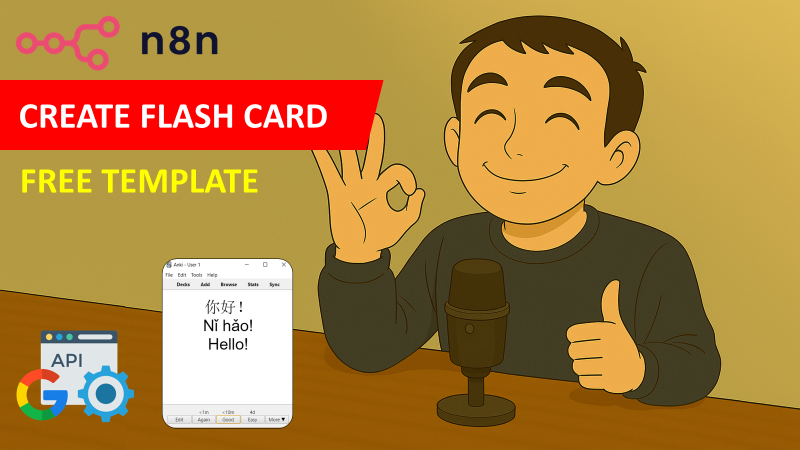
I have detailed the steps in a short tutorial 👇
Notes
- This workflow can be used for any language. In the AI Agent prompt, you just need to replace the word pinyin with phonetic transcription.
- You can adapt the trigger to operate the workflow in the way you want. These operations can be performed by batch or triggered by Telegram, email, or webhook.
- If you want to learn more about how I used Anki flash cards to learn mandarin: 🈷️ Blog Article about Anki Flash Cards
This workflow has been created with N8N 1.82.1 Submitted: March 17th, 2025
Generate Anki Flashcards for Language Learning with Google Translate and GPT
This n8n workflow automates the creation of Anki flashcards for language learning. It leverages Google Sheets as a data source, Google Translate for initial translation, and an AI Agent (powered by OpenAI's GPT models) to generate comprehensive flashcard content, including example sentences and explanations.
What it does
This workflow streamlines the flashcard creation process by:
- Triggering on New Google Sheet Rows: It listens for new rows added to a specified Google Sheet. Each row is expected to contain a word or phrase to be learned.
- Translating with Google Translate: For each new word, it uses Google Translate to get the translation into the target language.
- Generating Flashcard Content with AI: It then passes the original word, its translation, and the target language to an AI Agent (powered by an OpenAI Chat Model). The AI Agent is instructed to generate:
- An example sentence using the translated word.
- An explanation or definition of the word in the target language.
- The phonetic transcription (IPA) of the translated word.
- Structuring AI Output: A Structured Output Parser extracts the generated example sentence, explanation, and phonetic transcription into a clean JSON format.
- Preparing Data for Anki: It combines the original word, its translation, and the AI-generated content into a structured format suitable for Anki flashcards.
- Writing to Google Sheets (for Anki Import): Finally, it appends the complete flashcard data (original word, translation, example sentence, explanation, and IPA) as a new row to another specified Google Sheet, ready for easy import into Anki.
Prerequisites/Requirements
To use this workflow, you will need:
- n8n Instance: A running n8n instance.
- Google Account: A Google account with access to Google Sheets and Google Drive.
- Google Sheets Trigger Credential: Configured Google Sheets credential for the trigger node.
- Google Sheets Credential: Configured Google Sheets credential for writing the output.
- Google Translate Credential: Configured Google Translate credential.
- OpenAI API Key: An OpenAI API key for the AI Agent (GPT model).
- OpenAI Chat Model Credential: Configured OpenAI credential for the AI Chat Model.
Setup/Usage
- Import the Workflow: Download the workflow JSON and import it into your n8n instance.
- Configure Credentials:
- Set up your Google Sheets credentials for both the trigger and the final output.
- Set up your Google Translate credential.
- Set up your OpenAI credential for the AI Chat Model.
- Specify Google Sheets:
- Google Sheets Trigger: Configure the "Google Sheets Trigger" node (Node ID: 841) to monitor the Google Sheet where you will add new words/phrases. Specify the Spreadsheet ID and the sheet name.
- Google Sheets Output: Configure the "Google Sheets" node (Node ID: 18) to specify the Spreadsheet ID and sheet name where the generated flashcard data should be written. This sheet will be your source for Anki imports.
- Activate the Workflow: Once configured, activate the workflow. It will now automatically process new entries in your input Google Sheet.
- Add Words to Google Sheet: Add new words or phrases you want to learn to your input Google Sheet. The workflow will pick them up, translate them, enrich them with AI-generated content, and write the complete flashcard data to your output Google Sheet.
- Import into Anki: Regularly import the data from your output Google Sheet into Anki to create your flashcards.
Related Templates
Track daily moods with AI analysis & reports using GPT-4o, Data Tables & Gmail
Track your daily mood in one tap and receive automated AI summaries of your emotional trends every week and month. Perfect for self-reflection, wellness tracking, or personal analytics. This workflow logs moods sent through a webhook (/mood) into Data Tables, analyzes them weekly and monthly with OpenAI (GPT-4o), and emails you clear summaries and actionable recommendations via Gmail. ⚙️ How It Works Webhook – Mood → Collects new entries (🙂, 😐, or 😩) plus an optional note. Set Mood Data → Adds date, hour, and note fields automatically. Insert Mood Row → Stores each record in a Data Table. Weekly Schedule (Sunday 20:00) → Aggregates the last 7 days and sends a summarized report. Monthly Schedule (Day 1 at 08:00) → Aggregates the last 30 days for a deeper AI analysis. OpenAI Analysis → Generates insights, patterns, and 3 actionable recommendations. Gmail → Sends the full report (chart + AI text) to your inbox. 📊 Example Auto-Email Weekly Mood Summary (last 7 days) 🙂 5 ██████████ 😐 2 ████ 😩 0 Average: 1.7 (Positive 🙂) AI Insights: You’re trending upward this week — notes show that exercise days improved mood. Try keeping short walks mid-week to stabilize energy. 🧩 Requirements n8n Data Tables enabled OpenAI credential (GPT-4o or GPT-4 Turbo) Gmail OAuth2 credential to send summaries 🔧 Setup Instructions Connect your credentials: Add your own OpenAI and Gmail OAuth2 credentials. Set your Data Table ID: Open the Insert Mood Row node and enter your own Data Table ID. Without this, new moods won’t be stored. Replace the email placeholder: In the Gmail nodes, replace your.email@example.com with your actual address. Deploy and run: Send a test POST request to /mood (e.g. { "mood": "🙂", "note": "productive day" }) to log your first entry. ⚠️ Before activating the workflow, ensure you have configured the Data Table ID in the “Insert Mood Row” node. 🧠 AI Analysis Interprets mood patterns using GPT-4o. Highlights trends, potential triggers, and suggests 3 specific actions. Runs automatically every week and month. 🔒 Security No personal data is exposed outside your n8n instance. Always remove or anonymize credential references before sharing publicly. 💡 Ideal For Personal mood journaling and AI feedback Therapists tracking client progress Productivity or self-quantification projects 🗒️ Sticky Notes Guide 🟡 Mood Logging Webhook POST /mood receives mood + optional note. ⚠️ Configure your own Data Table ID in the “Insert Mood Row” node before running. 🟢 Weekly Summary Runs every Sunday 20:00 → aggregates last 7 days → generates AI insights + emails report. 🔵 Monthly Summary Runs on Day 1 at 08:00 → aggregates last 30 days → creates monthly reflection. 🟣 AI Analysis Uses OpenAI GPT-4o to interpret trends and recommend actions. 🟠 Email Delivery Sends formatted summaries to your inbox automatically.
 By Jose Castillo
IT ops AI SlackBot workflow - chat with your knowledge base
Video Demo: Click here to see a video of this workflow in action. Summary Description: The "IT Department Q&A Workflow" is designed to streamline and automate the process of handling IT-related inquiries from employees through Slack. When an employee sends a direct message (DM) to the IT department's Slack channel, the workflow is triggered. The initial step involves the "Receive DMs" node, which listens for new messages. Upon receiving a message, the workflow verifies the webhook by responding to Slack's challenge request, ensuring that the communication channel is active and secure. Once the webhook is verified, the workflow checks if the message sender is a bot using the "Check if Bot" node. If the sender is identified as a bot, the workflow terminates the process to avoid unnecessary actions. If the sender is a human, the workflow sends an acknowledgment message back to the user, confirming that their query is being processed. This is achieved through the "Send Initial Message" node, which posts a simple message like "On it!" to the user's Slack channel. The core functionality of the workflow is powered by the "AI Agent" node, which utilizes the OpenAI GPT-4 model to interpret and respond to the user's query. This AI-driven node processes the text of the received message, generating an appropriate response based on the context and information available. To maintain conversation context, the "Window Buffer Memory" node stores the last five messages from each user, ensuring that the AI agent can provide coherent and contextually relevant answers. Additionally, the workflow includes a custom Knowledge Base (KB) tool (see that tool template here) that integrates with the AI agent, allowing it to search the company's internal KB for relevant information. After generating the response, the workflow cleans up the initial acknowledgment message using the "Delete Initial Message" node to keep the conversation thread clean. Finally, the generated response is sent back to the user via the "Send Message" node, providing them with the information or assistance they requested. This workflow effectively automates the IT support process, reducing response times and improving efficiency. To quickly deploy the Knowledge Ninja app in Slack, use the app manifest below and don't forget to replace the two sample urls: { "display_information": { "name": "Knowledge Ninja", "description": "IT Department Q&A Workflow", "background_color": "005e5e" }, "features": { "bot_user": { "display_name": "IT Ops AI SlackBot Workflow", "always_online": true } }, "oauth_config": { "redirect_urls": [ "Replace everything inside the double quotes with your slack redirect oauth url, for example: https://n8n.domain.com/rest/oauth2-credential/callback" ], "scopes": { "user": [ "search:read" ], "bot": [ "chat:write", "chat:write.customize", "groups:history", "groups:read", "groups:write", "groups:write.invites", "groups:write.topic", "im:history", "im:read", "im:write", "mpim:history", "mpim:read", "mpim:write", "mpim:write.topic", "usergroups:read", "usergroups:write", "users:write", "channels:history" ] } }, "settings": { "event_subscriptions": { "request_url": "Replace everything inside the double quotes with your workflow webhook url, for example: https://n8n.domain.com/webhook/99db3e73-57d8-4107-ab02-5b7e713894ad", "bot_events": [ "message.im" ] }, "orgdeployenabled": false, "socketmodeenabled": false, "tokenrotationenabled": false } }
 By Angel Menendez
Generate Weather-Based Date Itineraries with Google Places, OpenRouter AI, and Slack
🧩 What this template does This workflow builds a 120-minute local date course around your starting point by querying Google Places for nearby spots, selecting the top candidates, fetching real-time weather data, letting an AI generate a matching emoji, and drafting a friendly itinerary summary with an LLM in both English and Japanese. It then posts the full bilingual plan with a walking route link and weather emoji to Slack. 👥 Who it’s for Makers and teams who want a plug-and-play bilingual local itinerary generator with weather awareness — no custom code required. ⚙️ How it works Trigger – Manual (or schedule/webhook). Discovery – Google Places nearby search within a configurable radius. Selection – Rank by rating and pick the top 3. Weather – Fetch current weather (via OpenWeatherMap). Emoji – Use an AI model to match the weather with an emoji 🌤️. Planning – An LLM writes the itinerary in Markdown (JP + EN). Route – Compose a Google Maps walking route URL. Share – Post the bilingual itinerary, route link, and weather emoji to Slack. 🧰 Requirements n8n (Cloud or self-hosted) Google Maps Platform (Places API) OpenWeatherMap API key Slack Bot (chat:write) LLM provider (e.g., OpenRouter or DeepL for translation) 🚀 Setup (quick) Open Set → Fields: Config and fill in coords/radius/time limit. Connect Credentials for Google, OpenWeatherMap, Slack, and your LLM. Test the workflow and confirm the bilingual plan + weather emoji appear in Slack. 🛠 Customize Adjust ranking filters (type, min rating). Modify translation settings (target language or tone). Change output layout (side-by-side vs separated). Tune emoji logic or travel mode. Add error handling, retries, or logging for production use.
 By noda