Repurpose YouTube videos and publish via Blotato with Telegram, Sheets and GPT-4.1-mini

💥 Automate YouTube Video Creation and Publishing with Blotato
Who is this for?
This workflow is designed for YouTube creators, content marketers, automation builders, and agencies who want to repurpose existing YouTube videos into new original content and automate the publishing process.
It is especially useful for users already working with Telegram, Google Sheets, OpenAI, and Blotato.
What problem is this workflow solving? / Use case
Creating YouTube content at scale is time-consuming: extracting ideas from existing videos, rewriting scripts, generating SEO metadata, tracking content, and publishing videos all require manual work across multiple tools.
This workflow solves that by:
- Automating content analysis and rewriting
- Centralizing tracking and approvals in Google Sheets
- Automating YouTube publishing via Blotato
What this workflow does
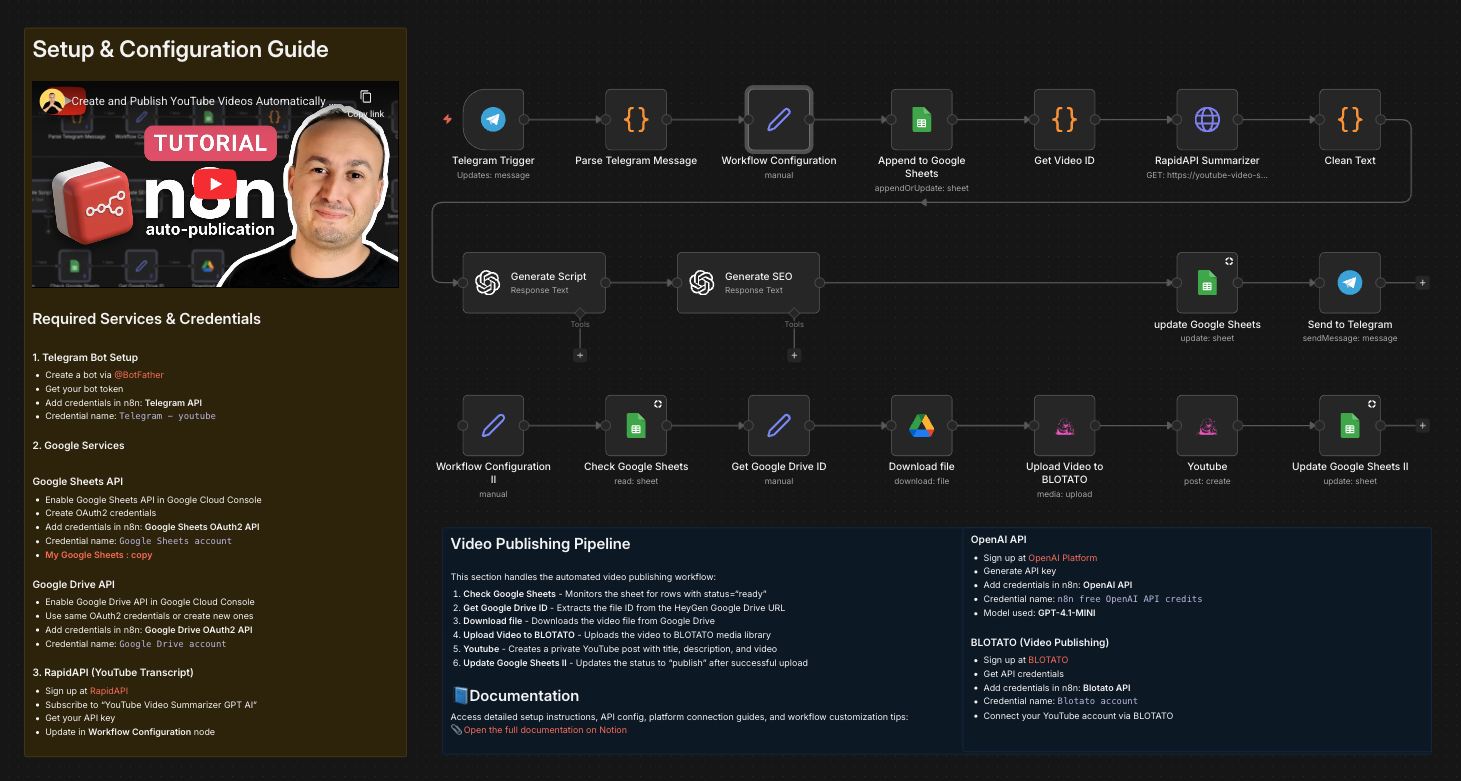
This workflow automates the full YouTube video repurposing and publishing pipeline:
- Receives a YouTube video URL and instructions via Telegram
- Logs the request in Google Sheets
- Extracts the YouTube video ID
- Retrieves the video transcript via RapidAPI
- Cleans and normalizes the transcript
- Generates a new original video script using OpenAI
- Generates SEO metadata (title, description, tags) in strict JSON format
- Updates Google Sheets with the generated content
- Waits for approval (
status = ready) - Uploads the final video to Blotato
- Publishes the video on YouTube
- Updates the status to
publishin Google Sheets
Setup
To use this workflow, you need to configure the following services:
Google Services
- Enable Google Sheets API in Google Cloud Console
- Create OAuth2 credentials
- Add credentials in n8n: Google Sheets OAuth2 API
- Credential name:
Google Sheets account - My Google Sheets : copy
RapidAPI (YouTube Transcript)
- Sign up at RapidAPI
- Subscribe to "YouTube Video Summarizer GPT AI"
- Get your API key
- Update in Workflow Configuration node
BLOTATO (Video Publishing)
- Sign up at BLOTATO
- Get API credentials
- Add credentials in n8n: Blotato API
- Credential name:
Blotato account - Connect your YouTube account via BLOTATO
How to customize this workflow to your needs
You can easily adapt this workflow by:
- Changing the output language (
output_lang) in the configuration node - Modifying the OpenAI prompts to match your tone or niche
- Adjusting Google Sheets columns or approval logic
- Replacing YouTube with another platform supported by Blotato
- Extending the workflow to generate shorts, reels, or multi-platform posts
The workflow is modular and designed to be extended without breaking the core logic.
🎥 Watch This Tutorial
👋 Need help or want to customize this?
📩 Contact: LinkedIn
📺 YouTube: @DRFIRASS
🚀 Workshops: Mes Ateliers n8n
📄 Documentation: Notion Guide
Need help customizing?
Contact me for consulting and support : Linkedin / Youtube / 🚀 Mes Ateliers n8n
Repurpose YouTube Videos and Publish via Blotato with Telegram, Sheets, and GPT-41 Mini
This n8n workflow automates the process of repurposing YouTube videos into blog posts, publishing them via Blotato, and notifying a Telegram channel. It leverages Google Sheets for content management, OpenAI for content generation, and Google Drive for file storage.
What it does
This workflow streamlines the content creation and publishing process through the following steps:
- Triggers on Telegram Message: The workflow starts when a new message is received in a configured Telegram chat. This message is expected to contain a YouTube video URL.
- Extracts Video ID: It extracts the YouTube video ID from the provided URL.
- Generates Blog Post Content: It uses OpenAI (likely GPT-41 Mini as hinted by the directory name) to generate a blog post title, summary, and full content based on the YouTube video's transcript or description.
- Stores Content in Google Sheets: The generated content (YouTube URL, video ID, title, summary, content) is then appended as a new row in a specified Google Sheet.
- Publishes to Blotato (via HTTP Request): It makes an HTTP request to the Blotato API to publish the generated blog post.
- Uploads to Google Drive: The workflow creates a text file containing the blog post content and uploads it to a designated folder in Google Drive.
- Notifies Telegram: Finally, it sends a confirmation message to the Telegram channel with a link to the published Blotato post and the Google Drive file.
Prerequisites/Requirements
To use this workflow, you will need:
- n8n Instance: A running n8n instance.
- Telegram Bot: A Telegram Bot Token and Chat ID to trigger the workflow and receive notifications.
- Google Sheets Account: A Google account with access to Google Sheets to store content.
- Google Drive Account: A Google account with access to Google Drive for file storage.
- OpenAI API Key: An OpenAI API key for content generation (e.g., GPT-41 Mini).
- Blotato Account/API: An account with Blotato and its API credentials to publish blog posts.
Setup/Usage
- Import the Workflow: Import the provided JSON into your n8n instance.
- Configure Credentials:
- Telegram Trigger: Set up your Telegram Bot credential.
- Google Sheets: Configure your Google Sheets OAuth2 or API Key credential.
- OpenAI: Set up your OpenAI API Key credential.
- HTTP Request (Blotato): Configure any necessary authentication for your Blotato API (e.g., API Key in headers or body).
- Google Drive: Configure your Google Drive OAuth2 or API Key credential.
- Telegram (Notification): Set up your Telegram Bot credential again (if different from the trigger, or reuse).
- Customize Nodes:
- Telegram Trigger: Ensure the "Chat ID" is correctly set to the Telegram chat where you will send YouTube links.
- Google Sheets: Update the "Spreadsheet ID" and "Sheet Name" to your desired Google Sheet.
- OpenAI: Adjust the prompt for generating the blog post content as needed. You might want to specify the model (e.g.,
gpt-4-mini) and other parameters. - HTTP Request (Blotato): Update the URL, method, headers, and body to match your Blotato API's requirements for publishing a new post.
- Google Drive: Specify the "Folder ID" where the content files should be uploaded.
- Telegram (Notification): Customize the success message and ensure the correct "Chat ID" is used.
- Activate the Workflow: Once configured, activate the workflow.
- Trigger the Workflow: Send a YouTube video URL to your configured Telegram bot/chat to initiate the process.
Related Templates
Track competitor SEO keywords with Decodo + GPT-4.1-mini + Google Sheets
This workflow automates competitor keyword research using OpenAI LLM and Decodo for intelligent web scraping. Who this is for SEO specialists, content strategists, and growth marketers who want to automate keyword research and competitive intelligence. Marketing analysts managing multiple clients or websites who need consistent SEO tracking without manual data pulls. Agencies or automation engineers using Google Sheets as an SEO data dashboard for keyword monitoring and reporting. What problem this workflow solves Tracking competitor keywords manually is slow and inconsistent. Most SEO tools provide limited API access or lack contextual keyword analysis. This workflow solves that by: Automatically scraping any competitor’s webpage with Decodo. Using OpenAI GPT-4.1-mini to interpret keyword intent, density, and semantic focus. Storing structured keyword insights directly in Google Sheets for ongoing tracking and trend analysis. What this workflow does Trigger — Manually start the workflow or schedule it to run periodically. Input Setup — Define the website URL and target country (e.g., https://dev.to, france). Data Scraping (Decodo) — Fetch competitor web content and metadata. Keyword Analysis (OpenAI GPT-4.1-mini) Extract primary and secondary keywords. Identify focus topics and semantic entities. Generate a keyword density summary and SEO strength score. Recommend optimization and internal linking opportunities. Data Structuring — Clean and convert GPT output into JSON format. Data Storage (Google Sheets) — Append structured keyword data to a Google Sheet for long-term tracking. Setup Prerequisites If you are new to Decode, please signup on this link visit.decodo.com n8n account with workflow editor access Decodo API credentials OpenAI API key Google Sheets account connected via OAuth2 Make sure to install the Decodo Community node. Create a Google Sheet Add columns for: primarykeywords, seostrengthscore, keyworddensity_summary, etc. Share with your n8n Google account. Connect Credentials Add credentials for: Decodo API credentials - You need to register, login and obtain the Basic Authentication Token via Decodo Dashboard OpenAI API (for GPT-4o-mini) Google Sheets OAuth2 Configure Input Fields Edit the “Set Input Fields” node to set your target site and region. Run the Workflow Click Execute Workflow in n8n. View structured results in your connected Google Sheet. How to customize this workflow Track Multiple Competitors → Use a Google Sheet or CSV list of URLs; loop through them using the Split In Batches node. Add Language Detection → Add a Gemini or GPT node before keyword analysis to detect content language and adjust prompts. Enhance the SEO Report → Expand the GPT prompt to include backlink insights, metadata optimization, or readability checks. Integrate Visualization → Connect your Google Sheet to Looker Studio for SEO performance dashboards. Schedule Auto-Runs → Use the Cron Node to run weekly or monthly for competitor keyword refreshes. Summary This workflow automates competitor keyword research using: Decodo for intelligent web scraping OpenAI GPT-4.1-mini for keyword and SEO analysis Google Sheets for live tracking and reporting It’s a complete AI-powered SEO intelligence pipeline ideal for teams that want actionable insights on keyword gaps, optimization opportunities, and content focus trends, without relying on expensive SEO SaaS tools.
 By Ranjan Dailata
AI multi-agent executive team for entrepreneurs with Gemini, Perplexity and WhatsApp
This workflow is an AI-powered multi-agent system built for startup founders and small business owners who want to automate decision-making, accountability, research, and communication, all through WhatsApp. The “virtual executive team,” is designed to help small teams to work smarter. This workflow sends you market analysis, market and sales tips, It can also monitor what your competitors are doing using perplexity (Research agent) and help you stay a head, or make better decisions. And when you feeling stuck with your start-up accountability director is creative enough to break the barrier 🎯 Core Features 🧑💼 1. President (Super Agent) Acts as the main controller that coordinates all sub-agents. Routes messages, assigns tasks, and ensures workflow synchronization between the AI Directors. 📊 2. Sales & Marketing Director Uses SerpAPI to search for market opportunities, leads, and trends. Suggests marketing campaigns, keywords, or outreach ideas. Can analyze current engagement metrics to adjust content strategy. 🕵️♀️ 3. Business Research Director Powered by Perplexity AI for competitive and market analysis. Monitors competitor moves, social media engagement, and product changes. Provides concise insights to help the founder adapt and stay ahead. ⏰ 4. Accountability Director Keeps the founder and executive team on track. Sends motivational nudges, task reminders, and progress reports. Promotes consistency and discipline — key traits for early-stage success. 🗓️ 5. Executive Secretary Handles scheduling, email drafting, and reminders. Connects with Google Calendar, Gmail, and Sheets through OAuth. Automates follow-ups, meeting summaries, and notifications directly via WhatsApp. 💬 WhatsApp as the Main Interface Interact naturally with your AI team through WhatsApp Business API. All responses, updates, and summaries are delivered to your chat. Ideal for founders who want to manage operations on the go. ⚙️ How It Works Trigger: The workflow starts from a WhatsApp Trigger node (via Meta Developer Account). Routing: The President agent analyzes the incoming message and determines which Director should handle it. Processing: Marketing or sales queries go to the Sales & Marketing Director. Research questions are handled by the Business Research Director. Accountability tasks are assigned to the Accountability Director. Scheduling or communication requests are managed by the Secretary. Collaboration: Each sub-agent returns results to the President, who summarizes and sends the reply back via WhatsApp. Memory: Context is maintained between sessions, ensuring personalized and coherent communication. 🧩 Integrations Required Gemini API – for general intelligence and task reasoning Supabase- for RAG and postgres persistent memory Perplexity API – for business and competitor analysis SerpAPI – for market research and opportunity scouting Google OAuth – to connect Sheets, Calendar, and Gmail WhatsApp Business API – for message triggers and responses 🚀 Benefits Acts like a team of tireless employees available 24/7. Saves time by automating research, reminders, and communication. Enhances accountability and strategy consistency for founders. Keeps operations centralized in a simple WhatsApp interface. 🧰 Setup Steps Create API credentials for: WhatsApp (via Meta Developer Account) Gemini, Perplexity, and SerpAPI Google OAuth (Sheets, Calendar, Gmail) Create a supabase account at supabase Add the credentials in the corresponding n8n nodes. Customize the system prompts for each Director based on your startup’s needs. Activate and start interacting with your virtual executive team on WhatsApp. Use Case You are a small organisation or start-up that can not afford hiring; marketing department, research department and secretar office, then this workflow is for you 💡 Need Customization? Want to tailor it for your startup or integrate with CRM tools like Notion or HubSpot? You can easily extend the workflow or contact the creator for personalized support. Consider adjusting the system prompt to suite your business
 By Shadrack
🎓 How to transform unstructured email data into structured format with AI agent
This workflow automates the process of extracting structured, usable information from unstructured email messages across multiple platforms. It connects directly to Gmail, Outlook, and IMAP accounts, retrieves incoming emails, and sends their content to an AI-powered parsing agent built on OpenAI GPT models. The AI agent analyzes each email, identifies relevant details, and returns a clean JSON structure containing key fields: From – sender’s email address To – recipient’s email address Subject – email subject line Summary – short AI-generated summary of the email body The extracted information is then automatically inserted into an n8n Data Table, creating a structured database of email metadata and summaries ready for indexing, reporting, or integration with other tools. --- Key Benefits ✅ Full Automation: Eliminates manual reading and data entry from incoming emails. ✅ Multi-Source Integration: Handles data from different email providers seamlessly. ✅ AI-Driven Accuracy: Uses advanced language models to interpret complex or unformatted content. ✅ Structured Storage: Creates a standardized, query-ready dataset from previously unstructured text. ✅ Time Efficiency: Processes emails in real time, improving productivity and response speed. *✅ Scalability: Easily extendable to handle additional sources or extract more data fields. --- How it works This workflow automates the transformation of unstructured email data into a structured, queryable format. It operates through a series of connected steps: Email Triggering: The workflow is initiated by one of three different email triggers (Gmail, Microsoft Outlook, or a generic IMAP account), which constantly monitor for new incoming emails. AI-Powered Parsing & Structuring: When a new email is detected, its raw, unstructured content is passed to a central "Parsing Agent." This agent uses a specified OpenAI language model to intelligently analyze the email text. Data Extraction & Standardization: Following a predefined system prompt, the AI agent extracts key information from the email, such as the sender, recipient, subject, and a generated summary. It then forces the output into a strict JSON structure using a "Structured Output Parser" node, ensuring data consistency. Data Storage: Finally, the clean, structured data (the from, to, subject, and summarize fields) is inserted as a new row into a specified n8n Data Table, creating a searchable and reportable database of email information. --- Set up steps To implement this workflow, follow these configuration steps: Prepare the Data Table: Create a new Data Table within n8n. Define the columns with the following names and string type: From, To, Subject, and Summary. Configure Email Credentials: Set up the credential connections for the email services you wish to use (Gmail OAuth2, Microsoft Outlook OAuth2, and/or IMAP). Ensure the accounts have the necessary permissions to read emails. Configure AI Model Credentials: Set up the OpenAI API credential with a valid API key. The workflow is configured to use the model, but this can be changed in the respective nodes if needed. Connect the Nodes: The workflow canvas is already correctly wired. Visually confirm that the email triggers are connected to the "Parsing Agent," which is connected to the "Insert row" (Data Table) node. Also, ensure the "OpenAI Chat Model" and "Structured Output Parser" are connected to the "Parsing Agent" as its AI model and output parser, respectively. Activate the Workflow: Save the workflow and toggle the "Active" switch to ON. The triggers will begin polling for new emails according to their schedule (e.g., every minute), and the automation will start processing incoming messages. --- Need help customizing? Contact me for consulting and support or add me on Linkedin.
 By Davide