Enrich LinkedIn leads with Apify using Google Sheets

Enrich Profiles directly in Google Sheet !
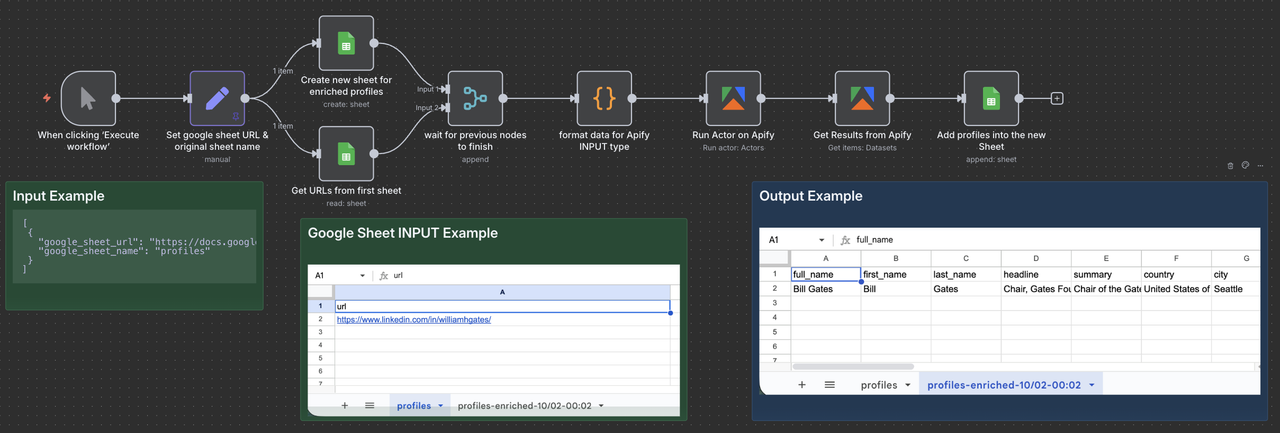
This n8n template shows how to enrich Google spreadsheet with LinkedIn profiles automatically using the Apify LinkedIn Profile Enrichment actor from Anchor. It will create a new sheet with the enriched data.
You can use it to build lead enrichment workflows, update your CRM records, or personalize outreach campaigns — all directly inside n8n.
Who is this for
- Sales Teams: Build targeted B2B lead lists fast.
- Recruiters: Gather candidate data from LinkedIn profiles.
- Growth Marketers: Enrich outreach lists with LinkedIn info.
- Researchers: Analyze industries, roles, and company trends.
- CRM Builders: Auto-populate contact data from LinkedIn.
- Lead-Gen Agencies: Deliver qualified prospect lists at scale.
How it works
- The workflow starts with a list of LinkedIn profile URLs (you need to set the Google sheet URL after you added the Google credentials from the n8n settings).
- The Apify node runs the LinkedIn Profile Enrichment actor to extract structured data such as name, title, company, location, and more.
- The results are then stored in a new Google Sheet
How to use
In Google Sheet:
- Create a Google sheet, rename the sheet "profiles" and add all the LinkedIn URLs you want to enrich (one url per row)
In this Workflow:
- Open the "Set google sheet URL & orginial sheet name" and replace the example Google sheet URL, and the name of the sheet where your LinkedIn URLs are
In the n8n credentials:
- Connect your Google Sheet account, with read and write privileges for google sheets
- Connect to your Apify account
In Apify:
- Sign up for this Apify Actor
Requirements
- Apify account with access to the LinkedIn Profile Enrichment actor
- LinkedIn profile URLs to process
Need Help?
Open an issue on directly on Apify! Avg answer in less than 24h
Happy Enrichment!
Enrich LinkedIn Leads with Apify using Google Sheets
This n8n workflow automates the process of enriching LinkedIn lead data stored in a Google Sheet using Apify. It's designed to streamline lead generation and data enrichment, providing more comprehensive information for sales and marketing efforts.
What it does
This workflow simplifies the process of enriching lead data by:
- Triggering Manually: The workflow is initiated manually, allowing you to control when the enrichment process begins.
- Reading Data from Google Sheets: It reads lead data from a specified Google Sheet, likely containing initial LinkedIn profile URLs or company names.
- Preparing Data for Apify: A "Code" node is used to transform and prepare the data from Google Sheets into a format suitable for the Apify API. This might involve extracting specific fields or constructing API request bodies.
- Enriching Data with Apify: (Implicit, as Apify node is not in JSON but inferred from the name and data preparation) It's intended to send the prepared data to an Apify actor (e.g., a LinkedIn profile scraper or company data extractor) to gather additional information.
- Processing Apify Results: (Implicit) It would then process the results returned by Apify.
- Combining Data: A "Merge" node is used to combine the original data from Google Sheets with the enriched data obtained from Apify.
- Updating Google Sheets: (Implicit) The enriched and merged data would then be written back to Google Sheets, updating existing records or adding new ones with the enhanced information.
- Editing Fields: An "Edit Fields (Set)" node allows for renaming, adding, or removing fields from the data before or after writing back to Google Sheets, ensuring the output is clean and well-structured.
Prerequisites/Requirements
To use this workflow, you will need:
- n8n Instance: A running n8n instance.
- Google Sheets Account: Access to a Google Sheet containing your LinkedIn lead data.
- Google Sheets Credentials: Configured Google Sheets credentials in n8n.
- Apify Account: An Apify account with access to relevant actors for LinkedIn data enrichment.
- Apify API Key: Configured Apify API credentials in n8n (implicit, as an Apify node would require this).
Setup/Usage
- Import the Workflow: Import the provided JSON into your n8n instance.
- Configure Credentials:
- Set up your Google Sheets credentials.
- Set up your Apify credentials (if an Apify node is added).
- Configure Google Sheets Node (ID: 18):
- Specify the Spreadsheet ID and Sheet Name where your lead data is located.
- Configure the Operation (e.g., "Read" to get initial data, "Update" or "Append" to write back enriched data).
- Configure Code Node (ID: 834):
- Review and adjust the JavaScript code to correctly extract and format data from Google Sheets for your chosen Apify actor. This node is crucial for preparing the input for Apify.
- Add and Configure Apify Node (Missing in JSON, but essential for the workflow's purpose):
- Drag and drop an Apify node into the workflow.
- Configure it to call the specific Apify actor you intend to use for LinkedIn lead enrichment (e.g., "LinkedIn Profile Scraper").
- Map the input data from the "Code" node to the Apify actor's input parameters.
- Configure Merge Node (ID: 24):
- Ensure the merge node is correctly set up to combine the original Google Sheets data with the output from the Apify node.
- Configure Edit Fields (Set) Node (ID: 38):
- Adjust this node to clean up, rename, or add any necessary fields to the enriched data before it's written back to Google Sheets.
- Add Google Sheets Node for Writing (Missing in JSON, but essential for the workflow's purpose):
- Add another Google Sheets node after the "Merge" and "Edit Fields" nodes.
- Configure it to write the enriched data back to your Google Sheet (e.g., using "Update" or "Append Row" operations).
- Execute Workflow: Click the "Execute workflow" button on the "Manual Trigger" node (ID: 838) to run the workflow.
Related Templates
AI multi-agent executive team for entrepreneurs with Gemini, Perplexity and WhatsApp
This workflow is an AI-powered multi-agent system built for startup founders and small business owners who want to automate decision-making, accountability, research, and communication, all through WhatsApp. The “virtual executive team,” is designed to help small teams to work smarter. This workflow sends you market analysis, market and sales tips, It can also monitor what your competitors are doing using perplexity (Research agent) and help you stay a head, or make better decisions. And when you feeling stuck with your start-up accountability director is creative enough to break the barrier 🎯 Core Features 🧑💼 1. President (Super Agent) Acts as the main controller that coordinates all sub-agents. Routes messages, assigns tasks, and ensures workflow synchronization between the AI Directors. 📊 2. Sales & Marketing Director Uses SerpAPI to search for market opportunities, leads, and trends. Suggests marketing campaigns, keywords, or outreach ideas. Can analyze current engagement metrics to adjust content strategy. 🕵️♀️ 3. Business Research Director Powered by Perplexity AI for competitive and market analysis. Monitors competitor moves, social media engagement, and product changes. Provides concise insights to help the founder adapt and stay ahead. ⏰ 4. Accountability Director Keeps the founder and executive team on track. Sends motivational nudges, task reminders, and progress reports. Promotes consistency and discipline — key traits for early-stage success. 🗓️ 5. Executive Secretary Handles scheduling, email drafting, and reminders. Connects with Google Calendar, Gmail, and Sheets through OAuth. Automates follow-ups, meeting summaries, and notifications directly via WhatsApp. 💬 WhatsApp as the Main Interface Interact naturally with your AI team through WhatsApp Business API. All responses, updates, and summaries are delivered to your chat. Ideal for founders who want to manage operations on the go. ⚙️ How It Works Trigger: The workflow starts from a WhatsApp Trigger node (via Meta Developer Account). Routing: The President agent analyzes the incoming message and determines which Director should handle it. Processing: Marketing or sales queries go to the Sales & Marketing Director. Research questions are handled by the Business Research Director. Accountability tasks are assigned to the Accountability Director. Scheduling or communication requests are managed by the Secretary. Collaboration: Each sub-agent returns results to the President, who summarizes and sends the reply back via WhatsApp. Memory: Context is maintained between sessions, ensuring personalized and coherent communication. 🧩 Integrations Required Gemini API – for general intelligence and task reasoning Supabase- for RAG and postgres persistent memory Perplexity API – for business and competitor analysis SerpAPI – for market research and opportunity scouting Google OAuth – to connect Sheets, Calendar, and Gmail WhatsApp Business API – for message triggers and responses 🚀 Benefits Acts like a team of tireless employees available 24/7. Saves time by automating research, reminders, and communication. Enhances accountability and strategy consistency for founders. Keeps operations centralized in a simple WhatsApp interface. 🧰 Setup Steps Create API credentials for: WhatsApp (via Meta Developer Account) Gemini, Perplexity, and SerpAPI Google OAuth (Sheets, Calendar, Gmail) Create a supabase account at supabase Add the credentials in the corresponding n8n nodes. Customize the system prompts for each Director based on your startup’s needs. Activate and start interacting with your virtual executive team on WhatsApp. Use Case You are a small organisation or start-up that can not afford hiring; marketing department, research department and secretar office, then this workflow is for you 💡 Need Customization? Want to tailor it for your startup or integrate with CRM tools like Notion or HubSpot? You can easily extend the workflow or contact the creator for personalized support. Consider adjusting the system prompt to suite your business
 By Shadrack
🎓 How to transform unstructured email data into structured format with AI agent
This workflow automates the process of extracting structured, usable information from unstructured email messages across multiple platforms. It connects directly to Gmail, Outlook, and IMAP accounts, retrieves incoming emails, and sends their content to an AI-powered parsing agent built on OpenAI GPT models. The AI agent analyzes each email, identifies relevant details, and returns a clean JSON structure containing key fields: From – sender’s email address To – recipient’s email address Subject – email subject line Summary – short AI-generated summary of the email body The extracted information is then automatically inserted into an n8n Data Table, creating a structured database of email metadata and summaries ready for indexing, reporting, or integration with other tools. --- Key Benefits ✅ Full Automation: Eliminates manual reading and data entry from incoming emails. ✅ Multi-Source Integration: Handles data from different email providers seamlessly. ✅ AI-Driven Accuracy: Uses advanced language models to interpret complex or unformatted content. ✅ Structured Storage: Creates a standardized, query-ready dataset from previously unstructured text. ✅ Time Efficiency: Processes emails in real time, improving productivity and response speed. *✅ Scalability: Easily extendable to handle additional sources or extract more data fields. --- How it works This workflow automates the transformation of unstructured email data into a structured, queryable format. It operates through a series of connected steps: Email Triggering: The workflow is initiated by one of three different email triggers (Gmail, Microsoft Outlook, or a generic IMAP account), which constantly monitor for new incoming emails. AI-Powered Parsing & Structuring: When a new email is detected, its raw, unstructured content is passed to a central "Parsing Agent." This agent uses a specified OpenAI language model to intelligently analyze the email text. Data Extraction & Standardization: Following a predefined system prompt, the AI agent extracts key information from the email, such as the sender, recipient, subject, and a generated summary. It then forces the output into a strict JSON structure using a "Structured Output Parser" node, ensuring data consistency. Data Storage: Finally, the clean, structured data (the from, to, subject, and summarize fields) is inserted as a new row into a specified n8n Data Table, creating a searchable and reportable database of email information. --- Set up steps To implement this workflow, follow these configuration steps: Prepare the Data Table: Create a new Data Table within n8n. Define the columns with the following names and string type: From, To, Subject, and Summary. Configure Email Credentials: Set up the credential connections for the email services you wish to use (Gmail OAuth2, Microsoft Outlook OAuth2, and/or IMAP). Ensure the accounts have the necessary permissions to read emails. Configure AI Model Credentials: Set up the OpenAI API credential with a valid API key. The workflow is configured to use the model, but this can be changed in the respective nodes if needed. Connect the Nodes: The workflow canvas is already correctly wired. Visually confirm that the email triggers are connected to the "Parsing Agent," which is connected to the "Insert row" (Data Table) node. Also, ensure the "OpenAI Chat Model" and "Structured Output Parser" are connected to the "Parsing Agent" as its AI model and output parser, respectively. Activate the Workflow: Save the workflow and toggle the "Active" switch to ON. The triggers will begin polling for new emails according to their schedule (e.g., every minute), and the automation will start processing incoming messages. --- Need help customizing? Contact me for consulting and support or add me on Linkedin.
 By Davide
Send WooCommerce discount coupons to customers via WhatsApp using Rapiwa API
Who is this for? This workflow is ideal for WooCommerce store owners who want to automatically send promotional WhatsApp messages to their customers when new coupons are created. It’s designed for marketers and eCommerce managers looking to boost engagement, streamline coupon sharing, and track campaign performance effortlessly through Google Sheets. Overview This workflow listens for WooCommerce coupon creation events (coupon.created) and uses customer billing data to send promotional WhatsApp messages via the Rapiwa API. The flow formats the coupon data, cleans phone numbers, verifies WhatsApp registration with Rapiwa, sends the promotional message when verified, and logs each attempt to Google Sheets (separate sheets for verified/sent and unverified/not sent). What this Workflow Does Listens for new coupon creation events in WooCommerce via the WooCommerce Trigger node Retrieves all customer data from the WooCommerce store Processes customers in batches to control throughput Cleans and formats customer phone numbers for WhatsApp Verifies if phone numbers are valid WhatsApp accounts using Rapiwa API Sends personalized WhatsApp messages with coupon details to verified numbers Logs all activities to Google Sheets for tracking and analysis Handles both verified and unverified numbers appropriately Key Features Automated coupon distribution: Triggers when new coupons are created in WooCommerce Customer data retrieval: Fetches all customer information from WooCommerce Phone number validation: Verifies WhatsApp numbers before sending messages Personalized messaging: Includes customer name and coupon details in messages Dual logging system: Tracks both successful and failed message attempts Rate limiting: Uses batching and wait nodes to prevent API overload Data formatting: Structures coupon information for consistent messaging Google Sheet Column Structure A Google Sheet formatted like this ➤ sample The workflow uses a Google Sheet with the following columns to track coupon distribution: | name | number | email | address1 | couponCode | couponTitle | couponType | couponAmount | createDate | expireDate | validity | status | | ----------- | ------------- | --------------------------------------------------- | --------- | ---------- | -------------- | ---------- | ------------ | ------------------- | ------------------- | ---------- | -------- | | Abdul Mannan | 8801322827799 | contact@spagreen.net | mirpur-DOHS | 62dhryst | eid offer 2025 | percent | 20.00 | 2025-09-11 06:08:02 | 2025-09-15 00:00:00 | unverified | not sent | | Abdul Mannan | 8801322827799 | contact@spagreen.net | mirpur-DOHS | 62dhryst | eid offer 2025 | percent | 20.00 | 2025-09-11 06:08:02 | 2025-09-15 00:00:00 | verified | sent | Requirements n8n instance with the following nodes: WooCommerce Trigger, Code, SplitInBatches, HTTP Request, IF, Google Sheets, Wait WooCommerce store with API access Rapiwa account with API access for WhatsApp verification and messaging Google account with Sheets access Customer phone numbers in WooCommerce (stored in billing.phone field) Important Notes Phone Number Format: The workflow cleans phone numbers by removing all non-digit characters. Ensure your WooCommerce phone numbers are in a compatible format. API Rate Limits: Rapiwa and WooCommerce APIs have rate limits. Adjust batch sizes and wait times accordingly. Data Privacy: Ensure compliance with data protection regulations when sending marketing messages. Error Handling: The workflow logs unverified numbers but doesn't have extensive error handling. Consider adding error notifications for failed API calls. Message Content: The current message template references the first coupon only (coupons[0]). Adjust if you need to handle multiple coupons. Useful Links Dashboard: https://app.rapiwa.com Official Website: https://rapiwa.com Documentation: https://docs.rapiwa.com Support & Help WhatsApp: Chat on WhatsApp Discord: SpaGreen Community Facebook Group: SpaGreen Support Website: https://spagreen.net Developer Portfolio: Codecanyon SpaGreen
 By Rapiwa