Detect team burnout with Groq AI analysis of GitHub activity for wellness reports

Team Wellness - AI Burnout Detector Agent devex github
🎯 Demo
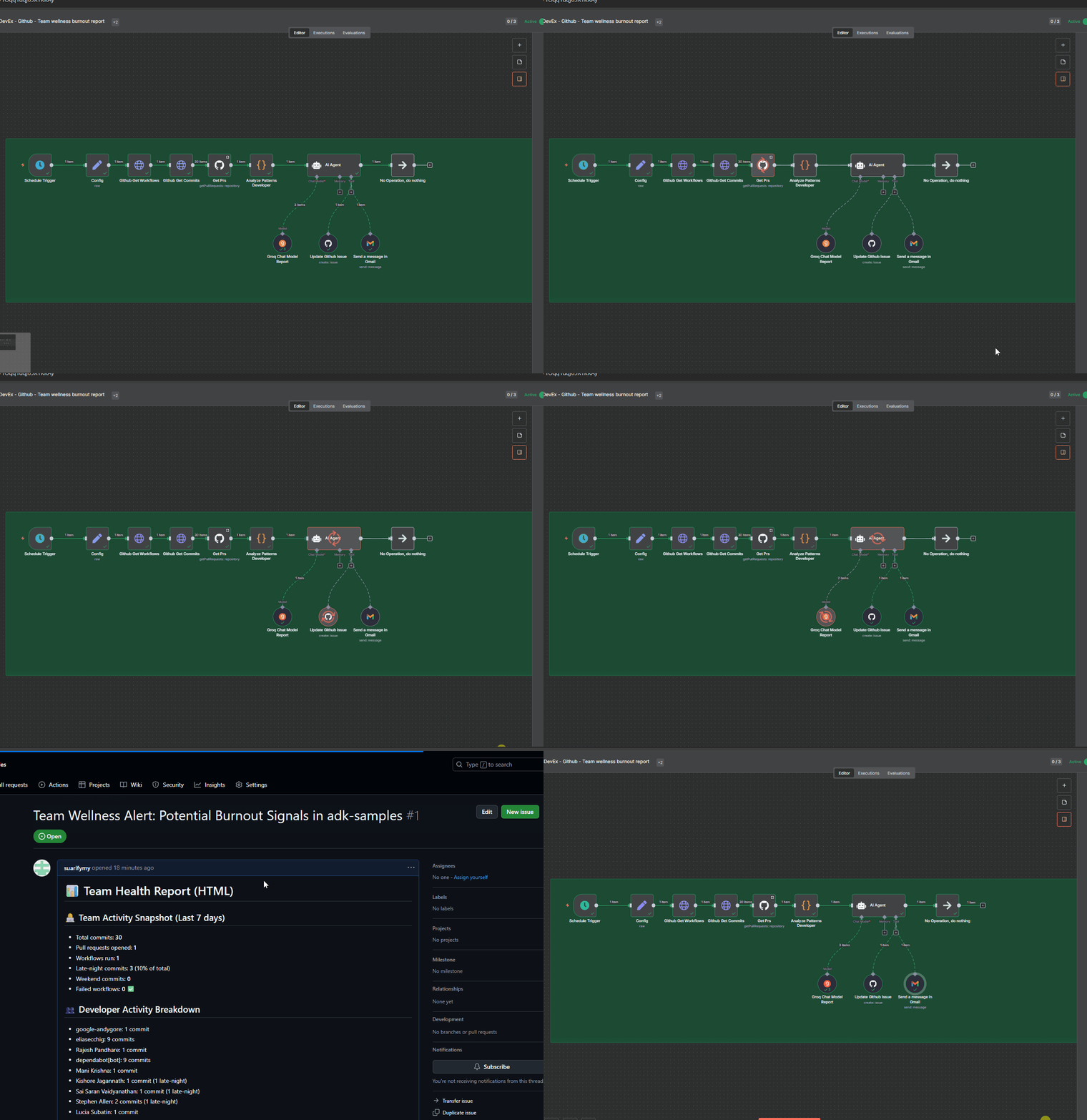
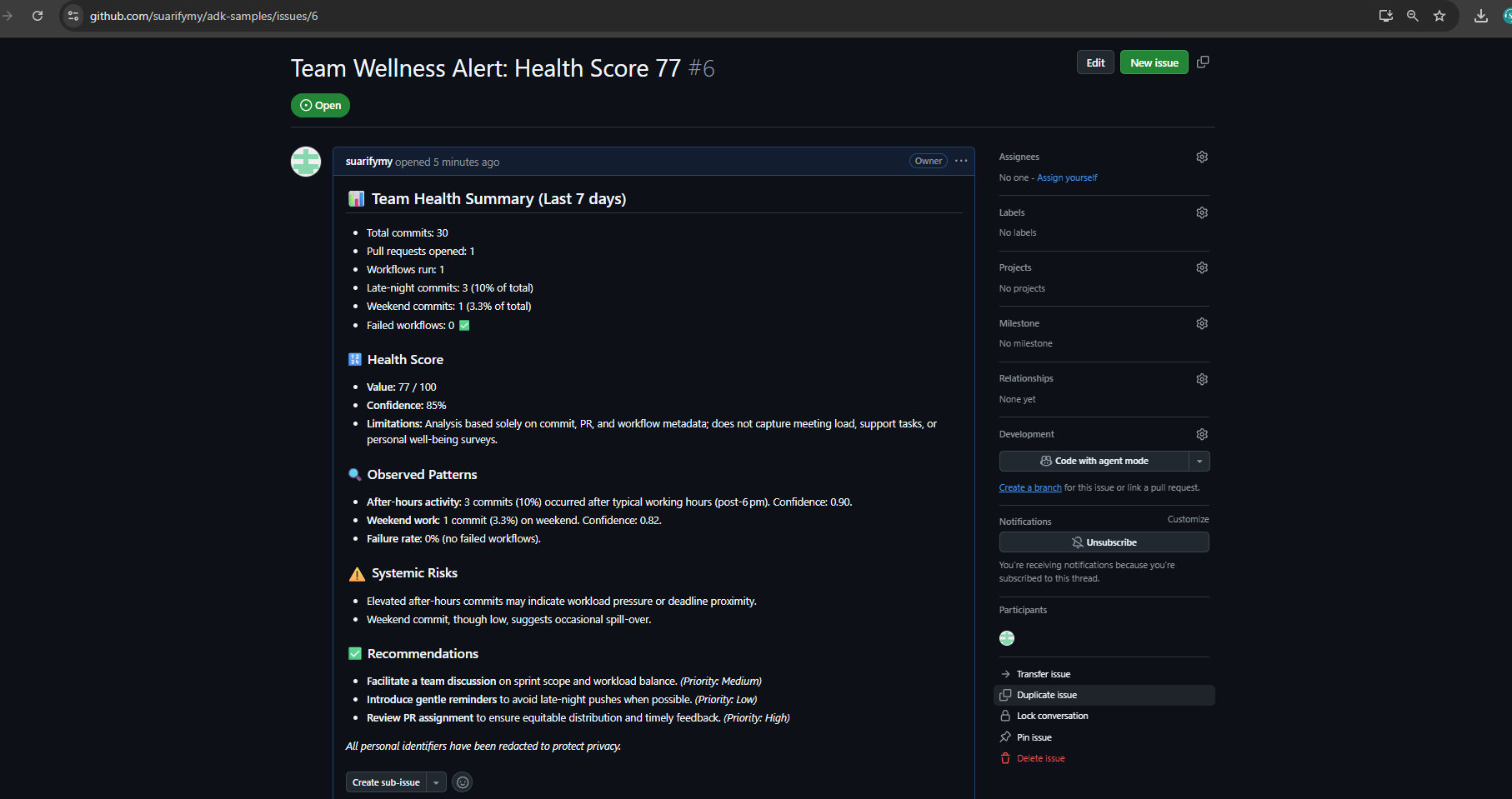
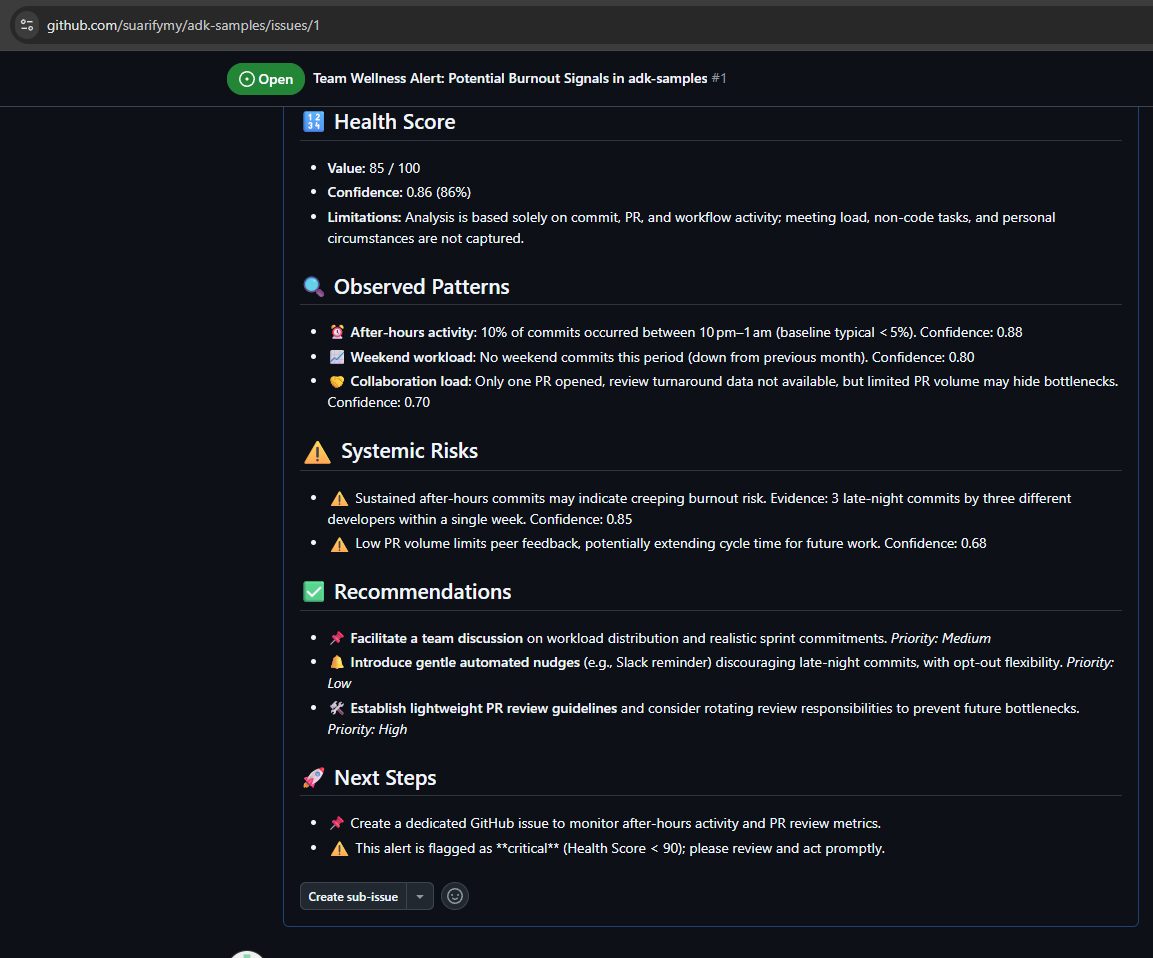
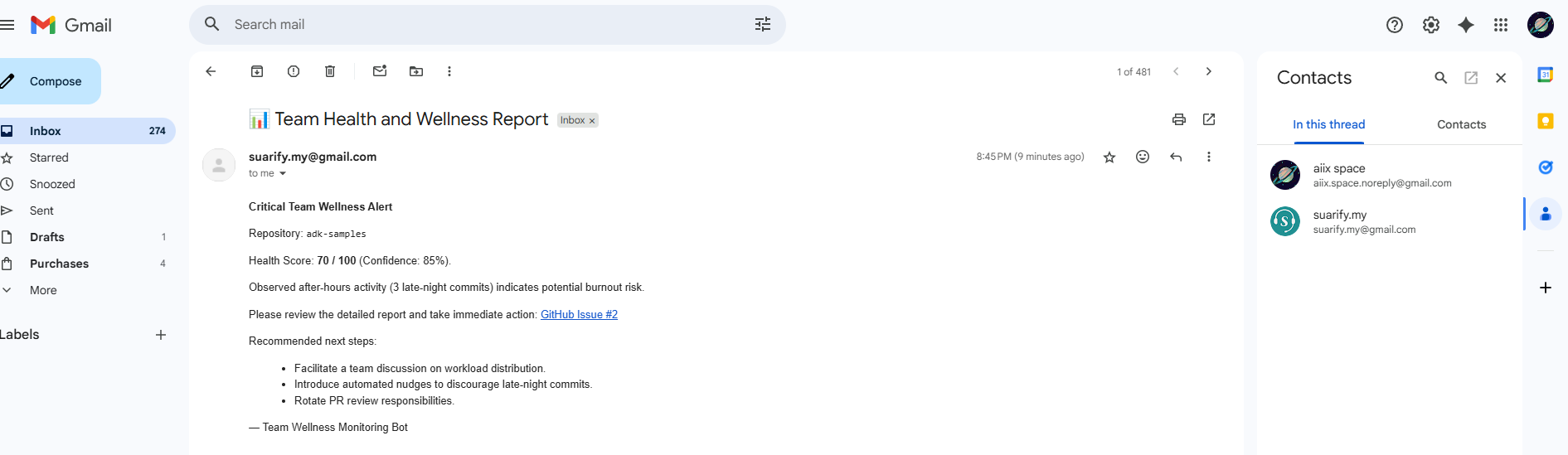
How it works
🎯 Overview
A comprehensive n8n workflow that analyzes developer workload patterns from GitHub repositories to detect potential software engineering team burnout risks and provide actionable team wellness recommendations. This workflow automatically monitors team activity patterns, analyzes them using AI, and provides professional wellness reports with actionable recommendations which will automate GitHub issue creation and do email notifications for critical alerts.
✨ Features
- Automated Data Collection: Fetches commits, pull requests, and workflow data from GitHub
- Pattern Analysis: Identifies late-night work, weekend activity, and workload distribution
- AI-Powered Analysis: Uses Groq's LLM for professional burnout risk assessment
- Automated Actions: Creates GitHub issues and sends email alerts based on criticality
- Professional Guardrails: Ensures objective, evidence-based analysis with privacy protection
- Scheduled Monitoring: Weekly automated wellness checks
🏗️ Architecture
1. Data Collection Layer
- GitHub Commits API: Fetches commit history and timing data
- GitHub Pull Requests API: Analyzes collaboration patterns
- GitHub Workflows API: Monitors CI/CD pipeline health
2. Pattern Analysis Engine
- Work Pattern Signals: Late-night commits, weekend activity
- Developer Activity: Individual contribution analysis
- Workflow Health: Pipeline success/failure rates
- Collaboration Metrics: PR review patterns and merge frequency
3. AI Analysis Layer
- Professional Guardrails: Objective, evidence-based assessments
- Risk Assessment: Burnout risk classification (Low/Medium/High)
- Health Scoring: Team wellness score (0-100)
- Recommendation Engine: Actionable suggestions for improvement
📊 Sample Output
# 📊 Team Health Report

## 📝 Summary
Overall, the team is maintaining a healthy delivery pace, but there are emerging signs of workload imbalance due to increased after-hours activity.

## 🔢 Health Score
- **Value:** 68 / 100
- **Confidence:** 87%
- **Limitations:** Based solely on commit and PR activity; meeting load and non-code tasks not captured.

## 🔍 Observed Patterns
- ⏰ **After-hours activity**
  - 29% of commits occurred between 10pm–1am (baseline: 12%).
  - Confidence: 0.90

## ⚠️ Systemic Risks
- Sustained after-hours work may indicate creeping burnout risk.
  - Evidence: 3 consecutive weeks of elevated late-night commits.
  - Confidence: 0.85

## ✅ Recommendations
- 📌 Facilitate a team discussion on workload distribution and sprint commitments. *(Priority: Medium)*
- 🔔 Introduce automated nudges discouraging late-night commits. *(Priority: Low)*
- 🛠️ Rotate PR review responsibilities or adopt lightweight review guidelines. *(Priority: High)*
🚀 Quick Start
Prerequisites
- n8n instance (cloud or self-hosted)
- GitHub repository with API access
- Groq API key
- Gmail account (optional, for email notifications)
Setup Instructions
-
Import Workflow
# Import the workflow JSON file into your n8n instance -
Configure Credentials
- GitHub API: Create a personal access token with repo access
- Groq API: Get your API key from Groq Console
- Gmail OAuth2: Set up OAuth2 credentials for email notifications
-
Update Configuration
{ "repoowner": "your-github-username", "reponame": "your-repository-name", "period": 7, "emailreport": "your-email@company.com" } -
Test Workflow
- Run the workflow manually to verify all connections
- Check that data is being fetched correctly
- Verify AI analysis is working
-
Schedule Automation
- Enable the schedule trigger for weekly reports
- Set up monitoring for critical alerts
🔧 Configuration
Configuration Node Settings
repoowner: GitHub username or organizationreponame: Repository nameperiod: Analysis period in days (default: 7)emailreport: Email address for critical alerts
AI Model Settings
- Model:
openai/gpt-oss-120b(Groq) - Temperature: 0.3 (for consistent analysis)
- Max Tokens: 2000
- Safety Settings: Professional content filtering
📈 Metrics Analyzed
Repository-Level Metrics
- Total commits count
- Pull requests opened/closed
- Workflow runs and success rate
- Failed workflow percentage
Work Pattern Signals
- Late-night commits (10PM-6AM)
- Weekend commits (Saturday-Sunday)
- Work intensity patterns
- Collaboration bottlenecks
Developer-Level Activity
- Individual commit counts
- Late-night activity per developer
- Weekend activity per developer
- Workload distribution fairness
🛡️ Privacy & Ethics
Professional Guardrails
- Never makes personal judgments about individual developers
- Only analyzes observable patterns in code activity data
- Always provides evidence-based reasoning for assessments
- Never suggests disciplinary actions or performance reviews
- Focuses on systemic issues and team-level recommendations
- Respects privacy and confidentiality of team members
Data Protection
- No personal information is stored or transmitted
- Analysis is based solely on public repository data and public data
- All recommendations are constructive and team-focused
- Confidence scores indicate analysis reliability
- There is added redaction prompt. Note that LLM is not deterministic and usually, you will need to refine your own prompt to enhance difference level of criticality of privacy you need censored or displayed. In some cases ,you will need the engineer account names to help identify f2f conversation.
🔄 Workflow Nodes
Core Nodes
- Schedule Trigger: Weekly automation (configurable)
- Config: Repository and email configuration
- Github Get Commits: Fetches commit history
- Github Get Workflows: Retrieves workflow runs
- Get Prs: Pulls pull request data
- Analyze Patterns Developer: JavaScript pattern analysis
- AI Agent: Groq-powered analysis with guardrails
- Update Github Issue: Creates wellness tracking issues
- Send a message in Gmail: Email notifications
Data Flow
Schedule Trigger → Config → Github APIs → Pattern Analysis → AI Agent → Actions
🚨 Alert Levels (Optional and Prompt configurable)
Critical Alerts (Health Score < 90)
- GitHub Issue: Automatic issue creation with detailed analysis
- Email Notification: Immediate alert to team leads
- Slack Integration: Critical team notifications
Warning Alerts (Health Score 90-95)
- GitHub Issue: Tracking issue for monitoring
- Slack Notification: Team awareness message
Normal Reports (Health Score > 95)
- Weekly Report: Comprehensive team health summary
- Slack Summary: Positive reinforcement message
🔧 Troubleshooting
Common Issues
-
GitHub API Rate Limits
- Solution: Use authenticated requests, implement rate limiting
- Check: API token permissions and repository access
-
AI Analysis Failures
- Solution: Verify Groq API key, check model availability
- Check: Input data format and prompt structure
-
Email Notifications Not Sending
- Solution: Verify Gmail OAuth2 setup, check email permissions
- Check: SMTP settings and authentication
-
Workflow Execution Errors
- Solution: Check node connections, verify data flow
- Check: Error logs and execution history
🤝 Contributing
Development Setup
- Fork the repository link above demo part
- Create a feature branch
- Make your changes
- Test thoroughly
- Submit a pull request
Testing
- Test with different repository types
- Verify AI analysis accuracy
- Check alert threshold sensitivity
- Validate email and GitHub integrations
📄 License
This project is licensed under the MIT License
🙏 Acknowledgments
- Groq: For providing the AI analysis capabilities
- GitHub: For the comprehensive API ecosystem
- n8n: For the powerful workflow automation platform
- Community: For feedback and contributions
📞 Support
Getting Help
- Issues: Create a GitHub issue for bugs or feature requests
- Discussions: Use GitHub Discussions for questions
- Documentation: Check the comprehensive setup guides
Contact
- Email:aiix.space.noreply@gmail.com
- LinkedIn: SeanLon
⚠️ Important: This tool is designed for team wellness monitoring and should be used responsibly. Always respect team privacy and use the insights constructively to improve team health and productivity.
Detect Team Burnout with Groq AI Analysis of GitHub Activity for Wellness Reports
This n8n workflow leverages the power of AI to analyze GitHub activity and identify potential signs of team burnout. By regularly fetching repository commit data and processing it with a Groq AI Chat Model, it aims to provide insights into team wellness and workload patterns.
What it does
This workflow automates the following steps:
- Schedules Execution: Triggers the workflow at a predefined interval (e.g., once a day, once a week).
- Fetches GitHub Repository Commits: Connects to GitHub to retrieve a list of recent commits for a specified repository.
- Prepares Data for AI Analysis: Transforms the raw GitHub commit data into a structured format suitable for AI processing. This includes extracting relevant commit messages, authors, and timestamps.
- Analyzes Commit Data with Groq AI: Sends the prepared commit data to a Groq Chat Model (via an AI Agent) with a prompt designed to identify patterns indicative of burnout, such as:
- Unusual commit times (late nights, weekends).
- High volume of small, rushed commits.
- Changes in commit message sentiment (e.g., increased frustration).
- Disproportionate commit activity from a few individuals.
- Processes AI Response: Extracts the AI's analysis and insights regarding potential burnout signals.
- Outputs Analysis: The AI's findings are then outputted, ready for further actions (e.g., sending to a reporting tool, Slack, or email).
Prerequisites/Requirements
To use this workflow, you will need:
- n8n Instance: A running n8n instance (cloud or self-hosted).
- GitHub Account: A GitHub account with access to the repositories you wish to monitor. You will need to create a GitHub Credential in n8n.
- Groq API Key: An API key for the Groq AI service to utilize its chat models. You will need to create a Groq Chat Model Credential in n8n.
Setup/Usage
-
Import the Workflow:
- Download the provided JSON file for this workflow.
- In your n8n instance, go to "Workflows" and click "New".
- Click the three dots next to the "New Workflow" button and select "Import from JSON".
- Paste the workflow JSON or upload the file.
-
Configure Credentials:
- GitHub: Locate the "GitHub" node (ID: 16). Click on the "Credential" field and select an existing GitHub credential or create a new one. Ensure it has the necessary permissions to read repository data.
- Groq Chat Model: Locate the "Groq Chat Model" node (ID: 1263). Click on the "Credential" field and select an existing Groq API Key credential or create a new one.
-
Customize GitHub Node:
- In the "GitHub" node (ID: 16), configure the "Repository" and other relevant settings to target the specific GitHub repository you want to analyze. You might want to adjust the "Limit" to control how many commits are fetched.
-
Review and Adjust AI Prompt (AI Agent Node):
- The "AI Agent" node (ID: 1119) contains the logic for interacting with the Groq model. Review the prompt to ensure it aligns with the specific burnout indicators you are looking for. You may want to refine the prompt for more targeted analysis.
-
Set Schedule Trigger:
- The "Schedule Trigger" node (ID: 839) is configured to run periodically. Adjust the "Interval" and "Time" settings to your desired frequency (e.g., daily, weekly).
-
Add Output Integration (Optional but Recommended):
- After the "AI Agent" node, you will likely want to add nodes to utilize the AI's output. For example:
- A Slack node to post wellness reports to a team channel.
- A Google Sheets node to log burnout indicators over time.
- An Email node to send reports to managers.
- A Notion or Airtable node to create structured wellness reports.
- After the "AI Agent" node, you will likely want to add nodes to utilize the AI's output. For example:
-
Activate the Workflow:
- Once configured, save the workflow and activate it by toggling the "Active" switch in the top right corner of the workflow editor.
Related Templates
Create verified user profiles with email validation, PDF generation & Gmail delivery
Verified User Profile Creation - Automated Email Validation & PDF Generation --- Overview This comprehensive automation workflow streamlines the user onboarding process by validating email addresses, generating professional profile PDFs, and delivering them seamlessly to verified users. 🎯 What This Workflow Does: Receives User Data - Webhook trigger accepts user signup information (name, email, city, profession, bio) Validates Email Addresses - Uses VerifiEmail API to ensure only legitimate email addresses proceed Conditional Branching - Smart logic splits workflow based on email verification results Generates HTML Profile - Creates beautifully styled HTML templates with user information Converts to PDF - Transforms HTML into professional, downloadable PDF documents Email Delivery - Sends personalized welcome emails with PDF attachments to verified users Data Logging - Records all verified users in Google Sheets for analytics and tracking Rejection Handling - Notifies users with invalid emails and provides guidance ✨ Key Features: ✅ Email Verification - Prevents fake registrations and maintains data quality 📄 Professional PDF Generation - Beautiful, branded profile documents 📧 Automated Email Delivery - Personalized welcome messages with attachments 📊 Google Sheets Logging - Complete audit trail of all verified users 🔀 Smart Branching - Separate paths for valid and invalid emails 🎨 Modern Design - Clean, responsive HTML/CSS templates 🔒 Secure Webhook - POST endpoint for seamless form integration 🎯 Perfect Use Cases: User registration systems Community membership verification Professional certification programs Event registration with verified attendees Customer onboarding processes Newsletter signup verification Educational platform enrollments Membership card generation 📦 What's Included: Complete workflow with 12 informative sticky notes Pre-configured webhook endpoint Email verification integration PDF generation setup Gmail sending configuration Google Sheets logging Error handling guidelines Rejection email template 🛠️ Required Integrations: VerifiEmail - For email validation (https://verifi.email) HTMLcsstoPDF - For PDF generation (https://htmlcsstopdf.com) Gmail OAuth2 - For email delivery Google Sheets OAuth2 - For data logging ⚡ Quick Setup Time: 15-20 minutes 🎓 Skill Level: Beginner to Intermediate --- Benefits: ✅ Reduces manual verification work by 100% ✅ Prevents spam and fake registrations ✅ Delivers professional branded documents automatically ✅ Maintains complete audit trail ✅ Scales effortlessly with user growth ✅ Provides excellent user experience ✅ Easy integration with any form or application --- Technical Details: Trigger Type: Webhook (POST) Total Nodes: 11 (including 12 documentation sticky notes) Execution Time: ~3-5 seconds per user API Calls: 3 external (VerifiEmail, HTMLcsstoPDF, Google Sheets) Email Format: HTML with binary PDF attachment Data Storage: Google Sheets (optional) --- License: MIT (Free to use and modify) --- 🎁 BONUS FEATURES: Comprehensive sticky notes explaining each step Beautiful, mobile-responsive email template Professional PDF styling with modern design Easily customizable for your branding Ready-to-use webhook endpoint Error handling guidelines included --- Perfect for: Developers, No-code enthusiasts, Business owners, SaaS platforms, Community managers, Event organizers Start automating your user verification process today! 🚀
 By Jitesh Dugar
Generate influencer posts with GPT-4, Google Sheets, and Media APIs
This template transforms uploaded brand assets into AI-generated influencer-style posts — complete with captions, images, and videos — using n8n, OpenAI, and your preferred image/video generation APIs. --- 🧠 Who it’s for Marketers, creators, or brand teams who want to speed up content ideation and visual generation. Perfect for social-media teams looking to turn product photos and brand visuals into ready-to-review creative posts. --- ⚙️ How it works Upload your brand assets — A form trigger collects up to three files: product, background, and prop. AI analysis & content creation — An OpenAI LLM analyzes your brand tone and generates post titles, captions, and visual prompts. Media generation — Connected image/video generation workflows create corresponding visuals. Result storage — All captions, image URLs, and video URLs are automatically written to a Google Sheet for review or publishing. --- 🧩 How to set it up Replace all placeholders in nodes: <<YOURSHEETID>> <<FILEUPLOADBASE>> <<YOURAPIKEY>> <<YOURN8NDOMAIN>>/form/<<FORM_ID>> Add your own credentials in: Google Sheets HTTP Request AI/LLM nodes Execute the workflow or trigger via form. Check your connected Google Sheet for generated posts and media links. --- 🛠️ Requirements | Tool | Purpose | |------|----------| | OpenAI / compatible LLM key | Caption & idea generation | | Image/Video generation API | Creating visuals | | Google Sheets credentials | Storing results | | (Optional) n8n Cloud / self-hosted | To run the workflow | --- 🧠 Notes The workflow uses modular sub-workflows for image and video creation; you can connect your own generation nodes. All credentials and private URLs have been removed. Works seamlessly with both n8n Cloud and self-hosted setups. Output is meant for creative inspiration — review before posting publicly. --- 🧩 Why it’s useful Speeds up campaign ideation and content creation. Provides structured, reusable results in Google Sheets. Fully visual, modular, and customizable for any brand or industry. --- 🧠 Example Use Cases Influencer campaign planning Product launch creatives E-commerce catalog posts Fashion, lifestyle, or tech brand content --- ✅ Security & best practices No hardcoded keys or credentials included. All private URLs replaced with placeholders. Static data removed from the public JSON. Follows n8n’s template structure, node naming, and sticky-note annotation guidelines. --- 📦 Template info Name: AI-Powered Influencer Post Generator with Google Sheets and Image/Video APIs Category: AI / Marketing Automation / Content Generation Author: Palak Rathor Version: 1.0 (Public Release — October 2025)
 By Palak Rathor
Qualify leads with Salesforce, Explorium data & Claude AI analysis of API usage
Inbound Agent - AI-Powered Lead Qualification with Product Usage Intelligence This n8n workflow automatically qualifies and scores inbound leads by combining their product usage patterns with deep company intelligence. The workflow pulls new leads from your CRM, analyzes which API endpoints they've been testing, enriches them with firmographic data, and generates comprehensive qualification reports with personalized talking points—giving your sales team everything they need to prioritize and convert high-quality leads. DEMO Template Demo Credentials Required To use this workflow, set up the following credentials in your n8n environment: Salesforce Type: OAuth2 or Username/Password Used for: Pulling lead reports and creating follow-up tasks Alternative CRM options: HubSpot, Zoho, Pipedrive Get credentials at Salesforce Setup Databricks (or Analytics Platform) Type: HTTP Request with Bearer Token Header: Authorization Value: Bearer YOURDATABRICKSTOKEN Used for: Querying product usage and API endpoint data Alternative options: Datadog, Mixpanel, Amplitude, custom data warehouse Explorium API Type: Generic Header Auth Header: Authorization Value: Bearer YOURAPIKEY Used for: Business matching and firmographic enrichment Get your API key at Explorium Dashboard Explorium MCP Type: HTTP Header Auth Used for: Real-time company intelligence and supplemental research Connect to: https://mcp.explorium.ai/mcp Anthropic API Type: API Key Used for: AI-powered lead qualification and analysis Get your API key at Anthropic Console Go to Settings → Credentials, create these credentials, and assign them in the respective nodes before running the workflow. --- Workflow Overview Node 1: When clicking 'Execute workflow' Manual trigger that initiates the lead qualification process. Type: Manual Trigger Purpose: On-demand execution for testing or manual runs Alternative Trigger Options: Schedule Trigger: Run automatically (hourly, daily, weekly) Webhook: Trigger on CRM updates or new lead events CRM Trigger: Real-time activation when leads are created Node 2: GET SF Report Pulls lead data from a pre-configured Salesforce report. Method: GET Endpoint: Salesforce Analytics Reports API Authentication: Salesforce OAuth2 Returns: Raw Salesforce report data including: Lead contact information Company names Lead source and status Created dates Custom fields CRM Alternatives: This node can be replaced with HubSpot, Zoho, or any CRM's reporting API. Node 3: Extract Records Parses the Salesforce report structure and extracts individual lead records. Extraction Logic: Navigates report's factMap['T!T'].rows structure Maps data cells to named fields Node 4: Extract Tenant Names Prepares tenant identifiers for usage data queries. Purpose: Formats tenant names as SQL-compatible strings for the Databricks query Output: Comma-separated, quoted list: 'tenant1', 'tenant2', 'tenant3' Node 5: Query Databricks Queries your analytics platform to retrieve API usage data for each lead. Method: POST Endpoint: /api/2.0/sql/statements Authentication: Bearer token in headers Warehouse ID: Your Databricks cluster ID Platform Alternatives: Datadog: Query logs via Logs API Mixpanel: Event segmentation API Amplitude: Behavioral cohorts API Custom Warehouse: PostgreSQL, Snowflake, BigQuery queries Node 6: Split Out Splits the Databricks result array into individual items for processing. Field: result.data_array Purpose: Transform single response with multiple rows into separate items Node 7: Rename Keys Normalizes column names from database query to readable field names. Mapping: 0 → TenantNames 1 → endpoints 2 → endpointsNum Node 8: Extract Business Names Prepares company names for Explorium enrichment. Node 9: Loop Over Items Iterates through each company for individual enrichment. Node 10: Explorium API: Match Businesses Matches company names to Explorium's business entity database. Method: POST Endpoint: /v1/businesses/match Authentication: Header Auth (Bearer token) Returns: business_id: Unique Explorium identifier matched_businesses: Array of potential matches Match confidence scores Node 11: Explorium API: Firmographics Enriches matched businesses with comprehensive company data. Method: POST Endpoint: /v1/businesses/firmographics/bulk_enrich Authentication: Header Auth (Bearer token) Returns: Company name, website, description Industry categories (NAICS, SIC, LinkedIn) Size: employee count range, revenue range Location: headquarters address, city, region, country Company age and founding information Social profiles: LinkedIn, Twitter Logo and branding assets Node 12: Merge Combines API usage data with firmographic enrichment data. Node 13: Organize Data as Items Structures merged data into clean, standardized lead objects. Data Organization: Maps API usage by tenant name Maps enrichment data by company name Combines with original lead information Creates complete lead profile for analysis Node 14: Loop Over Items1 Iterates through each qualified lead for AI analysis. Batch Size: 1 (analyzes leads individually) Purpose: Generate personalized qualification reports Node 15: Get many accounts1 Fetches the associated Salesforce account for context. Resource: Account Operation: Get All Filter: Match by company name Limit: 1 record Purpose: Link lead qualification back to Salesforce account for task creation Node 16: AI Agent Analyzes each lead to generate comprehensive qualification reports. Input Data: Lead contact information API usage patterns (which endpoints tested) Firmographic data (company profile) Lead source and status Analysis Process: Evaluates lead quality based on usage, company fit, and signals Identifies which Explorium APIs the lead explored Assesses company size, industry, and potential value Detects quality signals (legitimate company email, active usage) and red flags Determines optimal sales approach and timing Connected to Explorium MCP for supplemental company research if needed Output: Structured qualification report with: Lead Score: High Priority, Medium Priority, Low Priority, or Nurture Quick Summary: Executive overview of lead potential API Usage Analysis: Endpoints used, usage insights, potential use case Company Profile: Overview, fit assessment, potential value Quality Signals: Positive indicators and concerns Recommended Actions: Next steps, timing, and approach Talking Points: Personalized conversation starters based on actual API usage Node 18: Clean Outputs Formats the AI qualification report for Salesforce task creation. Node 19: Update Salesforce Records Creates follow-up tasks in Salesforce with qualification intelligence. Resource: Task Operation: Create Authentication: Salesforce OAuth2 Alternative Output Options: HubSpot: Create tasks or update deal stages Outreach/SalesLoft: Add to sequences with custom messaging Slack: Send qualification reports to sales channels Email: Send reports to account owners Google Sheets: Log qualified leads for tracking --- Workflow Flow Summary Trigger: Manual execution or scheduled run Pull Leads: Fetch new/updated leads from Salesforce report Extract: Parse lead records and tenant identifiers Query Usage: Retrieve API endpoint usage data from analytics platform Prepare: Format data for enrichment Match: Identify companies in Explorium database Enrich: Pull comprehensive firmographic data Merge: Combine usage patterns with company intelligence Organize: Structure complete lead profiles Analyze: AI evaluates each lead with quality scoring Format: Structure qualification reports for CRM Create Tasks: Automatically populate Salesforce with actionable intelligence This workflow eliminates manual lead research and qualification, automatically analyzing product engagement patterns alongside company fit to help sales teams prioritize and personalize their outreach to the highest-value inbound leads. --- Customization Options Flexible Triggers Replace the manual trigger with: Schedule: Run hourly/daily to continuously qualify new leads Webhook: Real-time qualification when leads are created CRM Trigger: Activate on specific lead status changes Analytics Platform Integration The Databricks query can be adapted for: Datadog: Query application logs and events Mixpanel: Analyze user behavior and feature adoption Amplitude: Track product engagement metrics Custom Databases: PostgreSQL, MySQL, Snowflake, BigQuery CRM Flexibility Works with multiple CRMs: Salesforce: Full integration (pull reports, create tasks) HubSpot: Contact properties and deal updates Zoho: Lead enrichment and task creation Pipedrive: Deal qualification and activity creation Enrichment Depth Add more Explorium endpoints: Technographics: Tech stack and product usage News & Events: Recent company announcements Funding Data: Investment rounds and financial events Hiring Signals: Job postings and growth indicators Output Destinations Route qualification reports to: CRM Updates: Salesforce, HubSpot (update lead scores/fields) Task Creation: Any CRM task/activity system Team Notifications: Slack, Microsoft Teams, Email Sales Tools: Outreach, SalesLoft, Salesloft sequences Reporting: Google Sheets, Data Studio dashboards AI Model Options Swap AI providers: Default: Anthropic Claude (Sonnet 4) Alternatives: OpenAI GPT-4, Google Gemini --- Setup Notes Salesforce Report Configuration: Create a report with required fields (name, email, company, tenant ID) and use its API endpoint Tenant Identification: Ensure your product usage data includes identifiers that link to CRM leads Usage Data Query: Customize the SQL query to match your database schema and table structure MCP Configuration: Explorium MCP requires Header Auth—configure credentials properly Lead Scoring Logic: Adjust AI system prompts to match your ideal customer profile and qualification criteria Task Assignment: Configure Salesforce task assignment rules or add logic to route to specific sales reps This workflow acts as an intelligent lead qualification system that combines behavioral signals (what they're testing) with firmographic fit (who they are) to give sales teams actionable intelligence for every inbound lead.
 By explorium