AI resume analysis & candidate evaluation with Slack and Google Sheets

Create AI-Powered Chatbot for Candidate Evaluation on Slack
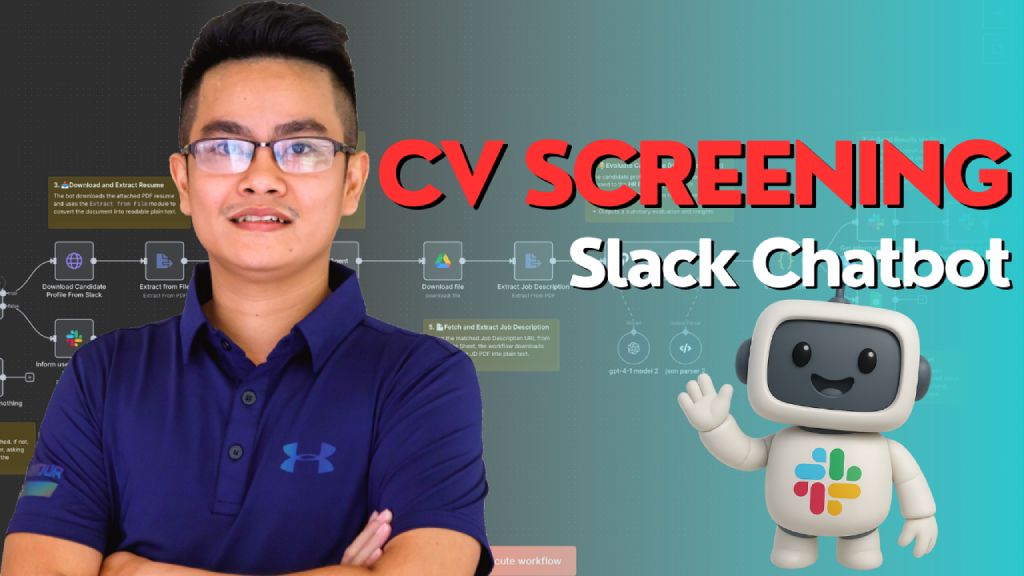 > This workflow connects a Slack chatbot with AI agents and Google Sheets to automate candidate resume evaluation. It extracts resume details, identifies the applied job from the message, fetches the correct job description, and provides a summarized evaluation via Slack and tracking sheet. Perfect for HR teams using Slack.
Who’s it for
This workflow is designed for:
- HR Teams, Recruiters, and Hiring Managers
- Working in software or tech companies using Slack, Google Sheets, and n8n
- Who want to automate candidate evaluation based on uploaded profiles and applied job positions
How it works / What it does
This workflow is triggered when a Slack user mentions the HR bot and attaches a candidate profile PDF. The workflow performs the following steps:
- Trigger from Slack Mention
- A user mentions the bot in Slack with a message like:
@HRBot Please evaluate this candidate for the AI Engineer role.
(with PDF attached)
- A user mentions the bot in Slack with a message like:
- Input Validation
- If no file is attached, the bot replies:
"Please upload the candidate profile file before sending the message."
- If no file is attached, the bot replies:
- Extract Candidate Profile
- Downloads the attached PDF from Slack
- Uses
Extract from Fileto parse the resume into text
- Profile Analysis (AI Agent)
- Sends the resume text and message to the
Profile Analyzer Agent - Identifies:
- Candidate name, email, and summary
- Applied position (from message)
- Looks up the Job Description PDF URL using Google Sheets
- Sends the resume text and message to the
- Job Description Retrieval
- Downloads and parses the matching JD PDF
- HR Evaluation (AI Agent)
- Sends both the candidate profile and job description to
HR Expert Agent - Receives a summarized fit evaluation and insights
- Sends both the candidate profile and job description to
- Output and Logging
- Sends evaluation result back to Slack in the original thread
- Updates a Google Sheet with evaluation data for tracking
How to set up
- Slack Setup
- Create a Slack bot and install it into your workspace
- Enable the
app_mentionevent and generate a bot token - Connect Slack to n8n using Slack Bot credentials
- Google Sheets Setup
- Create a sheet mapping
Position Title → Job Description URL - Create another sheet for logging evaluation results
- Create a sheet mapping
- n8n Setup
- Add a Webhook Trigger for Slack mentions
- Connect Slack, Google Sheets, and GPT-4 credentials
- Set up agents (
Profile Analyzer Agent,HR Expert Agent) with appropriate prompts
- Deploy & Test
- Mention your bot in Slack with a message and file
- Confirm the reply and entry in the evaluation tracking sheet
Requirements
- n8n (self-hosted or cloud)
- Slack App with Bot Token
- OpenAI or Azure OpenAI account (for GPT-4)
- Google Sheets (2 sheets: job mapping + evaluation log)
- Candidate profiles in PDF format
- Defined job titles and descriptions
How to customize the workflow
You can easily adapt this workflow to your team’s needs:
| Customization Area | How to Customize |
|--------------------------|----------------------------------------------------------------------------------|
| Job Mapping Source | Replace Google Sheet with Airtable or Notion DB |
| JD Format | Use Markdown or inline descriptions instead of PDF |
| Evaluation Output Format | Change from Slack message to Email or Notion update |
| HR Agent Prompt | Customize to match your company tone or include scoring rubrics |
| Language Support | Add support for bilingual input/output (e.g., Vietnamese & English) |
| Workflow Trigger | Trigger from slash command or form instead of @mention |
AI Resume Analysis & Candidate Evaluation with Slack and Google Sheets
This n8n workflow automates the process of analyzing candidate resumes, evaluating them against job descriptions, and notifying relevant teams via Slack, while also logging the evaluation results in Google Sheets. It streamlines the initial screening process, saving time and ensuring consistent evaluation criteria.
What it does
This workflow is designed to process candidate resumes and job descriptions to provide an AI-powered evaluation. Here's a step-by-step breakdown:
- Receives Resume and Job Description: The workflow is triggered by an external system (e.g., an applicant tracking system) via a Webhook, receiving a candidate's resume (as a file URL) and the job description.
- Downloads Resume: It fetches the resume file from Google Drive using the provided URL.
- Extracts Text from Resume: The content of the resume file (e.g., PDF, DOCX) is extracted into plain text.
- Prepares Data for AI: A Code node formats the extracted resume text and job description into a structured input for the AI agent.
- AI Agent Evaluation: An AI Agent (powered by an OpenAI Chat Model) analyzes the resume against the job description, extracting key information and providing an evaluation.
- Parses AI Output: A Structured Output Parser extracts specific data points from the AI's response, such as a summary, key skills, and a suitability score.
- Conditional Logic for High Scores: An If node checks if the candidate's suitability score meets a predefined threshold.
- Posts to Slack (High Score): If the score is high, a detailed notification with the candidate's summary and score is posted to a designated Slack channel, alerting the hiring team.
- Posts to Slack (Low Score): If the score is below the threshold, a different, less detailed notification is sent to Slack, indicating a lower suitability.
- Logs to Google Sheets: Regardless of the score, the candidate's name, resume summary, job description, and suitability score are appended as a new row in a specified Google Sheet for record-keeping and further analysis.
Prerequisites/Requirements
To use this workflow, you will need:
- n8n Instance: A running n8n instance.
- OpenAI API Key: For the OpenAI Chat Model to analyze resumes and job descriptions.
- Google Drive Account: To store and access candidate resume files.
- Google Sheets Account: To log candidate evaluation results.
- Slack Account: To send notifications to the hiring team.
- Webhook Integration: An external system capable of sending JSON data to the n8n Webhook trigger, including a Google Drive file URL for the resume and the job description text.
Setup/Usage
- Import the Workflow: Download the provided JSON and import it into your n8n instance.
- Configure Credentials:
- OpenAI: Set up your OpenAI API Key credential.
- Google Drive: Configure your Google Drive OAuth2 or API Key credential.
- Google Sheets: Configure your Google Sheets OAuth2 or API Key credential.
- Slack: Configure your Slack OAuth2 or Bot Token credential.
- Update Node Parameters:
- Webhook: The URL for this webhook will be generated once the workflow is activated. Use this URL in your external system to send new candidate data.
- Google Drive (Download Resume): Ensure the "File ID" or "File URL" expression correctly references the incoming data from the Webhook.
- Extract from File: Verify the "Binary Property" is set to the output of the Google Drive node.
- Code (Prepare AI Input): Review the JavaScript code to ensure it correctly maps incoming data to the AI prompt. Adjust the prompt as needed for your specific evaluation criteria.
- AI Agent: Select your OpenAI Chat Model credential. Adjust the prompt and tools as necessary for your resume analysis task.
- Structured Output Parser: Define the JSON schema for the expected AI output (e.g.,
summary,skills,score). - If: Set the condition for the suitability score threshold.
- Slack (High Score / Low Score): Configure the Slack channel ID and customize the message content using expressions from the AI output.
- Google Sheets: Specify the "Spreadsheet ID" and "Sheet Name" where the evaluation results should be logged. Map the columns correctly (e.g., candidate name, summary, score).
- Activate the Workflow: Once all configurations are complete, activate the workflow.
Now, whenever your external system sends a new candidate and job description to the Webhook, the workflow will automatically process the resume, evaluate it with AI, notify your team on Slack, and log the results in Google Sheets.
Related Templates
Automate Dutch Public Procurement Data Collection with TenderNed
TenderNed Public Procurement What This Workflow Does This workflow automates the collection of public procurement data from TenderNed (the official Dutch tender platform). It: Fetches the latest tender publications from the TenderNed API Retrieves detailed information in both XML and JSON formats for each tender Parses and extracts key information like organization names, titles, descriptions, and reference numbers Filters results based on your custom criteria Stores the data in a database for easy querying and analysis Setup Instructions This template comes with sticky notes providing step-by-step instructions in Dutch and various query options you can customize. Prerequisites TenderNed API Access - Register at TenderNed for API credentials Configuration Steps Set up TenderNed credentials: Add HTTP Basic Auth credentials with your TenderNed API username and password Apply these credentials to the three HTTP Request nodes: "Tenderned Publicaties" "Haal XML Details" "Haal JSON Details" Customize filters: Modify the "Filter op ..." node to match your specific requirements Examples: specific organizations, contract values, regions, etc. How It Works Step 1: Trigger The workflow can be triggered either manually for testing or automatically on a daily schedule. Step 2: Fetch Publications Makes an API call to TenderNed to retrieve a list of recent publications (up to 100 per request). Step 3: Process & Split Extracts the tender array from the response and splits it into individual items for processing. Step 4: Fetch Details For each tender, the workflow makes two parallel API calls: XML endpoint - Retrieves the complete tender documentation in XML format JSON endpoint - Fetches metadata including reference numbers and keywords Step 5: Parse & Merge Parses the XML data and merges it with the JSON metadata and batch information into a single data structure. Step 6: Extract Fields Maps the raw API data to clean, structured fields including: Publication ID and date Organization name Tender title and description Reference numbers (kenmerk, TED number) Step 7: Filter Applies your custom filter criteria to focus on relevant tenders only. Step 8: Store Inserts the processed data into your database for storage and future analysis. Customization Tips Modify API Parameters In the "Tenderned Publicaties" node, you can adjust: offset: Starting position for pagination size: Number of results per request (max 100) Add query parameters for date ranges, status filters, etc. Add More Fields Extend the "Splits Alle Velden" node to extract additional fields from the XML/JSON data, such as: Contract value estimates Deadline dates CPV codes (procurement classification) Contact information Integrate Notifications Add a Slack, Email, or Discord node after the filter to get notified about new matching tenders. Incremental Updates Modify the workflow to only fetch new tenders by: Storing the last execution timestamp Adding date filters to the API query Only processing publications newer than the last run Troubleshooting No data returned? Verify your TenderNed API credentials are correct Check that you have setup youre filter proper Need help setting this up or interested in a complete tender analysis solution? Get in touch 🔗 LinkedIn – Wessel Bulte
 By Wessel Bulte
Automate invoice processing with OCR, GPT-4 & Salesforce opportunity creation
PDF Invoice Extractor (AI) End-to-end pipeline: Watch Drive ➜ Download PDF ➜ OCR text ➜ AI normalize to JSON ➜ Upsert Buyer (Account) ➜ Create Opportunity ➜ Map Products ➜ Create OLI via Composite API ➜ Archive to OneDrive. --- Node by node (what it does & key setup) 1) Google Drive Trigger Purpose: Fire when a new file appears in a specific Google Drive folder. Key settings: Event: fileCreated Folder ID: google drive folder id Polling: everyMinute Creds: googleDriveOAuth2Api Output: Metadata { id, name, ... } for the new file. --- 2) Download File From Google Purpose: Get the file binary for processing and archiving. Key settings: Operation: download File ID: ={{ $json.id }} Creds: googleDriveOAuth2Api Output: Binary (default key: data) and original metadata. --- 3) Extract from File Purpose: Extract text from PDF (OCR as needed) for AI parsing. Key settings: Operation: pdf OCR: enable for scanned PDFs (in options) Output: JSON with OCR text at {{ $json.text }}. --- 4) Message a model (AI JSON Extractor) Purpose: Convert OCR text into strict normalized JSON array (invoice schema). Key settings: Node: @n8n/n8n-nodes-langchain.openAi Model: gpt-4.1 (or gpt-4.1-mini) Message role: system (the strict prompt; references {{ $json.text }}) jsonOutput: true Creds: openAiApi Output (per item): $.message.content → the parsed JSON (ensure it’s an array). --- 5) Create or update an account (Salesforce) Purpose: Upsert Buyer as Account using an external ID. Key settings: Resource: account Operation: upsert External Id Field: taxid_c External Id Value: ={{ $json.message.content.buyer.tax_id }} Name: ={{ $json.message.content.buyer.name }} Creds: salesforceOAuth2Api Output: Account record (captures Id) for downstream Opportunity. --- 6) Create an opportunity (Salesforce) Purpose: Create Opportunity linked to the Buyer (Account). Key settings: Resource: opportunity Name: ={{ $('Message a model').item.json.message.content.invoice.code }} Close Date: ={{ $('Message a model').item.json.message.content.invoice.issue_date }} Stage: Closed Won Amount: ={{ $('Message a model').item.json.message.content.summary.grand_total }} AccountId: ={{ $json.id }} (from Upsert Account output) Creds: salesforceOAuth2Api Output: Opportunity Id for OLI creation. --- 7) Build SOQL (Code / JS) Purpose: Collect unique product codes from AI JSON and build a SOQL query for PricebookEntry by Pricebook2Id. Key settings: pricebook2Id (hardcoded in script): e.g., 01sxxxxxxxxxxxxxxx Source lines: $('Message a model').first().json.message.content.products Output: { soql, codes } --- 8) Query PricebookEntries (Salesforce) Purpose: Fetch PricebookEntry.Id for each Product2.ProductCode. Key settings: Resource: search Query: ={{ $json.soql }} Creds: salesforceOAuth2Api Output: Items with Id, Product2.ProductCode (used for mapping). --- 9) Code in JavaScript (Build OLI payloads) Purpose: Join lines with PBE results and Opportunity Id ➜ build OpportunityLineItem payloads. Inputs: OpportunityId: ={{ $('Create an opportunity').first().json.id }} Lines: ={{ $('Message a model').first().json.message.content.products }} PBE rows: from previous node items Output: { body: { allOrNone:false, records:[{ OpportunityLineItem... }] } } Notes: Converts discount_total ➜ per-unit if needed (currently commented for standard pricing). Throws on missing PBE mapping or empty lines. --- 10) Create Opportunity Line Items (HTTP Request) Purpose: Bulk create OLIs via Salesforce Composite API. Key settings: Method: POST URL: https://<your-instance>.my.salesforce.com/services/data/v65.0/composite/sobjects Auth: salesforceOAuth2Api (predefined credential) Body (JSON): ={{ $json.body }} Output: Composite API results (per-record statuses). --- 11) Update File to One Drive Purpose: Archive the original PDF in OneDrive. Key settings: Operation: upload File Name: ={{ $json.name }} Parent Folder ID: onedrive folder id Binary Data: true (from the Download node) Creds: microsoftOneDriveOAuth2Api Output: Uploaded file metadata. --- Data flow (wiring) Google Drive Trigger → Download File From Google Download File From Google → Extract from File → Update File to One Drive Extract from File → Message a model Message a model → Create or update an account Create or update an account → Create an opportunity Create an opportunity → Build SOQL Build SOQL → Query PricebookEntries Query PricebookEntries → Code in JavaScript Code in JavaScript → Create Opportunity Line Items --- Quick setup checklist 🔐 Credentials: Connect Google Drive, OneDrive, Salesforce, OpenAI. 📂 IDs: Drive Folder ID (watch) OneDrive Parent Folder ID (archive) Salesforce Pricebook2Id (in the JS SOQL builder) 🧠 AI Prompt: Use the strict system prompt; jsonOutput = true. 🧾 Field mappings: Buyer tax id/name → Account upsert fields Invoice code/date/amount → Opportunity fields Product name must equal your Product2.ProductCode in SF. ✅ Test: Drop a sample PDF → verify: AI returns array JSON only Account/Opportunity created OLI records created PDF archived to OneDrive --- Notes & best practices If PDFs are scans, enable OCR in Extract from File. If AI returns non-JSON, keep “Return only a JSON array” as the last line of the prompt and keep jsonOutput enabled. Consider adding validation on parsing.warnings to gate Salesforce writes. For discounts/taxes in OLI: Standard OLI fields don’t support per-line discount amounts directly; model them in UnitPrice or custom fields. Replace the Composite API URL with your org’s domain or use the Salesforce node’s Bulk Upsert for simplicity.
 By Le Nguyen
🎓 How to transform unstructured email data into structured format with AI agent
This workflow automates the process of extracting structured, usable information from unstructured email messages across multiple platforms. It connects directly to Gmail, Outlook, and IMAP accounts, retrieves incoming emails, and sends their content to an AI-powered parsing agent built on OpenAI GPT models. The AI agent analyzes each email, identifies relevant details, and returns a clean JSON structure containing key fields: From – sender’s email address To – recipient’s email address Subject – email subject line Summary – short AI-generated summary of the email body The extracted information is then automatically inserted into an n8n Data Table, creating a structured database of email metadata and summaries ready for indexing, reporting, or integration with other tools. --- Key Benefits ✅ Full Automation: Eliminates manual reading and data entry from incoming emails. ✅ Multi-Source Integration: Handles data from different email providers seamlessly. ✅ AI-Driven Accuracy: Uses advanced language models to interpret complex or unformatted content. ✅ Structured Storage: Creates a standardized, query-ready dataset from previously unstructured text. ✅ Time Efficiency: Processes emails in real time, improving productivity and response speed. *✅ Scalability: Easily extendable to handle additional sources or extract more data fields. --- How it works This workflow automates the transformation of unstructured email data into a structured, queryable format. It operates through a series of connected steps: Email Triggering: The workflow is initiated by one of three different email triggers (Gmail, Microsoft Outlook, or a generic IMAP account), which constantly monitor for new incoming emails. AI-Powered Parsing & Structuring: When a new email is detected, its raw, unstructured content is passed to a central "Parsing Agent." This agent uses a specified OpenAI language model to intelligently analyze the email text. Data Extraction & Standardization: Following a predefined system prompt, the AI agent extracts key information from the email, such as the sender, recipient, subject, and a generated summary. It then forces the output into a strict JSON structure using a "Structured Output Parser" node, ensuring data consistency. Data Storage: Finally, the clean, structured data (the from, to, subject, and summarize fields) is inserted as a new row into a specified n8n Data Table, creating a searchable and reportable database of email information. --- Set up steps To implement this workflow, follow these configuration steps: Prepare the Data Table: Create a new Data Table within n8n. Define the columns with the following names and string type: From, To, Subject, and Summary. Configure Email Credentials: Set up the credential connections for the email services you wish to use (Gmail OAuth2, Microsoft Outlook OAuth2, and/or IMAP). Ensure the accounts have the necessary permissions to read emails. Configure AI Model Credentials: Set up the OpenAI API credential with a valid API key. The workflow is configured to use the model, but this can be changed in the respective nodes if needed. Connect the Nodes: The workflow canvas is already correctly wired. Visually confirm that the email triggers are connected to the "Parsing Agent," which is connected to the "Insert row" (Data Table) node. Also, ensure the "OpenAI Chat Model" and "Structured Output Parser" are connected to the "Parsing Agent" as its AI model and output parser, respectively. Activate the Workflow: Save the workflow and toggle the "Active" switch to ON. The triggers will begin polling for new emails according to their schedule (e.g., every minute), and the automation will start processing incoming messages. --- Need help customizing? Contact me for consulting and support or add me on Linkedin.
 By Davide