Manage attendee registrations and send emails

n8nConf Companion workflow for blog post
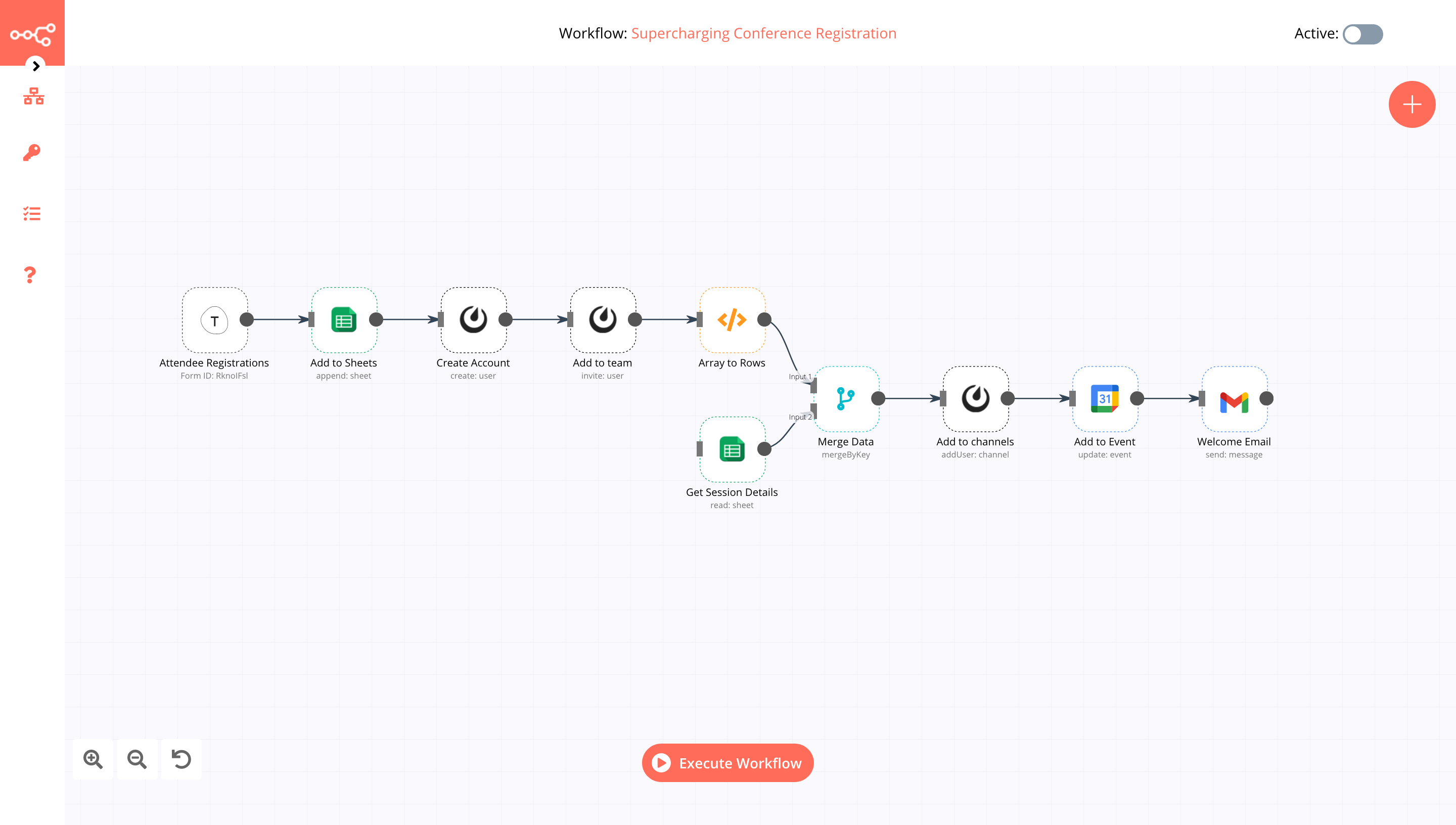
n8n Workflow: Manage Attendee Registrations and Send Emails
This n8n workflow streamlines the process of managing attendee registrations from Typeform, updating a Google Sheet, creating calendar events, and sending confirmation emails and Mattermost notifications. It's designed to automate several manual steps involved in event or conference registration.
What it does
This workflow automates the following steps:
- Triggers on Typeform Submission: It starts whenever a new form is submitted via a configured Typeform.
- Processes Registration Data: It extracts relevant attendee information (like name, email, event details) from the Typeform submission.
- Updates Google Sheet: The extracted attendee data is then appended as a new row to a specified Google Sheet, serving as a central registration log.
- Creates Google Calendar Event: An event is created in Google Calendar for the registered attendee, based on the event details from the Typeform submission.
- Sends Confirmation Email: A personalized confirmation email is sent to the attendee via Gmail, providing them with event details and any necessary instructions.
- Sends Internal Notification: A notification is posted to a Mattermost channel, informing the team about the new registration.
Prerequisites/Requirements
To use this workflow, you will need:
- n8n Instance: A running n8n instance.
- Typeform Account: A Typeform account with a form configured to collect registration details.
- Google Sheets Account: A Google Sheets spreadsheet to log registrations.
- Google Calendar Account: A Google Calendar to create event entries.
- Gmail Account: A Gmail account to send confirmation emails.
- Mattermost Account: A Mattermost account with a channel for notifications.
- n8n Credentials: Configured n8n credentials for Typeform, Google Sheets, Google Calendar, Gmail, and Mattermost.
Setup/Usage
- Import the Workflow:
- Download the provided JSON file.
- In your n8n instance, click "New" in the workflows sidebar.
- Click the "Import from JSON" button and paste the workflow JSON or upload the file.
- Configure Credentials:
- For each node (Typeform Trigger, Google Sheets, Google Calendar, Gmail, Mattermost), click on the node.
- Locate the "Credentials" field and select your existing credentials or create new ones for each service.
- Configure Typeform Trigger:
- In the "Typeform Trigger" node, select the specific Typeform you want to monitor for new submissions.
- Configure Google Sheets:
- In the "Google Sheets" node, specify the "Spreadsheet ID" and "Sheet Name" where registration data should be added.
- Map the incoming Typeform data fields to the corresponding columns in your Google Sheet.
- Configure Google Calendar:
- In the "Google Calendar" node, select the "Calendar ID" where events should be created.
- Map the Typeform data to create the event's "Summary", "Description", "Start Date & Time", and "End Date & Time".
- Configure Gmail:
- In the "Gmail" node, set the "To" address using the attendee's email from Typeform.
- Craft the "Subject" and "Body" of the confirmation email, using expressions to dynamically insert attendee and event details.
- Configure Mattermost:
- In the "Mattermost" node, select the "Channel" for notifications.
- Compose the "Message" content, including relevant registration details for your team.
- Activate the Workflow:
- Once all nodes are configured, click the "Activate" toggle in the top right corner of the n8n editor to enable the workflow.
Now, every time a new submission is received on your configured Typeform, this workflow will automatically process the registration, update your records, send a calendar invite and confirmation email, and notify your team.
Related Templates
Automate invoice processing with OCR, GPT-4 & Salesforce opportunity creation
PDF Invoice Extractor (AI) End-to-end pipeline: Watch Drive ➜ Download PDF ➜ OCR text ➜ AI normalize to JSON ➜ Upsert Buyer (Account) ➜ Create Opportunity ➜ Map Products ➜ Create OLI via Composite API ➜ Archive to OneDrive. --- Node by node (what it does & key setup) 1) Google Drive Trigger Purpose: Fire when a new file appears in a specific Google Drive folder. Key settings: Event: fileCreated Folder ID: google drive folder id Polling: everyMinute Creds: googleDriveOAuth2Api Output: Metadata { id, name, ... } for the new file. --- 2) Download File From Google Purpose: Get the file binary for processing and archiving. Key settings: Operation: download File ID: ={{ $json.id }} Creds: googleDriveOAuth2Api Output: Binary (default key: data) and original metadata. --- 3) Extract from File Purpose: Extract text from PDF (OCR as needed) for AI parsing. Key settings: Operation: pdf OCR: enable for scanned PDFs (in options) Output: JSON with OCR text at {{ $json.text }}. --- 4) Message a model (AI JSON Extractor) Purpose: Convert OCR text into strict normalized JSON array (invoice schema). Key settings: Node: @n8n/n8n-nodes-langchain.openAi Model: gpt-4.1 (or gpt-4.1-mini) Message role: system (the strict prompt; references {{ $json.text }}) jsonOutput: true Creds: openAiApi Output (per item): $.message.content → the parsed JSON (ensure it’s an array). --- 5) Create or update an account (Salesforce) Purpose: Upsert Buyer as Account using an external ID. Key settings: Resource: account Operation: upsert External Id Field: taxid_c External Id Value: ={{ $json.message.content.buyer.tax_id }} Name: ={{ $json.message.content.buyer.name }} Creds: salesforceOAuth2Api Output: Account record (captures Id) for downstream Opportunity. --- 6) Create an opportunity (Salesforce) Purpose: Create Opportunity linked to the Buyer (Account). Key settings: Resource: opportunity Name: ={{ $('Message a model').item.json.message.content.invoice.code }} Close Date: ={{ $('Message a model').item.json.message.content.invoice.issue_date }} Stage: Closed Won Amount: ={{ $('Message a model').item.json.message.content.summary.grand_total }} AccountId: ={{ $json.id }} (from Upsert Account output) Creds: salesforceOAuth2Api Output: Opportunity Id for OLI creation. --- 7) Build SOQL (Code / JS) Purpose: Collect unique product codes from AI JSON and build a SOQL query for PricebookEntry by Pricebook2Id. Key settings: pricebook2Id (hardcoded in script): e.g., 01sxxxxxxxxxxxxxxx Source lines: $('Message a model').first().json.message.content.products Output: { soql, codes } --- 8) Query PricebookEntries (Salesforce) Purpose: Fetch PricebookEntry.Id for each Product2.ProductCode. Key settings: Resource: search Query: ={{ $json.soql }} Creds: salesforceOAuth2Api Output: Items with Id, Product2.ProductCode (used for mapping). --- 9) Code in JavaScript (Build OLI payloads) Purpose: Join lines with PBE results and Opportunity Id ➜ build OpportunityLineItem payloads. Inputs: OpportunityId: ={{ $('Create an opportunity').first().json.id }} Lines: ={{ $('Message a model').first().json.message.content.products }} PBE rows: from previous node items Output: { body: { allOrNone:false, records:[{ OpportunityLineItem... }] } } Notes: Converts discount_total ➜ per-unit if needed (currently commented for standard pricing). Throws on missing PBE mapping or empty lines. --- 10) Create Opportunity Line Items (HTTP Request) Purpose: Bulk create OLIs via Salesforce Composite API. Key settings: Method: POST URL: https://<your-instance>.my.salesforce.com/services/data/v65.0/composite/sobjects Auth: salesforceOAuth2Api (predefined credential) Body (JSON): ={{ $json.body }} Output: Composite API results (per-record statuses). --- 11) Update File to One Drive Purpose: Archive the original PDF in OneDrive. Key settings: Operation: upload File Name: ={{ $json.name }} Parent Folder ID: onedrive folder id Binary Data: true (from the Download node) Creds: microsoftOneDriveOAuth2Api Output: Uploaded file metadata. --- Data flow (wiring) Google Drive Trigger → Download File From Google Download File From Google → Extract from File → Update File to One Drive Extract from File → Message a model Message a model → Create or update an account Create or update an account → Create an opportunity Create an opportunity → Build SOQL Build SOQL → Query PricebookEntries Query PricebookEntries → Code in JavaScript Code in JavaScript → Create Opportunity Line Items --- Quick setup checklist 🔐 Credentials: Connect Google Drive, OneDrive, Salesforce, OpenAI. 📂 IDs: Drive Folder ID (watch) OneDrive Parent Folder ID (archive) Salesforce Pricebook2Id (in the JS SOQL builder) 🧠 AI Prompt: Use the strict system prompt; jsonOutput = true. 🧾 Field mappings: Buyer tax id/name → Account upsert fields Invoice code/date/amount → Opportunity fields Product name must equal your Product2.ProductCode in SF. ✅ Test: Drop a sample PDF → verify: AI returns array JSON only Account/Opportunity created OLI records created PDF archived to OneDrive --- Notes & best practices If PDFs are scans, enable OCR in Extract from File. If AI returns non-JSON, keep “Return only a JSON array” as the last line of the prompt and keep jsonOutput enabled. Consider adding validation on parsing.warnings to gate Salesforce writes. For discounts/taxes in OLI: Standard OLI fields don’t support per-line discount amounts directly; model them in UnitPrice or custom fields. Replace the Composite API URL with your org’s domain or use the Salesforce node’s Bulk Upsert for simplicity.
 By Le Nguyen
Dynamic Hubspot lead routing with GPT-4 and Airtable sales team distribution
AI Agent for Dynamic Lead Distribution (HubSpot + Airtable) 🧠 AI-Powered Lead Routing and Sales Team Distribution This intelligent n8n workflow automates end-to-end lead qualification and allocation by integrating HubSpot, Airtable, OpenAI, Gmail, and Slack. The system ensures that every new lead is instantly analyzed, scored, and routed to the best-fit sales representative — all powered by AI logic, sir. --- 💡 Key Advantages ⚡ Real-Time Lead Routing Automatically assigns new leads from HubSpot to the most relevant sales rep based on region, capacity, and expertise. 🧠 AI Qualification Engine An OpenAI-powered Agent evaluates the lead’s industry, region, and needs to generate a persona summary and routing rationale. 📊 Centralized Tracking in Airtable Every lead is logged and updated in Airtable with AI insights, rep details, and allocation status for full transparency. 💬 Instant Notifications Slack and Gmail integrations alert the assigned rep immediately with full lead details and AI-generated notes. 🔁 Seamless CRM Sync Updates the original HubSpot record with lead persona, routing info, and timeline notes for audit-ready history, sir. --- ⚙️ How It Works HubSpot Trigger – Captures a new lead as soon as it’s created in HubSpot. Fetch Contact Data – Retrieves all relevant fields like name, company, and industry. Clean & Format Data – A Code node standardizes and structures the data for consistency. Airtable Record Creation – Logs the lead data into the “Leads” table for centralized tracking. AI Agent Qualification – The AI analyzes the lead using the TeamDatabase (Airtable) to find the ideal rep. Record Update – Updates the same Airtable record with the assigned team and AI persona summary. Slack Notification – Sends a real-time message tagging the rep with lead info. Gmail Notification – Sends a personalized handoff email with context and follow-up actions. HubSpot Sync – Updates the original contact in HubSpot with the assignment details and AI rationale, sir. --- 🛠️ Setup Steps Trigger Node: HubSpot → Detect new leads. HubSpot Node: Retrieve complete lead details. Code Node: Clean and normalize data. Airtable Node: Log lead info in the “Leads” table. AI Agent Node: Process lead and match with sales team. Slack Node: Notify the designated representative. Gmail Node: Email the rep with details. HubSpot Node: Update CRM with AI summary and allocation status, sir. --- 🔐 Credentials Required HubSpot OAuth2 API – To fetch and update leads. Airtable Personal Access Token – To store and update lead data. OpenAI API – To power the AI qualification and matching logic. Slack OAuth2 – For sending team notifications. Gmail OAuth2 – For automatic email alerts to assigned reps, sir. --- 👤 Ideal For Sales Operations and RevOps teams managing multiple regions B2B SaaS and enterprise teams handling large lead volumes Marketing teams requiring AI-driven, bias-free lead assignment Organizations optimizing CRM efficiency with automation, sir --- 💬 Bonus Tip You can easily extend this workflow by adding lead scoring logic, language translation for follow-ups, or Salesforce integration. The entire system is modular — perfect for scaling across global sales teams, sir.
 By MANISH KUMAR
Tax deadline management & compliance alerts with GPT-4, Google Sheets & Slack
AI-Driven Tax Compliance & Deadline Management System Description Automate tax deadline monitoring with AI-powered insights. This workflow checks your tax calendar daily at 8 AM, uses GPT-4 to analyze upcoming deadlines across multiple jurisdictions, detects overdue and critical items, and sends intelligent alerts via email and Slack only when immediate action is required. Perfect for finance teams and accounting firms who need proactive compliance management without manual tracking. 🏛️🤖📊 Good to Know AI-Powered: GPT-4 provides risk assessment and strategic recommendations Multi-Jurisdiction: Handles Federal, State, and Local tax requirements automatically Smart Alerts: Only notifies executives when deadlines are overdue or critical (≤3 days) Priority Classification: Categorizes deadlines as Overdue, Critical, High, or Medium priority Dual Notifications: Critical alerts to leadership + daily summaries to team channel Complete Audit Trail: Logs all checks and deadlines to Google Sheets for compliance records How It Works Daily Trigger - Runs at 8:00 AM every morning Fetch Data - Pulls tax calendar and company configuration from Google Sheets Analyze Deadlines - Calculates days remaining, filters by jurisdiction/entity type, categorizes by priority AI Analysis - GPT-4 provides strategic insights and risk assessment on upcoming deadlines Smart Routing - Only sends alerts if overdue or critical deadlines exist Critical Alerts - HTML email to executives + Slack alert for urgent items Team Updates - Slack summary to finance channel with all upcoming deadlines Logging - Records compliance check results to Google Sheets for audit trail Requirements Google Sheets Structure Sheet 1: TaxCalendar DeadlineID | DeadlineName | DeadlineDate | Jurisdiction | Category | AssignedTo | IsActive FED-Q1 | Form 1120 Q1 | 2025-04-15 | Federal | Income | John Doe | TRUE Sheet 2: CompanyConfig (single row) Jurisdictions | EntityType | FiscalYearEnd Federal, California | Corporation | 12-31 Sheet 3: ComplianceLog (auto-populated) Date | AlertLevel | TotalUpcoming | CriticalCount | OverdueCount 2025-01-15 | HIGH | 12 | 3 | 1 Credentials Needed Google Sheets - Service Account OAuth2 OpenAI - API Key (GPT-4 access required) SMTP - Email account for sending alerts Slack - Bot Token with chat:write permission Setup Steps Import workflow JSON into n8n Add all 4 credentials Replace these placeholders: YOURTAXCALENDAR_ID - Tax calendar sheet ID YOURCONFIGID - Company config sheet ID YOURLOGID - Compliance log sheet ID C12345678 - Slack channel ID tax@company.com - Sender email cfo@company.com - Recipient email Share all sheets with Google service account email Invite Slack bot to channels Test workflow manually Activate the trigger Customizing This Workflow Change Alert Thresholds: Edit "Analyze Deadlines" node: Critical: Change <= 3 to <= 5 for 5-day warning High: Change <= 7 to <= 14 for 2-week notice Medium: Change <= 30 to <= 60 for 2-month lookout Adjust Schedule: Edit "Daily Tax Check" trigger: Change hour/minute for different run time Add multiple trigger times for tax season (8 AM, 2 PM, 6 PM) Add More Recipients: Edit "Send Email" node: To: cfo@company.com, director@company.com CC: accounting@company.com BCC: archive@company.com Customize Email Design: Edit "Format Email" node to change colors, add logo, or modify layout Add SMS Alerts: Insert Twilio node after "Is Critical" for emergency notifications Integrate Task Management: Add HTTP Request node to create tasks in Asana/Jira for critical deadlines Troubleshooting | Issue | Solution | |-------|----------| | No deadlines found | Check date format (YYYY-MM-DD) and IsActive = TRUE | | AI analysis failed | Verify OpenAI API key and account credits | | Email not sending | Test SMTP credentials and check if critical condition met | | Slack not posting | Invite bot to channel and verify channel ID format | | Permission denied | Share Google Sheets with service account email | 📞 Professional Services Need help with implementation or customization? Our team offers: 🎯 Custom workflow development 🏢 Enterprise deployment support 🎓 Team training sessions 🔧 Ongoing maintenance 📊 Custom reporting & dashboards 🔗 Additional API integrations Discover more workflows – Get in touch with us
 By Oneclick AI Squad