Generate research ideas from PDFs using InfraNodus GraphRAG content gap analysis

This template can be used to generate research ideas from PDF scientific papers based on the content gaps found in text using the InfraNodus knowledge graph GraphRAG knowledge graph representation.
Simply upload several PDF files (research papers, corporate or market reports, etc) and the template will generate a research question, which will then be sent as an AI prompt to the InfraNodus GraphRAG system that will extract the answer from the documents.
As a result, you find the gap in a collection of research papers and bridge it in a few seconds .
The template is useful for:
- advancing scientific research
- generating AI prompts that drive research further
- finding the right questions to ask to bridge blind spots in a research field
- avoiding the generic bias of LLM models and focusing on what's important in your particular context
Using Content Gaps for Generating Research Questions
Knowledge graphs represent any text as a network: the main concepts are the nodes, their co-occurrences are the connections between them.
Based on this representation, we build a graph and apply network science metrics to rank the most important nodes (concepts) that serve as the crossroads of meaning and also the main topical clusters that they connect.
Naturally, some of the clusters will be disconnected and will have gaps between them. These are the topics (groups of concepts) that exist in this context (the documents you uploaded) but that are not very well connected.
Addressing those gaps can help you see which groups of concepts you could connect with your own ideas. This is exactly what InfraNodus does: builds the structure, finds the gaps, then uses the built-in AI to generate research questions that bridge those gaps.

How it works
-
Step 1: First, you upload your PDF files using an online web form, which you can run from n8n or even make publicly available.
-
Steps 2-4: The documents are processed using the Code and PDF to Text nodes to extract plain text from them.
-
Step 5: This text is then sent to the InfraNodus GraphRAG node that creates a knowledge graph, identifies structural gaps in this graph, and then uses built-in AI to research questions, which are then used as AI prompts.
-
Step 6: The research questino is sent to the InfraNodus GraphRAG system that represents the PDF documents you submitted as a knowledge graph and then uses the research question generated to come up with an answer based on the content you uploaded.
-
Step 7: The ideas are then shown to the user in the same web form.
Optionally, you can derive the answers from a different set of papers, so the question is generated from one batch, but the answer is generated from another.
If you'd like to sync this workflow to PDF files in a Google Drive folder, you can copy our Google Drive PDF processing workflow for n8n.
How to use
You need an InfraNodus GraphRAG API account and key to use this workflow.
- Create an InfraNodus account
- Get the API key at https://infranodus.com/api-access and create a Bearer authorization key.
- Add this key into the InfraNodus GraphRAG HTTP node(s) you use in this workflow.
- You do not need any OpenAI keys for this to work.
Optionally, you can change the settings in the Step 4 of this workflow and enforce it to always use the biggest gap it identifies.
Requirements
- An InfraNodus account and API key
Note: OpenAI key is not required. You will have direct access to the InfraNodus AI with the API key.
Customizing this workflow
You can use this same workflow with a Telegram bot or Slack (to be notified of the summaries and ideas).
You can also hook up automated social media content creation workflows in the end of this template, so you can generate posts that are relevant (covering the important topics in your niche) but also novel (because they connect them in a new way).
Check out our n8n templates for ideas at https://n8n.io/creators/infranodus/
Also check the full tutorial with a conceptual explanation at https://support.noduslabs.com/hc/en-us/articles/20454382597916-Beat-Your-Competition-Target-Their-Content-Gaps-with-this-n8n-Automation-Workflow
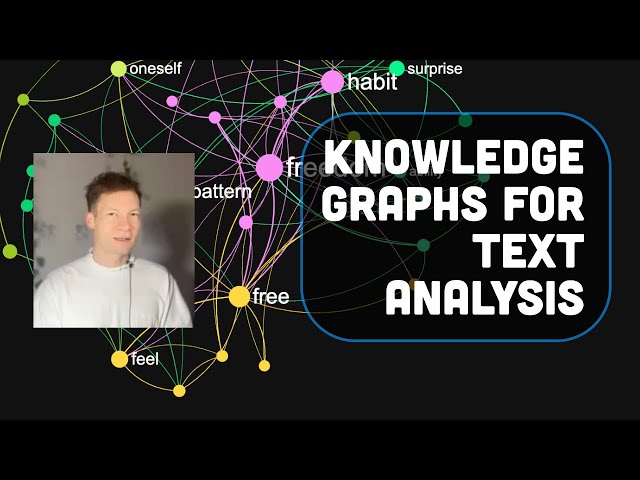
Also check out the video introduction to InfraNodus to better understand how knowledge graphs and content gaps work:
For support and help with this workflow, please, contact us at https://support.noduslabs.com
Generate Research Ideas from PDFs using Infranodus, GraphRAG & Content Gap Analysis
This n8n workflow automates the process of extracting text from PDF documents, enriching it with GraphRAG (Graph-based Retrieval Augmented Generation) and Infranodus for content gap analysis, and then generating research ideas based on the combined insights. It simplifies the discovery of new research avenues and helps identify gaps in existing knowledge.
What it does
- Triggers on Form Submission: The workflow starts when a user submits a form. This form is designed to accept a PDF file and potentially other parameters for the analysis.
- Extracts Text from PDF: It takes the submitted PDF file and extracts its textual content. This step prepares the document for further processing.
- Processes Text with GraphRAG (via HTTP Request): The extracted text is then sent to an external service (likely a GraphRAG endpoint) via an HTTP request. This service is expected to process the text, identify key entities, relationships, and concepts, and potentially generate initial insights or a knowledge graph representation.
- Processes Text with Infranodus (via HTTP Request): Concurrently or sequentially, the text is also sent to another external service (likely an Infranodus API) via a separate HTTP request. Infranodus specializes in text network analysis and content gap identification, providing a different perspective on the document's content.
- Combines and Analyzes Results (via Code Node): A Code node is used to combine and further analyze the outputs from both the GraphRAG and Infranodus services. This custom logic will synthesize the information, identify patterns, and pinpoint potential research ideas and content gaps.
- Generates Research Ideas: Based on the combined analysis, the workflow generates a list of research ideas, potentially highlighting areas where more research is needed or where new connections can be made.
- Outputs Results: The final research ideas and any relevant insights are presented as the output of the workflow.
Prerequisites/Requirements
- n8n Instance: A running n8n instance to host and execute the workflow.
- External GraphRAG Service: Access to an API endpoint for a GraphRAG (Graph-based Retrieval Augmented Generation) service. This service is crucial for extracting structured knowledge from the PDF content.
- External Infranodus Service: Access to an API endpoint for Infranodus. This service is used for text network analysis and content gap identification.
- API Keys/Authentication: Depending on your GraphRAG and Infranodus service configurations, you may need API keys or other authentication credentials configured in n8n's HTTP Request nodes.
Setup/Usage
- Import the Workflow: Download the provided JSON and import it into your n8n instance.
- Configure the "On Form Submission" Trigger:
- Activate the workflow.
- Note the webhook URL provided by the "On form submission" node. This URL will be used to submit your PDF files.
- Configure the "HTTP Request" Nodes:
- GraphRAG HTTP Request: Update the URL to point to your GraphRAG service's API endpoint. Configure any necessary headers (e.g.,
Content-Type,Authorization) and the request body to send the extracted PDF text. - Infranodus HTTP Request: Update the URL to point to your Infranodus service's API endpoint. Configure any necessary headers and the request body to send the extracted PDF text.
- GraphRAG HTTP Request: Update the URL to point to your GraphRAG service's API endpoint. Configure any necessary headers (e.g.,
- Customize the "Code" Node:
- The "Code" node contains custom JavaScript logic to process the outputs of the GraphRAG and Infranodus services. You will likely need to modify this code to fit the exact structure of the data returned by your external services and to implement your specific content gap analysis and research idea generation logic.
- Run the Workflow:
- Once configured, you can test the workflow by submitting a PDF file to the webhook URL provided by the "On form submission" node.
- Observe the execution in n8n to ensure all steps are running as expected and to review the generated research ideas.
Related Templates
Generate song lyrics and music from text prompts using OpenAI and Fal.ai Minimax
Spark your creativity instantly in any chat—turn a simple prompt like "heartbreak ballad" into original, full-length lyrics and a professional AI-generated music track, all without leaving your conversation. 📋 What This Template Does This chat-triggered workflow harnesses AI to generate detailed, genre-matched song lyrics (at least 600 characters) from user messages, then queues them for music synthesis via Fal.ai's minimax-music model. It polls asynchronously until the track is ready, delivering lyrics and audio URL back in chat. Crafts original, structured lyrics with verses, choruses, and bridges using OpenAI Submits to Fal.ai for melody, instrumentation, and vocals aligned to the style Handles long-running generations with smart looping and status checks Returns complete song package (lyrics + audio link) for seamless sharing 🔧 Prerequisites n8n account (self-hosted or cloud with chat integration enabled) OpenAI account with API access for GPT models Fal.ai account for AI music generation 🔑 Required Credentials OpenAI API Setup Go to platform.openai.com → API keys (sidebar) Click "Create new secret key" → Name it (e.g., "n8n Songwriter") Copy the key and add to n8n as "OpenAI API" credential type Test by sending a simple chat completion request Fal.ai HTTP Header Auth Setup Sign up at fal.ai → Dashboard → API Keys Generate a new API key → Copy it In n8n, create "HTTP Header Auth" credential: Name="Fal.ai", Header Name="Authorization", Header Value="Key [Your API Key]" Test with a simple GET to their queue endpoint (e.g., /status) ⚙️ Configuration Steps Import the workflow JSON into your n8n instance Assign OpenAI API credentials to the "OpenAI Chat Model" node Assign Fal.ai HTTP Header Auth to the "Generate Music Track", "Check Generation Status", and "Fetch Final Result" nodes Activate the workflow—chat trigger will appear in your n8n chat interface Test by messaging: "Create an upbeat pop song about road trips" 🎯 Use Cases Content Creators: YouTubers generating custom jingles for videos on the fly, streamlining production from idea to audio export Educators: Music teachers using chat prompts to create era-specific folk tunes for classroom discussions, fostering interactive learning Gift Personalization: Friends crafting anniversary R&B tracks from shared memories via quick chats, delivering emotional audio surprises Artist Brainstorming: Songwriters prototyping hip-hop beats in real-time during sessions, accelerating collaboration and iteration ⚠️ Troubleshooting Invalid JSON from AI Agent: Ensure the system prompt stresses valid JSON; test the agent standalone with a sample query Music Generation Fails (401/403): Verify Fal.ai API key has minimax-music access; check usage quotas in dashboard Status Polling Loops Indefinitely: Bump wait time to 45-60s for complex tracks; inspect fal.ai queue logs for bottlenecks Lyrics Under 600 Characters: Tweak agent prompt to enforce fuller structures like [V1][C][V2][B][C]; verify output length in executions
 By Daniel Nkencho
Auto-reply & create Linear tickets from Gmail with GPT-5, gotoHuman & human review
This workflow automatically classifies every new email from your linked mailbox, drafts a personalized reply, and creates Linear tickets for bugs or feature requests. It uses a human-in-the-loop with gotoHuman and continuously improves itself by learning from approved examples. How it works The workflow triggers on every new email from your linked mailbox. Self-learning Email Classifier: an AI model categorizes the email into defined categories (e.g., Bug Report, Feature Request, Sales Opportunity, etc.). It fetches previously approved classification examples from gotoHuman to refine decisions. Self-learning Email Writer: the AI drafts a reply to the email. It learns over time by using previously approved replies from gotoHuman, with per-classification context to tailor tone and style (e.g., different style for sales vs. bug reports). Human Review in gotoHuman: review the classification and the drafted reply. Drafts can be edited or retried. Approved values are used to train the self-learning agents. Send approved Reply: the approved response is sent as a reply to the email thread. Create ticket: if the classification is Bug or Feature Request, a ticket is created by another AI agent in Linear. Human Review in gotoHuman: How to set up Most importantly, install the gotoHuman node before importing this template! (Just add the node to a blank canvas before importing) Set up credentials for gotoHuman, OpenAI, your email provider (e.g. Gmail), and Linear. In gotoHuman, select and create the pre-built review template "Support email agent" or import the ID: 6fzuCJlFYJtlu9mGYcVT. Select this template in the gotoHuman node. In the "gotoHuman: Fetch approved examples" http nodes you need to add your formId. It is the ID of the review template that you just created/imported in gotoHuman. Requirements gotoHuman (human supervision, memory for self-learning) OpenAI (classification, drafting) Gmail or your preferred email provider (for email trigger+replies) Linear (ticketing) How to customize Expand or refine the categories used by the classifier. Update the prompt to reflect your own taxonomy. Filter fetched training data from gotoHuman by reviewer so the writer adapts to their personalized tone and preferences. Add more context to the AI email writer (calendar events, FAQs, product docs) to improve reply quality.
 By gotoHuman
Synchronizing WooCommerce inventory and creating products with Google Gemini AI and BrowserAct
Synchronize WooCommerce Inventory & Create Products with Gemini AI & BrowserAct This sophisticated n8n template automates WooCommerce inventory management by scraping supplier data, updating existing products, and intelligently creating new ones with AI-formatted descriptions. This workflow is essential for e-commerce operators, dropshippers, and inventory managers who need to ensure their product pricing and stock levels are synchronized with multiple third-party suppliers, minimizing overselling and maximizing profit. --- Self-Hosted Only This Workflow uses a community contribution and is designed and tested for self-hosted n8n instances only. --- How it works The workflow is typically run by a Schedule Trigger (though a Manual Trigger is also shown) to check stock automatically. It reads a list of suppliers and their inventory page URLs from a central Google Sheet. The workflow loops through each supplier: A BrowserAct node scrapes the current stock and price data from the supplier's inventory page. A Code node parses this bulk data into individual product items. It then loops through each individual product found. The workflow checks WooCommerce to see if the product already exists based on its name. If the product exists: It proceeds to update the existing product's price and stock quantity. If the product DOES NOT exist: An If node checks if the missing product's category matches a predefined type (optional filtering). If it passes the filter, a second BrowserAct workflow scrapes detailed product attributes from a dedicated product page (e.g., DigiKey). An AI Agent (Gemini) transforms these attributes into a specific, styled HTML table for the product description. Finally, the product is created in WooCommerce with all scraped details and the AI-generated description. Error Handling: Multiple Slack nodes are configured to alert your team immediately if any scraping task fails or if the product update/creation process encounters an issue. Note: This workflow does not support image uploads for new products. To enable this functionality, you must modify both the n8n and BrowserAct workflows. --- Requirements BrowserAct API account for web scraping BrowserAct n8n Community Node -> (n8n Nodes BrowserAct) BrowserAct templates named “WooCommerce Inventory & Stock Synchronization” and “WooCommerce Product Data Reconciliation” Google Sheets credentials for the supplier list WooCommerce credentials for product management Google Gemini account for the AI Agent Slack credentials for error alerts --- Need Help? How to Find Your BrowseAct API Key & Workflow ID How to Connect n8n to Browseract How to Use & Customize BrowserAct Templates How to Use the BrowserAct N8N Community Node --- Workflow Guidance and Showcase STOP Overselling! Auto-Sync WooCommerce Inventory from ANY Supplier
 By Madame AI Team | Kai