Two-stage document retrieval chatbot with OpenAI and Supabase vector search

Video Guide
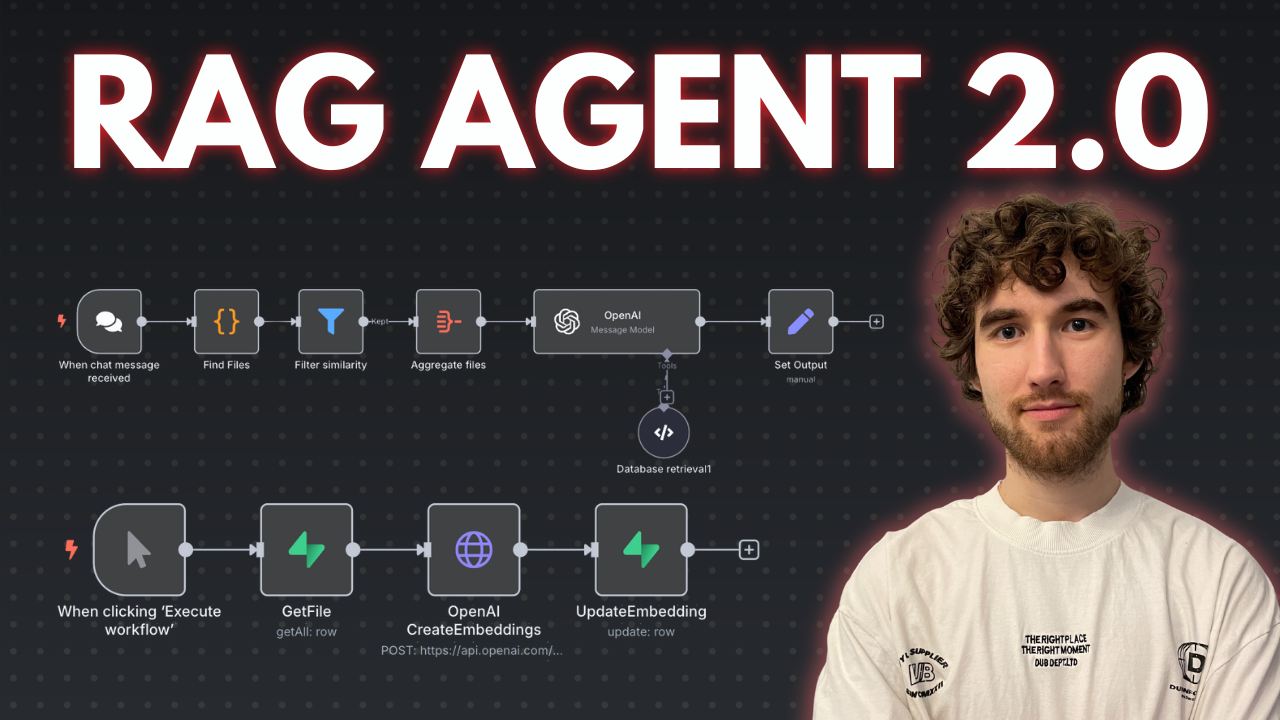
I prepared a comprehensive guide demonstrating how to build a multi-level retrieval AI agent in n8n that smartly narrows down search results first by file descriptions, then retrieves detailed vector data for improved relevance and answer quality.
Who is this for?
This workflow suits developers, AI enthusiasts, and data engineers working with vector stores and large document collections who want to enhance the precision of AI retrieval by leveraging metadata-based filtering before deep content search. It helps users managing many files or documents and aiming to reduce noise and input size limits in AI queries.
What problem does this workflow solve?
Performing vector searches directly on large numbers of document chunks can degrade AI input quality and introduce noise. This workflow implements a two-stage retrieval process that first searches file descriptions to filter relevant files, then runs vector searches only within those files to fetch precise results. This reduces irrelevant data, improves answer accuracy, and optimizes performance when dealing with dozens or hundreds of files split into multiple pieces.
What this workflow does
This n8n workflow connects to a Supabase vector store to perform:
-
Multi-level Retrieval:
- File Description Search: Calls a Supabase RPC function to find files whose descriptions (metadata) best match the user query. It filters and limits the number of relevant files based on similarity scores.
- Document Chunk Retrieval: Uses retrieved file IDs to perform a second RPC call fetching detailed vector pieces only within those files, again filtered by similarity thresholds.
-
OpenAI Integration:
The filtered document chunks and associated metadata (like file names and URLs) are passed to an OpenAI message node that includes system instructions to guide the AI in leveraging the knowledge base and linked resources for comprehensive responses. -
Custom Code Functions:
Two code nodes interact with Supabase stored proceduresmatch_filesandmatch_documentsto perform the semantic searches with multiline metadata filtering unavailable in default vector filters. -
Helper Flows and SQL Setup:
Templates and SQL scripts prepare database tables and functions, with additional flows to generate embeddings from file description summaries using OpenAI.
N8N Workflow
-
Preparation:
- Create or verify Supabase account with vector store capability.
- Set up necessary database tables and RPC functions (
match_filesandmatch_documents) using provided SQL scripts. - Replace all credentials in n8n nodes to connect to your Supabase and OpenAI accounts.
- Optionally upload document files and generate their vector embeddings and description summaries in a separate helper workflow.
-
Main Workflow Logic:
- Code Function Node #1: Receives user query and calls the
match_filesRPC to retrieve file IDs by searching file descriptions with vector similarity thresholds and file limits. - Code Function Node #2: Takes filtered file IDs, invokes
match_documentsRPC to fetch vector document chunks only from those files with additional similarity filtering and count limits. - OpenAI Message Node: Combines fetched document pieces, their metadata (file URLs, similarity scores), and system prompts to generate precise AI-powered answers referencing the documents.
- Code Function Node #1: Receives user query and calls the
This multi-tiered retrieval process improves search relevance and AI contextual understanding by smartly limiting vector search scope first to relevant files, then to specific document chunks, refining user query results.
Two-Stage Document Retrieval Chatbot with OpenAI and Supabase Vector Search
This n8n workflow creates a sophisticated chatbot that leverages OpenAI for conversational AI and Supabase for efficient vector-based document retrieval. It implements a two-stage retrieval process to provide more accurate and contextually relevant answers to user queries.
What it does
This workflow automates the following steps:
- Listens for User Input: It starts by receiving a chat message from a user, which serves as the initial query.
- Generates Search Query (Stage 1 Retrieval): Using OpenAI, it takes the user's initial chat message and generates an optimized search query specifically designed for document retrieval.
- Performs Vector Search: It then uses the generated search query to perform a vector-based search in a Supabase database, retrieving relevant document chunks.
- Refines Search Query (Stage 2 Retrieval): The retrieved document chunks, along with the original user query, are fed back into OpenAI to generate a more refined and focused search query. This second query aims to improve the relevance of the final retrieval.
- Performs Second Vector Search: Another vector search is executed against the Supabase database using the refined query, aiming to fetch even more precise document chunks.
- Aggregates Retrieved Content: All relevant document chunks from both retrieval stages are combined.
- Generates Chatbot Response: Finally, the aggregated document content, along with the original user query, is sent to OpenAI to generate a comprehensive and contextually informed chatbot response.
Prerequisites/Requirements
To use this workflow, you will need:
- n8n Instance: A running n8n instance to import and execute the workflow.
- OpenAI API Key: An API key for OpenAI to access its language models for query generation and response generation.
- Supabase Project: A Supabase project configured with a vector database (e.g., using
pg_vector) containing your document embeddings. - Supabase API Key and URL: The API key and URL for your Supabase project to allow n8n to connect and perform vector searches.
Setup/Usage
- Import the Workflow:
- Download the provided JSON file for this workflow.
- In your n8n instance, click "New" in the workflows section, then "Import from JSON" and upload the file.
- Configure Credentials:
- OpenAI: Set up an OpenAI credential in n8n with your API key.
- Supabase: Set up a Supabase credential in n8n with your Supabase project URL and API key.
- Configure Nodes:
- Chat Trigger: This node is pre-configured to listen for chat messages. You might need to adjust its settings depending on how you integrate it (e.g., with a specific chat platform).
- HTTP Request (Supabase calls):
- Ensure the
HTTP Requestnodes (named "Supabase" in the workflow) are correctly configured to point to your Supabase vector search endpoint. - Verify the headers for
apikeyandAuthorizationuse your Supabase API key. - Adjust the
match_countandquery_embeddingparameters as needed for your specific Supabase setup and desired retrieval behavior.
- Ensure the
- OpenAI:
- Ensure the
OpenAInodes are using your configured OpenAI credential. - Review the prompts in the
OpenAInodes (e.g., for generating search queries and the final response) and adjust them to best suit your use case and desired chatbot personality/behavior.
- Ensure the
- Code Tool: This node is likely used for custom logic related to embedding generation or data formatting. Review its JavaScript code and modify it if necessary to match your Supabase schema or embedding model requirements.
- Activate the Workflow: Once all credentials and node configurations are complete, activate the workflow to start processing chat messages.
This workflow provides a robust foundation for building intelligent chatbots capable of answering complex questions by dynamically retrieving information from a vector database.
Related Templates
Automate interior design lead qualification with AI & human approval to Notion
Overview This automated workflow intelligently qualifies interior design leads, generates personalized client emails, and manages follow-up through a human-approval process. Built with n8n, Claude AI, Telegram approval, and Notion database integration. ⚠️ Hosting Options This template works with both n8n Cloud and self-hosted instances. Most nodes are native to n8n, making it cloud-compatible out of the box. What This Template Does Automated Lead Management Pipeline: Captures client intake form submissions from website or n8n forms AI-powered classification into HOT/WARM/COLD categories based on budget, project scope, and commitment indicators Generates personalized outreach emails tailored to each lead type Human approval workflow via Telegram for quality control Email revision capability for rejected drafts Automated client email delivery via Gmail Centralized lead tracking in Notion database Key Features ✅ Intelligent Lead Scoring: Analyzes 12+ data points including budget (AED), space count, project type, timeline, and style preferences ✅ Personalized Communication: AI-generated emails reference specific client details, demonstrating genuine understanding ✅ Quality Control: Human-in-the-loop approval via Telegram prevents errors before client contact ✅ Smart Routing: Different workflows for qualified leads (meeting invitations) vs. unqualified leads (respectful alternatives) ✅ Revision Loop: Rejected emails automatically route to revision agent for improvements ✅ Database Integration: All leads stored in Notion for pipeline tracking and analytics Use Cases Interior design firms managing high-volume lead intake Architecture practices with complex qualification criteria Home renovation companies prioritizing project value Any service business requiring budget-based lead scoring Sales teams needing approval workflows before client contact Prerequisites Required Accounts & API Keys: Anthropic Claude API - For AI classification and email generation Telegram Bot Token - For approval notifications Gmail Account - For sending client emails (or any SMTP provider) Notion Account - For lead database storage n8n Account - Cloud or self-hosted instance Technical Requirements: Basic understanding of n8n workflows Ability to create Telegram bots via BotFather Gmail app password or OAuth setup Notion database with appropriate properties Setup Instructions Step 1: Clone and Import Template Copy this template to your n8n instance (cloud or self-hosted) All nodes will appear as inactive - this is normal Step 2: Configure Form Trigger Open the Client Intake Form Trigger node Choose your trigger type: For n8n forms: Configure form fields matching the template structure For webhook: Copy webhook URL and integrate with your website form Required form fields: First Name, Second Name, Email, Contact Number Project Address, Project Type, Spaces Included Budget Range, Completion Date, Style Preferences Involvement Level, Previous Experience, Inspiration Links Step 3: Set Up Claude AI Credentials Obtain API key from https://console.anthropic.com In n8n: Create new credential → Anthropic → Paste API key Apply credential to these nodes: AI Lead Scoring Engine Personalized Client Outreach Email Generator Email Revision Agent Step 4: Configure Telegram Approval Bot Create bot via Telegram's @BotFather Copy bot token Get your Telegram Chat ID (use @userinfobot) In n8n: Create Telegram credential with bot token Configure Human-in-the-Loop Email Approval node: Add your Chat ID Customize approval message format if desired Step 5: Set Up Gmail Sending Enable 2-factor authentication on Gmail account Generate app password: Google Account → Security → App Passwords In n8n: Create Gmail credential using app password Configure Client Email Delivery node with sender details Step 6: Connect Notion Database Create Notion integration at https://www.notion.so/my-integrations Copy integration token Create database with these properties: Client Name (Title), Email (Email), Contact Number (Phone) Project Address (Text), Project Type (Multi-select) Spaces Included (Text), Budget (Select), Timeline (Date) Classification (Select: HOT/WARM/COLD), Confidence (Select) Estimated Value (Number), Status (Select) Share database with your integration In n8n: Add Notion credential → Paste token Configure Notion Lead Database Manager with database ID Step 7: Customize Classification Rules (Optional) Open AI Lead Scoring Engine node Review classification criteria in the prompt: HOT: 500k+ AED, full renovations, 2+ spaces WARM: 100k+ AED, 2+ spaces COLD: <100k AED OR single space Adjust thresholds to match your business requirements Modify currency if not using AED Step 8: Personalize Email Templates Open Personalized Client Outreach Email Generator node Customize: Company name and branding Signature placeholders ([Your Name], [Title], etc.) Tone and style preferences Alternative designer recommendations for COLD leads Step 9: Test the Workflow Activate the workflow Submit a test form with sample data Monitor each node execution in n8n Check Telegram for approval message Verify email delivery and Notion database entry Step 10: Set Up Error Handling (Recommended) Add error workflow trigger Configure notifications for failed executions Set up retry logic for API failures Workflow Node Breakdown Client Intake Form Trigger Captures lead data from website forms or n8n native forms with all project details. AI Lead Scoring Engine Analyzes intake data using structured logic: budget validation, space counting, and multi-factor evaluation. Returns HOT/WARM/COLD classification with confidence scores. Lead Classification Router Routes leads into three priority workflows based on AI classification, optimizing resource allocation. Sales Team Email Notifier Sends instant alerts to sales representatives with complete lead details and AI reasoning for internal tracking. Personalized Client Outreach Email Generator AI-powered composer creating tailored responses demonstrating genuine understanding of client vision, adapted by lead type. Latest Email Version Controller Captures most recent email output ensuring only final approved version proceeds to delivery. Human-in-the-Loop Email Approval Telegram-based review checkpoint sending generated emails to team member for quality control before client delivery. Approval Decision Router Evaluates reviewer's response, routing approved emails to client delivery or rejected emails to revision agent. Email Revision Agent AI-powered editor refining rejected emails based on feedback while maintaining personalization and brand voice. Client Email Delivery Sends final approved personalized emails demonstrating understanding of project vision with clear next steps. Notion Lead Database Manager Records all potential clients with complete intake data, classification results, and tracking information for pipeline management. Customization Tips Adjust Classification Thresholds: Modify budget ranges and space requirements in the AI Lead Scoring Engine prompt to match your market and service level. Multi-Language Support: Update all AI agent prompts with instructions for your target language. Claude supports 100+ languages. Additional Routing: Add branches for special cases like urgent projects, VIP clients, or specific geographic regions. CRM Integration: Replace Notion with HubSpot, Salesforce, or Airtable using respective n8n nodes. SMS Notifications: Add Twilio node for immediate HOT lead alerts to mobile devices. Troubleshooting Issue: Telegram approval not received Verify bot token is correct Confirm chat ID matches your Telegram account Check bot is not blocked Issue: Claude API errors Verify API key validity and credits Check prompt length isn't exceeding token limits Review rate limits on your Anthropic plan Issue: Gmail not sending Confirm app password (not regular password) is used Check "Less secure app access" if using older method Verify daily sending limits not exceeded Issue: Notion database not updating Confirm integration has access to database Verify property names match exactly (case-sensitive) Check property types align with data being sent Template Metrics Execution Time: ~30-45 seconds per lead (including AI processing) API Calls: 2-3 Claude requests per lead (classification + email generation, +1 if revision) Cost Estimate: ~$0.05-0.15 per lead processed (based on Claude API pricing) Support & Community n8n Community Forum: https://community.n8n.io Template Issues: Report bugs or suggest improvements via n8n template feedback Claude Documentation: https://docs.anthropic.com Notion API Docs: https://developers.notion.com License This template is provided as-is under MIT license. Modify and adapt freely for your business needs. --- Version: 1.0 Last Updated: October 2025 Compatibility: n8n v1.0+ (Cloud & Self-Hosted), Claude API v2024-10+
 By Jameson Kanakulya
Automated UGC video generator with Gemini images and SORA 2
This workflow automates the creation of user-generated-content-style product videos by combining Gemini's image generation with OpenAI's SORA 2 video generation. It accepts webhook requests with product descriptions, generates images and videos, stores them in Google Drive, and logs all outputs to Google Sheets for easy tracking. Main Use Cases Automate product video creation for e-commerce catalogs and social media. Generate UGC-style content at scale without manual design work. Create engaging video content from simple text prompts for marketing campaigns. Build a centralized library of product videos with automated tracking and storage. How it works The workflow operates as a webhook-triggered process, organized into these stages: Webhook Trigger & Input Accepts POST requests to the /create-ugc-video endpoint. Required payload includes: product prompt, video prompt, Gemini API key, and OpenAI API key. Image Generation (Gemini) Sends the product prompt to Google's Gemini 2.5 Flash Image model. Generates a product image based on the description provided. Data Extraction Code node extracts the base64 image data from Gemini's response. Preserves all prompts and API keys for subsequent steps. Video Generation (SORA 2) Sends the video prompt to OpenAI's SORA 2 API. Initiates video generation with specifications: 720x1280 resolution, 8 seconds duration. Returns a video generation job ID for polling. Video Status Polling Continuously checks video generation status via OpenAI API. If status is "completed": proceeds to download. If status is still processing: waits 1 minute and retries (polling loop). Video Download & Storage Downloads the completed video file from OpenAI. Uploads the MP4 file to Google Drive (root folder). Generates a shareable Google Drive link. Logging to Google Sheets Records all generation details in a tracking spreadsheet: Product description Video URL (Google Drive link) Generation status Timestamp Summary Flow: Webhook Request → Generate Product Image (Gemini) → Extract Image Data → Generate Video (SORA 2) → Poll Status → If Complete: Download Video → Upload to Google Drive → Log to Google Sheets → Return Response If Not Complete: Wait 1 Minute → Poll Status Again Benefits: Fully automated video creation pipeline from text to finished product. Scalable solution for generating multiple product videos on demand. Combines cutting-edge AI models (Gemini + SORA 2) for high-quality output. Centralized storage in Google Drive with automatic logging in Google Sheets. Flexible webhook interface allows integration with any application or service. Retry mechanism ensures videos are captured even with longer processing times. --- Created by Daniel Shashko
 By Daniel Shashko
Track personal finances in Google Sheets with AI agent via Slack
Who's it for This workflow is perfect for individuals who want to maintain detailed financial records without the overhead of complex budgeting apps. If you prefer natural language over data entry forms and want an AI assistant to handle the bookkeeping, this template is for you. It's especially useful for: People who want to track cash and online transactions separately Anyone who lends money to friends/family and needs debt tracking Users comfortable with Slack as their primary interface Those who prefer conversational interactions over manual spreadsheet updates What it does This AI-powered finance tracker transforms your Slack workspace into a personal finance command center. Simply mention your bot with transactions in plain English (e.g., "₹500 cash food, borrowed ₹1000 from John"), and the AI agent will: Parse transactions using natural language understanding via Google Gemini Calculate balance changes for cash and online accounts Show a preview of changes before saving anything Update Google Sheets only after you approve Track debts (who owes you, who you owe, repayments) Send daily reminders at 11 PM with current balances and active debts The workflow maintains conversational context using PostgreSQL memory, so you can say things like "yesterday's transactions" or "that payment to Sarah" and it understands the context. How it works Scheduled Daily Check-in (11 PM) Fetches current balances from Google Sheets Retrieves all active debts Formats and sends a Slack message with balance summary Prompts you to share the day's transactions AI Agent Transaction Processing When you mention the bot in Slack: Phase 1: Parse & Analyze Extracts amount, payment type (cash/online), category (food, travel, etc.) Identifies transaction type (expense, income, borrowed, lent, repaid) Stores conversation context in PostgreSQL memory Phase 2: Calculate & Preview Reads current balances from Google Sheets Calculates new balances based on transactions Shows formatted preview with projected changes Waits for your approval ("yes"/"no") Phase 3: Update Database (only after approval) Logs transactions with unique IDs and timestamps Updates debt records with person names and status Recalculates and stores new balances Handles debt lifecycle (Active → Settled) Phase 4: Confirmation Sends success message with updated balances Shows active debts summary Includes logging timestamp Requirements Essential Services: n8n instance (self-hosted or cloud) Slack workspace with admin access Google account Google Gemini API key PostgreSQL database Recommended: Claude AI model (mentioned in workflow notes as better alternative to Gemini) How to set up Google Sheets Setup Create a new Google Sheet with three tabs named exactly: Balances Tab: | Date | CashBalance | OnlineBalance | Total_Balance | |------|--------------|----------------|---------------| Transactions Tab: | TransactionID | Date | Time | Amount | PaymentType | Category | TransactionType | PersonName | Description | Added_At | |----------------|------|------|--------|--------------|----------|------------------|-------------|-------------|----------| Debts Tab: | PersonName | Amount | Type | Datecreated | Status | Notes | |-------------|--------|------|--------------|--------|-------| Add header rows and one initial balance row in the Balances tab with today's date and starting amounts. Slack App Setup Go to api.slack.com/apps and create a new app Under OAuth & Permissions, add these Bot Token Scopes: app_mentions:read chat:write channels:read Install the app to your workspace Copy the Bot User OAuth Token Create a dedicated channel (e.g., personal-finance-tracker) Invite your bot to the channel Google Gemini API Visit ai.google.dev Create an API key Save it for n8n credentials setup PostgreSQL Database Set up a PostgreSQL database (you can use Supabase free tier): Create a new project Note down connection details (host, port, database name, user, password) The workflow will auto-create the required table n8n Workflow Configuration Import the workflow and configure: A. Credentials Google Sheets OAuth2: Connect your Google account Slack API: Add your Bot User OAuth Token Google Gemini API: Add your API key PostgreSQL: Add database connection details B. Update Node Parameters All Google Sheets nodes: Select your finance spreadsheet Slack nodes: Select your finance channel Schedule Trigger: Adjust time if you prefer a different check-in hour (default: 11 PM) Postgres Chat Memory: Change sessionKey to something unique (e.g., financetrackeryour_name) Keep tableName as n8nchathistory_finance or rename consistently C. Slack Trigger Setup Activate the "Bot Mention trigger" node Copy the webhook URL from n8n In Slack App settings, go to Event Subscriptions Enable events and paste the webhook URL Subscribe to bot event: app_mention Save changes Test the Workflow Activate both workflow branches (scheduled and agent) In your Slack channel, mention the bot: @YourBot ₹100 cash snacks Bot should respond with a preview Reply "yes" to approve Verify Google Sheets are updated How to customize Change Transaction Categories Edit the AI Agent's system message to add/remove categories. Current categories: travel, food, entertainment, utilities, shopping, health, education, other Modify Daily Check-in Time Change the Schedule Trigger's triggerAtHour value (0-23 in 24-hour format). Add Currency Support Replace ₹ with your currency symbol in: Format Daily Message code node AI Agent system prompt examples Switch AI Models The workflow uses Google Gemini, but notes recommend Claude. To switch: Replace "Google Gemini Chat Model" node Add Claude credentials Connect to AI Agent node Customize Debt Types Modify AI Agent's system prompt to change debt handling logic: Currently: IOwe and TheyOwe_Me You can add more types or change naming Add More Payment Methods Current: cash, online To add more (e.g., credit card): Update AI Agent prompt Modify Balances sheet structure Update balance calculation logic Change Approval Keywords Edit AI Agent's Phase 2 approval logic to recognize different approval phrases. Add Spending Analytics Extend the daily check-in to calculate: Weekly/monthly spending summaries Category-wise breakdowns Use additional Code nodes to process transaction history Important Notes ⚠️ Never trigger with normal messages - Only use app mentions (@botname) to avoid infinite loops where the bot replies to its own messages. 💡 Context Awareness - The bot remembers conversation history, so you can reference "yesterday", "last week", or previous transactions naturally. 🔒 Data Privacy - All your financial data stays in your Google Sheets and PostgreSQL database. The AI only processes transaction text temporarily. 📊 Backup Regularly - Export your Google Sheets periodically as backup. --- Pro Tips: Start with small test transactions to ensure everything works Use consistent person names for debt tracking The bot understands various formats: "₹500 cash food" = "paid 500 rupees in cash for food" You can batch transactions in one message: "₹100 travel, ₹200 food, ₹50 snacks"
 By Habeeb Mohammed