📈 Hourly monitoring of crypto rates with Alpha Vantage API and Google Sheets

Tags: Crypto, Currency Exchange, Alpha Vantage API, Google Sheets
Context
Hi! I’m Samir Saci, a Supply Chain Engineer and Data Scientist based in Paris, and founder of LogiGreen Consulting.
I help companies automate data pipelines using APIs, AI agents, and workflow automation to improve operational visibility and decision-making.
This workflow is part of our financial monitoring toolkit, allowing businesses to track real-time cryptocurrency exchange rates for assets like BTC and ETH.
> Monitor crypto rates in real time and log the data to Google Sheets.
📬 For business inquiries, feel free to connect with me on LinkedIn
Who is this template for?
This workflow is designed for crypto analysts, finance teams, or automation enthusiasts who want to collect and track crypto exchange rates automatically for reporting or analysis.
Let’s imagine you want to monitor BTC and ETH prices against the EUR:
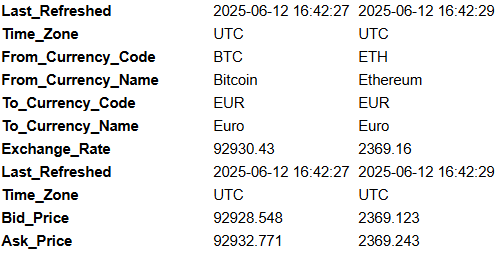
The Alpha Vantage API is called every hour to collect the exchange rate, bid/ask prices, and timestamp.
This data is saved in Google Sheets and can trigger a Telegram alert.
How does it work?
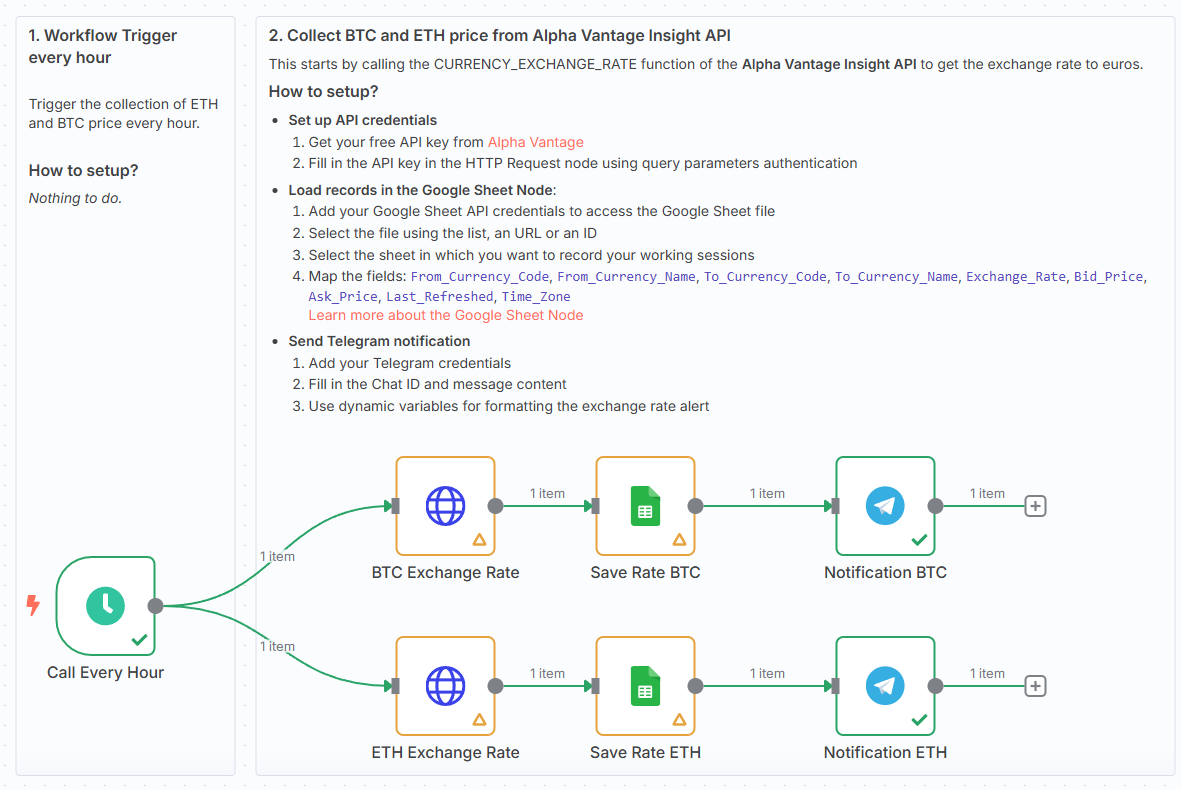
This workflow automates the hourly logging of crypto exchange rates:
- ⏰ Schedule Trigger launches the workflow every hour
- 🌐 Alpha Vantage API fetches BTC and ETH exchange rates (to EUR)
- 📄 Google Sheets node appends each result to a tab (BTC or ETH)
- 📲 Telegram node sends a summary alert with the latest rate info
Steps:
- ⏰ Trigger every hour via Schedule node
- 🌐 Call Alpha Vantage API for BTC and ETH
- 📊 Append rates, bid/ask prices, and timestamp to Google Sheets
- 📲 Send a formatted Telegram message with the rate summary
What do I need to get started?
You’ll need:
- A free Alpha Vantage API key
- A Google Sheet with BTC and ETH tabs
- A Telegram bot and Chat ID to send notifications
Next Steps
🗒️ Use the sticky notes in the n8n canvas to:
- Add your Alpha Vantage API key and Google Sheet credentials
- Set your Telegram Chat ID and bot connection
- Monitor and visualise real-time crypto prices with no manual input
📺 Learn More with n8n Tutorials
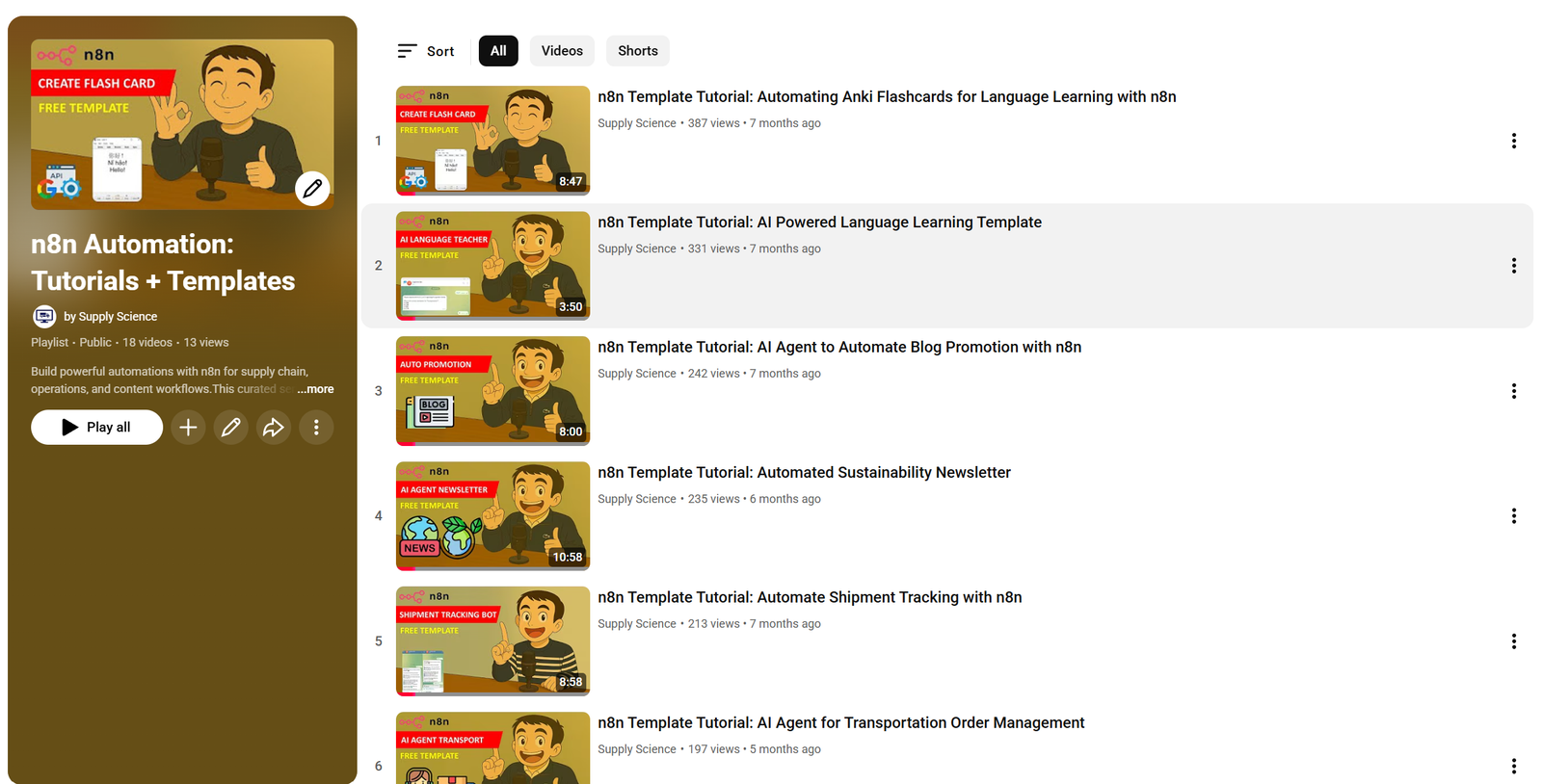
Get hands-on experience with automation through my comprehensive n8n tutorial playlist, featuring 18+ complete, step-by-step videos and ready-to-use templates.
This template was built using n8n v1.93.0
Submitted: June 12, 2025
Hourly Crypto Rate Monitoring with Alpha Vantage and Google Sheets
This n8n workflow automates the process of fetching hourly cryptocurrency exchange rates using the Alpha Vantage API and logging them into a Google Sheet. It also sends a Telegram notification if the API call fails.
What it does
This workflow performs the following steps:
- Triggers Hourly: The workflow runs automatically every hour.
- Fetches Crypto Rates: It makes an HTTP request to the Alpha Vantage API to retrieve the latest cryptocurrency exchange rates.
- Logs to Google Sheets: The fetched data is then appended as a new row to a specified Google Sheet.
- Notifies on Failure: If the HTTP request to Alpha Vantage fails for any reason, a notification is sent to a Telegram chat.
Prerequisites/Requirements
To use this workflow, you will need:
- n8n Instance: A running n8n instance.
- Alpha Vantage API Key: An API key from Alpha Vantage to access their cryptocurrency data.
- Google Account: A Google account with access to Google Sheets.
- Google Sheets Credential: An n8n credential configured for Google Sheets.
- Telegram Account: A Telegram account and a Bot Token for sending notifications.
- Telegram Credential: An n8n credential configured for Telegram.
- Google Sheet: A Google Sheet created to store the cryptocurrency data.
Setup/Usage
- Import the Workflow: Import the provided JSON into your n8n instance.
- Configure Credentials:
- Google Sheets: Set up a Google Sheets credential. You may need to grant n8n access to your Google Drive and specific spreadsheets.
- Telegram: Set up a Telegram credential using your Bot Token.
- Configure Nodes:
- HTTP Request (Alpha Vantage):
- Update the URL to include your Alpha Vantage API key and the desired cryptocurrency symbols.
- Example URL structure:
https://www.alphavantage.co/query?function=CRYPTO_INTRADAY&symbol=BTC&market=USD&interval=60min&apikey=YOUR_ALPHA_VANTAGE_API_KEY
- Google Sheets:
- Select your Google Sheets credential.
- Specify the Spreadsheet ID and Sheet Name where you want to log the data.
- Map the data from the HTTP Request node to the columns in your Google Sheet.
- Telegram:
- Select your Telegram credential.
- Enter the Chat ID where you want to receive notifications.
- Customize the error message content.
- HTTP Request (Alpha Vantage):
- Activate the Workflow: Enable the workflow to start running hourly.
Related Templates
AI-powered code review with linting, red-marked corrections in Google Sheets & Slack
Advanced Code Review Automation (AI + Lint + Slack) Who’s it for For software engineers, QA teams, and tech leads who want to automate intelligent code reviews with both AI-driven suggestions and rule-based linting — all managed in Google Sheets with instant Slack summaries. How it works This workflow performs a two-layer review system: Lint Check: Runs a lightweight static analysis to find common issues (e.g., use of var, console.log, unbalanced braces). AI Review: Sends valid code to Gemini AI, which provides human-like review feedback with severity classification (Critical, Major, Minor) and visual highlights (red/orange tags). Formatter: Combines lint and AI results, calculating an overall score (0–10). Aggregator: Summarizes results for quick comparison. Google Sheets Writer: Appends results to your review log. Slack Notification: Posts a concise summary (e.g., number of issues and average score) to your team’s channel. How to set up Connect Google Sheets and Slack credentials in n8n. Replace placeholders (<YOURSPREADSHEETID>, <YOURSHEETGIDORNAME>, <YOURSLACKCHANNEL_ID>). Adjust the AI review prompt or lint rules as needed. Activate the workflow — reviews will start automatically whenever new code is added to the sheet. Requirements Google Sheets and Slack integrations enabled A configured AI node (Gemini, OpenAI, or compatible) Proper permissions to write to your target Google Sheet How to customize Add more linting rules (naming conventions, spacing, forbidden APIs) Extend the AI prompt for project-specific guidelines Customize the Slack message formatting Export analytics to a dashboard (e.g., Notion or Data Studio) Why it’s valuable This workflow brings realistic, team-oriented AI-assisted code review to n8n — combining the speed of automated linting with the nuance of human-style feedback. It saves time, improves code quality, and keeps your team’s review history transparent and centralized.
 By higashiyama
 Dynamic Hubspot lead routing with GPT-4 and Airtable sales team distribution
AI Agent for Dynamic Lead Distribution (HubSpot + Airtable) 🧠 AI-Powered Lead Routing and Sales Team Distribution This intelligent n8n workflow automates end-to-end lead qualification and allocation by integrating HubSpot, Airtable, OpenAI, Gmail, and Slack. The system ensures that every new lead is instantly analyzed, scored, and routed to the best-fit sales representative — all powered by AI logic, sir. --- 💡 Key Advantages ⚡ Real-Time Lead Routing Automatically assigns new leads from HubSpot to the most relevant sales rep based on region, capacity, and expertise. 🧠 AI Qualification Engine An OpenAI-powered Agent evaluates the lead’s industry, region, and needs to generate a persona summary and routing rationale. 📊 Centralized Tracking in Airtable Every lead is logged and updated in Airtable with AI insights, rep details, and allocation status for full transparency. 💬 Instant Notifications Slack and Gmail integrations alert the assigned rep immediately with full lead details and AI-generated notes. 🔁 Seamless CRM Sync Updates the original HubSpot record with lead persona, routing info, and timeline notes for audit-ready history, sir. --- ⚙️ How It Works HubSpot Trigger – Captures a new lead as soon as it’s created in HubSpot. Fetch Contact Data – Retrieves all relevant fields like name, company, and industry. Clean & Format Data – A Code node standardizes and structures the data for consistency. Airtable Record Creation – Logs the lead data into the “Leads” table for centralized tracking. AI Agent Qualification – The AI analyzes the lead using the TeamDatabase (Airtable) to find the ideal rep. Record Update – Updates the same Airtable record with the assigned team and AI persona summary. Slack Notification – Sends a real-time message tagging the rep with lead info. Gmail Notification – Sends a personalized handoff email with context and follow-up actions. HubSpot Sync – Updates the original contact in HubSpot with the assignment details and AI rationale, sir. --- 🛠️ Setup Steps Trigger Node: HubSpot → Detect new leads. HubSpot Node: Retrieve complete lead details. Code Node: Clean and normalize data. Airtable Node: Log lead info in the “Leads” table. AI Agent Node: Process lead and match with sales team. Slack Node: Notify the designated representative. Gmail Node: Email the rep with details. HubSpot Node: Update CRM with AI summary and allocation status, sir. --- 🔐 Credentials Required HubSpot OAuth2 API – To fetch and update leads. Airtable Personal Access Token – To store and update lead data. OpenAI API – To power the AI qualification and matching logic. Slack OAuth2 – For sending team notifications. Gmail OAuth2 – For automatic email alerts to assigned reps, sir. --- 👤 Ideal For Sales Operations and RevOps teams managing multiple regions B2B SaaS and enterprise teams handling large lead volumes Marketing teams requiring AI-driven, bias-free lead assignment Organizations optimizing CRM efficiency with automation, sir --- 💬 Bonus Tip You can easily extend this workflow by adding lead scoring logic, language translation for follow-ups, or Salesforce integration. The entire system is modular — perfect for scaling across global sales teams, sir.
 By MANISH KUMAR
Track daily moods with AI analysis & reports using GPT-4o, Data Tables & Gmail
Track your daily mood in one tap and receive automated AI summaries of your emotional trends every week and month. Perfect for self-reflection, wellness tracking, or personal analytics. This workflow logs moods sent through a webhook (/mood) into Data Tables, analyzes them weekly and monthly with OpenAI (GPT-4o), and emails you clear summaries and actionable recommendations via Gmail. ⚙️ How It Works Webhook – Mood → Collects new entries (🙂, 😐, or 😩) plus an optional note. Set Mood Data → Adds date, hour, and note fields automatically. Insert Mood Row → Stores each record in a Data Table. Weekly Schedule (Sunday 20:00) → Aggregates the last 7 days and sends a summarized report. Monthly Schedule (Day 1 at 08:00) → Aggregates the last 30 days for a deeper AI analysis. OpenAI Analysis → Generates insights, patterns, and 3 actionable recommendations. Gmail → Sends the full report (chart + AI text) to your inbox. 📊 Example Auto-Email Weekly Mood Summary (last 7 days) 🙂 5 ██████████ 😐 2 ████ 😩 0 Average: 1.7 (Positive 🙂) AI Insights: You’re trending upward this week — notes show that exercise days improved mood. Try keeping short walks mid-week to stabilize energy. 🧩 Requirements n8n Data Tables enabled OpenAI credential (GPT-4o or GPT-4 Turbo) Gmail OAuth2 credential to send summaries 🔧 Setup Instructions Connect your credentials: Add your own OpenAI and Gmail OAuth2 credentials. Set your Data Table ID: Open the Insert Mood Row node and enter your own Data Table ID. Without this, new moods won’t be stored. Replace the email placeholder: In the Gmail nodes, replace your.email@example.com with your actual address. Deploy and run: Send a test POST request to /mood (e.g. { "mood": "🙂", "note": "productive day" }) to log your first entry. ⚠️ Before activating the workflow, ensure you have configured the Data Table ID in the “Insert Mood Row” node. 🧠 AI Analysis Interprets mood patterns using GPT-4o. Highlights trends, potential triggers, and suggests 3 specific actions. Runs automatically every week and month. 🔒 Security No personal data is exposed outside your n8n instance. Always remove or anonymize credential references before sharing publicly. 💡 Ideal For Personal mood journaling and AI feedback Therapists tracking client progress Productivity or self-quantification projects 🗒️ Sticky Notes Guide 🟡 Mood Logging Webhook POST /mood receives mood + optional note. ⚠️ Configure your own Data Table ID in the “Insert Mood Row” node before running. 🟢 Weekly Summary Runs every Sunday 20:00 → aggregates last 7 days → generates AI insights + emails report. 🔵 Monthly Summary Runs on Day 1 at 08:00 → aggregates last 30 days → creates monthly reflection. 🟣 AI Analysis Uses OpenAI GPT-4o to interpret trends and recommend actions. 🟠 Email Delivery Sends formatted summaries to your inbox automatically.
 By Jose Castillo