AI email organizer for GMail - advanced email management & sorting

Video Introduction
Want to automate your inbox or need a custom workflow? 📞 Book a Call | 💬 DM me on Linkedin
Transform your messy inbox into a calm, organized command center - in minutes - using this ready-to-use n8n automation!
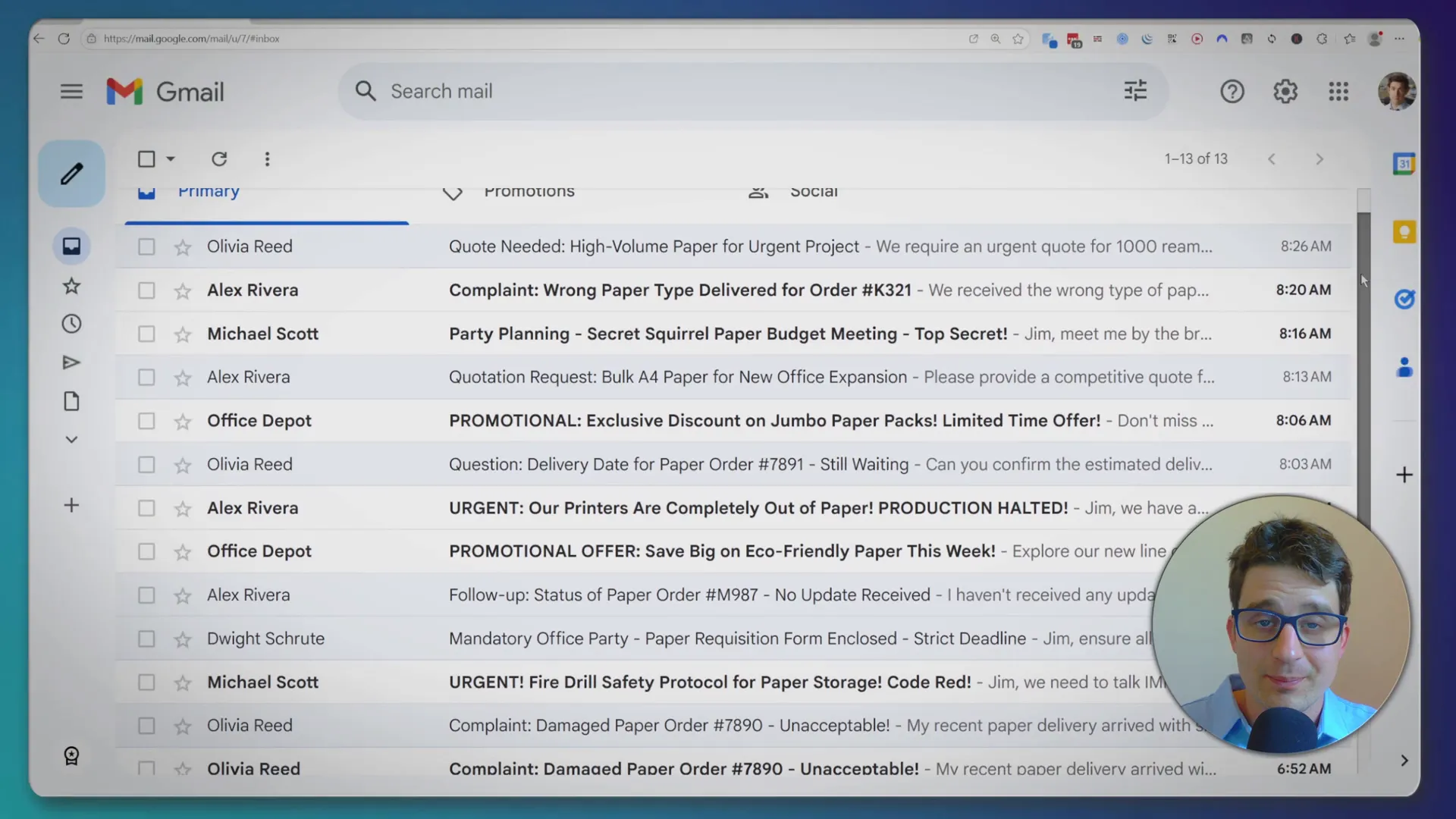
Tired of your Gmail looking like this?
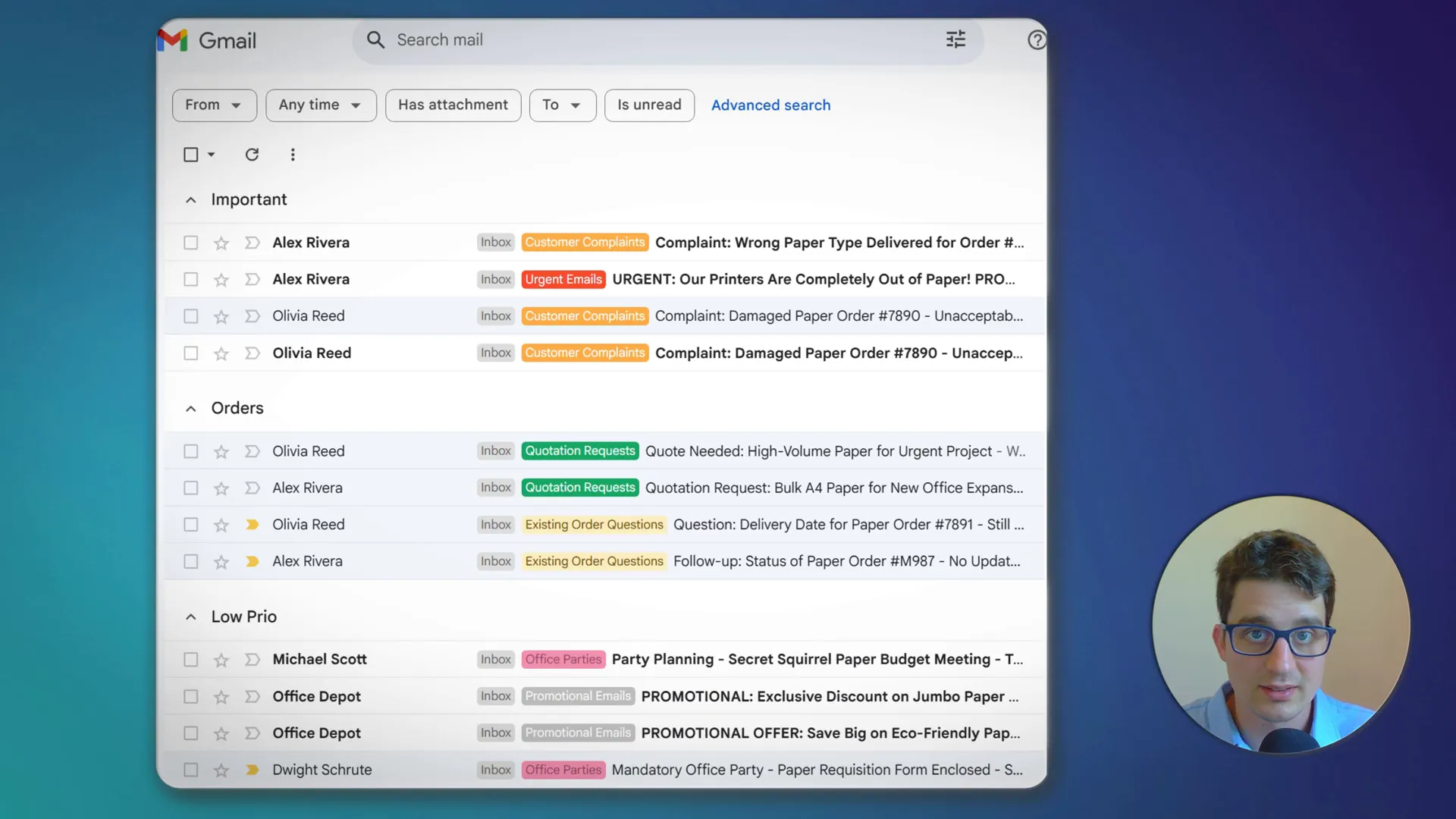
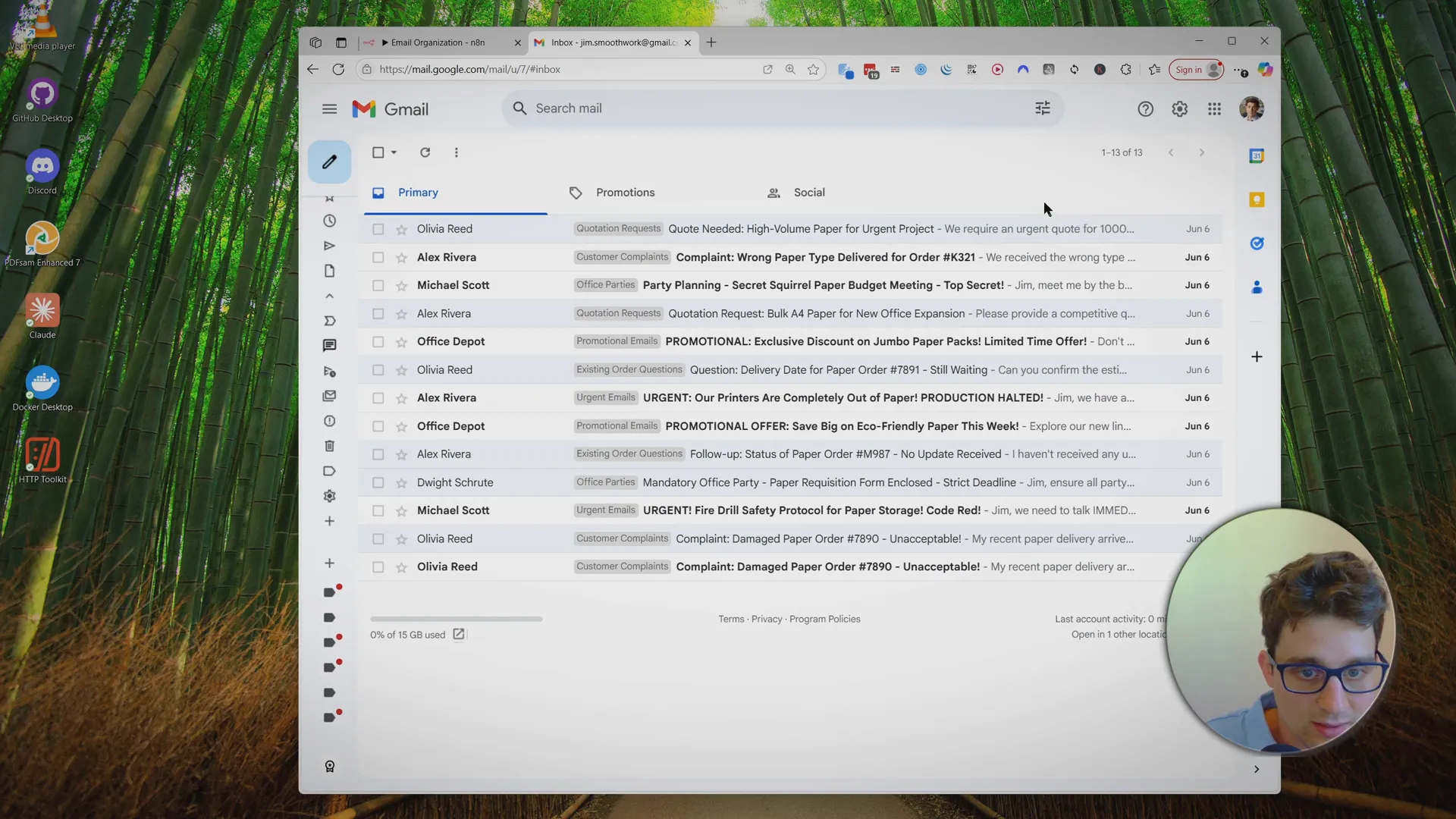
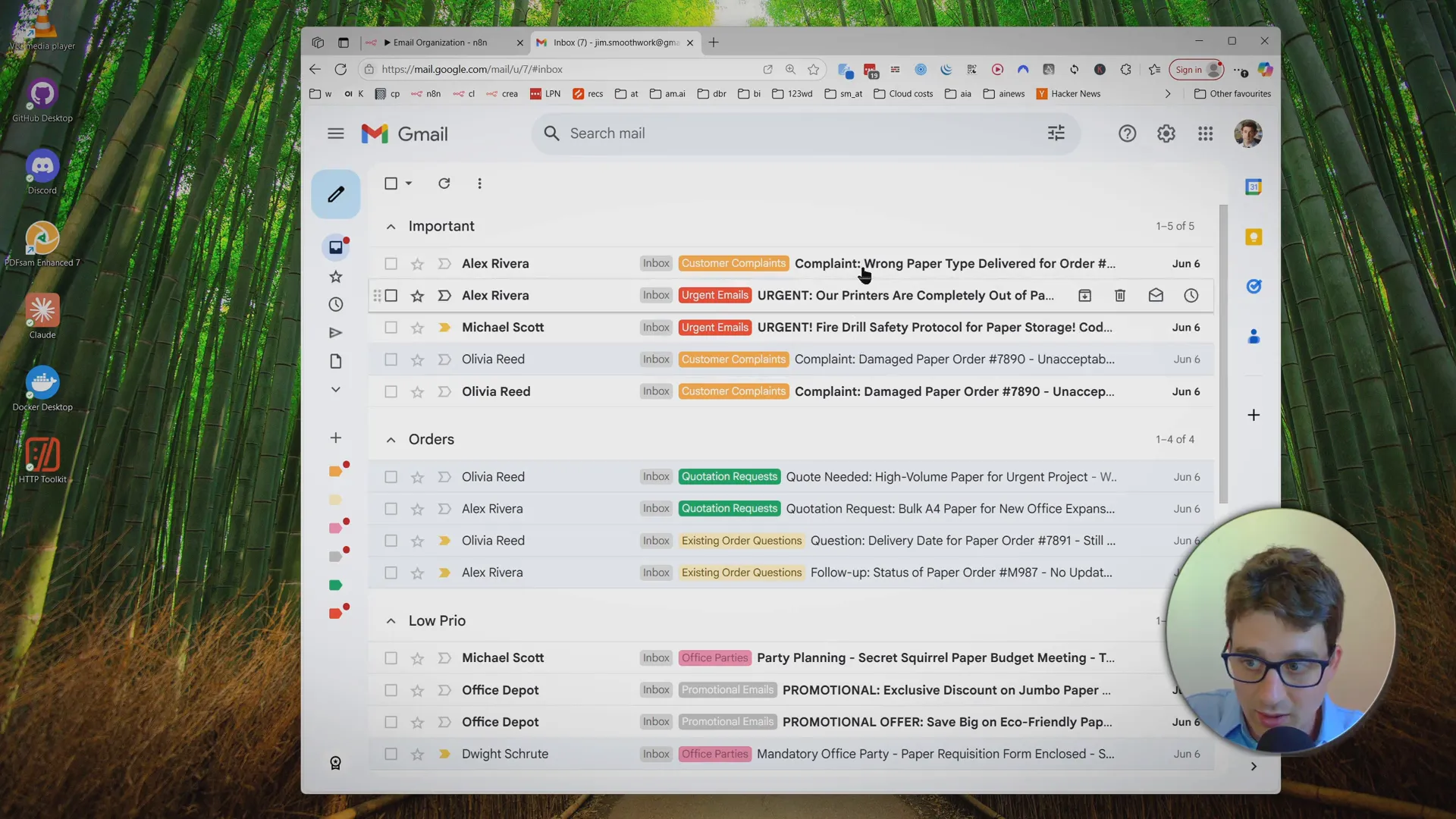
With this template, you can have this instead:
What does this automation do?
- AI-powered categorization: Every new email is analyzed with OpenRouter AI and sorted into categories you define (like Orders, Support, Invoices, Urgent, etc.).
- Instant color-coded labels: The workflow creates and applies Gmail labels with custom colors, so you can spot important messages at a glance.
- Supports Gmail’s Multiple Inboxes: Display different categories in their own sections—see what matters most right away.
- Flexible and customizable: You control the categories and definitions using a simple Google Sheet.
How it works – Step by Step
See the full setup & demo:
-
Copy the Template
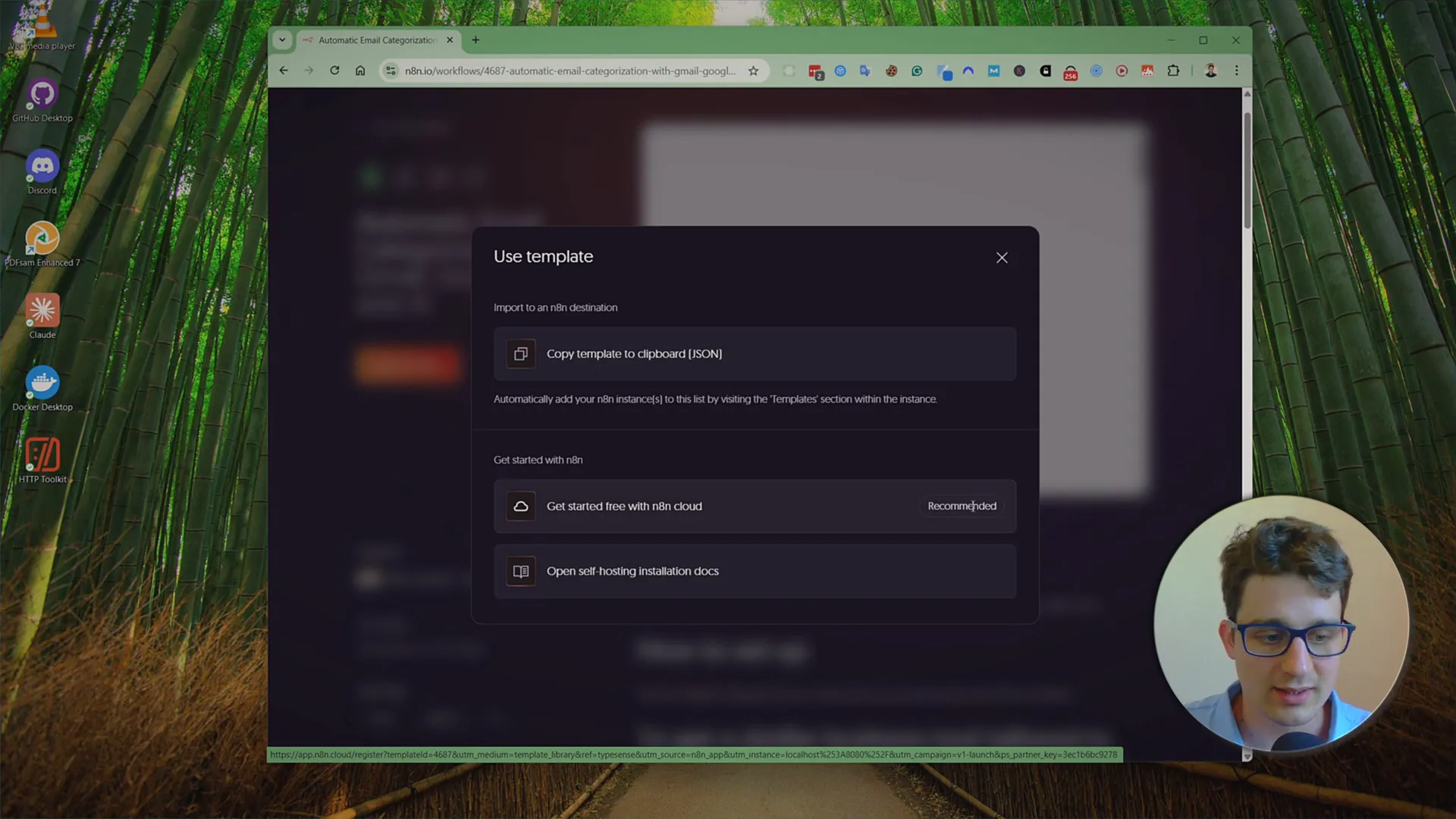
- Open the n8n workflow template and click Use for free.
- Log in (or sign up) for n8n Cloud for the quickest start.
-
Customize Your Categories in Google Sheets
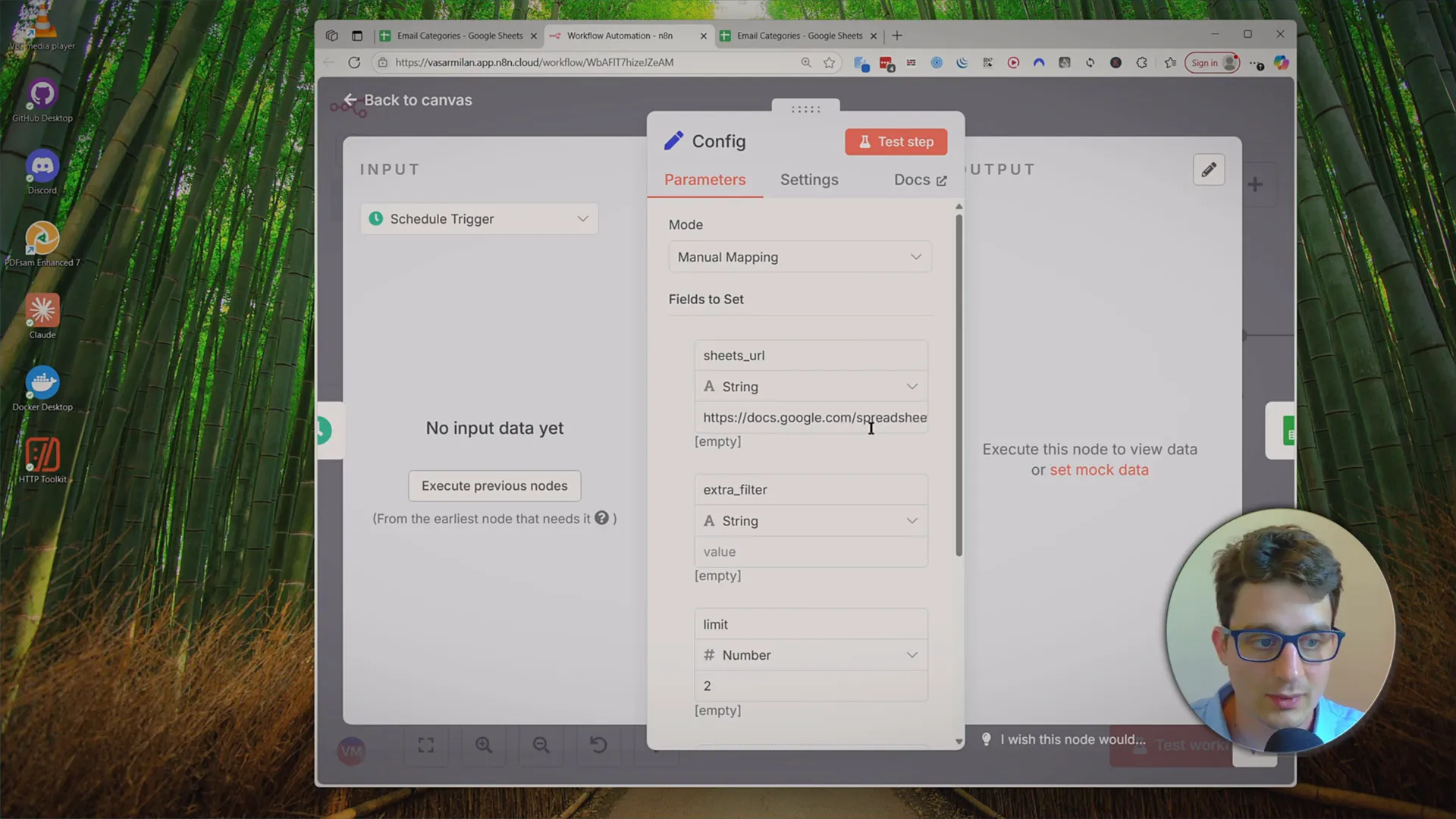
- Use the provided Google Sheets template linked in the workflow notes.
- Go to File → Make a copy to your own Drive.
- Edit the categories and their definitions for your business.
Example:
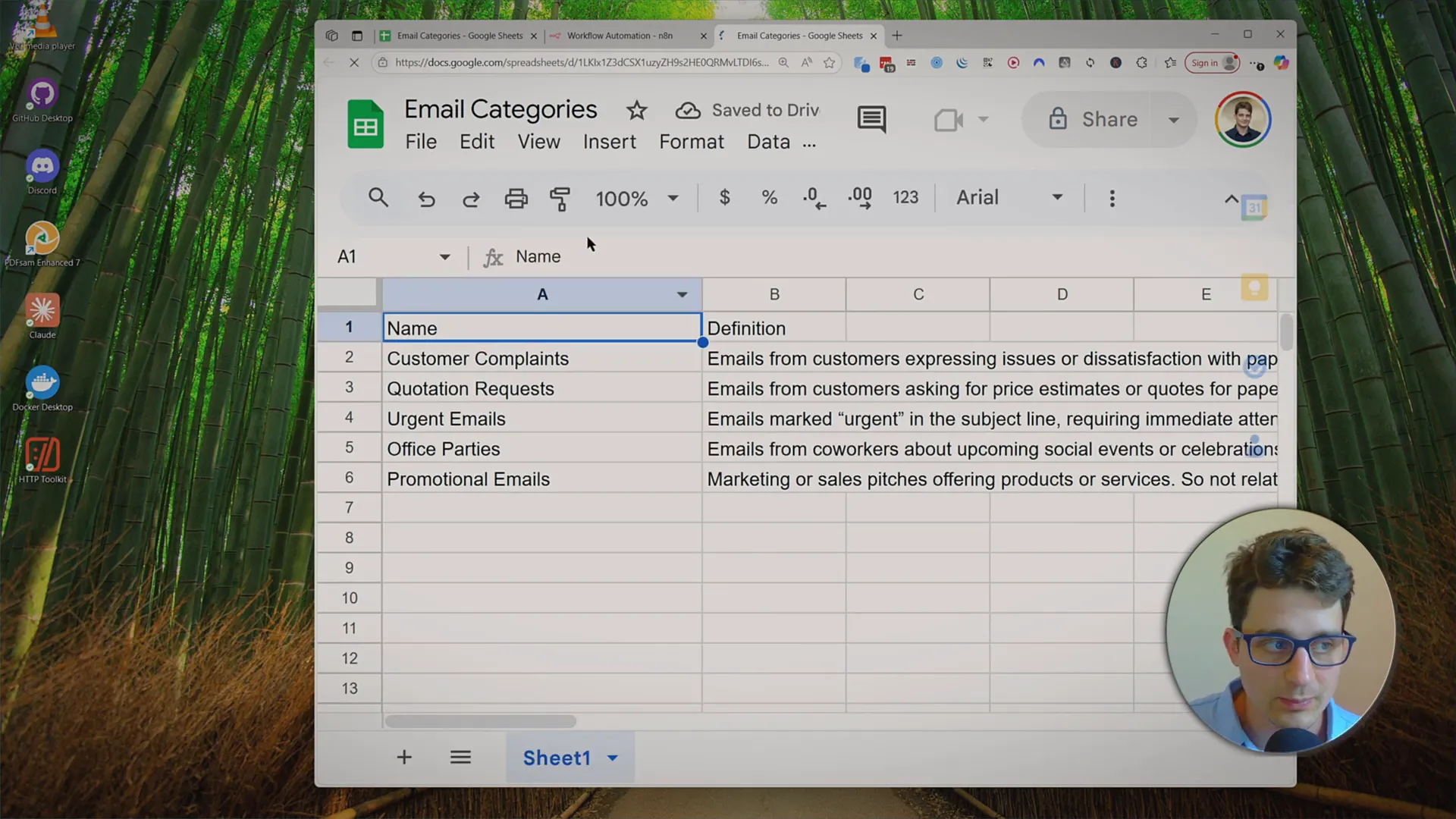
- Add categories like “Existing Order Questions,” define each one to guide the AI, and copy your Google Sheet’s URL into the workflow config node.
-
Connect AI with OpenRouter
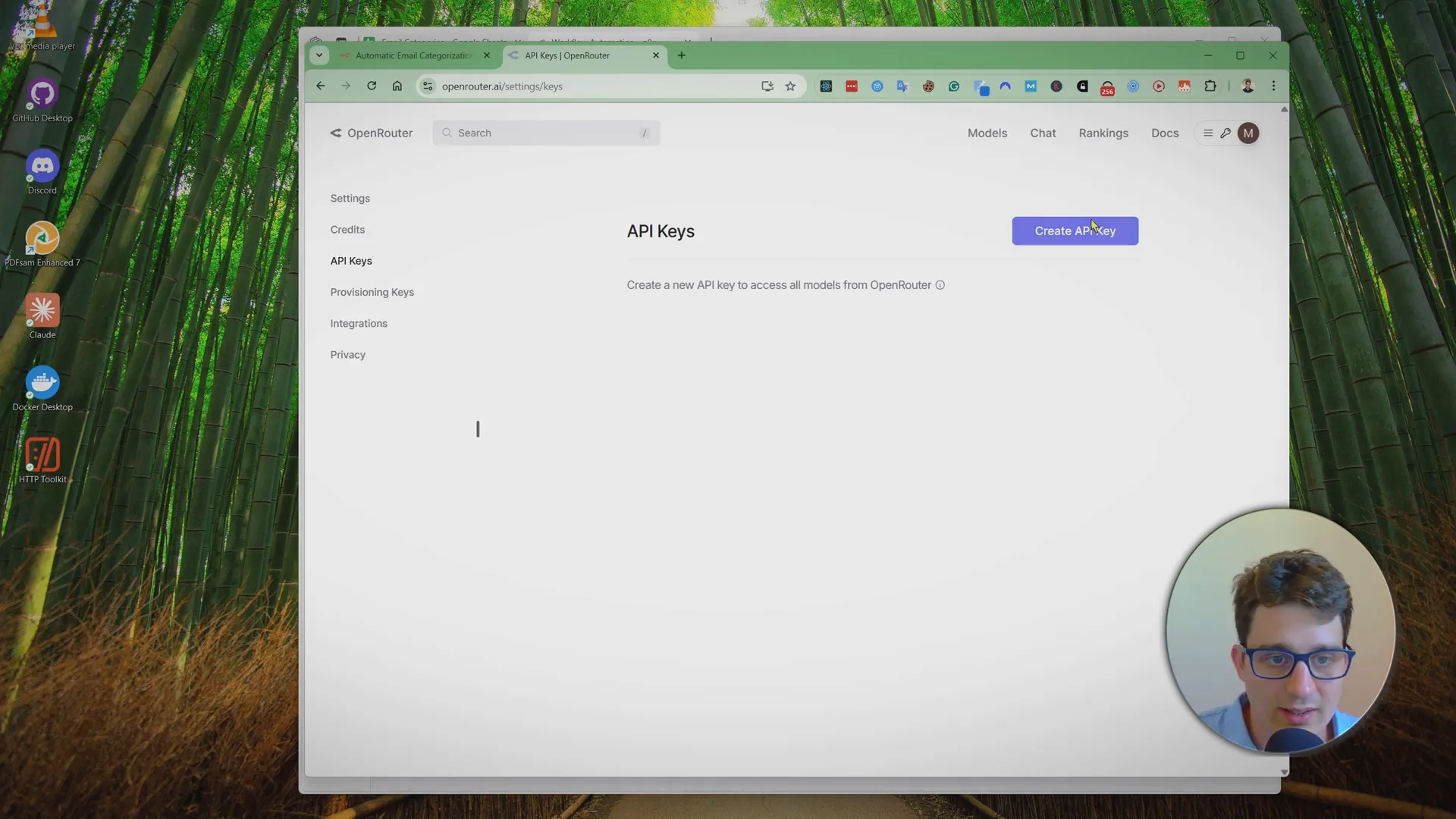
- Go to OpenRouter.ai, log in, and generate a new API key.
- Paste your API key into the workflow where prompted.
-
Test and Activate the Workflow
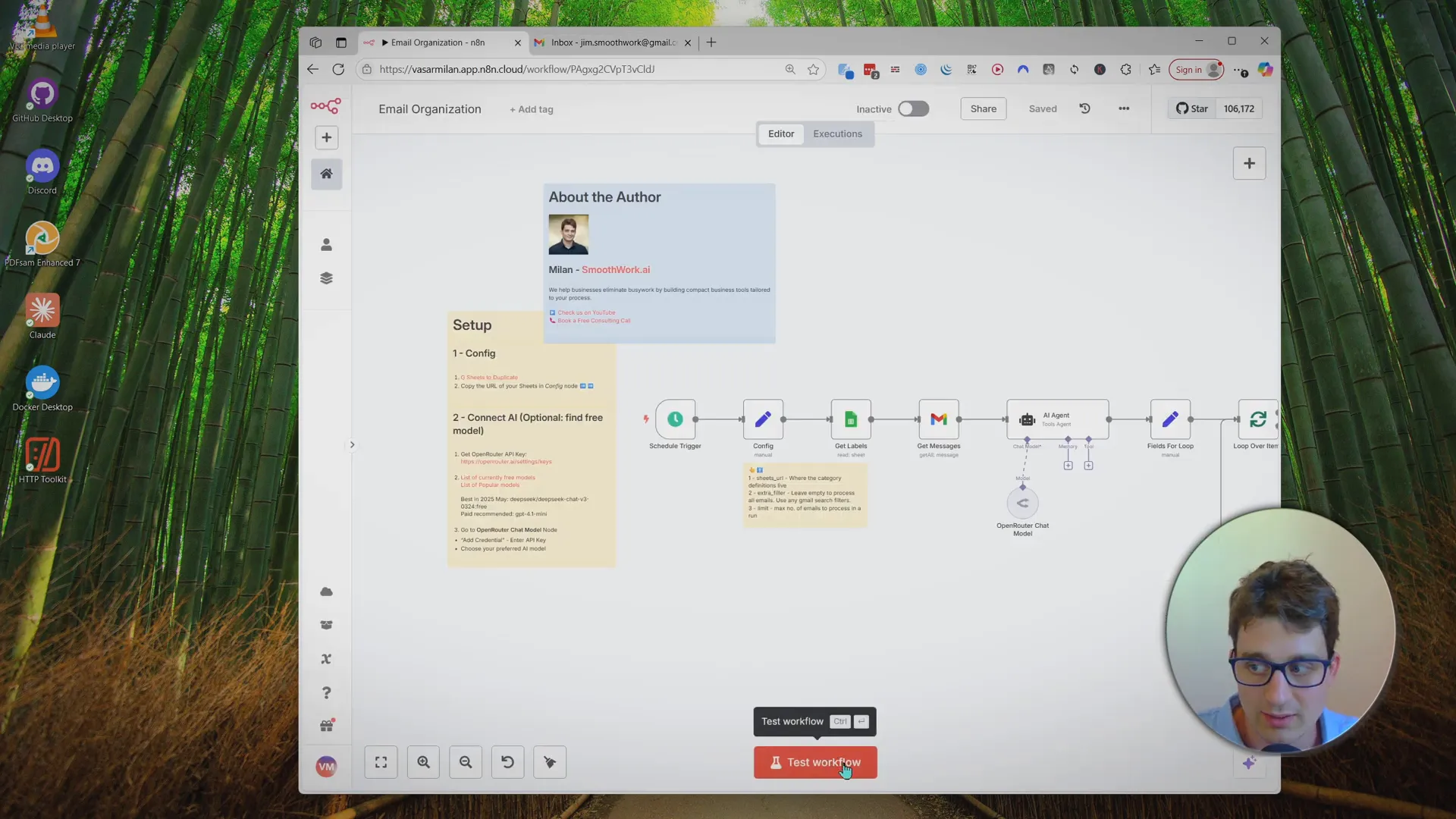
- Connect your Gmail account to n8n.
- Hit “Test Workflow”—watch as the AI processes your latest emails and applies labels automatically.
- Labels will appear instantly in Gmail, and any missing ones are created by the automation.
-
Schedule Automatic Runs
- Switch workflow status to Active in n8n.
- Set the scheduler trigger—most people use hourly, but you can use crontab.guru for custom times (like only business hours).
Tips for Best Results
-
Color Code Your Labels:
In Gmail, you can assign colors to labels—set high-priority categories (like “Customer Complaints”) to a bright color to stand out.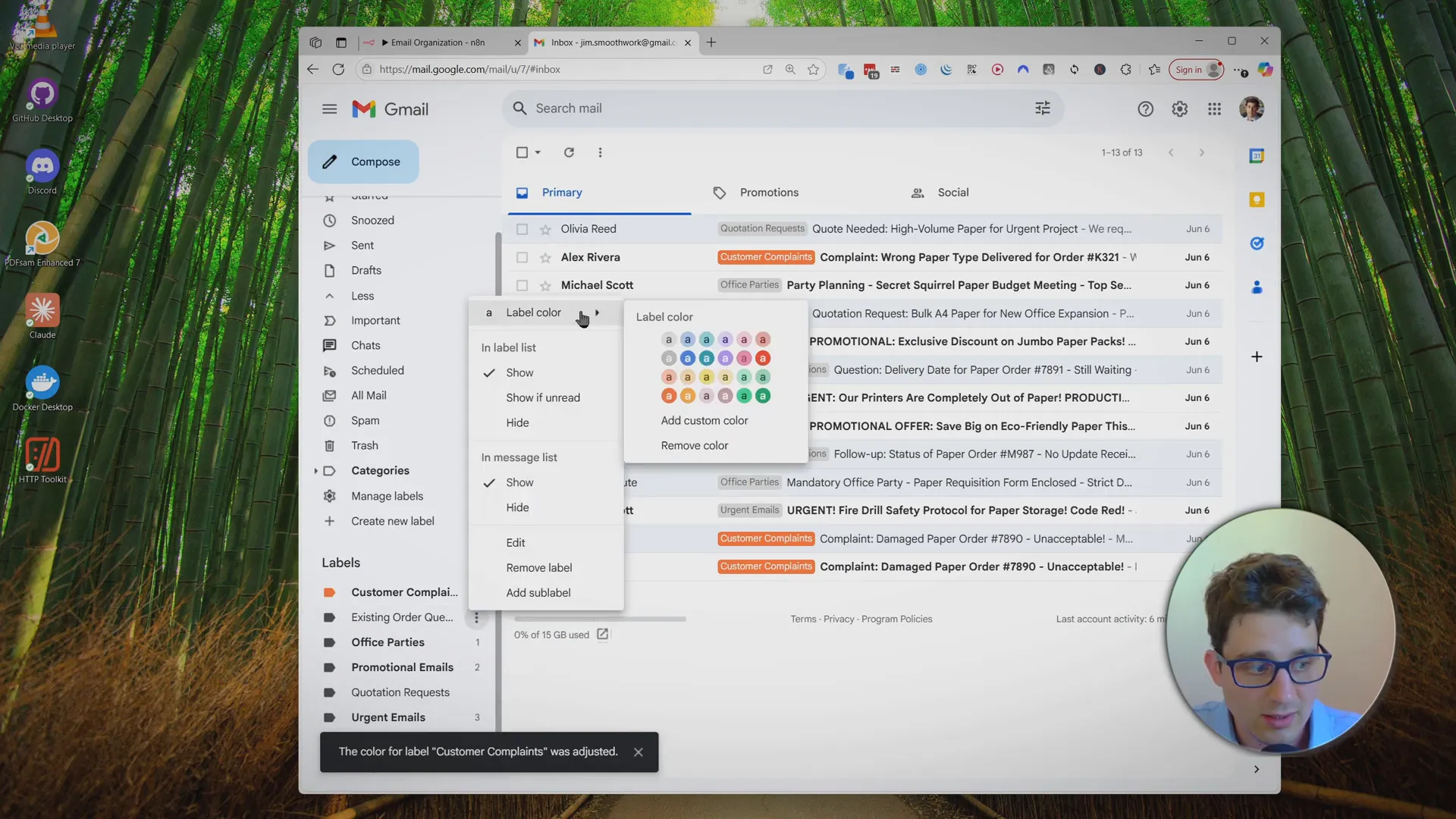
-
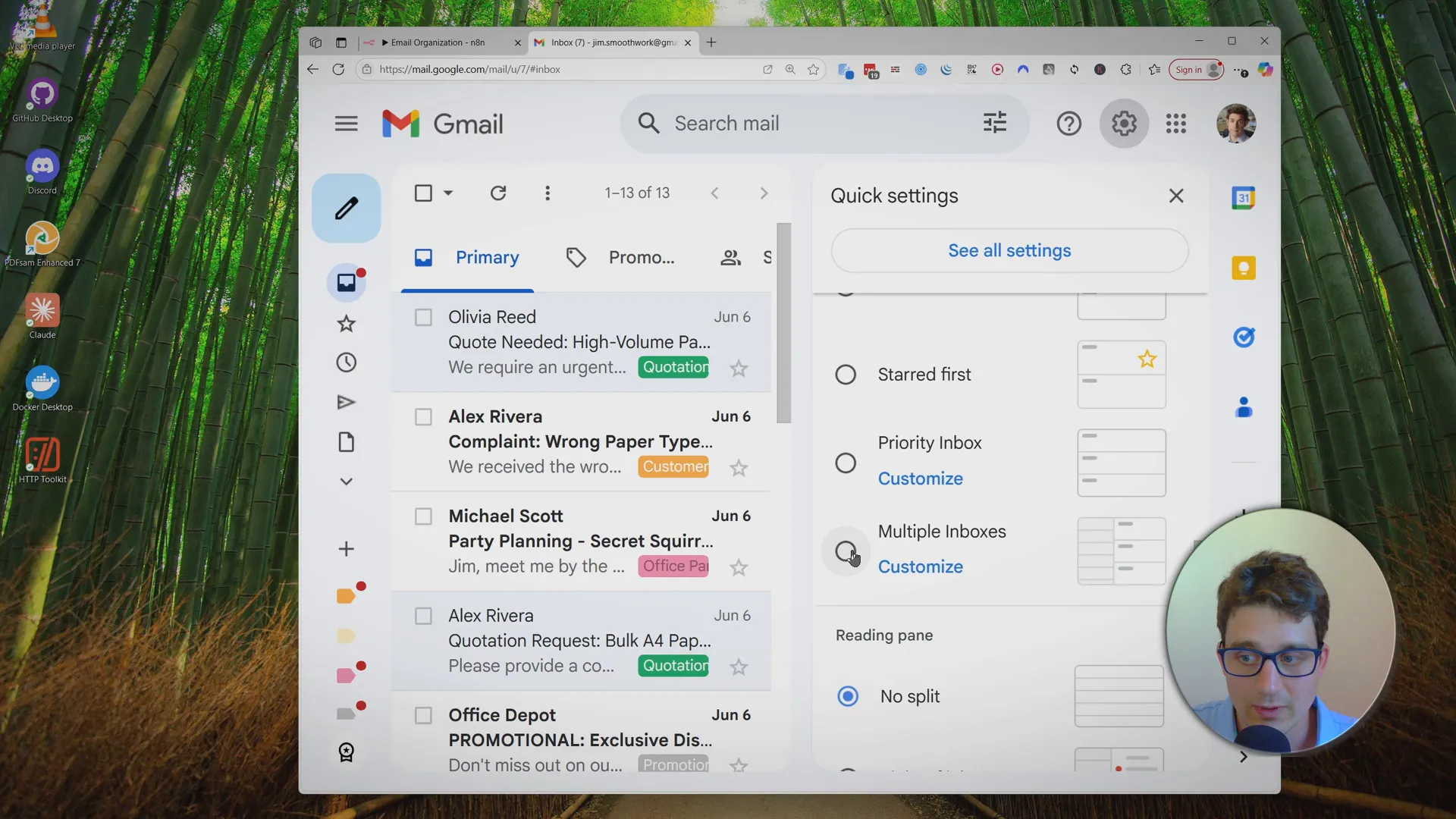
Upgrade Your Gmail View:
Enable Multiple Inboxes in Gmail’s settings and set up sections for your key categories. Example search queries:in:inbox label:customer-complaints OR label:urgent-emailsin:inbox label:existing-order-questionsin:inbox label:support-requests
Why Use This?
- Get rid of inbox chaos for good - no more lost emails or missed deadlines
- Fully customize the system to your business with just a Google Sheet
- Works with zero coding - set up in 10-15 minutes
- Flexible: add auto-replies, draft suggestions, and more as you grow
n8n AI Email Organizer for Gmail - Advanced Email Management & Sorting
This n8n workflow provides an advanced solution for managing and sorting your Gmail emails using AI. It periodically checks your Gmail inbox, processes new emails, and organizes them based on AI-driven analysis.
What it does
This workflow automates the following steps:
- Triggers on Schedule: The workflow runs on a predefined schedule (e.g., every few minutes) to check for new emails.
- Fetches Emails from Gmail: It connects to your Gmail account and retrieves a batch of unread emails.
- Loops Through Emails: Each retrieved email is processed individually in a loop.
- Extracts Email Content: For each email, it extracts relevant fields such as sender, subject, and body.
- Analyzes Email with AI: An AI Agent (powered by LangChain and OpenRouter) analyzes the email content to understand its purpose, sentiment, or category.
- Filters Emails: Based on the AI analysis or other criteria, emails can be filtered.
- Records to Google Sheets: Processed email data (potentially including AI-generated insights) is appended to a Google Sheet for tracking and further analysis.
- Marks Email as Read (Optional/Implicit): After processing, the workflow can be extended to mark emails as read or apply labels in Gmail.
Prerequisites/Requirements
To use this workflow, you will need:
- n8n Instance: A running n8n instance.
- Gmail Account: Access to a Gmail account with appropriate credentials configured in n8n.
- Google Sheets Account: Access to a Google Sheets account with appropriate credentials configured in n8n.
- OpenRouter API Key: An API key for OpenRouter to power the AI Chat Model.
- OpenAI API Key (or compatible): The AI Agent node may require an OpenAI API key or a compatible language model API key if not using OpenRouter exclusively.
Setup/Usage
- Import the Workflow: Download the provided JSON and import it into your n8n instance.
- Configure Credentials:
- Set up your Gmail OAuth2 credentials in n8n.
- Set up your Google Sheets OAuth2 credentials in n8n.
- Configure your OpenRouter API Key credentials in n8n.
- Customize Nodes:
- Schedule Trigger: Adjust the schedule to your preferred frequency for checking emails.
- Gmail: Configure the Gmail node to specify which emails to fetch (e.g., unread, specific labels).
- Edit Fields: Modify this node to select and rename the email fields you want to send to the AI and Google Sheets.
- AI Agent / OpenRouter Chat Model:
- Select your OpenRouter credential.
- Adjust the AI prompt within the AI Agent node to define how you want the AI to analyze and categorize your emails (e.g., "Summarize this email and suggest a category: 'Work', 'Personal', 'Spam', 'Newsletter'").
- Filter: Customize the filter logic based on the AI's output (e.g., "If AI category is 'Spam', then...").
- Google Sheets: Specify the Google Sheet ID and sheet name where you want to record the email data. Ensure the column headers in your sheet match the data being sent from the workflow.
- Activate the Workflow: Once configured, activate the workflow to start automating your email organization.
Related Templates
Generate song lyrics and music from text prompts using OpenAI and Fal.ai Minimax
Spark your creativity instantly in any chat—turn a simple prompt like "heartbreak ballad" into original, full-length lyrics and a professional AI-generated music track, all without leaving your conversation. 📋 What This Template Does This chat-triggered workflow harnesses AI to generate detailed, genre-matched song lyrics (at least 600 characters) from user messages, then queues them for music synthesis via Fal.ai's minimax-music model. It polls asynchronously until the track is ready, delivering lyrics and audio URL back in chat. Crafts original, structured lyrics with verses, choruses, and bridges using OpenAI Submits to Fal.ai for melody, instrumentation, and vocals aligned to the style Handles long-running generations with smart looping and status checks Returns complete song package (lyrics + audio link) for seamless sharing 🔧 Prerequisites n8n account (self-hosted or cloud with chat integration enabled) OpenAI account with API access for GPT models Fal.ai account for AI music generation 🔑 Required Credentials OpenAI API Setup Go to platform.openai.com → API keys (sidebar) Click "Create new secret key" → Name it (e.g., "n8n Songwriter") Copy the key and add to n8n as "OpenAI API" credential type Test by sending a simple chat completion request Fal.ai HTTP Header Auth Setup Sign up at fal.ai → Dashboard → API Keys Generate a new API key → Copy it In n8n, create "HTTP Header Auth" credential: Name="Fal.ai", Header Name="Authorization", Header Value="Key [Your API Key]" Test with a simple GET to their queue endpoint (e.g., /status) ⚙️ Configuration Steps Import the workflow JSON into your n8n instance Assign OpenAI API credentials to the "OpenAI Chat Model" node Assign Fal.ai HTTP Header Auth to the "Generate Music Track", "Check Generation Status", and "Fetch Final Result" nodes Activate the workflow—chat trigger will appear in your n8n chat interface Test by messaging: "Create an upbeat pop song about road trips" 🎯 Use Cases Content Creators: YouTubers generating custom jingles for videos on the fly, streamlining production from idea to audio export Educators: Music teachers using chat prompts to create era-specific folk tunes for classroom discussions, fostering interactive learning Gift Personalization: Friends crafting anniversary R&B tracks from shared memories via quick chats, delivering emotional audio surprises Artist Brainstorming: Songwriters prototyping hip-hop beats in real-time during sessions, accelerating collaboration and iteration ⚠️ Troubleshooting Invalid JSON from AI Agent: Ensure the system prompt stresses valid JSON; test the agent standalone with a sample query Music Generation Fails (401/403): Verify Fal.ai API key has minimax-music access; check usage quotas in dashboard Status Polling Loops Indefinitely: Bump wait time to 45-60s for complex tracks; inspect fal.ai queue logs for bottlenecks Lyrics Under 600 Characters: Tweak agent prompt to enforce fuller structures like [V1][C][V2][B][C]; verify output length in executions
 By Daniel Nkencho
AI-powered code review with linting, red-marked corrections in Google Sheets & Slack
Advanced Code Review Automation (AI + Lint + Slack) Who’s it for For software engineers, QA teams, and tech leads who want to automate intelligent code reviews with both AI-driven suggestions and rule-based linting — all managed in Google Sheets with instant Slack summaries. How it works This workflow performs a two-layer review system: Lint Check: Runs a lightweight static analysis to find common issues (e.g., use of var, console.log, unbalanced braces). AI Review: Sends valid code to Gemini AI, which provides human-like review feedback with severity classification (Critical, Major, Minor) and visual highlights (red/orange tags). Formatter: Combines lint and AI results, calculating an overall score (0–10). Aggregator: Summarizes results for quick comparison. Google Sheets Writer: Appends results to your review log. Slack Notification: Posts a concise summary (e.g., number of issues and average score) to your team’s channel. How to set up Connect Google Sheets and Slack credentials in n8n. Replace placeholders (<YOURSPREADSHEETID>, <YOURSHEETGIDORNAME>, <YOURSLACKCHANNEL_ID>). Adjust the AI review prompt or lint rules as needed. Activate the workflow — reviews will start automatically whenever new code is added to the sheet. Requirements Google Sheets and Slack integrations enabled A configured AI node (Gemini, OpenAI, or compatible) Proper permissions to write to your target Google Sheet How to customize Add more linting rules (naming conventions, spacing, forbidden APIs) Extend the AI prompt for project-specific guidelines Customize the Slack message formatting Export analytics to a dashboard (e.g., Notion or Data Studio) Why it’s valuable This workflow brings realistic, team-oriented AI-assisted code review to n8n — combining the speed of automated linting with the nuance of human-style feedback. It saves time, improves code quality, and keeps your team’s review history transparent and centralized.
 By higashiyama
 Auto-reply & create Linear tickets from Gmail with GPT-5, gotoHuman & human review
This workflow automatically classifies every new email from your linked mailbox, drafts a personalized reply, and creates Linear tickets for bugs or feature requests. It uses a human-in-the-loop with gotoHuman and continuously improves itself by learning from approved examples. How it works The workflow triggers on every new email from your linked mailbox. Self-learning Email Classifier: an AI model categorizes the email into defined categories (e.g., Bug Report, Feature Request, Sales Opportunity, etc.). It fetches previously approved classification examples from gotoHuman to refine decisions. Self-learning Email Writer: the AI drafts a reply to the email. It learns over time by using previously approved replies from gotoHuman, with per-classification context to tailor tone and style (e.g., different style for sales vs. bug reports). Human Review in gotoHuman: review the classification and the drafted reply. Drafts can be edited or retried. Approved values are used to train the self-learning agents. Send approved Reply: the approved response is sent as a reply to the email thread. Create ticket: if the classification is Bug or Feature Request, a ticket is created by another AI agent in Linear. Human Review in gotoHuman: How to set up Most importantly, install the gotoHuman node before importing this template! (Just add the node to a blank canvas before importing) Set up credentials for gotoHuman, OpenAI, your email provider (e.g. Gmail), and Linear. In gotoHuman, select and create the pre-built review template "Support email agent" or import the ID: 6fzuCJlFYJtlu9mGYcVT. Select this template in the gotoHuman node. In the "gotoHuman: Fetch approved examples" http nodes you need to add your formId. It is the ID of the review template that you just created/imported in gotoHuman. Requirements gotoHuman (human supervision, memory for self-learning) OpenAI (classification, drafting) Gmail or your preferred email provider (for email trigger+replies) Linear (ticketing) How to customize Expand or refine the categories used by the classifier. Update the prompt to reflect your own taxonomy. Filter fetched training data from gotoHuman by reviewer so the writer adapts to their personalized tone and preferences. Add more context to the AI email writer (calendar events, FAQs, product docs) to improve reply quality.
 By gotoHuman