Generate logos and images with consistent visual styles using Imagen 3.0

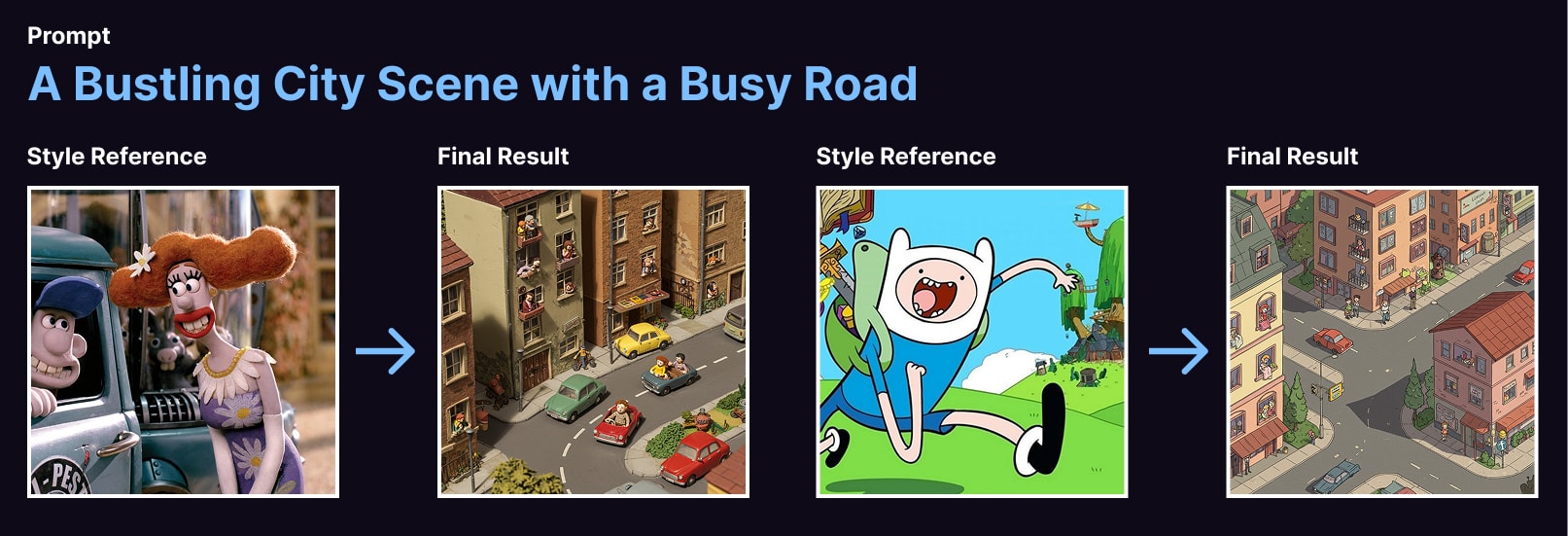
This n8n template allows you to use AI to generate logos or images which mimic visual styles of other logos or images. The model used to generate the images is Google's Imagen 3.0.
With this template, users will be able to automate design and marketing tasks such as creating variants of existing designs, remixing existing assets to validate different styles and explore a range of designs which would have been otherwise too expensive and time-consming previously.
How it works
- A form trigger is used to capture the source image to reference styles from and a prompt for the target image to generate.
- The source image is passed to Gemini 2.0 to be analysed and its visual style and tone extracted as a detailed description.
- This visual style description is then combined with the user's initial target image prompt. This final prompt is given to Imagen 3.0 to generate the images.
- A quick webpage is put together with the generated images to present back to the user.
- If the user provided an email address, a copy of this HTML page will be sent.
How to use
- Ensure the workflow is live to share the form publicly.
- The source image must be accessible to your n8n instance - either a public image of the internet or within your network.
- For best results, select a source image which has strong visual identity as these will allow the LLM to better describe it.
- For your prompt, refer to the imagen prompt guide found here: https://ai.google.dev/gemini-api/docs/image-generation#imagen-prompt-guide
Requirements
- Gemini for LLM and Imagen model.
- Cloudinary for image CDN.
- Gmail for email sending.
Customising this workflow
- Feel free to swap any of these out for tools and services you prefer.
- Want to fully automate? Switch the form trigger for a webhook trigger!
# n8n Workflow: Generate Logos and Images with Consistent Visual Styles using Imagen 3.0 (Placeholder)

This n8n workflow provides a foundational structure for interacting with image generation services, potentially for creating logos and images with consistent visual styles. While the provided JSON is a basic template, it demonstrates how to set up a form-triggered process that can include conditional logic for different image generation requests and email notifications.

**Note:** The current JSON definition is a generic template and does not contain specific configurations for Imagen 3.0 or any other image generation API. It serves as a starting point, and you will need to configure the "HTTP Request" node and potentially add more nodes to integrate with your chosen image generation service.

## What it does

This workflow, in its current state, outlines the following steps:

1.  **Triggers on Form Submission**: It starts when a user submits data through an n8n form.
2.  **Edits Fields (Set)**: Allows for initial data manipulation or setting default values based on the form submission.
3.  **Conditional Logic (If)**: Introduces a branching point, enabling different actions based on conditions derived from the form data.
4.  **Makes an HTTP Request**: This is the placeholder for interacting with an external API, such as an image generation service.
5.  **Sends Email (Gmail)**: Notifies a recipient via Gmail, potentially with results or status updates.
6.  **HTML Processing**: Includes an HTML node, which could be used for templating email content or processing HTML responses from an API.
7.  **File Conversion**: Contains nodes to convert data to and from a file format, which might be useful for handling image data.
8.  **Splits Out Data**: Allows for processing arrays of data, which could be relevant if the image generation API returns multiple results.

## Prerequisites/Requirements

*   **n8n Instance**: A running instance of n8n.
*   **Gmail Account**: For sending email notifications (requires Gmail credentials configured in n8n).
*   **Image Generation API Account (e.g., Imagen 3.0)**: You will need an account and API key for your chosen image generation service.
*   **Understanding of API Integration**: Basic knowledge of how to configure HTTP requests to interact with REST APIs.

## Setup/Usage

1.  **Import the Workflow**:
    *   Download the provided JSON.
    *   In your n8n instance, go to "Workflows" and click "New".
    *   Click the "Import from JSON" button and paste the workflow JSON.
2.  **Configure the n8n Form Trigger**:
    *   Open the "On form submission" node.
    *   Design your form fields as needed for your image generation requests (e.g., "prompt", "style", "color_palette").
    *   Activate the workflow to generate the public form URL.
3.  **Configure the "Edit Fields (Set)" Node**:
    *   Adjust this node to transform or add data based on your form inputs before sending it to the image generation API.
4.  **Configure the "If" Node**:
    *   Set up conditions based on your form data to route the workflow differently (e.g., if a specific style is requested, take a different path).
5.  **Configure the "HTTP Request" Node**:
    *   This is the most crucial step for integrating with an image generation API.
    *   Set the `Method` (e.g., POST).
    *   Enter the `URL` of your image generation API endpoint.
    *   Add `Headers` for authentication (e.g., `Authorization: Bearer YOUR_API_KEY`).
    *   Configure the `Body` of the request to send the necessary parameters (like the `prompt` for image generation), using expressions to pull data from previous nodes (e.g., `{{$json.prompt}}`).
    *   You might need to handle binary data for image outputs.
6.  **Configure the "Gmail" Node**:
    *   Select your Gmail credential.
    *   Set the `To` address, `Subject`, and `Body` of the email. You can include information from the image generation API's response (e.g., image URLs) using expressions.
7.  **Configure "Convert to File" and "Extract from File" (Optional)**:
    *   If your image generation API returns binary image data directly, you might use "Convert to File" to save it or "Extract from File" if you need to decode it from a specific format.
8.  **Configure "HTML" (Optional)**:
    *   If you need to process HTML content (e.g., from an API response or for email templating), configure this node accordingly.
9.  **Configure "Split Out" (Optional)**:
    *   If the image generation API returns an array of images or data, use this node to process each item individually.
10. **Activate the Workflow**: Once configured, activate the workflow to make it live.

This workflow provides a robust foundation. You will need to customize the nodes, especially the "HTTP Request" node, to match the specific API documentation of your chosen image generation service (like Imagen 3.0).
Related Templates
Generate viral Instagram scripts by analyzing trending reels with Apify and GPT-4
This n8n template demonstrates how to leverage AI to analyze trending short-form video content and automatically generate original, high-engagement video scripts inspired by proven viral formats. Use cases are many: Create consistent content calendars for beauty salons and aestheticians, maintain a steady stream of reels without creative burnout, or study viral patterns to understand what drives engagement across Instagram's trending hashtags! Good to know The workflow scrapes real trending reels from Instagram based on your chosen hashtag, ensuring you're always learning from current viral patterns Video transcription happens automatically, extracting the core messaging and pacing strategies from successful content Generated scripts use proven engagement structures—hook, value delivery, and call-to-action timing—without copying original content All data is organized in Google Sheets for easy review, editing, and tracking of script performance The AI model intelligently mirrors the emotional tone and narrative structure while creating entirely new storylines How it works A form trigger collects your hashtag and desired number of reels to analyze The Apify API scrapes trending Instagram reels matching your hashtag, filtering for high engagement (1000+ likes from the last 7 days) Filtered reels are added to your Google Sheet with metadata: captions, engagement metrics, video links, and music information Each reel is automatically transcribed using video-to-text technology, capturing the exact dialogue and timing The AI Agent analyzes each transcript to understand its underlying structure—pacing, tone, curiosity hooks, and CTA placement Using this analysis, Claude generates a completely original script that follows the same proven engagement formula but with a fresh topic or angle Generated scripts are saved back to your Google Sheet alongside the source materials for comparison and refinement A summary email is sent confirming the number of scripts created and ready for production How to use Start by entering a beauty or lifestyle hashtag (e.g., aiautomation, beautysalon, haircare) and specify how many trending reels to analyze Review the scraped content in your Google Sheet to understand what's currently resonating Check the generated scripts and use them as jumping-off points for your own video production Iterate on the process with different hashtags to discover emerging trends in your niche Requirements Apify account and API key for Instagram scraping (free tier available) Google Sheets document set up to store reel data and generated scripts OpenAI API key for the AI script generation Gmail account for the completion notification (optional but recommended) Customising this workflow Adjust the engagement filter thresholds (currently 1000+ likes, 7 days old) to capture micro-trends or evergreen content Modify the AI prompt in the "AI Agent" node to enforce specific brand voice, tone, or content guidelines Add additional Google Sheet columns to track metrics like script-to-video conversion rates or audience response Connect to additional distribution channels—automatically post scripts to team Slack, create video production briefs, or trigger video editing templates Experiment with different video categories by creating multiple instances of this workflow for different hashtags or niches
 By Nitin Dixit
Monitor & auto-heal AWS EC2 instances with multi-channel alerts
This n8n workflow automates the monitoring, health assessment, and self-healing of AWS EC2 instances in production environments. It runs periodic checks, identifies unhealthy instances based on status and metrics, restarts them automatically, and notifies teams via multi-channel alerts while logging data for auditing and reporting. Key Features Triggers health checks every 5 minutes to proactively monitor EC2 fleet status. Fetches and loops through all production EC2 instances for individualized analysis. Evaluates instance health using AWS metrics and custom thresholds to detect issues like high CPU or stopped states. Performs automatic restarts on unhealthy instances to minimize downtime. Sends instant WhatsApp notifications for urgent alerts, detailed email reports for team review, and logs metrics to Google Sheets for long-term tracking. Includes sticky notes for quick reference on configuration, self-healing logic, and alert setup. Workflow Process The Schedule Trigger node runs the workflow every 5 minutes, ensuring frequent health monitoring without overwhelming AWS APIs. The Get EC2 Instances node fetches all production-tagged EC2 instances from AWS, filtering by environment (e.g., tag: Environment=Production). The Loop Over Instances node iterates through each fetched instance individually, allowing parallel processing for scalability. The Check Instance Status node retrieves detailed health metrics for the current instance via AWS API (e.g., status checks, CPU utilization, and state). The Health Status Check node evaluates the instance's status against predefined thresholds (e.g., failed system checks or high load); if healthy, it skips to logging. The Analyze Health Data node assesses metrics in depth to determine action (e.g., restart if CPU > 90% for 5+ minutes) and prepares alert payloads. The Restart Instance node automatically initiates a reboot on unhealthy instances using AWS EC2 API, with optional dry-run mode for testing. The WhatsApp Notification node (part of Multi-Channel Alerts) sends instant alerts via Twilio WhatsApp API, including instance ID, issue summary, and restart status. The Email Report node generates and sends a detailed HTML report to the team via SMTP, summarizing checked instances, actions taken, and metrics trends. The Google Sheets Logging node appends health data, timestamps, and outcomes to a specified spreadsheet for historical analysis and dashboards. The Sticky Notes nodes provide inline documentation: one for AWS credential setup, one explaining self-healing thresholds, and one for alert channel configurations. Setup Instructions Import the workflow into n8n and activate the Schedule Trigger with a 5-minute cron expression (e.g., /5 *). Configure AWS credentials in the Get EC2 Instances, Check Instance Status, and Restart Instance nodes using IAM roles with EC2 read/restart permissions. Set up Twilio credentials in the WhatsApp Notification node, including your Twilio SID, auth token, and WhatsApp-enabled phone numbers for sender/receiver. Add SMTP credentials (e.g., Gmail or AWS SES) in the Email Report node, and update sender/receiver email addresses in the node parameters. Link Google Sheets in the Google Sheets Logging node by providing the spreadsheet ID, sheet name, and OAuth credentials for write access. Customize health thresholds in Health Status Check and Analyze Health Data (e.g., via expressions for CPU/memory limits). Test the workflow by manually executing it on a small set of instances and verifying alerts/logging before enabling production scheduling. Review sticky notes within n8n for quick tips, and monitor executions in the dashboard to fine-tune intervals or error handling. Prerequisites AWS account with EC2 access and IAM user/role for DescribeInstances, DescribeInstanceStatus, and RebootInstances actions. Twilio account with WhatsApp sandbox or approved number for notifications. SMTP email service (e.g., Gmail, Outlook) with app-specific passwords enabled. Google Workspace or personal Google account for Sheets integration. n8n instance with AWS, Twilio, SMTP, and Google Sheets nodes installed (cloud or self-hosted). Production EC2 instances tagged consistently (e.g., Environment=Production) for filtering. Modification Options Adjust the Schedule Trigger interval to hourly for less frequent checks or integrate with AWS CloudWatch Events for dynamic triggering. Expand Analyze Health Data to include advanced metrics (e.g., disk I/O via CloudWatch) or ML-based anomaly detection. Add more alert channels in Multi-Channel Alerts, such as Slack webhooks or PagerDuty integrations, by duplicating the WhatsApp/Email branches. Enhance Google Sheets Logging with charts or conditional formatting via Google Apps Script for visual dashboards. Implement approval gates in Restart Instance (e.g., via email confirmation) to prevent auto-restarts in sensitive environments. Explore More AI Workflows: Get in touch with us for custom n8n automation!
 By Oneclick AI Squad
Personal finance tracker with Telegram Bot, Google Gemini Vision, and Sheets
Personal Finance AI Agent – Telegram Bot (n8n Workflow) A fully automated Telegram-based personal finance tracker that: Accepts receipts as images, PDFs, or plain text Uses Google Gemini Vision for OCR & intelligent extraction Logs every expense into Google Sheets Stores receipt images/PDFs in Google Drive Answers natural-language spending questions ("How much did I spend on food last month?", "Compare this month vs last month", etc.) Built entirely with n8n – 100% self-hostable, no-code/low-code. --- How It Works (Overview) You send a message to your Telegram bot → Photo of a receipt, PDF, or just text like "Nov 10 – 2500 NGN – Uber" Switch node detects the message type: Photo → Branch 0 Document (PDF/other) → Branch 1 Pure text → Branch 2 (goes straight to query agent) Receipt Processing Path (Images & PDFs) Files downloaded from Telegram → uploaded to Google Drive ("Monthly receipts" folder) Images → OCR with Gemini Vision PDFs → native PDF text extraction Extracted text + Drive link → merged → sent to Gemini AI Agent AI extracts: Date (YYYY-MM-DD) • Amount (NGN) • Description • Category (food, transportation, subscriptions, takeouts, entertainment, gift, electricity, repairs, other stuffs) Clean JSON → appended to Google Sheets → friendly confirmation sent back Spending Query Path (Text questions) Second AI Agent with access to the live Google Sheet + calculator + memory Answers anything: totals, breakdowns, comparisons, trends, percentages… --- Live Google Sheet (Template) You can make a copy of the exact sheet the bot uses: https://docs.google.com/spreadsheets/d/1kwWJquPpwL9vt9U06a4f4phXq5jZjaGazvh2V69FGoc/edit?usp=sharing Just click File → Make a copy and use your copy’s ID in the workflow. --- Setup Steps (Step-by-Step) Prerequisites n8n instance (cloud or self-hosted) Telegram bot (created via @BotFather) Google account Create Telegram Bot Message @BotFather → /newbot Copy the bot token In n8n → Credentials → New Telegram API credential → paste token Google Setup Make a copy of the sheet above → Copy the new spreadsheet ID from the URL Create a Google Drive folder called "Monthly receipts" (or any name) → copy folder ID Enable Gemini API in Google Cloud (or use your existing key) In n8n create these credentials: Google Sheets OAuth2 API Google Drive OAuth2 API Google Gemini (PaLM) API Import Workflow Copy the full JSON from the original file n8n → Workflows → Import → paste → Import Update IDs & Credentials After import, configure these nodes: | Node | What to Change | |-----------------------------------|-----------------------------------------------------| | Telegram Trigger + all Telegram nodes | Your Telegram credential | | Google Sheets nodes | Your Google Sheets credential + new Sheet ID | | Google Drive "Upload file" nodes | Paste your "Monthly receipts" folder ID | | Gemini nodes | Your Gemini credential | | AI Agent & AI Agent1 | Verify model, memory, tools are connected | Activate & Test Click Activate Start chatting with your bot on Telegram Test commands Send a photo/PDF receipt Type: How much did I spend last month? Type: Show me food spending this month vs last month You’ll get instant replies and see new rows appear in your sheet! --- Features Zero manual entry ever again Works with handwritten receipts Smart categorization Natural-language spending insights All data stays 100% in your Google account Completely private & self-hostable NGN-native (Naira) Never track expenses manually again!
 By Anakhuagbor Sule