🛻 AI agent for logistics order processing with GPT-4o, Gmail and Google Sheet

Tags: Supply Chain, Logistics, AI Agents
Context
Hey! I’m Samir, a Supply Chain Data Scientist from Paris, and the founder of LogiGreen Consulting.
We design tools to help companies improve their logistics processes using data analytics, AI, and automation—to reduce costs and minimize environmental impacts.
>Let’s use N8N to improve logistics operations!
📬 For business inquiries, you can add me on LinkedIn
Who is this template for?
This workflow template is designed for logistics or manufacturing operations that receive orders by email.
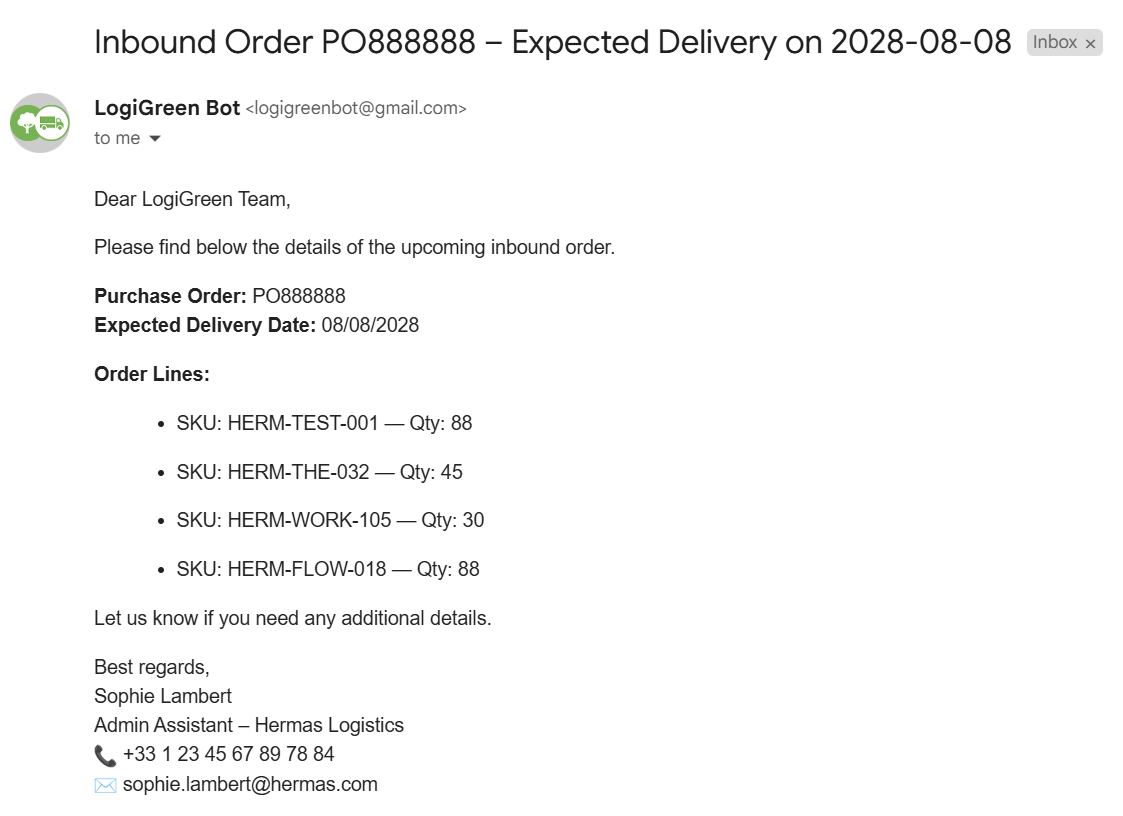
The example above illustrate the challenge we want to tackle using an AI Agent to parse the information and load them in a Google sheet.
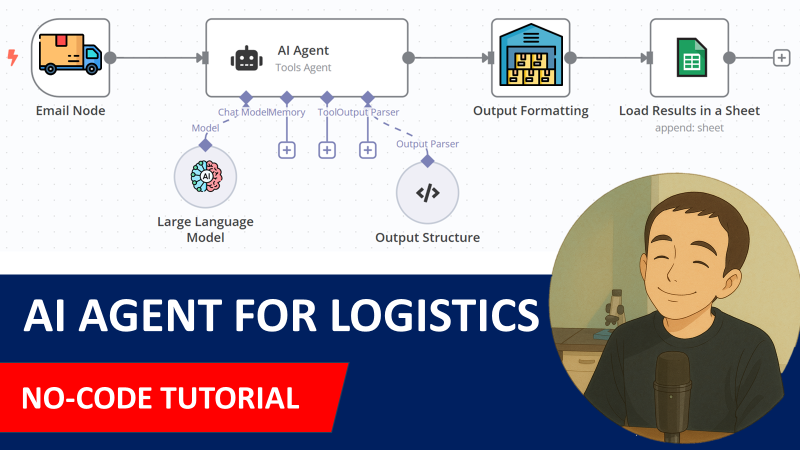
If you want to understand how I built this workflow, check my detailed tutorial:
How does it work?
The workflow is connected to a Gmail Trigger to open all the emails that include Inbound Order in their subject.
The email is parsed by an AI Agent equipped with OpenAI's GPT to collect all the information.
The results are pulled in a Google Sheet.
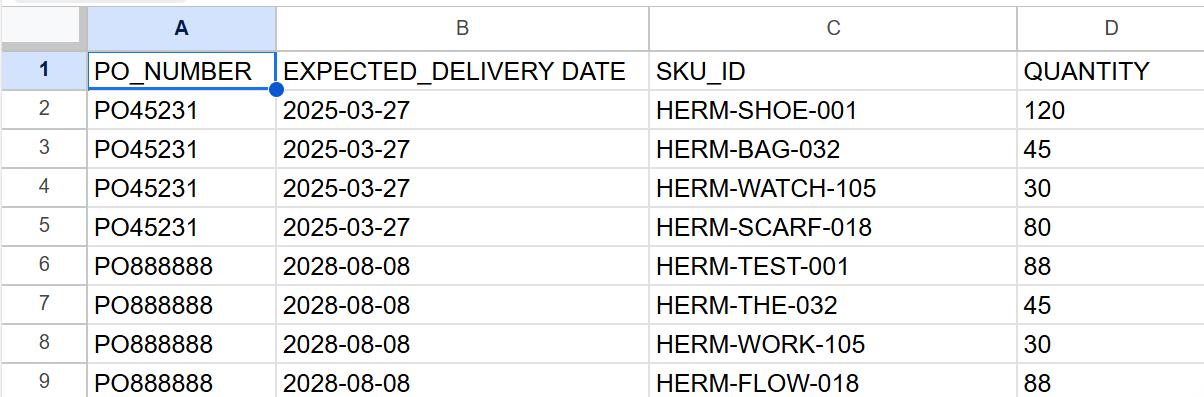
These orderlines can then be transferred to warehouse teams to prepare *order receiving.
What do I need to get started?
You’ll need:
- Gmail and Google Drive Accounts with the API credentials to access it via n8n
- An OpenAI API key (GPT-4o) for the chat model.
- A Google Sheet with these columns: PO_NUMBER, EXPECTED_DELIVERY DATE, SKU_ID, QUANTITY
Next Steps
Follow the sticky notes in the workflow to configure each node and start using AI to support your logistic operations.
🚀 Curious how N8N can transform your logistics operations?
📬 Let’s connect on LinkedIn
Notes
- An example of email is included in the template so you can try it with your mailbox.
This workflow was built using N8N version 1.82.1
Submitted: March 28, 2025
AI Agent for Logistics Order Processing with GPT-4o, Gmail, and Google Sheets
This n8n workflow automates the processing of logistics orders received via email, leverages an AI agent (GPT-4o) to extract key information, and records the processed orders in a Google Sheet. It streamlines the order intake process, reducing manual data entry and potential errors.
What it does
This workflow performs the following steps:
- Triggers on New Emails: Listens for new emails in a specified Gmail inbox.
- Extracts Email Content: Retrieves the subject and body of the incoming email.
- Processes with AI Agent: Passes the email content to an AI Agent (configured with an OpenAI Chat Model) to extract structured information relevant to a logistics order.
- Parses AI Output: Uses a Structured Output Parser to convert the AI agent's response into a usable JSON format.
- Conditional Logic: Checks if the AI agent successfully extracted the required order details.
- Records to Google Sheets (if successful): If the order details are successfully extracted, it appends a new row with the order information to a designated Google Sheet.
- Handles Errors (if unsuccessful): If the AI agent fails to extract the necessary information, a placeholder "Code" node is available to handle this scenario (e.g., send a notification, log the error, etc.).
Prerequisites/Requirements
To use this workflow, you will need:
- n8n Instance: A running n8n instance.
- Gmail Account: A Gmail account configured as a credential in n8n for the "Gmail Trigger" node.
- Google Sheets Account: A Google Sheets account configured as a credential in n8n for the "Google Sheets" node.
- OpenAI API Key: An OpenAI API key configured as a credential in n8n for the "OpenAI Chat Model" node. This workflow is designed to work with GPT-4o, so ensure your API key has access to this model.
Setup/Usage
- Import the Workflow:
- Download the workflow JSON.
- In your n8n instance, go to "Workflows" and click "New".
- Click the "Import from JSON" button and paste the workflow JSON.
- Configure Credentials:
- Gmail Trigger: Configure your Gmail OAuth2 credential. Specify the mailbox and any filters if you only want to process specific emails (e.g., from a certain sender or with a specific subject keyword).
- Google Sheets: Configure your Google Sheets OAuth2 credential.
- OpenAI Chat Model: Configure your OpenAI API Key credential. Ensure the model is set to
gpt-4oor a similar capable model if not already specified.
- Configure Google Sheets Node:
- In the "Google Sheets" node, specify the "Spreadsheet ID" and "Sheet Name" where you want to record the logistics orders.
- Map the data from the "Structured Output Parser" node to the correct columns in your Google Sheet.
- Configure AI Agent and Structured Output Parser:
- AI Agent: Review the prompt and tools used by the AI Agent to ensure it aligns with the specific information you need to extract from your logistics order emails.
- Structured Output Parser: Adjust the schema in this node to precisely match the JSON structure you expect from the AI Agent's output. This is crucial for correctly parsing the extracted data.
- Activate the Workflow: Once all credentials and configurations are set, activate the workflow. It will start listening for new emails in your specified Gmail account.
This workflow provides a robust framework for automating logistics order processing, leveraging the power of AI to extract and structure critical information efficiently.
Related Templates
Dynamic Hubspot lead routing with GPT-4 and Airtable sales team distribution
AI Agent for Dynamic Lead Distribution (HubSpot + Airtable) 🧠 AI-Powered Lead Routing and Sales Team Distribution This intelligent n8n workflow automates end-to-end lead qualification and allocation by integrating HubSpot, Airtable, OpenAI, Gmail, and Slack. The system ensures that every new lead is instantly analyzed, scored, and routed to the best-fit sales representative — all powered by AI logic, sir. --- 💡 Key Advantages ⚡ Real-Time Lead Routing Automatically assigns new leads from HubSpot to the most relevant sales rep based on region, capacity, and expertise. 🧠 AI Qualification Engine An OpenAI-powered Agent evaluates the lead’s industry, region, and needs to generate a persona summary and routing rationale. 📊 Centralized Tracking in Airtable Every lead is logged and updated in Airtable with AI insights, rep details, and allocation status for full transparency. 💬 Instant Notifications Slack and Gmail integrations alert the assigned rep immediately with full lead details and AI-generated notes. 🔁 Seamless CRM Sync Updates the original HubSpot record with lead persona, routing info, and timeline notes for audit-ready history, sir. --- ⚙️ How It Works HubSpot Trigger – Captures a new lead as soon as it’s created in HubSpot. Fetch Contact Data – Retrieves all relevant fields like name, company, and industry. Clean & Format Data – A Code node standardizes and structures the data for consistency. Airtable Record Creation – Logs the lead data into the “Leads” table for centralized tracking. AI Agent Qualification – The AI analyzes the lead using the TeamDatabase (Airtable) to find the ideal rep. Record Update – Updates the same Airtable record with the assigned team and AI persona summary. Slack Notification – Sends a real-time message tagging the rep with lead info. Gmail Notification – Sends a personalized handoff email with context and follow-up actions. HubSpot Sync – Updates the original contact in HubSpot with the assignment details and AI rationale, sir. --- 🛠️ Setup Steps Trigger Node: HubSpot → Detect new leads. HubSpot Node: Retrieve complete lead details. Code Node: Clean and normalize data. Airtable Node: Log lead info in the “Leads” table. AI Agent Node: Process lead and match with sales team. Slack Node: Notify the designated representative. Gmail Node: Email the rep with details. HubSpot Node: Update CRM with AI summary and allocation status, sir. --- 🔐 Credentials Required HubSpot OAuth2 API – To fetch and update leads. Airtable Personal Access Token – To store and update lead data. OpenAI API – To power the AI qualification and matching logic. Slack OAuth2 – For sending team notifications. Gmail OAuth2 – For automatic email alerts to assigned reps, sir. --- 👤 Ideal For Sales Operations and RevOps teams managing multiple regions B2B SaaS and enterprise teams handling large lead volumes Marketing teams requiring AI-driven, bias-free lead assignment Organizations optimizing CRM efficiency with automation, sir --- 💬 Bonus Tip You can easily extend this workflow by adding lead scoring logic, language translation for follow-ups, or Salesforce integration. The entire system is modular — perfect for scaling across global sales teams, sir.
 By MANISH KUMAR
Daily cash flow reports with Google Sheets, Slack & Email for finance teams
Simplify financial oversight with this automated n8n workflow. Triggered daily, it fetches cash flow and expense data from a Google Sheet, analyzes inflows and outflows, validates records, and generates a comprehensive daily report. The workflow sends multi-channel notifications via email and Slack, ensuring finance professionals stay updated with real-time financial insights. 💸📧 Key Features Daily automation keeps cash flow tracking current. Analyzes inflows and outflows for actionable insights. Multi-channel alerts enhance team visibility. Logs maintain a detailed record in Google Sheets. Workflow Process The Every Day node triggers a daily check at a set time. Get Cash Flow Data retrieves financial data from a Google Sheet. Analyze Inflows & Outflows processes the data to identify trends and totals. Validate Records ensures all entries are complete and accurate. If records are valid, it branches to: Sends Email Daily Report to finance team members. Send Slack Alert to notify the team instantly. Logs to Sheet appends the summary data to a Google Sheet for tracking. Setup Instructions Import the workflow into n8n and configure Google Sheets OAuth2 for data access. Set the daily trigger time (e.g., 9:00 AM IST) in the "Every Day" node. Test the workflow by adding sample cash flow data and verifying reports. Adjust analysis parameters as needed for specific financial metrics. Prerequisites Google Sheets OAuth2 credentials Gmail API Key for email reports Slack Bot Token (with chat:write permissions) Structured financial data in a Google Sheet Google Sheet Structure: Create a sheet with columns: Date Cash Inflow Cash Outflow Category Notes Updated At Modification Options Customize the "Analyze Inflows & Outflows" node to include custom financial ratios. Adjust the "Validate Records" filter to flag anomalies or missing data. Modify email and Slack templates with branded formatting. Integrate with accounting tools (e.g., Xero) for live data feeds. Set different trigger times to align with your financial review schedule. Discover more workflows – Get in touch with us
 By Oneclick AI Squad
Track daily moods with AI analysis & reports using GPT-4o, Data Tables & Gmail
Track your daily mood in one tap and receive automated AI summaries of your emotional trends every week and month. Perfect for self-reflection, wellness tracking, or personal analytics. This workflow logs moods sent through a webhook (/mood) into Data Tables, analyzes them weekly and monthly with OpenAI (GPT-4o), and emails you clear summaries and actionable recommendations via Gmail. ⚙️ How It Works Webhook – Mood → Collects new entries (🙂, 😐, or 😩) plus an optional note. Set Mood Data → Adds date, hour, and note fields automatically. Insert Mood Row → Stores each record in a Data Table. Weekly Schedule (Sunday 20:00) → Aggregates the last 7 days and sends a summarized report. Monthly Schedule (Day 1 at 08:00) → Aggregates the last 30 days for a deeper AI analysis. OpenAI Analysis → Generates insights, patterns, and 3 actionable recommendations. Gmail → Sends the full report (chart + AI text) to your inbox. 📊 Example Auto-Email Weekly Mood Summary (last 7 days) 🙂 5 ██████████ 😐 2 ████ 😩 0 Average: 1.7 (Positive 🙂) AI Insights: You’re trending upward this week — notes show that exercise days improved mood. Try keeping short walks mid-week to stabilize energy. 🧩 Requirements n8n Data Tables enabled OpenAI credential (GPT-4o or GPT-4 Turbo) Gmail OAuth2 credential to send summaries 🔧 Setup Instructions Connect your credentials: Add your own OpenAI and Gmail OAuth2 credentials. Set your Data Table ID: Open the Insert Mood Row node and enter your own Data Table ID. Without this, new moods won’t be stored. Replace the email placeholder: In the Gmail nodes, replace your.email@example.com with your actual address. Deploy and run: Send a test POST request to /mood (e.g. { "mood": "🙂", "note": "productive day" }) to log your first entry. ⚠️ Before activating the workflow, ensure you have configured the Data Table ID in the “Insert Mood Row” node. 🧠 AI Analysis Interprets mood patterns using GPT-4o. Highlights trends, potential triggers, and suggests 3 specific actions. Runs automatically every week and month. 🔒 Security No personal data is exposed outside your n8n instance. Always remove or anonymize credential references before sharing publicly. 💡 Ideal For Personal mood journaling and AI feedback Therapists tracking client progress Productivity or self-quantification projects 🗒️ Sticky Notes Guide 🟡 Mood Logging Webhook POST /mood receives mood + optional note. ⚠️ Configure your own Data Table ID in the “Insert Mood Row” node before running. 🟢 Weekly Summary Runs every Sunday 20:00 → aggregates last 7 days → generates AI insights + emails report. 🔵 Monthly Summary Runs on Day 1 at 08:00 → aggregates last 30 days → creates monthly reflection. 🟣 AI Analysis Uses OpenAI GPT-4o to interpret trends and recommend actions. 🟠 Email Delivery Sends formatted summaries to your inbox automatically.
 By Jose Castillo