🗼 AI powered supply chain control tower with BigQuery and GPT-4o

Tags: Supply Chain, Logistics, Control Tower
Context
Hey! I’m Samir, a Supply Chain Engineer and Data Scientist from Paris, and the founder of LogiGreen Consulting.
We design tools to help companies improve their logistics processes using data analytics, AI, and automation—to reduce costs and minimize environmental impact.
> Let’s use N8N to build smarter and more sustainable supply chains!
📬 For business inquiries, you can add me on LinkedIn
Who is this template for?
This workflow template is designed for logistics operations that need a monitoring solution for their distribution chains.
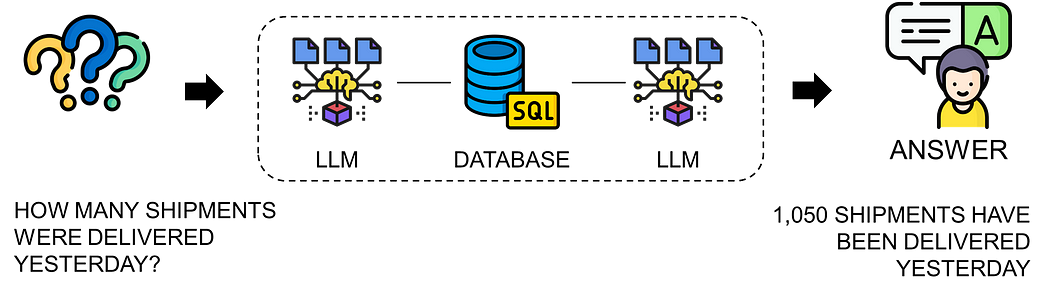
Connected to your Transportation Management Systems, this AI agent can answer any question about the shipments handled by your distribution teams.
How does it work?
The workflow is connected to a Google BigQuery table that stores outbound order data (customer deliveries).
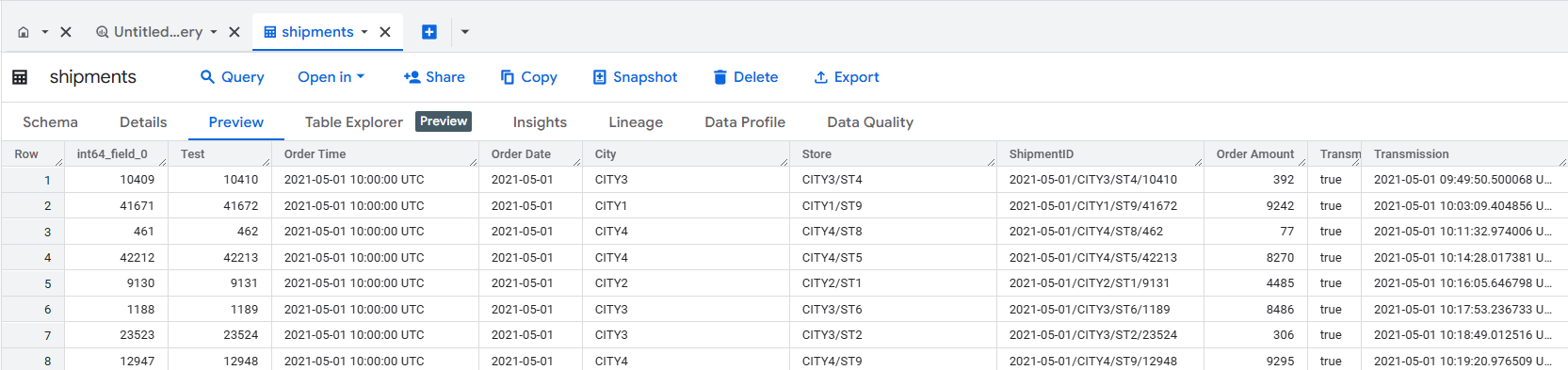
Here’s what the AI agent does:
- 🤔 Receives a user question via chat.
- 🧠 Understands the request and generates the correct SQL query.
- ✅ Executes the SQL query using a BigQuery node.
- 💬 Responds to the user in plain English.

Thanks to the chat memory, users can ask follow-up questions to dive deeper into the data.
What do I need to get started?
This workflow requires no advanced programming skills.
You’ll need:
- A Google BigQuery account with an SQL table storing transactional records.
- An OpenAI API key (GPT-4o) for the chat model.
Next Steps
Follow the sticky notes in the workflow to configure each node and start using AI to support your supply chain operations.
🚀 Curious how N8N can transform your logistics operations?
Notes
- The chat trigger can easily be replaced with Teams, Telegram, or Slack for a better user experience.
- You can also connect this to a customer chat window using a webhook.
This workflow was built using N8N version 1.82.1
Submitted: March 24, 2025
AI-Powered Supply Chain Control Tower with BigQuery and GPT-4o
This n8n workflow demonstrates how to build an AI-powered control tower for supply chain management. It leverages Google BigQuery for data retrieval and an OpenAI GPT-4o agent for intelligent analysis and decision-making, triggered by chat messages.
What it does
This workflow orchestrates the following steps:
- Listens for Chat Messages: The workflow is activated when a new chat message is received, acting as the primary input for user queries or commands.
- Initializes an AI Agent: An OpenAI GPT-4o powered AI agent is set up to process the incoming chat messages.
- Maintains Conversation History: A simple memory buffer is used to keep track of the conversation context, allowing the AI agent to understand follow-up questions and maintain continuity.
- Provides a BigQuery Tool: The AI agent is equipped with a custom tool that allows it to execute queries against a Google BigQuery dataset. This tool is wrapped as an n8n workflow call, enabling the AI to retrieve relevant supply chain data.
- Executes BigQuery Queries: When the AI agent determines that data from BigQuery is needed to answer a query, it uses the "Call n8n Workflow Tool" to trigger a sub-workflow.
- Retrieves Data from BigQuery: The sub-workflow, triggered by the AI agent, connects to Google BigQuery and executes a predefined query to fetch supply chain data.
- Processes and Responds: The AI agent receives the BigQuery results, processes them in the context of the user's chat message, and formulates an intelligent response.
- Outputs AI Response: The final response from the AI agent is then outputted, presumably to the chat interface from which the initial message was received.
Prerequisites/Requirements
To use this workflow, you will need:
- n8n Instance: A running n8n instance.
- OpenAI API Key: An API key for OpenAI to use the GPT-4o chat model.
- Google BigQuery Account: Access to a Google BigQuery project with relevant supply chain data.
- Google Cloud Credentials: Credentials (e.g., Service Account Key or OAuth 2.0) configured in n8n for Google BigQuery.
- A Chat Application: An application integrated with n8n's Chat Trigger (e.g., Slack, Telegram, Discord, or a custom chat interface) to send and receive messages.
Setup/Usage
- Import the Workflow:
- Download the provided JSON file for this workflow.
- In your n8n instance, go to "Workflows" and click "New".
- Click the "Import from JSON" button and paste the workflow JSON.
- Configure Credentials:
- OpenAI Chat Model: Configure your OpenAI API Key credential in the "OpenAI Chat Model" node.
- Google BigQuery: Configure your Google Cloud credential (e.g., Google OAuth2 API or Google Service Account) in the "Google BigQuery" node. Ensure it has the necessary permissions to query your BigQuery datasets.
- Configure the "Call n8n Workflow Tool":
- The "Call n8n Workflow Tool" node needs to be linked to the sub-workflow that performs the BigQuery query. You will need to create a separate n8n workflow for the BigQuery operation and then select it in this tool node.
- Configure the "Google BigQuery" Node:
- In the "Google BigQuery" node, specify the
Project ID,Dataset ID, and theSQL Queryto retrieve your supply chain data. This query should be designed to fetch data relevant to typical supply chain inquiries.
- In the "Google BigQuery" node, specify the
- Activate the Workflow:
- Once all credentials and configurations are set, activate the workflow.
- Interact via Chat:
- Send a message to your n8n Chat Trigger. The AI agent will process your request, potentially query BigQuery for data, and respond with insights.
This workflow provides a powerful foundation for building interactive, AI-driven supply chain analytics and control capabilities directly from a chat interface.
Related Templates
AI-powered code review with linting, red-marked corrections in Google Sheets & Slack
Advanced Code Review Automation (AI + Lint + Slack) Who’s it for For software engineers, QA teams, and tech leads who want to automate intelligent code reviews with both AI-driven suggestions and rule-based linting — all managed in Google Sheets with instant Slack summaries. How it works This workflow performs a two-layer review system: Lint Check: Runs a lightweight static analysis to find common issues (e.g., use of var, console.log, unbalanced braces). AI Review: Sends valid code to Gemini AI, which provides human-like review feedback with severity classification (Critical, Major, Minor) and visual highlights (red/orange tags). Formatter: Combines lint and AI results, calculating an overall score (0–10). Aggregator: Summarizes results for quick comparison. Google Sheets Writer: Appends results to your review log. Slack Notification: Posts a concise summary (e.g., number of issues and average score) to your team’s channel. How to set up Connect Google Sheets and Slack credentials in n8n. Replace placeholders (<YOURSPREADSHEETID>, <YOURSHEETGIDORNAME>, <YOURSLACKCHANNEL_ID>). Adjust the AI review prompt or lint rules as needed. Activate the workflow — reviews will start automatically whenever new code is added to the sheet. Requirements Google Sheets and Slack integrations enabled A configured AI node (Gemini, OpenAI, or compatible) Proper permissions to write to your target Google Sheet How to customize Add more linting rules (naming conventions, spacing, forbidden APIs) Extend the AI prompt for project-specific guidelines Customize the Slack message formatting Export analytics to a dashboard (e.g., Notion or Data Studio) Why it’s valuable This workflow brings realistic, team-oriented AI-assisted code review to n8n — combining the speed of automated linting with the nuance of human-style feedback. It saves time, improves code quality, and keeps your team’s review history transparent and centralized.
 By higashiyama
 Daily cash flow reports with Google Sheets, Slack & Email for finance teams
Simplify financial oversight with this automated n8n workflow. Triggered daily, it fetches cash flow and expense data from a Google Sheet, analyzes inflows and outflows, validates records, and generates a comprehensive daily report. The workflow sends multi-channel notifications via email and Slack, ensuring finance professionals stay updated with real-time financial insights. 💸📧 Key Features Daily automation keeps cash flow tracking current. Analyzes inflows and outflows for actionable insights. Multi-channel alerts enhance team visibility. Logs maintain a detailed record in Google Sheets. Workflow Process The Every Day node triggers a daily check at a set time. Get Cash Flow Data retrieves financial data from a Google Sheet. Analyze Inflows & Outflows processes the data to identify trends and totals. Validate Records ensures all entries are complete and accurate. If records are valid, it branches to: Sends Email Daily Report to finance team members. Send Slack Alert to notify the team instantly. Logs to Sheet appends the summary data to a Google Sheet for tracking. Setup Instructions Import the workflow into n8n and configure Google Sheets OAuth2 for data access. Set the daily trigger time (e.g., 9:00 AM IST) in the "Every Day" node. Test the workflow by adding sample cash flow data and verifying reports. Adjust analysis parameters as needed for specific financial metrics. Prerequisites Google Sheets OAuth2 credentials Gmail API Key for email reports Slack Bot Token (with chat:write permissions) Structured financial data in a Google Sheet Google Sheet Structure: Create a sheet with columns: Date Cash Inflow Cash Outflow Category Notes Updated At Modification Options Customize the "Analyze Inflows & Outflows" node to include custom financial ratios. Adjust the "Validate Records" filter to flag anomalies or missing data. Modify email and Slack templates with branded formatting. Integrate with accounting tools (e.g., Xero) for live data feeds. Set different trigger times to align with your financial review schedule. Discover more workflows – Get in touch with us
 By Oneclick AI Squad
Generate Weather-Based Date Itineraries with Google Places, OpenRouter AI, and Slack
🧩 What this template does This workflow builds a 120-minute local date course around your starting point by querying Google Places for nearby spots, selecting the top candidates, fetching real-time weather data, letting an AI generate a matching emoji, and drafting a friendly itinerary summary with an LLM in both English and Japanese. It then posts the full bilingual plan with a walking route link and weather emoji to Slack. 👥 Who it’s for Makers and teams who want a plug-and-play bilingual local itinerary generator with weather awareness — no custom code required. ⚙️ How it works Trigger – Manual (or schedule/webhook). Discovery – Google Places nearby search within a configurable radius. Selection – Rank by rating and pick the top 3. Weather – Fetch current weather (via OpenWeatherMap). Emoji – Use an AI model to match the weather with an emoji 🌤️. Planning – An LLM writes the itinerary in Markdown (JP + EN). Route – Compose a Google Maps walking route URL. Share – Post the bilingual itinerary, route link, and weather emoji to Slack. 🧰 Requirements n8n (Cloud or self-hosted) Google Maps Platform (Places API) OpenWeatherMap API key Slack Bot (chat:write) LLM provider (e.g., OpenRouter or DeepL for translation) 🚀 Setup (quick) Open Set → Fields: Config and fill in coords/radius/time limit. Connect Credentials for Google, OpenWeatherMap, Slack, and your LLM. Test the workflow and confirm the bilingual plan + weather emoji appear in Slack. 🛠 Customize Adjust ranking filters (type, min rating). Modify translation settings (target language or tone). Change output layout (side-by-side vs separated). Tune emoji logic or travel mode. Add error handling, retries, or logging for production use.
 By noda