📦 Electronic data interchange (EDI) message parsing with Gmail and Google Sheet

Tags: Supply Chain Management, Logistics, Transportation, Data Transmission
Context
Hey! I'm Samir , a Supply Chain Engineer and Data Scientist from Paris founder of LogiGreen Consulting
We help small and medium businesses improve their logistics processes using AI, Data Analytics and Automation.
> Sustainable and Efficient supply chains with N8N!
📬 For business inquiries, you can add me on Here
What is an EDI Message?
Electronic Data Interchange (EDI) is a standardized method of automatically transferring data between computer systems.
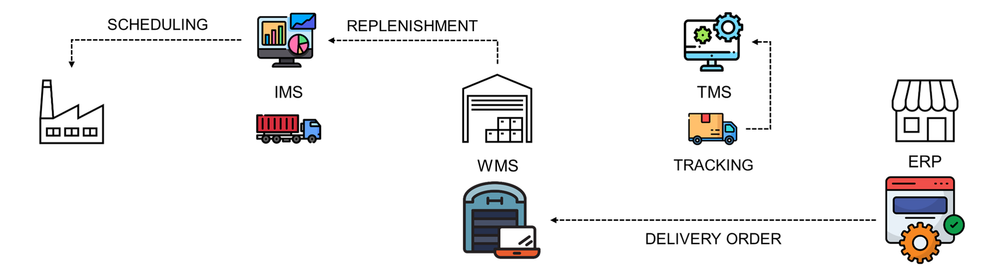
They ensure the smooth flow of essential transactional data, such as purchase orders, invoices, shipping notices, and more.
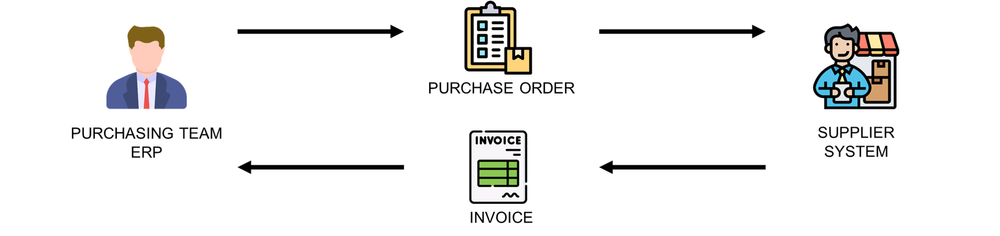
For instance, a manufacturing company can receive purchase orders from a retailer via EDI.
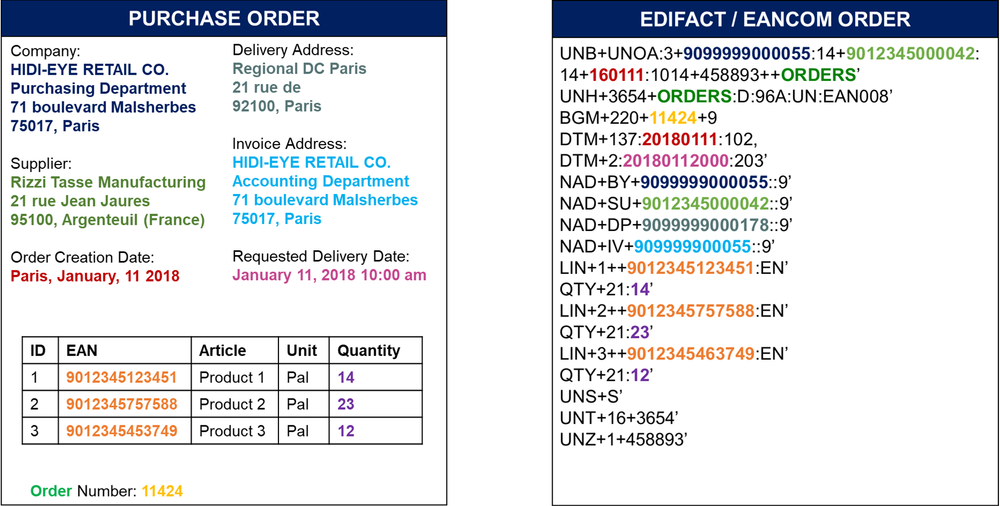
However, they need complex integration for the transmission and processing of the messages.
Who is this template for?
This workflow template is designed for small companies that cannot connect to their customers and need to manually process the EDI messages received.
How does it work?
This workflow uses a Gmail Trigger that analyzes all the incoming emails.
- 📧 Gmail Trigger → Detects emails with "EDI" in the subject.
- 📜 Parses EDI Message → Uses a JavaScript Code Node to extract structured data.
- 📊 Formats the Data → Converts it into a table-friendly format.
- 📑 Updates Google Sheets → Automatically logs the processed orders.
Prerequisite
This workflow does not require any additional paying subscription.
- A Google Drive Account with a folder including a Google Sheet
- API Credentials: Google Drive API, Google Sheets API and Gmail API
- A Google sheet to store the shipment records. You do not need to prepare the columns.
Next Steps
Follow the sticky notes to set up the parameters inside each node and get ready to improve your logistics operations!
📺 Watch the Step-by-Step Guide

🚀 Interested in applications of N8N for Logistics & Supply Chain Management? Let's connect on Linkedin
Notes
- This template includes an example of EDI message to test the workflow.
- If you want to learn more about Electronic Data Interchange: 🚚 Blog Article about Electronic Data Interchange (EDI)
This workflow has been created with N8N 1.82.1 Submitted: March 19th, 2025
Electronic Data Interchange (EDI) Message Parsing with Gmail and Google Sheets
This n8n workflow automates the process of extracting and organizing data from incoming EDI messages received via email, storing the parsed information in a Google Sheet. It's designed to streamline the handling of structured data sent through email, making it easier to manage and analyze.
What it does
This workflow performs the following key steps:
- Monitors Gmail for New Emails: It acts as a trigger, constantly checking a specified Gmail account for new incoming emails.
- Parses Email Content: Upon receiving an email, it extracts the relevant content, likely the body of the email containing the EDI message.
- Processes EDI Data with Custom Logic: A "Code" node is present, indicating custom JavaScript logic is applied to parse and transform the raw EDI message into a structured format. This is where the core EDI parsing happens.
- Filters Data (Conditional Logic): An "If" node suggests that the workflow applies conditional logic to the parsed data. This could be used to filter messages based on specific criteria (e.g., message type, sender, content keywords) or to route different types of EDI messages to different processing paths.
- Splits Out Data: A "Split Out" node indicates that the parsed data is likely an array or a collection of items, and this node separates them into individual items for further processing. This is crucial for handling multiple EDI segments or records within a single message.
- Prepares Data for Google Sheets: An "Edit Fields (Set)" node is used to format and select the specific data points that will be written to the Google Sheet, ensuring consistency and correctness.
- Writes Data to Google Sheets: The extracted and formatted EDI data is then appended as new rows to a designated Google Sheet.
- Merges Data (Potential for Branching): A "Merge" node is present, suggesting that if the "If" node creates different branches, they eventually converge back into a single flow before potentially writing to Google Sheets or for other post-processing steps.
Prerequisites/Requirements
To use this workflow, you will need:
- n8n Instance: A running instance of n8n.
- Gmail Account: An active Gmail account configured as a credential in n8n to monitor incoming emails.
- Google Sheets Account: Access to a Google Sheets account, configured as a credential in n8n, where the parsed EDI data will be stored. You will need to create a specific spreadsheet and potentially define the header row for the data.
- Understanding of EDI Message Structure: Familiarity with the structure of the EDI messages you intend to parse, as the "Code" node will contain custom logic tailored to your specific EDI format.
Setup/Usage
- Import the Workflow: Download the provided JSON and import it into your n8n instance.
- Configure Gmail Trigger:
- Set up your Gmail credential.
- Configure the "Gmail Trigger" node to listen for emails with specific criteria (e.g., sender, subject line, labels) that correspond to your EDI messages.
- Customize the Code Node:
- The "Code" node (
ID: 834) is critical. You will need to modify the JavaScript code within this node to correctly parse your specific EDI message format from the email body. This will involve extracting relevant fields and structuring them into a JSON object.
- The "Code" node (
- Configure the If Node:
- Adjust the conditions in the "If" node (
ID: 20) to filter or route EDI messages based on your business logic.
- Adjust the conditions in the "If" node (
- Configure the Edit Fields (Set) Node:
- In the "Edit Fields (Set)" node (
ID: 38), define the fields you want to extract from the parsed EDI data and how they should be named for your Google Sheet.
- In the "Edit Fields (Set)" node (
- Configure Google Sheets Node:
- Set up your Google Sheets credential.
- Specify the "Spreadsheet ID" and "Sheet Name" where the EDI data should be appended.
- Ensure the column names in your Google Sheet match the output fields from the "Edit Fields (Set)" node.
- Activate the Workflow: Once configured, activate the workflow to start monitoring for new EDI emails.
This workflow provides a robust foundation for automating EDI message processing, transforming raw email data into actionable insights within Google Sheets.
Related Templates
Synchronizing WooCommerce inventory and creating products with Google Gemini AI and BrowserAct
Synchronize WooCommerce Inventory & Create Products with Gemini AI & BrowserAct This sophisticated n8n template automates WooCommerce inventory management by scraping supplier data, updating existing products, and intelligently creating new ones with AI-formatted descriptions. This workflow is essential for e-commerce operators, dropshippers, and inventory managers who need to ensure their product pricing and stock levels are synchronized with multiple third-party suppliers, minimizing overselling and maximizing profit. --- Self-Hosted Only This Workflow uses a community contribution and is designed and tested for self-hosted n8n instances only. --- How it works The workflow is typically run by a Schedule Trigger (though a Manual Trigger is also shown) to check stock automatically. It reads a list of suppliers and their inventory page URLs from a central Google Sheet. The workflow loops through each supplier: A BrowserAct node scrapes the current stock and price data from the supplier's inventory page. A Code node parses this bulk data into individual product items. It then loops through each individual product found. The workflow checks WooCommerce to see if the product already exists based on its name. If the product exists: It proceeds to update the existing product's price and stock quantity. If the product DOES NOT exist: An If node checks if the missing product's category matches a predefined type (optional filtering). If it passes the filter, a second BrowserAct workflow scrapes detailed product attributes from a dedicated product page (e.g., DigiKey). An AI Agent (Gemini) transforms these attributes into a specific, styled HTML table for the product description. Finally, the product is created in WooCommerce with all scraped details and the AI-generated description. Error Handling: Multiple Slack nodes are configured to alert your team immediately if any scraping task fails or if the product update/creation process encounters an issue. Note: This workflow does not support image uploads for new products. To enable this functionality, you must modify both the n8n and BrowserAct workflows. --- Requirements BrowserAct API account for web scraping BrowserAct n8n Community Node -> (n8n Nodes BrowserAct) BrowserAct templates named “WooCommerce Inventory & Stock Synchronization” and “WooCommerce Product Data Reconciliation” Google Sheets credentials for the supplier list WooCommerce credentials for product management Google Gemini account for the AI Agent Slack credentials for error alerts --- Need Help? How to Find Your BrowseAct API Key & Workflow ID How to Connect n8n to Browseract How to Use & Customize BrowserAct Templates How to Use the BrowserAct N8N Community Node --- Workflow Guidance and Showcase STOP Overselling! Auto-Sync WooCommerce Inventory from ANY Supplier
 By Madame AI Team | Kai
Automated YouTube video uploads with 12h interval scheduling in JST
This workflow automates a batch upload of multiple videos to YouTube, spacing each upload 12 hours apart in Japan Standard Time (UTC+9) and automatically adding them to a playlist. ⚙️ Workflow Logic Manual Trigger — Starts the workflow manually. List Video Files — Uses a shell command to find all .mp4 files under the specified directory (/opt/downloads/单词卡/A1-A2). Sort and Generate Items — Sorts videos by day number (dayXX) extracted from filenames and assigns a sequential order value. Calculate Publish Schedule (+12h Interval) — Computes the next rounded JST hour plus a configurable buffer (default 30 min). Staggers each video’s scheduled time by order × 12 hours. Converts JST back to UTC for YouTube’s publishAt field. Split in Batches (1 per video) — Iterates over each video item. Read Video File — Loads the corresponding video from disk. Upload to YouTube (Scheduled) — Uploads the video privately with the computed publishAtUtc. Add to Playlist — Adds the newly uploaded video to the target playlist. 🕒 Highlights Timezone-safe: Pure UTC ↔ JST conversion avoids double-offset errors. Sequential scheduling: Ensures each upload is 12 hours apart to prevent clustering. Customizable: Change SPANHOURS, BUFFERMIN, or directory paths easily. Retry-ready: Each upload and playlist step has retry logic to handle transient errors. 💡 Typical Use Cases Multi-part educational video series (e.g., A1–A2 English learning). Regular content release cadence without manual scheduling. Automated YouTube publishing pipelines for pre-produced content. --- Author: Zane Category: Automation / YouTube / Scheduler Timezone: JST (UTC+09:00)
 By Zane
Tax deadline management & compliance alerts with GPT-4, Google Sheets & Slack
AI-Driven Tax Compliance & Deadline Management System Description Automate tax deadline monitoring with AI-powered insights. This workflow checks your tax calendar daily at 8 AM, uses GPT-4 to analyze upcoming deadlines across multiple jurisdictions, detects overdue and critical items, and sends intelligent alerts via email and Slack only when immediate action is required. Perfect for finance teams and accounting firms who need proactive compliance management without manual tracking. 🏛️🤖📊 Good to Know AI-Powered: GPT-4 provides risk assessment and strategic recommendations Multi-Jurisdiction: Handles Federal, State, and Local tax requirements automatically Smart Alerts: Only notifies executives when deadlines are overdue or critical (≤3 days) Priority Classification: Categorizes deadlines as Overdue, Critical, High, or Medium priority Dual Notifications: Critical alerts to leadership + daily summaries to team channel Complete Audit Trail: Logs all checks and deadlines to Google Sheets for compliance records How It Works Daily Trigger - Runs at 8:00 AM every morning Fetch Data - Pulls tax calendar and company configuration from Google Sheets Analyze Deadlines - Calculates days remaining, filters by jurisdiction/entity type, categorizes by priority AI Analysis - GPT-4 provides strategic insights and risk assessment on upcoming deadlines Smart Routing - Only sends alerts if overdue or critical deadlines exist Critical Alerts - HTML email to executives + Slack alert for urgent items Team Updates - Slack summary to finance channel with all upcoming deadlines Logging - Records compliance check results to Google Sheets for audit trail Requirements Google Sheets Structure Sheet 1: TaxCalendar DeadlineID | DeadlineName | DeadlineDate | Jurisdiction | Category | AssignedTo | IsActive FED-Q1 | Form 1120 Q1 | 2025-04-15 | Federal | Income | John Doe | TRUE Sheet 2: CompanyConfig (single row) Jurisdictions | EntityType | FiscalYearEnd Federal, California | Corporation | 12-31 Sheet 3: ComplianceLog (auto-populated) Date | AlertLevel | TotalUpcoming | CriticalCount | OverdueCount 2025-01-15 | HIGH | 12 | 3 | 1 Credentials Needed Google Sheets - Service Account OAuth2 OpenAI - API Key (GPT-4 access required) SMTP - Email account for sending alerts Slack - Bot Token with chat:write permission Setup Steps Import workflow JSON into n8n Add all 4 credentials Replace these placeholders: YOURTAXCALENDAR_ID - Tax calendar sheet ID YOURCONFIGID - Company config sheet ID YOURLOGID - Compliance log sheet ID C12345678 - Slack channel ID tax@company.com - Sender email cfo@company.com - Recipient email Share all sheets with Google service account email Invite Slack bot to channels Test workflow manually Activate the trigger Customizing This Workflow Change Alert Thresholds: Edit "Analyze Deadlines" node: Critical: Change <= 3 to <= 5 for 5-day warning High: Change <= 7 to <= 14 for 2-week notice Medium: Change <= 30 to <= 60 for 2-month lookout Adjust Schedule: Edit "Daily Tax Check" trigger: Change hour/minute for different run time Add multiple trigger times for tax season (8 AM, 2 PM, 6 PM) Add More Recipients: Edit "Send Email" node: To: cfo@company.com, director@company.com CC: accounting@company.com BCC: archive@company.com Customize Email Design: Edit "Format Email" node to change colors, add logo, or modify layout Add SMS Alerts: Insert Twilio node after "Is Critical" for emergency notifications Integrate Task Management: Add HTTP Request node to create tasks in Asana/Jira for critical deadlines Troubleshooting | Issue | Solution | |-------|----------| | No deadlines found | Check date format (YYYY-MM-DD) and IsActive = TRUE | | AI analysis failed | Verify OpenAI API key and account credits | | Email not sending | Test SMTP credentials and check if critical condition met | | Slack not posting | Invite bot to channel and verify channel ID format | | Permission denied | Share Google Sheets with service account email | 📞 Professional Services Need help with implementation or customization? Our team offers: 🎯 Custom workflow development 🏢 Enterprise deployment support 🎓 Team training sessions 🔧 Ongoing maintenance 📊 Custom reporting & dashboards 🔗 Additional API integrations Discover more workflows – Get in touch with us
 By Oneclick AI Squad