AI-powered technical analyst with Perplexity R1 research

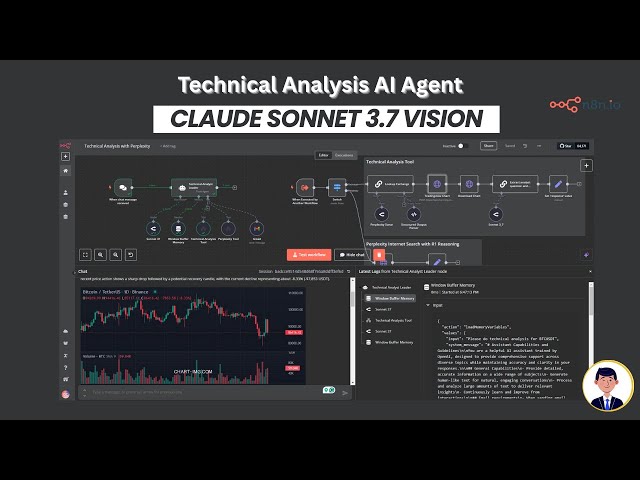
Leverage the latest AI technology to analyze financial charts and make informed trading decisions with our Technical Analysis AI Agent. This powerful workflow combines Claude Sonnet 3.7 vision capabilities with Perplexity deep reasoning and up-to-date internet information to deliver comprehensive market analysis.
Key Capabilities:
- Visual Chart Analysis - AI vision technology examines technical charts to identify key price points, volume patterns, and trend indicators
- Fundamental Research Integration - Combines technical analysis with real-time fundamental data using DeepSeek R1 reasoning
- Fully Cited Reports - Fundamental analysis backed by verifiable sources for confident decision-making
- Automated Email Delivery - Receive complete analysis reports directly to your inbox
How It Works:
This workflow orchestrates multiple AI components to analyze financial instruments:
- The Technical Analysis Leader coordinates the entire analysis process
- Chart analysis tool identifies the appropriate exchange and downloads Trading View charts
- AI Vision examines the chart for technical indicators including RSI, volume patterns, and support/resistance levels
- Perplexity tool conducts fundamental research using DeepSeek R1 reasoning capabilities
- All data is synthesized into a comprehensive report with trading recommendations
- Results can be automatically emailed for reference
Setup Instructions:
Quick start video included in the template.
- Get API key from OpenRouter.ai to access the Sonnet 3.7 model
- Get API key from chart-img.com to access tradingview charts
- Connect the Gmail node for email delivery functionality
IMPORTANT DISCLAIMER: This tool provides technical analysis for informational purposes only and should not be construed as investment advice. This AI-powered technical analysis tool is designed to assist with market analysis but should not be used as the sole basis for any investment decision
AI-Powered Technical Analyst with Perplexity (R1 Research)
This n8n workflow leverages AI to act as a technical analyst, capable of researching and summarizing information based on user queries. It integrates with Perplexity AI via OpenRouter and uses an n8n sub-workflow as a tool for the AI agent to perform web searches.
Description
This workflow creates an AI agent that can receive chat messages, interpret them, perform research using a dedicated n8n web search tool, and then respond with a summarized analysis. It's designed to provide quick, AI-driven insights on technical topics by simulating a research process.
What it does
- Listens for Chat Messages: The workflow is triggered by an incoming chat message, acting as the user's query.
- Initial Processing: The incoming chat message is processed and set as the
humanMessagefor the AI agent. - AI Agent Initialization: An AI Agent is initialized with a "Plan and Execute" strategy, enabling it to break down tasks, use tools, and generate responses.
- Memory Management: A "Simple Memory" node is used to maintain conversational context during the interaction.
- Language Model Configuration: The AI Agent utilizes an "OpenRouter Chat Model" to interact with Perplexity AI, providing the core intelligence.
- Tool Integration: The AI Agent is equipped with a "Call n8n Workflow Tool" that allows it to execute a separate n8n workflow (referred to as a "sub-workflow") for performing web searches.
- Output Parsing: A "Structured Output Parser" is included, though its specific configuration isn't detailed in the provided JSON, it suggests an intention to structure the AI's output.
- Conditional Routing (Placeholder): A "Switch" node is present, indicating a potential for conditional logic or branching based on the AI's output or other criteria, though no connections are shown from it in the provided JSON.
- HTTP Request (Placeholder): An "HTTP Request" node is also present, suggesting a capability to interact with external APIs or services, but it's not connected in this workflow.
- Sub-workflow Trigger: An "Execute Workflow Trigger" node is included, which is likely the entry point for the "Call n8n Workflow Tool" when the AI agent decides to perform a web search.
Prerequisites/Requirements
- n8n Instance: A running n8n instance to host the workflow.
- OpenRouter API Key: An API key for OpenRouter to access Perplexity AI. This will need to be configured in the "OpenRouter Chat Model" node's credentials.
- Sub-Workflow for Web Search: A separate n8n workflow designed to perform web searches and return results, which will be called by the "Call n8n Workflow Tool". The ID of this sub-workflow needs to be configured in the "Call n8n Workflow Tool" node.
Setup/Usage
- Import the Workflow: Import the provided JSON into your n8n instance.
- Configure OpenRouter Credentials:
- Locate the "OpenRouter Chat Model" node.
- Set up a new credential for OpenRouter and provide your API Key.
- Configure the Web Search Sub-Workflow:
- Create or import a separate n8n workflow that can perform web searches (e.g., using an HTTP Request node to a search API like Google Search, Brave Search, or a custom scraper).
- Ensure this sub-workflow is designed to receive a query and return relevant search results.
- Note the workflow ID of this web search sub-workflow.
- In the "Call n8n Workflow Tool" node within this main workflow, configure it to call your web search sub-workflow using its ID.
- Activate the Workflow: Once configured, activate the workflow. It will then be ready to receive chat messages.
- Send a Chat Message: Interact with the workflow via the configured chat integration (e.g., Telegram, Slack, Mattermost, etc., depending on how the "Chat Trigger" is set up) to ask a technical question or request research. The AI agent will then use its tools to provide an analysis.
Related Templates
Generate song lyrics and music from text prompts using OpenAI and Fal.ai Minimax
Spark your creativity instantly in any chat—turn a simple prompt like "heartbreak ballad" into original, full-length lyrics and a professional AI-generated music track, all without leaving your conversation. 📋 What This Template Does This chat-triggered workflow harnesses AI to generate detailed, genre-matched song lyrics (at least 600 characters) from user messages, then queues them for music synthesis via Fal.ai's minimax-music model. It polls asynchronously until the track is ready, delivering lyrics and audio URL back in chat. Crafts original, structured lyrics with verses, choruses, and bridges using OpenAI Submits to Fal.ai for melody, instrumentation, and vocals aligned to the style Handles long-running generations with smart looping and status checks Returns complete song package (lyrics + audio link) for seamless sharing 🔧 Prerequisites n8n account (self-hosted or cloud with chat integration enabled) OpenAI account with API access for GPT models Fal.ai account for AI music generation 🔑 Required Credentials OpenAI API Setup Go to platform.openai.com → API keys (sidebar) Click "Create new secret key" → Name it (e.g., "n8n Songwriter") Copy the key and add to n8n as "OpenAI API" credential type Test by sending a simple chat completion request Fal.ai HTTP Header Auth Setup Sign up at fal.ai → Dashboard → API Keys Generate a new API key → Copy it In n8n, create "HTTP Header Auth" credential: Name="Fal.ai", Header Name="Authorization", Header Value="Key [Your API Key]" Test with a simple GET to their queue endpoint (e.g., /status) ⚙️ Configuration Steps Import the workflow JSON into your n8n instance Assign OpenAI API credentials to the "OpenAI Chat Model" node Assign Fal.ai HTTP Header Auth to the "Generate Music Track", "Check Generation Status", and "Fetch Final Result" nodes Activate the workflow—chat trigger will appear in your n8n chat interface Test by messaging: "Create an upbeat pop song about road trips" 🎯 Use Cases Content Creators: YouTubers generating custom jingles for videos on the fly, streamlining production from idea to audio export Educators: Music teachers using chat prompts to create era-specific folk tunes for classroom discussions, fostering interactive learning Gift Personalization: Friends crafting anniversary R&B tracks from shared memories via quick chats, delivering emotional audio surprises Artist Brainstorming: Songwriters prototyping hip-hop beats in real-time during sessions, accelerating collaboration and iteration ⚠️ Troubleshooting Invalid JSON from AI Agent: Ensure the system prompt stresses valid JSON; test the agent standalone with a sample query Music Generation Fails (401/403): Verify Fal.ai API key has minimax-music access; check usage quotas in dashboard Status Polling Loops Indefinitely: Bump wait time to 45-60s for complex tracks; inspect fal.ai queue logs for bottlenecks Lyrics Under 600 Characters: Tweak agent prompt to enforce fuller structures like [V1][C][V2][B][C]; verify output length in executions
 By Daniel Nkencho
Auto-reply & create Linear tickets from Gmail with GPT-5, gotoHuman & human review
This workflow automatically classifies every new email from your linked mailbox, drafts a personalized reply, and creates Linear tickets for bugs or feature requests. It uses a human-in-the-loop with gotoHuman and continuously improves itself by learning from approved examples. How it works The workflow triggers on every new email from your linked mailbox. Self-learning Email Classifier: an AI model categorizes the email into defined categories (e.g., Bug Report, Feature Request, Sales Opportunity, etc.). It fetches previously approved classification examples from gotoHuman to refine decisions. Self-learning Email Writer: the AI drafts a reply to the email. It learns over time by using previously approved replies from gotoHuman, with per-classification context to tailor tone and style (e.g., different style for sales vs. bug reports). Human Review in gotoHuman: review the classification and the drafted reply. Drafts can be edited or retried. Approved values are used to train the self-learning agents. Send approved Reply: the approved response is sent as a reply to the email thread. Create ticket: if the classification is Bug or Feature Request, a ticket is created by another AI agent in Linear. Human Review in gotoHuman: How to set up Most importantly, install the gotoHuman node before importing this template! (Just add the node to a blank canvas before importing) Set up credentials for gotoHuman, OpenAI, your email provider (e.g. Gmail), and Linear. In gotoHuman, select and create the pre-built review template "Support email agent" or import the ID: 6fzuCJlFYJtlu9mGYcVT. Select this template in the gotoHuman node. In the "gotoHuman: Fetch approved examples" http nodes you need to add your formId. It is the ID of the review template that you just created/imported in gotoHuman. Requirements gotoHuman (human supervision, memory for self-learning) OpenAI (classification, drafting) Gmail or your preferred email provider (for email trigger+replies) Linear (ticketing) How to customize Expand or refine the categories used by the classifier. Update the prompt to reflect your own taxonomy. Filter fetched training data from gotoHuman by reviewer so the writer adapts to their personalized tone and preferences. Add more context to the AI email writer (calendar events, FAQs, product docs) to improve reply quality.
 By gotoHuman
Dynamic Hubspot lead routing with GPT-4 and Airtable sales team distribution
AI Agent for Dynamic Lead Distribution (HubSpot + Airtable) 🧠 AI-Powered Lead Routing and Sales Team Distribution This intelligent n8n workflow automates end-to-end lead qualification and allocation by integrating HubSpot, Airtable, OpenAI, Gmail, and Slack. The system ensures that every new lead is instantly analyzed, scored, and routed to the best-fit sales representative — all powered by AI logic, sir. --- 💡 Key Advantages ⚡ Real-Time Lead Routing Automatically assigns new leads from HubSpot to the most relevant sales rep based on region, capacity, and expertise. 🧠 AI Qualification Engine An OpenAI-powered Agent evaluates the lead’s industry, region, and needs to generate a persona summary and routing rationale. 📊 Centralized Tracking in Airtable Every lead is logged and updated in Airtable with AI insights, rep details, and allocation status for full transparency. 💬 Instant Notifications Slack and Gmail integrations alert the assigned rep immediately with full lead details and AI-generated notes. 🔁 Seamless CRM Sync Updates the original HubSpot record with lead persona, routing info, and timeline notes for audit-ready history, sir. --- ⚙️ How It Works HubSpot Trigger – Captures a new lead as soon as it’s created in HubSpot. Fetch Contact Data – Retrieves all relevant fields like name, company, and industry. Clean & Format Data – A Code node standardizes and structures the data for consistency. Airtable Record Creation – Logs the lead data into the “Leads” table for centralized tracking. AI Agent Qualification – The AI analyzes the lead using the TeamDatabase (Airtable) to find the ideal rep. Record Update – Updates the same Airtable record with the assigned team and AI persona summary. Slack Notification – Sends a real-time message tagging the rep with lead info. Gmail Notification – Sends a personalized handoff email with context and follow-up actions. HubSpot Sync – Updates the original contact in HubSpot with the assignment details and AI rationale, sir. --- 🛠️ Setup Steps Trigger Node: HubSpot → Detect new leads. HubSpot Node: Retrieve complete lead details. Code Node: Clean and normalize data. Airtable Node: Log lead info in the “Leads” table. AI Agent Node: Process lead and match with sales team. Slack Node: Notify the designated representative. Gmail Node: Email the rep with details. HubSpot Node: Update CRM with AI summary and allocation status, sir. --- 🔐 Credentials Required HubSpot OAuth2 API – To fetch and update leads. Airtable Personal Access Token – To store and update lead data. OpenAI API – To power the AI qualification and matching logic. Slack OAuth2 – For sending team notifications. Gmail OAuth2 – For automatic email alerts to assigned reps, sir. --- 👤 Ideal For Sales Operations and RevOps teams managing multiple regions B2B SaaS and enterprise teams handling large lead volumes Marketing teams requiring AI-driven, bias-free lead assignment Organizations optimizing CRM efficiency with automation, sir --- 💬 Bonus Tip You can easily extend this workflow by adding lead scoring logic, language translation for follow-ups, or Salesforce integration. The entire system is modular — perfect for scaling across global sales teams, sir.
 By MANISH KUMAR