Turn emails into AI-enhanced tasks in Notion (multi-user support) with Gmail, Airtable and Softr

Purpose
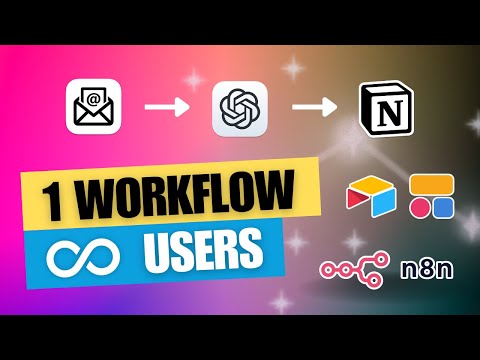
This workflow automatically creates Tasks from forwarded Emails, similar to Asana, but better. Emails are processed by AI and converted to rather actionable task.
In addition this workflow is build in a way, that multiple users can share this single process by setting up their individual configuration through a user friendly portal (internal tool) instead of the need to manage their own workflows.
Demo
How it works
- One Gmail account is used to process inbound mails from different users.
- A custom web portal enables users to define “routes”. Thats where the mapping between an automatically generated Gmail Alias and a Notion Database URL, including the personal API Token, happens.
- Using a Gmail Trigger, new entries are split by the Email Alias, so the corresponding route can be retrieved from the Database connected to the portal.
- Every Email then gets processed by AI to get generate an actionable task and get a short summary of the original Email as well as some metadata.
- Based on a predefined structure a new Page is created in the corresponding Notion Database.
- Finally the Email is marked as “processed” in Gmail.
- If an error happens, the route gets paused for a possible overflow and the user gets notified by Email.
Setup
- Create a new Google account (alternatively you can use an existing one and set up rules to keep your inbox organized)
- Create two Labels in Gmail: “Processed” and “Error”
- Clone this Softr template including the Airtable dataset and publish the application
- Clone this workflow and choose credentials (Gmail, Airtable)
- Follow the additional instructions provided within the workflow notes
- Enable the workflow, so it runs automatically in the background
How to use
- Open published Softr application
- Register as a new user
- Create a new route containing the Notion API key and the Notion Database URL
- Expand the new entry to copy the Email address
- Save the address as a new contact in your Email provider of choice
- Forward an Email to it and watch how it gets converted to an actionable task
Disclamer
- Airtable was chosen, so you can setup this template fairly quickly. It is advised to replace the persistence by something you own, like a self hosted SQL server, since we are dealing with sensitive information of multiple users
- This solution is only meant for building internal tools, unless you own an embed license for n8n.
Turn Emails into AI-Enhanced Tasks in Notion (Multi-User Support with Gmail, Airtable, and Softr)
This n8n workflow automates the process of converting incoming emails into structured, AI-enhanced tasks within Notion, designed to support multiple users. It integrates Gmail for email reception, Airtable for user and configuration management, and leverages AI for intelligent task extraction and enrichment.
What it does
This workflow streamlines task creation by:
- Triggering on New Emails: Listens for new emails in a specified Gmail account.
- Retrieving User Configuration: Fetches user-specific Notion database IDs and other settings from Airtable based on the recipient of the email.
- Filtering for Valid Users: Checks if the recipient email address corresponds to a configured user in Airtable. If not, the workflow stops.
- AI-Powered Task Extraction: Uses an AI Agent (powered by an OpenAI Chat Model) to analyze the email content and extract key information like task title, description, due date, and priority. A Structured Output Parser ensures the AI output is in a usable JSON format.
- Task Refinement: A "Code" node processes the AI's output, preparing it for Notion.
- Creating Notion Page: Creates a new page (task) in the user's designated Notion database with the extracted and enhanced details.
- Marking Email as Read: Optionally marks the processed email as read in Gmail.
Prerequisites/Requirements
To use this workflow, you will need:
- n8n Instance: A running n8n instance.
- Gmail Account: A Gmail account configured as a credential in n8n for the
Gmail TriggerandGmailnodes. - Airtable Account: An Airtable account with a base containing user configurations (e.g., recipient email, Notion database ID). This will require an Airtable credential in n8n.
- Notion Account: A Notion workspace and database(s) where tasks will be created. You'll need a Notion API integration and a Notion credential in n8n.
- OpenAI API Key: An OpenAI API key configured as a credential in n8n for the
OpenAI Chat Modelnode.
Setup/Usage
- Import the Workflow: Download the JSON provided and import it into your n8n instance.
- Configure Credentials:
- Set up your Gmail OAuth2 credentials for both the
Gmail TriggerandGmailnodes. - Set up your Airtable API Key credential for the
Airtablenode. - Set up your Notion API Key credential (or OAuth2) for the
HTTP Requestnode (which interacts with the Notion API). - Set up your OpenAI API Key credential for the
OpenAI Chat Modelnode.
- Set up your Gmail OAuth2 credentials for both the
- Configure Airtable:
- Create an Airtable base with a table named "Users" (or similar).
- This table should contain columns for:
Email: The email address of the user (recipient email).Notion Database ID: The ID of the Notion database where tasks for this user should be created.- (Potentially other user-specific settings as needed by your AI prompts or Notion page properties).
- Configure Gmail Trigger:
- Specify the "Label" or "Folder" in Gmail that the workflow should monitor for new emails (e.g., "Inbox", "Tasks").
- Configure AI Agent:
- Review the prompts within the
AI AgentandStructured Output Parsernodes. Adjust them to precisely define how the AI should extract and format task information from emails. Ensure the expected output matches your Notion database properties.
- Review the prompts within the
- Configure Notion API Call:
- In the
HTTP Requestnode (which creates the Notion page), ensure the URL and body are correctly mapped to your Notion database properties. This node will use theNotion Database IDretrieved from Airtable.
- In the
- Activate the Workflow: Once all credentials and configurations are set, activate the workflow. It will now automatically process new emails and create AI-enhanced tasks in Notion.
Related Templates
Automate Dutch Public Procurement Data Collection with TenderNed
TenderNed Public Procurement What This Workflow Does This workflow automates the collection of public procurement data from TenderNed (the official Dutch tender platform). It: Fetches the latest tender publications from the TenderNed API Retrieves detailed information in both XML and JSON formats for each tender Parses and extracts key information like organization names, titles, descriptions, and reference numbers Filters results based on your custom criteria Stores the data in a database for easy querying and analysis Setup Instructions This template comes with sticky notes providing step-by-step instructions in Dutch and various query options you can customize. Prerequisites TenderNed API Access - Register at TenderNed for API credentials Configuration Steps Set up TenderNed credentials: Add HTTP Basic Auth credentials with your TenderNed API username and password Apply these credentials to the three HTTP Request nodes: "Tenderned Publicaties" "Haal XML Details" "Haal JSON Details" Customize filters: Modify the "Filter op ..." node to match your specific requirements Examples: specific organizations, contract values, regions, etc. How It Works Step 1: Trigger The workflow can be triggered either manually for testing or automatically on a daily schedule. Step 2: Fetch Publications Makes an API call to TenderNed to retrieve a list of recent publications (up to 100 per request). Step 3: Process & Split Extracts the tender array from the response and splits it into individual items for processing. Step 4: Fetch Details For each tender, the workflow makes two parallel API calls: XML endpoint - Retrieves the complete tender documentation in XML format JSON endpoint - Fetches metadata including reference numbers and keywords Step 5: Parse & Merge Parses the XML data and merges it with the JSON metadata and batch information into a single data structure. Step 6: Extract Fields Maps the raw API data to clean, structured fields including: Publication ID and date Organization name Tender title and description Reference numbers (kenmerk, TED number) Step 7: Filter Applies your custom filter criteria to focus on relevant tenders only. Step 8: Store Inserts the processed data into your database for storage and future analysis. Customization Tips Modify API Parameters In the "Tenderned Publicaties" node, you can adjust: offset: Starting position for pagination size: Number of results per request (max 100) Add query parameters for date ranges, status filters, etc. Add More Fields Extend the "Splits Alle Velden" node to extract additional fields from the XML/JSON data, such as: Contract value estimates Deadline dates CPV codes (procurement classification) Contact information Integrate Notifications Add a Slack, Email, or Discord node after the filter to get notified about new matching tenders. Incremental Updates Modify the workflow to only fetch new tenders by: Storing the last execution timestamp Adding date filters to the API query Only processing publications newer than the last run Troubleshooting No data returned? Verify your TenderNed API credentials are correct Check that you have setup youre filter proper Need help setting this up or interested in a complete tender analysis solution? Get in touch 🔗 LinkedIn – Wessel Bulte
 By Wessel Bulte
🎓 How to transform unstructured email data into structured format with AI agent
This workflow automates the process of extracting structured, usable information from unstructured email messages across multiple platforms. It connects directly to Gmail, Outlook, and IMAP accounts, retrieves incoming emails, and sends their content to an AI-powered parsing agent built on OpenAI GPT models. The AI agent analyzes each email, identifies relevant details, and returns a clean JSON structure containing key fields: From – sender’s email address To – recipient’s email address Subject – email subject line Summary – short AI-generated summary of the email body The extracted information is then automatically inserted into an n8n Data Table, creating a structured database of email metadata and summaries ready for indexing, reporting, or integration with other tools. --- Key Benefits ✅ Full Automation: Eliminates manual reading and data entry from incoming emails. ✅ Multi-Source Integration: Handles data from different email providers seamlessly. ✅ AI-Driven Accuracy: Uses advanced language models to interpret complex or unformatted content. ✅ Structured Storage: Creates a standardized, query-ready dataset from previously unstructured text. ✅ Time Efficiency: Processes emails in real time, improving productivity and response speed. *✅ Scalability: Easily extendable to handle additional sources or extract more data fields. --- How it works This workflow automates the transformation of unstructured email data into a structured, queryable format. It operates through a series of connected steps: Email Triggering: The workflow is initiated by one of three different email triggers (Gmail, Microsoft Outlook, or a generic IMAP account), which constantly monitor for new incoming emails. AI-Powered Parsing & Structuring: When a new email is detected, its raw, unstructured content is passed to a central "Parsing Agent." This agent uses a specified OpenAI language model to intelligently analyze the email text. Data Extraction & Standardization: Following a predefined system prompt, the AI agent extracts key information from the email, such as the sender, recipient, subject, and a generated summary. It then forces the output into a strict JSON structure using a "Structured Output Parser" node, ensuring data consistency. Data Storage: Finally, the clean, structured data (the from, to, subject, and summarize fields) is inserted as a new row into a specified n8n Data Table, creating a searchable and reportable database of email information. --- Set up steps To implement this workflow, follow these configuration steps: Prepare the Data Table: Create a new Data Table within n8n. Define the columns with the following names and string type: From, To, Subject, and Summary. Configure Email Credentials: Set up the credential connections for the email services you wish to use (Gmail OAuth2, Microsoft Outlook OAuth2, and/or IMAP). Ensure the accounts have the necessary permissions to read emails. Configure AI Model Credentials: Set up the OpenAI API credential with a valid API key. The workflow is configured to use the model, but this can be changed in the respective nodes if needed. Connect the Nodes: The workflow canvas is already correctly wired. Visually confirm that the email triggers are connected to the "Parsing Agent," which is connected to the "Insert row" (Data Table) node. Also, ensure the "OpenAI Chat Model" and "Structured Output Parser" are connected to the "Parsing Agent" as its AI model and output parser, respectively. Activate the Workflow: Save the workflow and toggle the "Active" switch to ON. The triggers will begin polling for new emails according to their schedule (e.g., every minute), and the automation will start processing incoming messages. --- Need help customizing? Contact me for consulting and support or add me on Linkedin.
 By Davide
Tax deadline management & compliance alerts with GPT-4, Google Sheets & Slack
AI-Driven Tax Compliance & Deadline Management System Description Automate tax deadline monitoring with AI-powered insights. This workflow checks your tax calendar daily at 8 AM, uses GPT-4 to analyze upcoming deadlines across multiple jurisdictions, detects overdue and critical items, and sends intelligent alerts via email and Slack only when immediate action is required. Perfect for finance teams and accounting firms who need proactive compliance management without manual tracking. 🏛️🤖📊 Good to Know AI-Powered: GPT-4 provides risk assessment and strategic recommendations Multi-Jurisdiction: Handles Federal, State, and Local tax requirements automatically Smart Alerts: Only notifies executives when deadlines are overdue or critical (≤3 days) Priority Classification: Categorizes deadlines as Overdue, Critical, High, or Medium priority Dual Notifications: Critical alerts to leadership + daily summaries to team channel Complete Audit Trail: Logs all checks and deadlines to Google Sheets for compliance records How It Works Daily Trigger - Runs at 8:00 AM every morning Fetch Data - Pulls tax calendar and company configuration from Google Sheets Analyze Deadlines - Calculates days remaining, filters by jurisdiction/entity type, categorizes by priority AI Analysis - GPT-4 provides strategic insights and risk assessment on upcoming deadlines Smart Routing - Only sends alerts if overdue or critical deadlines exist Critical Alerts - HTML email to executives + Slack alert for urgent items Team Updates - Slack summary to finance channel with all upcoming deadlines Logging - Records compliance check results to Google Sheets for audit trail Requirements Google Sheets Structure Sheet 1: TaxCalendar DeadlineID | DeadlineName | DeadlineDate | Jurisdiction | Category | AssignedTo | IsActive FED-Q1 | Form 1120 Q1 | 2025-04-15 | Federal | Income | John Doe | TRUE Sheet 2: CompanyConfig (single row) Jurisdictions | EntityType | FiscalYearEnd Federal, California | Corporation | 12-31 Sheet 3: ComplianceLog (auto-populated) Date | AlertLevel | TotalUpcoming | CriticalCount | OverdueCount 2025-01-15 | HIGH | 12 | 3 | 1 Credentials Needed Google Sheets - Service Account OAuth2 OpenAI - API Key (GPT-4 access required) SMTP - Email account for sending alerts Slack - Bot Token with chat:write permission Setup Steps Import workflow JSON into n8n Add all 4 credentials Replace these placeholders: YOURTAXCALENDAR_ID - Tax calendar sheet ID YOURCONFIGID - Company config sheet ID YOURLOGID - Compliance log sheet ID C12345678 - Slack channel ID tax@company.com - Sender email cfo@company.com - Recipient email Share all sheets with Google service account email Invite Slack bot to channels Test workflow manually Activate the trigger Customizing This Workflow Change Alert Thresholds: Edit "Analyze Deadlines" node: Critical: Change <= 3 to <= 5 for 5-day warning High: Change <= 7 to <= 14 for 2-week notice Medium: Change <= 30 to <= 60 for 2-month lookout Adjust Schedule: Edit "Daily Tax Check" trigger: Change hour/minute for different run time Add multiple trigger times for tax season (8 AM, 2 PM, 6 PM) Add More Recipients: Edit "Send Email" node: To: cfo@company.com, director@company.com CC: accounting@company.com BCC: archive@company.com Customize Email Design: Edit "Format Email" node to change colors, add logo, or modify layout Add SMS Alerts: Insert Twilio node after "Is Critical" for emergency notifications Integrate Task Management: Add HTTP Request node to create tasks in Asana/Jira for critical deadlines Troubleshooting | Issue | Solution | |-------|----------| | No deadlines found | Check date format (YYYY-MM-DD) and IsActive = TRUE | | AI analysis failed | Verify OpenAI API key and account credits | | Email not sending | Test SMTP credentials and check if critical condition met | | Slack not posting | Invite bot to channel and verify channel ID format | | Permission denied | Share Google Sheets with service account email | 📞 Professional Services Need help with implementation or customization? Our team offers: 🎯 Custom workflow development 🏢 Enterprise deployment support 🎓 Team training sessions 🔧 Ongoing maintenance 📊 Custom reporting & dashboards 🔗 Additional API integrations Discover more workflows – Get in touch with us
 By Oneclick AI Squad