YouTube advanced RSS generator with Telegram formation

Overview
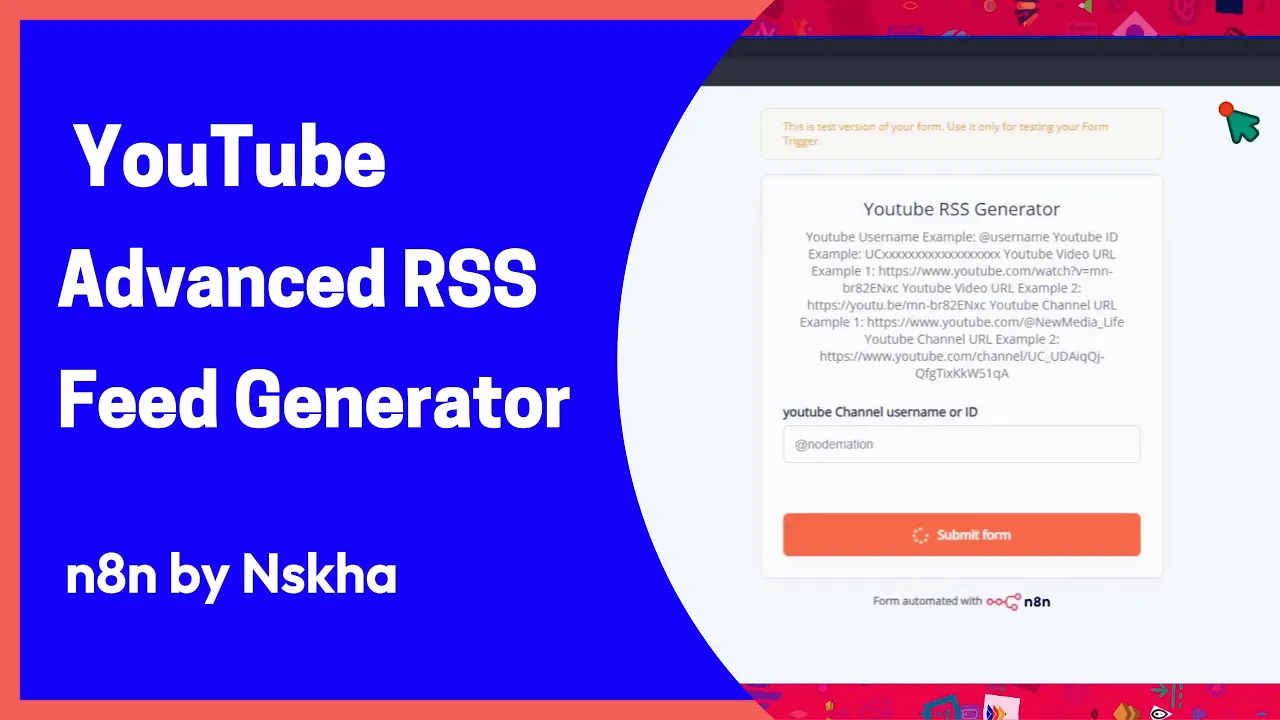
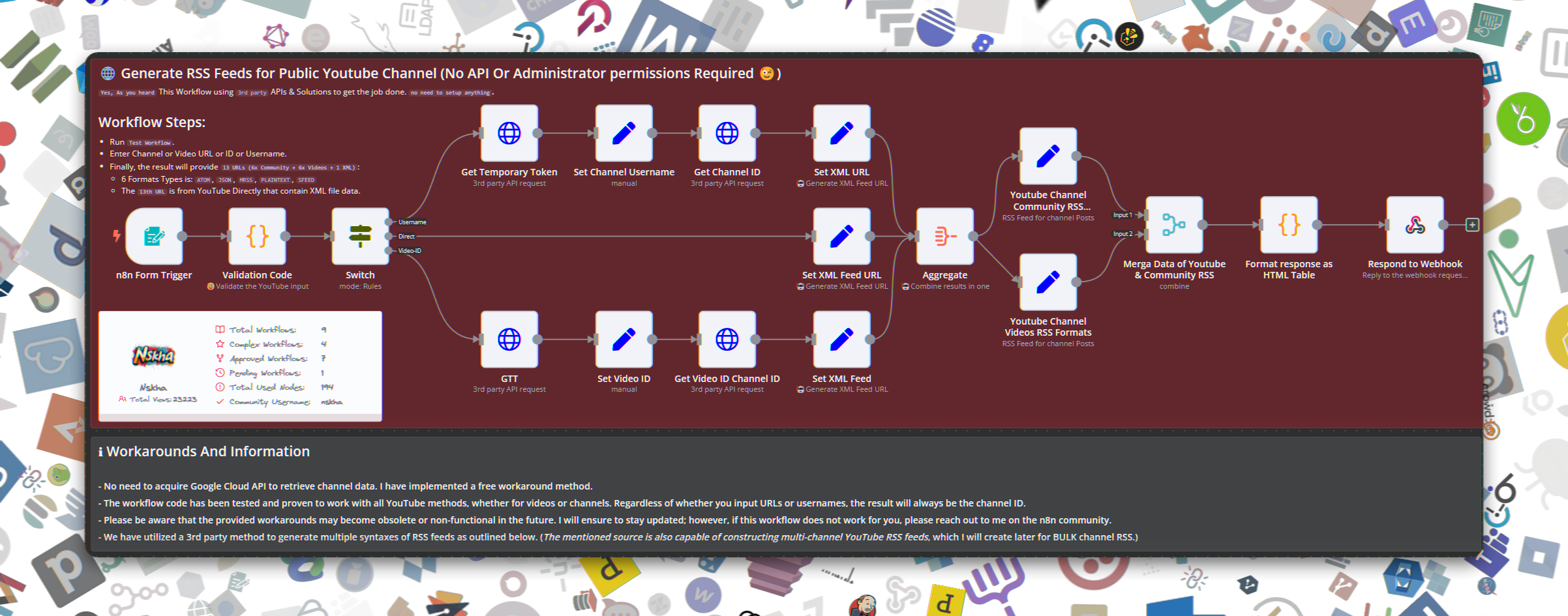
The [n8n] YouTube Channel Advanced RSS Feeds Generator workflow facilitates the generation of various RSS feed formats for YouTube channels without requiring API access or administrative permissions. It utilizes third-party services to extract data, making it extremely user-friendly and accessible.
Key Use Cases and Benefits
- Content Aggregation: Easily gather and syndicate content from any public YouTube channel.
- No API Key Required: Avoid the complexities and limitations of Google's API.
- Multiple Formats: Supports ATOM, JSON, MRSS, Plaintext, Sfeed, and direct YouTube XML feeds.
- Flexibility: Input can be a YouTube channel or video URL, ID, or username.
Services/APIs Utilized
This workflow integrates with:
- commentpicker.com: For retrieving YouTube channel IDs.
- rss-bridge.org: To generate various RSS formats.
Configuration Instructions
- Start the Workflow: Activate the workflow in your n8n instance.
- Input Details: Enter the YouTube channel or video URL, ID, or username via the provided form trigger.
- Run the Workflow: Execute the workflow to receive links to 13 different RSS feeds, including community and video content feeds.
Screenshots
Additional Notes
- Customization: You can modify the RSS feed formats or integrate additional services as needed.
Support and Contributions
For support, questions, or contributions, please visit the n8n community forum or the GitHub repository. We welcome contributions from the community!
n8n Form to Advanced RSS Generator with Telegram Notification
This n8n workflow provides a powerful and flexible solution for generating custom RSS feeds based on user input from a web form. It allows you to define a YouTube channel, fetch its latest videos, and then create a tailored RSS feed. Additionally, it includes a mechanism to potentially notify a Telegram channel, although the Telegram integration is not fully configured in the provided JSON.
What it does
This workflow automates the following steps:
- Receives Form Submissions: It acts as a listener for a web form where users can submit details, likely including a YouTube channel ID or URL.
- Processes Input: It takes the submitted data and prepares it for further processing.
- Fetches YouTube Data (Implicit): Although not explicitly shown with a YouTube node, the "HTTP Request" node is likely configured to make an API call to YouTube to fetch video data for the specified channel.
- Transforms Data: It manipulates the fetched data to extract relevant information for the RSS feed.
- Generates RSS Feed (Implicit): The "Code" node is expected to contain custom JavaScript logic to construct an RSS feed XML based on the processed YouTube video data.
- Responds to Webhook: It sends back a response to the initial form submission, potentially including the generated RSS feed URL or a confirmation message.
- Conditional Logic (Implicit): The "Switch" node suggests that there might be conditional logic to handle different scenarios or outputs based on the processed data.
- Aggregates Data: The "Aggregate" node indicates that multiple data items might be combined or grouped at some point in the workflow.
Prerequisites/Requirements
- n8n Instance: A running instance of n8n to host and execute the workflow.
- Web Form: A web form configured to send data to the n8n "On form submission" trigger.
- YouTube Data API Key (Implicit): If the "HTTP Request" node is indeed calling the YouTube Data API, you will need a YouTube Data API key.
- Telegram Bot Token and Chat ID (Optional/Implicit): If the workflow were to include Telegram notifications, you would need a Telegram Bot token and the chat ID of the channel or user to send messages to. (Note: The provided JSON does not include a Telegram node, but the directory name suggests this might be an intended feature).
Setup/Usage
- Import the Workflow:
- Save the provided JSON content as a
.jsonfile. - In your n8n instance, go to "Workflows" and click "New".
- Click the "Import from JSON" button and upload the saved JSON file.
- Save the provided JSON content as a
- Configure the "On form submission" Trigger:
- Open the "On form submission" node.
- Copy the "Webhook URL" provided by this node. This URL is where your external web form should send its data (e.g., via a POST request).
- Define the expected fields in the "Form Fields" section if not already present, matching the data your form will send (e.g.,
youtubeChannelId,youtubeChannelName).
- Configure the "HTTP Request" Node (if applicable):
- If the "HTTP Request" node is used to fetch YouTube data, ensure its URL, headers, and body are correctly configured to interact with the YouTube Data API.
- Add any necessary API keys as credentials in n8n and link them to this node.
- Review and Customize "Edit Fields (Set)" and "Code" Nodes:
- The "Edit Fields (Set)" node likely prepares data for the RSS feed or other actions. Adjust its fields as needed.
- The "Code" node is crucial for generating the RSS feed. You will need to inspect and potentially modify the JavaScript code within this node to match your desired RSS feed structure and content.
- Configure "Respond to Webhook":
- Customize the response sent back to the form submission. This could be a simple success message, the generated RSS feed URL, or other relevant information.
- Activate the Workflow:
- Once configured, activate the workflow by toggling the "Active" switch in the top right corner of the workflow editor.
Now, whenever your external web form submits data to the n8n webhook URL, this workflow will execute, generate the RSS feed, and respond accordingly.
Related Templates
Two-way property repair management system with Google Sheets & Drive
This workflow automates the repair request process between tenants and building managers, keeping all updates organized in a single spreadsheet. It is composed of two coordinated workflows, as two separate triggers are required — one for new repair submissions and another for repair updates. A Unique Unit ID that corresponds to individual units is attributed to each request, and timestamps are used to coordinate repair updates with specific requests. General use cases include: Property managers who manage multiple buildings or units. Building owners looking to centralize tenant repair communication. Automation builders who want to learn multi-trigger workflow design in n8n. --- ⚙️ How It Works Workflow 1 – New Repair Requests Behind the Scenes: A tenant fills out a Google Form (“Repair Request Form”), which automatically adds a new row to a linked Google Sheet. Steps: Trigger: Google Sheets rowAdded – runs when a new form entry appears. Extract & Format: Collects all relevant form data (address, unit, urgency, contacts). Generate Unit ID: Creates a standardized identifier (e.g., BUILDING-UNIT) for tracking. Email Notification: Sends the building manager a formatted email summarizing the repair details and including a link to a Repair Update Form (which activates Workflow 2). --- Workflow 2 – Repair Updates Behind the Scenes:\ Triggered when the building manager submits a follow-up form (“Repair Update Form”). Steps: Lookup by UUID: Uses the Unit ID from Workflow 1 to find the existing row in the Google Sheet. Conditional Logic: If photos are uploaded: Saves each image to a Google Drive folder, renames files consistently, and adds URLs to the sheet. If no photos: Skips the upload step and processes textual updates only. Merge & Update: Combines new data with existing repair info in the same spreadsheet row — enabling a full repair history in one place. --- 🧩 Requirements Google Account (for Forms, Sheets, and Drive) Gmail/email node connected for sending notifications n8n credentials configured for Google API access --- ⚡ Setup Instructions (see more detail in workflow) Import both workflows into n8n, then copy one into a second workflow. Change manual trigger in workflow 2 to a n8n Form node. Connect Google credentials to all nodes. Update spreadsheet and folder IDs in the corresponding nodes. Customize email text, sender name, and form links for your organization. Test each workflow with a sample repair request and a repair update submission. --- 🛠️ Customization Ideas Add Slack or Telegram notifications for urgent repairs. Auto-create folders per building or unit for photo uploads. Generate monthly repair summaries using Google Sheets triggers. Add an AI node to create summaries/extract relevant repair data from repair request that include long submissions.
 By Matt@VeraisonLabs
Send WooCommerce cross-sell offers to customers via WhatsApp using Rapiwa API
Who Is This For? This n8n workflow enables automated cross-selling by identifying each WooCommerce customer's most frequently purchased product, finding a related product to recommend, and sending a personalized WhatsApp message using the Rapiwa API. It also verifies whether the user's number is WhatsApp-enabled before sending, and logs both successful and unsuccessful attempts to Google Sheets for tracking. What This Workflow Does Retrieves all paying customers from your WooCommerce store Identifies each customer's most purchased product Finds the latest product in the same category as their most purchased item Cleans and verifies customer phone numbers for WhatsApp compatibility Sends personalized WhatsApp messages with product recommendations Logs all activities to Google Sheets for tracking and analysis Handles both verified and unverified numbers appropriately Key Features Customer Segmentation: Automatically identifies paying customers from your WooCommerce store Product Analysis: Determines each customer's most purchased product Smart Recommendations: Finds the latest products in the same category as customer favorites WhatsApp Integration: Uses Rapiwa API for message delivery Phone Number Validation: Verifies WhatsApp numbers before sending messages Dual Logging System: Tracks both successful and failed message attempts in Google Sheets Rate Limiting: Uses batching and wait nodes to prevent API overload Personalized Messaging: Includes customer name and product details in messages Requirements WooCommerce store with API access Rapiwa account with API access for WhatsApp verification and messaging Google account with Sheets access Customer phone numbers in WooCommerce (stored in billing.phone field) How to Use — Step-by-Step Setup Credentials Setup WooCommerce API: Configure WooCommerce API credentials in n8n (e.g., "WooCommerce (get customer)" and "WooCommerce (get customer data)") Rapiwa Bearer Auth: Create an HTTP Bearer credential with your Rapiwa API token Google Sheets OAuth2: Set up OAuth2 credentials for Google Sheets access Configure Google Sheets Ensure your sheet has the required columns as specified in the Google Sheet Column Structure section Verify Code Nodes Code (get paying_customer): Filters customers to include only those who have made purchases Get most buy product id & Clear Number: Identifies the most purchased product and cleans phone numbers Configure HTTP Request Nodes Get customer data: Verify the WooCommerce API endpoint for retrieving customer orders Get specific product data: Verify the WooCommerce API endpoint for product details Get specific product recommend latest product: Verify the WooCommerce API endpoint for finding latest products by category Check valid WhatsApp number Using Rapiwa: Verify the Rapiwa endpoint for WhatsApp number validation Rapiwa Sender: Verify the Rapiwa endpoint for sending messages Google Sheet Required Columns You’ll need two Google Sheets (or two tabs in one spreadsheet): A Google Sheet formatted like this ➤ sample The workflow uses a Google Sheet with the following columns to track coupon distribution: Both must have the following headers (match exactly): | name | number | email | address1 | price | suk | title | product link | validity | staus | | ---------- | ------------- | ----------------------------------------------- | ----------- | ----- | --- | ---------------------------------- | ------------------------------------------------------------------------------------------------------------------------------------------------------ | ---------- | -------- | | Abdul Mannan | 8801322827799 | contact@spagreen.net | mirpur dohs | 850 | | Sharp Most Demanding Hoodie x Nike | https://yourshopdomain/p-img-nike | verified | sent | | Abdul Mannan | 8801322827799 | contact@spagreen.net | mirpur dohs | 850 | | Sharp Most Demanding Hoodie x Nike | https://yourshopdomain/p-img-nike | unverified | not sent | | Abdul Mannan | 8801322827799 | contact@spagreen.net | mirpur dohs | 850 | | Sharp Most Demanding Hoodie x Nike | https://yourshopdomain/p-img-nike | verified | sent | Important Notes Phone Number Format: The workflow cleans phone numbers by removing all non-digit characters. Ensure your WooCommerce phone numbers are in a compatible format. API Rate Limits: Rapiwa and WooCommerce APIs have rate limits. Adjust batch sizes and wait times accordingly. Data Privacy: Ensure compliance with data protection regulations when sending marketing messages. Error Handling: The workflow logs unverified numbers but doesn't have extensive error handling. Consider adding error notifications for failed API calls. Product Availability: The workflow recommends the latest product in a category, but doesn't check if it's in stock. Consider adding stock status verification. Testing: Always test with a small batch before running the workflow on your entire customer list. Useful Links Dashboard: https://app.rapiwa.com Official Website: https://rapiwa.com Documentation: https://docs.rapiwa.com Support & Help WhatsApp: Chat on WhatsApp Discord: SpaGreen Community Facebook Group: SpaGreen Support Website: https://spagreen.net Developer Portfolio: Codecanyon SpaGreen
 By Rapiwa
Track SDK documentation drift with GitHub, Notion, Google Sheets, and Slack
📊 Description Automatically track SDK releases from GitHub, compare documentation freshness in Notion, and send Slack alerts when docs lag behind. This workflow ensures documentation stays in sync with releases, improves visibility, and reduces version drift across teams. 🚀📚💬 What This Template Does Step 1: Listens to GitHub repository events to detect new SDK releases. 🧩 Step 2: Fetches release metadata including version, tag, and publish date. 📦 Step 3: Logs release data into Google Sheets for record-keeping and analysis. 📊 Step 4: Retrieves FAQ or documentation data from Notion. 📚 Step 5: Merges GitHub and Notion data to calculate documentation drift. 🔍 Step 6: Flags SDKs whose documentation is over 30 days out of date. ⚠️ Step 7: Sends detailed Slack alerts to notify responsible teams. 🔔 Key Benefits ✅ Keeps SDK documentation aligned with product releases ✅ Prevents outdated information from reaching users ✅ Provides centralized release tracking in Google Sheets ✅ Sends real-time Slack alerts for overdue updates ✅ Strengthens DevRel and developer experience operations Features GitHub release trigger for real-time monitoring Google Sheets logging for tracking and auditing Notion database integration for documentation comparison Automated drift calculation (days since last update) Slack notifications for overdue documentation Requirements GitHub OAuth2 credentials Notion API credentials Google Sheets OAuth2 credentials Slack Bot token with chat:write permissions Target Audience Developer Relations (DevRel) and SDK engineering teams Product documentation and technical writing teams Project managers tracking SDK and doc release parity Step-by-Step Setup Instructions Connect your GitHub account and select your SDK repository. Replace YOURGOOGLESHEETID and YOURSHEET_GID with your tracking spreadsheet. Add your Notion FAQ database ID. Configure your Slack channel ID for alerts. Run once manually to validate setup, then enable automation.
 By Rahul Joshi