Creators hub: Generate dynamic SVG stats with daily updates

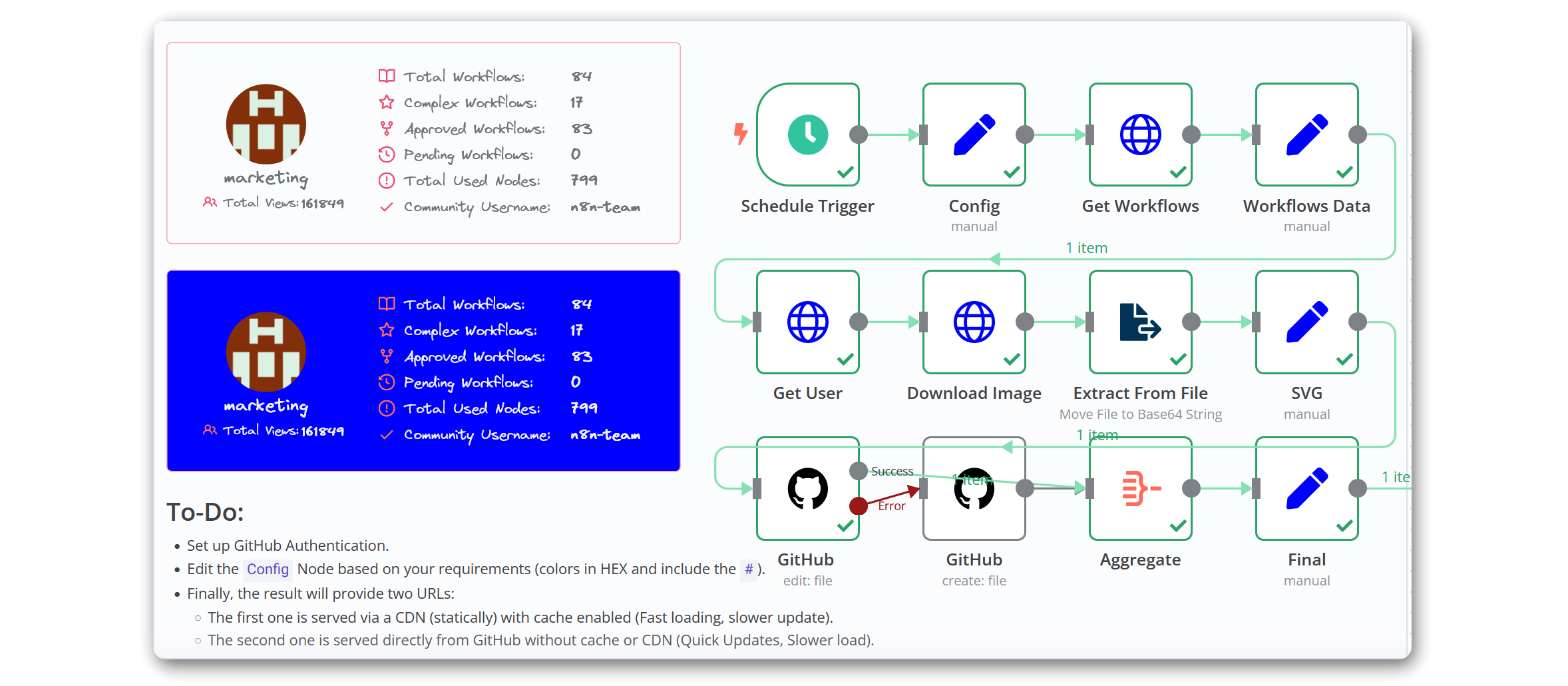
n8n Creators Template: Creator Profile Stats Updater
This n8n workflow template is designed to automate the process of updating a creator's profile statistics, including total workflows, complex workflows, approved workflows, pending workflows, total nodes, and total views. It utilizes various nodes to fetch data, process it, and update a SVG file hosted on GitHub to reflect the latest stats.
Workflow Overview
- Schedule Trigger: Triggers the workflow execution at specified intervals.
- Config: Sets up configuration details like creator username, colors for text, icons, border, and card.
- Get Workflows: Fetches workflows associated with the creator from the n8n API.
- Workflows Data: Processes the fetched data to calculate various statistics.
- Get User: Fetches user details from the n8n API.
- Download Image: Downloads the creator's profile image.
- Extract From File: Extracts binary data from the downloaded image file.
- SVG: Generates an SVG file with updated stats and visual representation.
- GitHub: Commits the updated SVG file to the specified GitHub repository.
- Final: Prepares the final data set for further processing or output.
- Sticky Note: Provides a visual note or reminder within the workflow editor.
Embed & Live Preview
Since it's a .SVG format you can host it anywhere. treat it like normal image so you can embed it with any site, forum, page that support posting images. here's example code for markdown:
[](https://n8n.io/creators/n8n-team)
Here's the result
 Or served through CDN & Cache
Setup Instructions
- GitHub Credentials: Ensure you have GitHub credentials set up in your n8n instance to allow the workflow to commit changes to your repository.
- Configure Trigger: Adjust the
Schedule Triggernode to set the desired execution intervals for the workflow. - Set Configuration: Customize the
Confignode with your GitHub username and preferred aesthetic options for the SVG. - Deploy Workflow: Import the workflow into your n8n instance and deploy it.
Customization Options
- Text and Icon Colors: Customize the colors used in the SVG by modifying the respective fields in the
Confignode. - Profile Image Size: Adjust the image size in the
Download Imagenode URL if needed. - Commit Messages: Modify the commit messages in the GitHub nodes to suit your version control conventions [I've used $now funaction to include current time in message which will gives allways a diffrent commit value].
Requirements
- n8n (Self-hosted or Cloud version compatible with 2024 releases and up)
- GitHub account and repository
- Basic understanding of n8n workflow configuration
Support and Contributions
For support, please refer to the n8n community forum or the official n8n documentation. Contributions to the template can be made you're allowed to reuse this workflow and reshare with edit (like new design/colors etc..) under your name.
n8n Workflow: Generate Dynamic SVG Stats with Daily Updates
This n8n workflow automates the process of generating dynamic SVG statistics, potentially for a Creators Hub, by fetching data from GitHub, processing it, and preparing it for display. It's designed to run on a schedule, ensuring the statistics are regularly updated.
What it does
This workflow performs the following key steps:
- Triggers on a Schedule: The workflow is initiated at predefined intervals, ensuring daily updates.
- Fetches GitHub Data: It connects to GitHub to retrieve relevant data, likely related to repository statistics, contributions, or other metrics.
- Processes Data: The retrieved GitHub data is then processed and transformed.
- Extracts from File: It extracts information from a file, which could be a configuration file, a template, or an intermediate data file.
- Aggregates Data: The workflow aggregates the processed data, combining multiple data points into a consolidated format.
- Prepares for HTTP Request: It sets up the data for an HTTP request, likely to an external service or API that generates the SVG image based on the provided statistics.
Prerequisites/Requirements
To use this workflow, you will need:
- n8n Instance: A running instance of n8n.
- GitHub Account & Credentials: A GitHub account and an n8n credential configured to access the necessary GitHub repositories or user data.
- SVG Generation Service/API: Access to an external service or API that can generate SVG images from provided data via an HTTP request. (This is inferred from the
HTTP Requestnode being the last connected node).
Setup/Usage
- Import the Workflow: Import the provided JSON into your n8n instance.
- Configure Credentials:
- Set up your GitHub credentials in n8n.
- Configure Nodes:
- Schedule Trigger: Adjust the schedule (e.g., daily, hourly) to your desired update frequency.
- GitHub: Configure the GitHub node to fetch the specific data (e.g., repository, user, organization) you want to track.
- Extract from File: If this node is used to read a template or configuration, ensure the file path and extraction settings are correct.
- Edit Fields (Set): Customize this node to transform or filter the data as needed before it's sent to the SVG generation service.
- HTTP Request: Configure this node with the URL and payload required by your SVG generation service. The payload will likely include the aggregated statistics from the previous nodes.
- Activate the Workflow: Once configured, activate the workflow to start generating dynamic SVG stats on schedule.
Related Templates
Two-way property repair management system with Google Sheets & Drive
This workflow automates the repair request process between tenants and building managers, keeping all updates organized in a single spreadsheet. It is composed of two coordinated workflows, as two separate triggers are required — one for new repair submissions and another for repair updates. A Unique Unit ID that corresponds to individual units is attributed to each request, and timestamps are used to coordinate repair updates with specific requests. General use cases include: Property managers who manage multiple buildings or units. Building owners looking to centralize tenant repair communication. Automation builders who want to learn multi-trigger workflow design in n8n. --- ⚙️ How It Works Workflow 1 – New Repair Requests Behind the Scenes: A tenant fills out a Google Form (“Repair Request Form”), which automatically adds a new row to a linked Google Sheet. Steps: Trigger: Google Sheets rowAdded – runs when a new form entry appears. Extract & Format: Collects all relevant form data (address, unit, urgency, contacts). Generate Unit ID: Creates a standardized identifier (e.g., BUILDING-UNIT) for tracking. Email Notification: Sends the building manager a formatted email summarizing the repair details and including a link to a Repair Update Form (which activates Workflow 2). --- Workflow 2 – Repair Updates Behind the Scenes:\ Triggered when the building manager submits a follow-up form (“Repair Update Form”). Steps: Lookup by UUID: Uses the Unit ID from Workflow 1 to find the existing row in the Google Sheet. Conditional Logic: If photos are uploaded: Saves each image to a Google Drive folder, renames files consistently, and adds URLs to the sheet. If no photos: Skips the upload step and processes textual updates only. Merge & Update: Combines new data with existing repair info in the same spreadsheet row — enabling a full repair history in one place. --- 🧩 Requirements Google Account (for Forms, Sheets, and Drive) Gmail/email node connected for sending notifications n8n credentials configured for Google API access --- ⚡ Setup Instructions (see more detail in workflow) Import both workflows into n8n, then copy one into a second workflow. Change manual trigger in workflow 2 to a n8n Form node. Connect Google credentials to all nodes. Update spreadsheet and folder IDs in the corresponding nodes. Customize email text, sender name, and form links for your organization. Test each workflow with a sample repair request and a repair update submission. --- 🛠️ Customization Ideas Add Slack or Telegram notifications for urgent repairs. Auto-create folders per building or unit for photo uploads. Generate monthly repair summaries using Google Sheets triggers. Add an AI node to create summaries/extract relevant repair data from repair request that include long submissions.
 By Matt@VeraisonLabs
Automate invoice processing with OCR, GPT-4 & Salesforce opportunity creation
PDF Invoice Extractor (AI) End-to-end pipeline: Watch Drive ➜ Download PDF ➜ OCR text ➜ AI normalize to JSON ➜ Upsert Buyer (Account) ➜ Create Opportunity ➜ Map Products ➜ Create OLI via Composite API ➜ Archive to OneDrive. --- Node by node (what it does & key setup) 1) Google Drive Trigger Purpose: Fire when a new file appears in a specific Google Drive folder. Key settings: Event: fileCreated Folder ID: google drive folder id Polling: everyMinute Creds: googleDriveOAuth2Api Output: Metadata { id, name, ... } for the new file. --- 2) Download File From Google Purpose: Get the file binary for processing and archiving. Key settings: Operation: download File ID: ={{ $json.id }} Creds: googleDriveOAuth2Api Output: Binary (default key: data) and original metadata. --- 3) Extract from File Purpose: Extract text from PDF (OCR as needed) for AI parsing. Key settings: Operation: pdf OCR: enable for scanned PDFs (in options) Output: JSON with OCR text at {{ $json.text }}. --- 4) Message a model (AI JSON Extractor) Purpose: Convert OCR text into strict normalized JSON array (invoice schema). Key settings: Node: @n8n/n8n-nodes-langchain.openAi Model: gpt-4.1 (or gpt-4.1-mini) Message role: system (the strict prompt; references {{ $json.text }}) jsonOutput: true Creds: openAiApi Output (per item): $.message.content → the parsed JSON (ensure it’s an array). --- 5) Create or update an account (Salesforce) Purpose: Upsert Buyer as Account using an external ID. Key settings: Resource: account Operation: upsert External Id Field: taxid_c External Id Value: ={{ $json.message.content.buyer.tax_id }} Name: ={{ $json.message.content.buyer.name }} Creds: salesforceOAuth2Api Output: Account record (captures Id) for downstream Opportunity. --- 6) Create an opportunity (Salesforce) Purpose: Create Opportunity linked to the Buyer (Account). Key settings: Resource: opportunity Name: ={{ $('Message a model').item.json.message.content.invoice.code }} Close Date: ={{ $('Message a model').item.json.message.content.invoice.issue_date }} Stage: Closed Won Amount: ={{ $('Message a model').item.json.message.content.summary.grand_total }} AccountId: ={{ $json.id }} (from Upsert Account output) Creds: salesforceOAuth2Api Output: Opportunity Id for OLI creation. --- 7) Build SOQL (Code / JS) Purpose: Collect unique product codes from AI JSON and build a SOQL query for PricebookEntry by Pricebook2Id. Key settings: pricebook2Id (hardcoded in script): e.g., 01sxxxxxxxxxxxxxxx Source lines: $('Message a model').first().json.message.content.products Output: { soql, codes } --- 8) Query PricebookEntries (Salesforce) Purpose: Fetch PricebookEntry.Id for each Product2.ProductCode. Key settings: Resource: search Query: ={{ $json.soql }} Creds: salesforceOAuth2Api Output: Items with Id, Product2.ProductCode (used for mapping). --- 9) Code in JavaScript (Build OLI payloads) Purpose: Join lines with PBE results and Opportunity Id ➜ build OpportunityLineItem payloads. Inputs: OpportunityId: ={{ $('Create an opportunity').first().json.id }} Lines: ={{ $('Message a model').first().json.message.content.products }} PBE rows: from previous node items Output: { body: { allOrNone:false, records:[{ OpportunityLineItem... }] } } Notes: Converts discount_total ➜ per-unit if needed (currently commented for standard pricing). Throws on missing PBE mapping or empty lines. --- 10) Create Opportunity Line Items (HTTP Request) Purpose: Bulk create OLIs via Salesforce Composite API. Key settings: Method: POST URL: https://<your-instance>.my.salesforce.com/services/data/v65.0/composite/sobjects Auth: salesforceOAuth2Api (predefined credential) Body (JSON): ={{ $json.body }} Output: Composite API results (per-record statuses). --- 11) Update File to One Drive Purpose: Archive the original PDF in OneDrive. Key settings: Operation: upload File Name: ={{ $json.name }} Parent Folder ID: onedrive folder id Binary Data: true (from the Download node) Creds: microsoftOneDriveOAuth2Api Output: Uploaded file metadata. --- Data flow (wiring) Google Drive Trigger → Download File From Google Download File From Google → Extract from File → Update File to One Drive Extract from File → Message a model Message a model → Create or update an account Create or update an account → Create an opportunity Create an opportunity → Build SOQL Build SOQL → Query PricebookEntries Query PricebookEntries → Code in JavaScript Code in JavaScript → Create Opportunity Line Items --- Quick setup checklist 🔐 Credentials: Connect Google Drive, OneDrive, Salesforce, OpenAI. 📂 IDs: Drive Folder ID (watch) OneDrive Parent Folder ID (archive) Salesforce Pricebook2Id (in the JS SOQL builder) 🧠 AI Prompt: Use the strict system prompt; jsonOutput = true. 🧾 Field mappings: Buyer tax id/name → Account upsert fields Invoice code/date/amount → Opportunity fields Product name must equal your Product2.ProductCode in SF. ✅ Test: Drop a sample PDF → verify: AI returns array JSON only Account/Opportunity created OLI records created PDF archived to OneDrive --- Notes & best practices If PDFs are scans, enable OCR in Extract from File. If AI returns non-JSON, keep “Return only a JSON array” as the last line of the prompt and keep jsonOutput enabled. Consider adding validation on parsing.warnings to gate Salesforce writes. For discounts/taxes in OLI: Standard OLI fields don’t support per-line discount amounts directly; model them in UnitPrice or custom fields. Replace the Composite API URL with your org’s domain or use the Salesforce node’s Bulk Upsert for simplicity.
 By Le Nguyen
Tax deadline management & compliance alerts with GPT-4, Google Sheets & Slack
AI-Driven Tax Compliance & Deadline Management System Description Automate tax deadline monitoring with AI-powered insights. This workflow checks your tax calendar daily at 8 AM, uses GPT-4 to analyze upcoming deadlines across multiple jurisdictions, detects overdue and critical items, and sends intelligent alerts via email and Slack only when immediate action is required. Perfect for finance teams and accounting firms who need proactive compliance management without manual tracking. 🏛️🤖📊 Good to Know AI-Powered: GPT-4 provides risk assessment and strategic recommendations Multi-Jurisdiction: Handles Federal, State, and Local tax requirements automatically Smart Alerts: Only notifies executives when deadlines are overdue or critical (≤3 days) Priority Classification: Categorizes deadlines as Overdue, Critical, High, or Medium priority Dual Notifications: Critical alerts to leadership + daily summaries to team channel Complete Audit Trail: Logs all checks and deadlines to Google Sheets for compliance records How It Works Daily Trigger - Runs at 8:00 AM every morning Fetch Data - Pulls tax calendar and company configuration from Google Sheets Analyze Deadlines - Calculates days remaining, filters by jurisdiction/entity type, categorizes by priority AI Analysis - GPT-4 provides strategic insights and risk assessment on upcoming deadlines Smart Routing - Only sends alerts if overdue or critical deadlines exist Critical Alerts - HTML email to executives + Slack alert for urgent items Team Updates - Slack summary to finance channel with all upcoming deadlines Logging - Records compliance check results to Google Sheets for audit trail Requirements Google Sheets Structure Sheet 1: TaxCalendar DeadlineID | DeadlineName | DeadlineDate | Jurisdiction | Category | AssignedTo | IsActive FED-Q1 | Form 1120 Q1 | 2025-04-15 | Federal | Income | John Doe | TRUE Sheet 2: CompanyConfig (single row) Jurisdictions | EntityType | FiscalYearEnd Federal, California | Corporation | 12-31 Sheet 3: ComplianceLog (auto-populated) Date | AlertLevel | TotalUpcoming | CriticalCount | OverdueCount 2025-01-15 | HIGH | 12 | 3 | 1 Credentials Needed Google Sheets - Service Account OAuth2 OpenAI - API Key (GPT-4 access required) SMTP - Email account for sending alerts Slack - Bot Token with chat:write permission Setup Steps Import workflow JSON into n8n Add all 4 credentials Replace these placeholders: YOURTAXCALENDAR_ID - Tax calendar sheet ID YOURCONFIGID - Company config sheet ID YOURLOGID - Compliance log sheet ID C12345678 - Slack channel ID tax@company.com - Sender email cfo@company.com - Recipient email Share all sheets with Google service account email Invite Slack bot to channels Test workflow manually Activate the trigger Customizing This Workflow Change Alert Thresholds: Edit "Analyze Deadlines" node: Critical: Change <= 3 to <= 5 for 5-day warning High: Change <= 7 to <= 14 for 2-week notice Medium: Change <= 30 to <= 60 for 2-month lookout Adjust Schedule: Edit "Daily Tax Check" trigger: Change hour/minute for different run time Add multiple trigger times for tax season (8 AM, 2 PM, 6 PM) Add More Recipients: Edit "Send Email" node: To: cfo@company.com, director@company.com CC: accounting@company.com BCC: archive@company.com Customize Email Design: Edit "Format Email" node to change colors, add logo, or modify layout Add SMS Alerts: Insert Twilio node after "Is Critical" for emergency notifications Integrate Task Management: Add HTTP Request node to create tasks in Asana/Jira for critical deadlines Troubleshooting | Issue | Solution | |-------|----------| | No deadlines found | Check date format (YYYY-MM-DD) and IsActive = TRUE | | AI analysis failed | Verify OpenAI API key and account credits | | Email not sending | Test SMTP credentials and check if critical condition met | | Slack not posting | Invite bot to channel and verify channel ID format | | Permission denied | Share Google Sheets with service account email | 📞 Professional Services Need help with implementation or customization? Our team offers: 🎯 Custom workflow development 🏢 Enterprise deployment support 🎓 Team training sessions 🔧 Ongoing maintenance 📊 Custom reporting & dashboards 🔗 Additional API integrations Discover more workflows – Get in touch with us
 By Oneclick AI Squad